
Unlock 650+ Free Channels on Your Samsung TV with One Button
Learn to instantly access over 650 free, ad-supported channels and movies on your Samsung TV with a single button press, requiring no logins or subscriptions.
Uncover Hundreds of Free Channels on Your Samsung TV
Did you know your Samsung TV holds a secret treasure trove of entertainment? Many owners, myself included, often bypass a single button on their remote, missing out on hundreds of free channels and movies. If you've been sticking to subscription services like Netflix and Disney+ or only using apps like YouTube, you're not alone. But there's a world of truly free, ad-supported content waiting for you, with no logins or setups required.
This guide will walk you through accessing Samsung TV Plus, a preloaded service on most Samsung TVs from 2016 onwards. You'll learn how to navigate its vast library of over 650 channels across more than 20 categories, personalize your viewing experience, and understand what to expect from this complimentary streaming service.
What is Samsung TV Plus? Your Free Streaming Hub
Samsung TV Plus is a built-in Tizen app that delivers a huge slate of live and linear channels, along with a deep library of movies, all without a monthly fee. It's ad-supported, meaning you'll see commercials, similar to traditional broadcast TV, but the content itself is entirely free. It's designed to be effortlessly accessible, allowing you to dive into entertainment as soon as you turn on your TV.
Before You Start: Requirements
To access this fantastic free content, you only need a few things:
- A Samsung TV: Specifically, a model from 2016 or newer. Samsung TV Plus comes preloaded on these devices.
- An Active Internet Connection: Since it's a streaming service, your TV needs to be connected to the internet.
- Your Samsung TV Remote: You'll use this to locate and press the dedicated Samsung TV Plus button or navigate to the app.
Step-by-Step: Accessing Samsung TV Plus
Getting started with Samsung TV Plus is incredibly straightforward. It's literally as simple as pressing a button!
Step 1: Locate the Samsung TV Plus Button
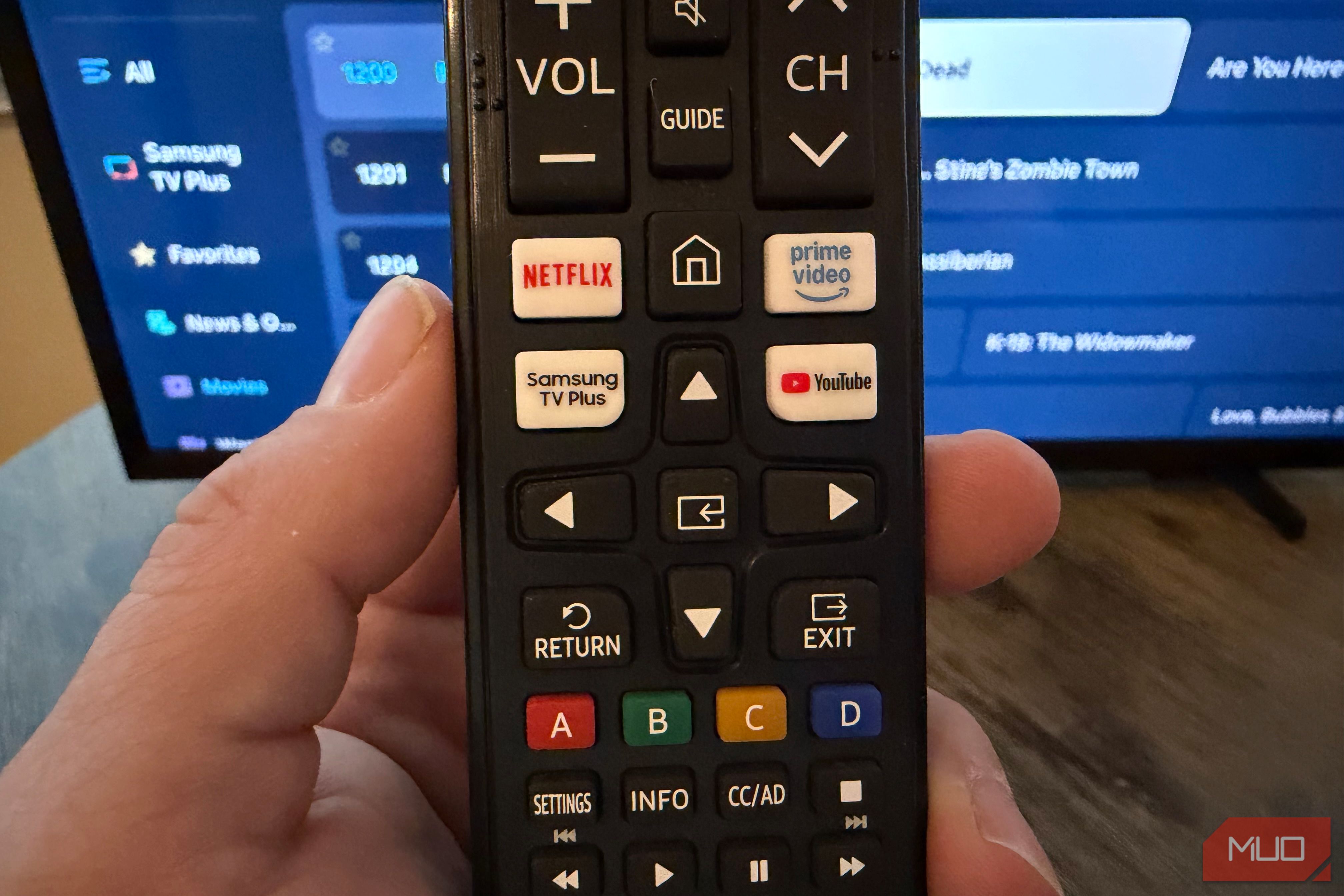
Take a look at your Samsung TV remote. Most remotes for compatible TVs will have a dedicated button labeled "Samsung TV Plus". It often features the Samsung TV Plus logo, which typically includes a small '+' symbol.
- Alternative: If your remote doesn't have a dedicated button, you can usually find the Samsung TV Plus app within your TV's Smart Hub interface, just like any other streaming application.
Step 2: Press the Button and Launch
Once you've found the button, simply press it. Your Samsung TV will launch directly into the Samsung TV Plus interface. This usually presents you with a guide-style layout, making it feel familiar if you've ever used cable or satellite TV.
Step 3: Explore the Channel Guide
Upon launching, you'll be greeted by an extensive channel guide. This interface is designed for easy navigation:
- Categories: On the left side of the screen, you'll see handy categories such as Comedy, Reality TV, News, Kids, and Movies. Select a category to narrow down your choices and discover content that aligns with your interests.
- Channel Numbers: The channels typically run from channel 1100 into the 4500s, indicating the sheer volume of options available.
Navigating and Personalizing Your Experience
With so much content, it's easy to feel a little overwhelmed. Here are some tips to help you manage and enjoy your Samsung TV Plus experience.
Tip: Favorite Your Go-To Channels
To bring some order to the extensive lineup, you can mark your favorite channels. This populates a dedicated "Favorites" sidebar, making it quicker to find what you want to watch.
- How to Favorite a Channel: While in the guide view, simply select the channel you wish to favorite. You'll then see a star icon appear in the upper left corner of the channel's listing, indicating it has been added to your favorites.
Tip: Dive into Diverse Categories
Don't be afraid to explore! The categories are there to help you discover new shows and movies. From 24/7 news to classic sitcoms, there's a wide array of genres to suit various moods and preferences.
What You'll Find on Samsung TV Plus
Samsung TV Plus offers a diverse range of content, covering many popular genres. While you won't find the very latest blockbusters or live sports, the quantity and variety are impressive for a free service.
- News and Information: Access 24/7 streaming news from reputable sources like ABC, NBC, BBC, FOX, and Bloomberg. You'll also find AccuWeather for weather updates.
- Sports News: Stay informed with channels like CBS Sports, FOX Sports, and NBC Sports NOW. It's important to note, however, that these are dedicated to sports news and analysis, not live sports broadcasts.
- Always-On Entertainment: Many channels are dedicated to specific shows, playing episodes on a continuous loop. This means you can tune into channels for popular series like Keeping Up with the Kardashians, This Old House, Property Brothers, and Law & Order virtually any time.
- Kids' Corner: If you have children, Samsung TV Plus might offer significant value. There are dedicated channels that play popular kids' shows like Peppa Pig, Blippi, and Moonbug programming around the clock, providing endless entertainment for younger viewers.
- Movie Marathon: The service includes an extensive slate of movie channels. While you might not find brand-new releases, there's a substantial collection of older cult classics and popular films, such as Don't Tell Mom the Babysitter's Dead, Contact, and Clear and Present Danger, ensuring movies are always playing.
Important Considerations: What Samsung TV Plus Doesn't Offer
While incredibly generous for a free service, Samsung TV Plus does have some limitations to be aware of:
- Ad-Supported Content: As mentioned, all content is ad-supported. You'll encounter advertisements approximately every 15–20 minutes, similar to traditional television broadcasts. There is currently no option to disable or bypass these ads.
- No Live Sports Broadcasts: While you can access sports news, Samsung TV Plus does not provide live coverage of sporting events.
- No Local Live News: You can stream national news feeds, but the service does not offer live local news broadcasts. For local news, you would typically need a traditional TV provider or an external antenna.
Troubleshooting and Performance Tips
While the content is free, the user experience can sometimes vary depending on your TV model.
- Experiencing Lag or Sluggishness? Some users, especially those with lower-end Samsung TVs, might notice that Samsung TV Plus can be a bit slower or less responsive when navigating the guide or switching between content. The performance tends to be better on higher-end Samsung TVs. If performance is a significant concern for you, and it detracts from your experience, you might find external streaming sticks (like a Roku stick) offer a smoother, faster interface for general streaming, though you'll still have Samsung TV Plus as a built-in option.
## FAQ
FAQ
Q: Is Samsung TV Plus completely free?
A: Yes, Samsung TV Plus is entirely free. There are no subscription fees, hidden costs, or login requirements. It is fully supported by advertisements.
Q: Can I turn off the advertisements?
A: No, there is no option to turn off or bypass the advertisements on Samsung TV Plus. Ads are an integral part of how the service remains free, appearing at regular intervals similar to traditional TV broadcasts.
Q: Do I need an account or subscription to use Samsung TV Plus?
A: Absolutely not. One of the best features of Samsung TV Plus is that it requires no logins, sign-ups, or setups of any kind. As long as you have a compatible Samsung TV and an internet connection, you can start watching immediately.
Ready to Explore?
If you own a Samsung TV from the past decade, you owe it to yourself to press that Samsung TV Plus button. While it has its quirks, the sheer quantity of free content, spanning news, movies, and dedicated channels for popular shows and kids' programming, makes it a valuable, overlooked feature. Dive in and discover a whole new world of entertainment without ever reaching for your wallet!
Related articles

GeekWire Week in Review: A Curated Dose of PNW Tech News
Verdict: Your Weekly Dose of Pacific Northwest Tech Insights GeekWire's "Week in Review" for October 25, 2026, serves as a highly efficient digest for anyone looking to stay abreast of the significant tech and startup
How to Pick the Best Firefox for Your Android: A Guide to All 5
Explore the five distinct versions of Firefox for Android to find the perfect browser for your privacy, extension needs, or everyday use.

DJI Romo P Review: Drone Navigation Hits Your Floors with Impressive
Quick Verdict The DJI Romo P, our Home Device of the Year for 2026, marks an astonishing debut for DJI in the robot vacuum market. Leveraging its unparalleled drone-navigation technology, the Romo P offers class-leading

November 2026 Skywatching Guide: Your Stellar Companion for Autumn
The "November 2026 Skywatching Guide: Meteors, Planets, Stars and a Full Moon" from CNET positions itself as an essential companion for celestial enthusiasts. This comprehensive guide delivers a detailed roadmap to the
Securely Empower Your Smart Home: Integrating Claude Code with Home
Learn to integrate Claude Code with Home Assistant to automate and manage your smart home devices, focusing on secure practices for token usage and deployment.

Sam Altman Meets Samsung Presidents After DRAM Efficiency Remarks
OpenAI CEO Sam Altman met with 50 Samsung executives in South Korea to discuss AI's future, just days after criticizing inefficient DRAM use in personal computers. This high-level summit underscores the critical role of memory chips in AI development and the intensifying global supply shortage. The meeting reinforces Samsung's existing partnership with OpenAI, which includes supplying memory for the Stargate project and deploying AI tools internally.