
How to Revive Your Old PC with Haiku OS - A Step-by-Step Guide
Learn to install Haiku OS, the open-source BeOS successor, on your old PC to give it a new lease on life. This guide covers prerequisites, step-by-step installation, troubleshooting, and tips for reviving vintage hardware.
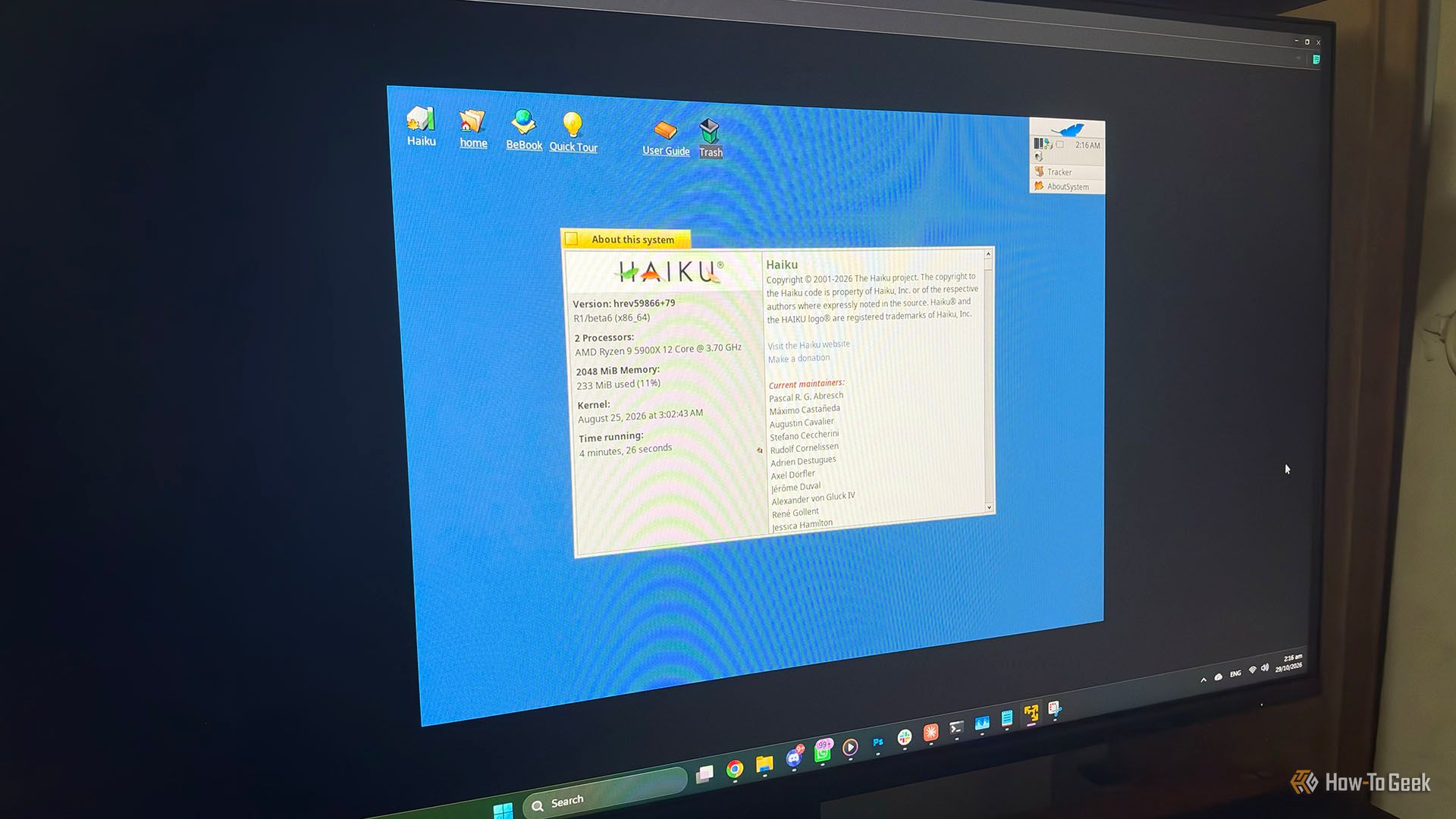
Lightweight Linux often revives old PCs, but diminishing support for ancient hardware and 32-bit systems creates challenges. This guide introduces Haiku OS, an open-source successor to the responsive 1990s BeOS. Designed for efficiency and cohesiveness, Haiku can breathe new life into forgotten machines. We'll detail how to install Haiku OS on your vintage computer, from download to its unique desktop.
What You'll Accomplish
You will learn to prepare, install, and begin using Haiku OS on an older personal computer. This guide helps you transform a dusty machine into a functional, responsive system capable of basic web browsing and applications, proving how a unique OS can give vintage PCs a vibrant second life.
Before You Begin: Prerequisites
Gather these items:
- Old PC: Pentium II minimum (256 MB RAM; 128 MB for graphical boot). 1-2 GB RAM advised for web browsing. Requires USB port or CD/DVD drive.
- USB Drive: A 4GB+ for the bootable installer.
- Haiku OS R1/beta6 Image: Download from official Haiku website (32-bit for older CPUs/BeOS apps, 64-bit recommended otherwise).
- Image Writing Tool: Software like Rufus or BalenaEtcher.
- Internet Connection: For OS download and software installation (wired Ethernet initially recommended).
- Backup Data: Haiku is beta software; back up critical files before installation to prevent data loss.
- Basic Computer Knowledge: Familiarity with BIOS/UEFI boot order settings is beneficial.
Getting Started with Haiku OS: A Step-by-Step Guide
Step 1: Download the Haiku OS Image
Visit the official Haiku OS website. Download the R1/beta6 .iso file. Choose 64-bit for compatible processors, or 32-bit for older CPUs or BeOS application needs.
Step 2: Create a Bootable USB Drive
- Insert USB drive into your current computer.
- Open image writing tool (e.g., BalenaEtcher).
- Select the Haiku OS
.isofile. - Choose your USB drive. Confirm correct drive selection to prevent data loss.
- Start flash process; wait for completion. Safely eject the USB drive.
Step 3: Prepare Your Old PC
- Backup Data: Secure any important files on your old PC.
- Access BIOS/UEFI: Restart, pressing
Del,F2, orF10to enter setup. - Adjust Boot Order: Set PC to boot from USB first. Save and exit.
Step 4: Boot into Haiku Live Mode
- Insert the USB drive, then restart your old PC.
- PC should boot from USB to the Haiku boot screen, then the live desktop.
- Explore and Test: Navigate interface, open apps, verify basic hardware (display, keyboard, mouse, wired Ethernet). Crucial for checking Wi-Fi.
Step 5: Install Haiku OS (Optional)
If live mode is satisfactory:
- Launch Installer: Double-click "Installer" on the Haiku desktop.
- Follow Prompts: Select target disk/partition. Haiku uses BFS; installer can create a new BFS partition. Be cautious if other OSes are present.
- Begin Installation: Start copying files (typically fast).
- Reboot: Remove USB, reboot. PC should now boot into Haiku OS.
Step 6: Explore Your Revived PC
- HaikuDepot: Use Haiku's app store to install software (e.g., LibreOffice, Firefox). 1-2 GB RAM best for browsing.
- System Preferences: Customize settings and the unique Deskbar.
- Hardware Check: Monitor Wi-Fi, sound, other peripherals. Community forums offer driver assistance.
Troubleshooting Common Issues
- No Wi-Fi: Haiku's Wi-Fi support (FreeBSD drivers) may vary. Use wired Ethernet or a compatible USB Wi-Fi adapter.
- Slow Performance: Modern browsers on minimal RAM (under 1GB) will be slow. Consider RAM upgrade. 3D graphics are software-rendered.
- Boot Issues: Verify BIOS/UEFI boot order. Re-running installer's boot loader might help.
- Missing Drivers: Check Haiku community resources.
Tips for a Smooth Experience
- Always Test Live: Confirm essential hardware in live mode before installation.
- Realistic Expectations: Haiku is beta software, good for revival, but not a daily driver for critical tasks.
- Embrace Uniqueness: Haiku's design, multithreading, and BFS file system make it responsive.
- Prioritize Wired: Use wired Ethernet initially for stable network/software access.
FAQ
Q: Is Haiku OS truly better than lightweight Linux for old PCs?
A: For genuinely old hardware, especially 32-bit systems, Haiku OS often provides a more consistent, responsive, and complete desktop. Its cohesive, from-scratch design (kernel, interface, core apps developed together) leads to efficient resource use. Haiku also actively maintains 32-bit support, unlike many major Linux distros.
Q: Can I run modern web browsers on Haiku OS?
A: Yes, Haiku R1/beta6 supports modern browsers like Firefox. However, usable performance largely depends on your PC's RAM; 1 GB to 2 GB is recommended for comfortable browsing.
Q: What kind of applications are available for Haiku OS?
A: HaikuDepot, Haiku's app store, offers a growing catalog of ported software. This includes productivity suites (e.g., LibreOffice), media players, development tools, and utilities. While not as extensive as Linux or Windows, it provides essential tools for tasks like writing, light browsing, and media consumption.
Next Steps & Further Exploration
With Haiku OS on your ancient PC, new potential awaits. Join the Haiku community forums for support and tips. Experiment with hardware or explore Haiku's unique development environment, leveraging its BeOS heritage. Enjoy your revived retro computer!
Related articles

CNET's Strands Guide: Instant Answers, Mixed Blessings
CNET's Strands Guide: Instant Answers, Mixed Blessings Quick Verdict: CNET's guide for NYT Strands puzzle #974 on Monday, November 2, 2026, serves as a direct and efficient solution for players seeking immediate answers
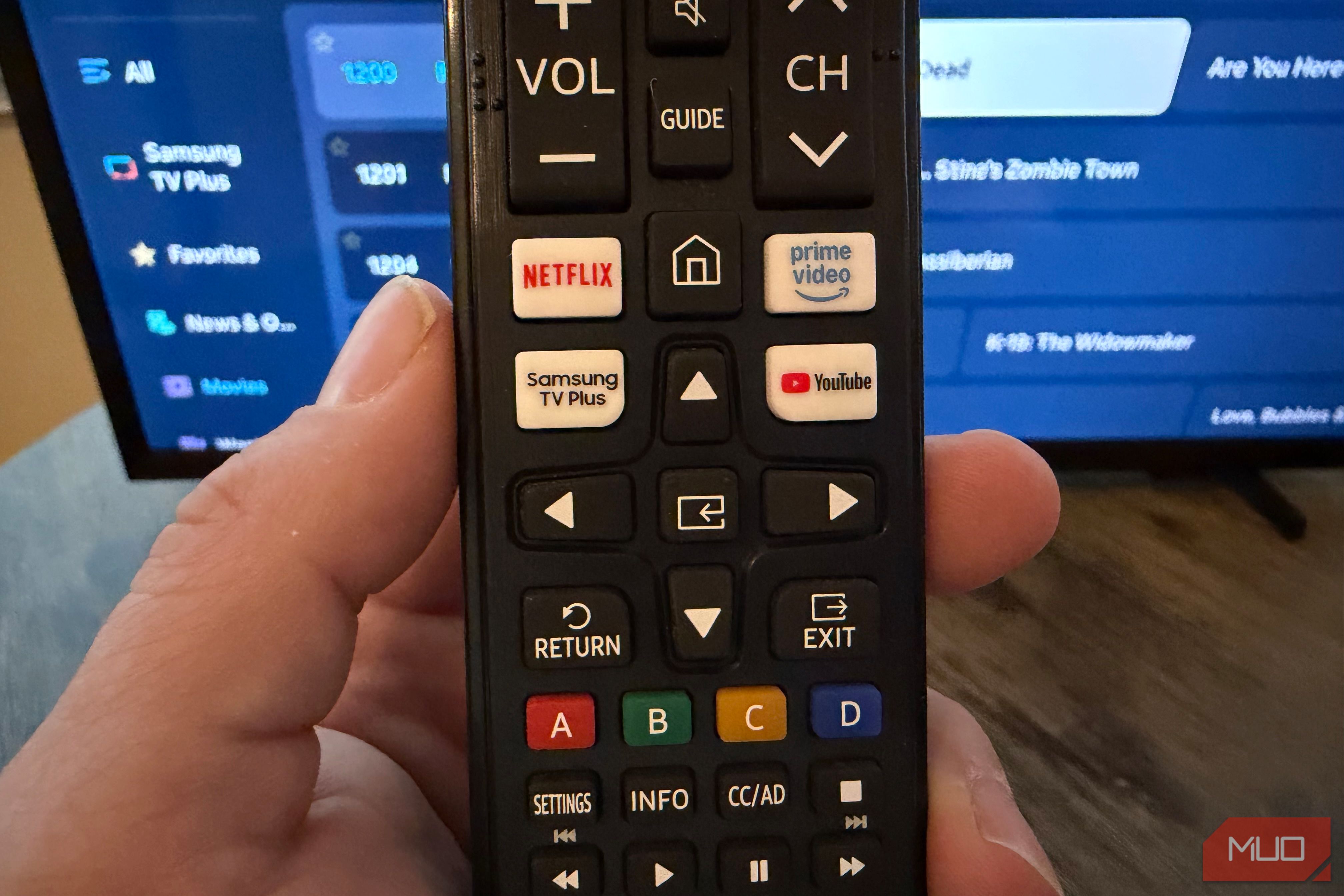
Unlock 650+ Free Channels on Your Samsung TV with One Button
Learn to instantly access over 650 free, ad-supported channels and movies on your Samsung TV with a single button press, requiring no logins or subscriptions.

GeekWire Week in Review: A Curated Dose of PNW Tech News
Verdict: Your Weekly Dose of Pacific Northwest Tech Insights GeekWire's "Week in Review" for October 25, 2026, serves as a highly efficient digest for anyone looking to stay abreast of the significant tech and startup
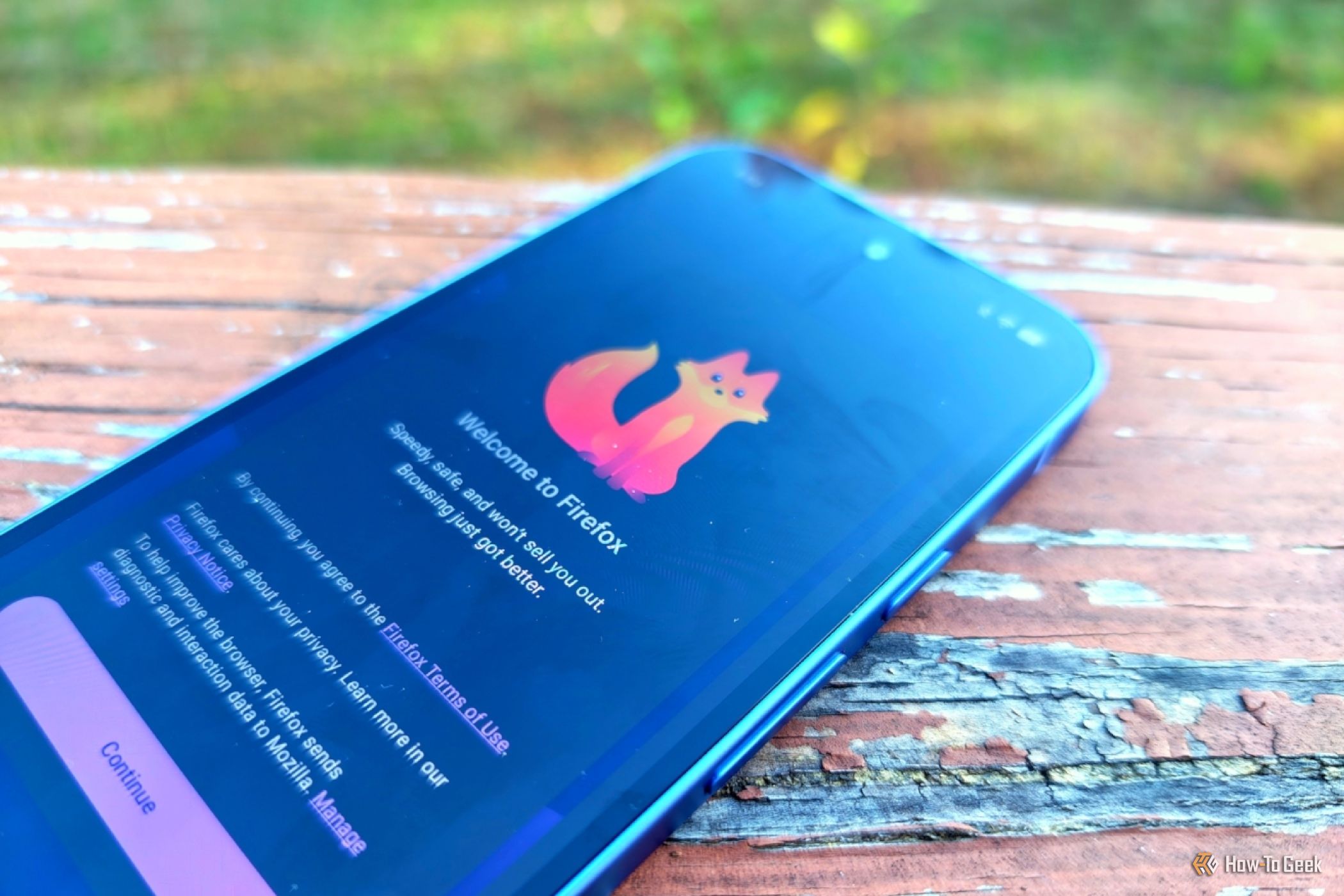
How to Pick the Best Firefox for Your Android: A Guide to All 5
Explore the five distinct versions of Firefox for Android to find the perfect browser for your privacy, extension needs, or everyday use.
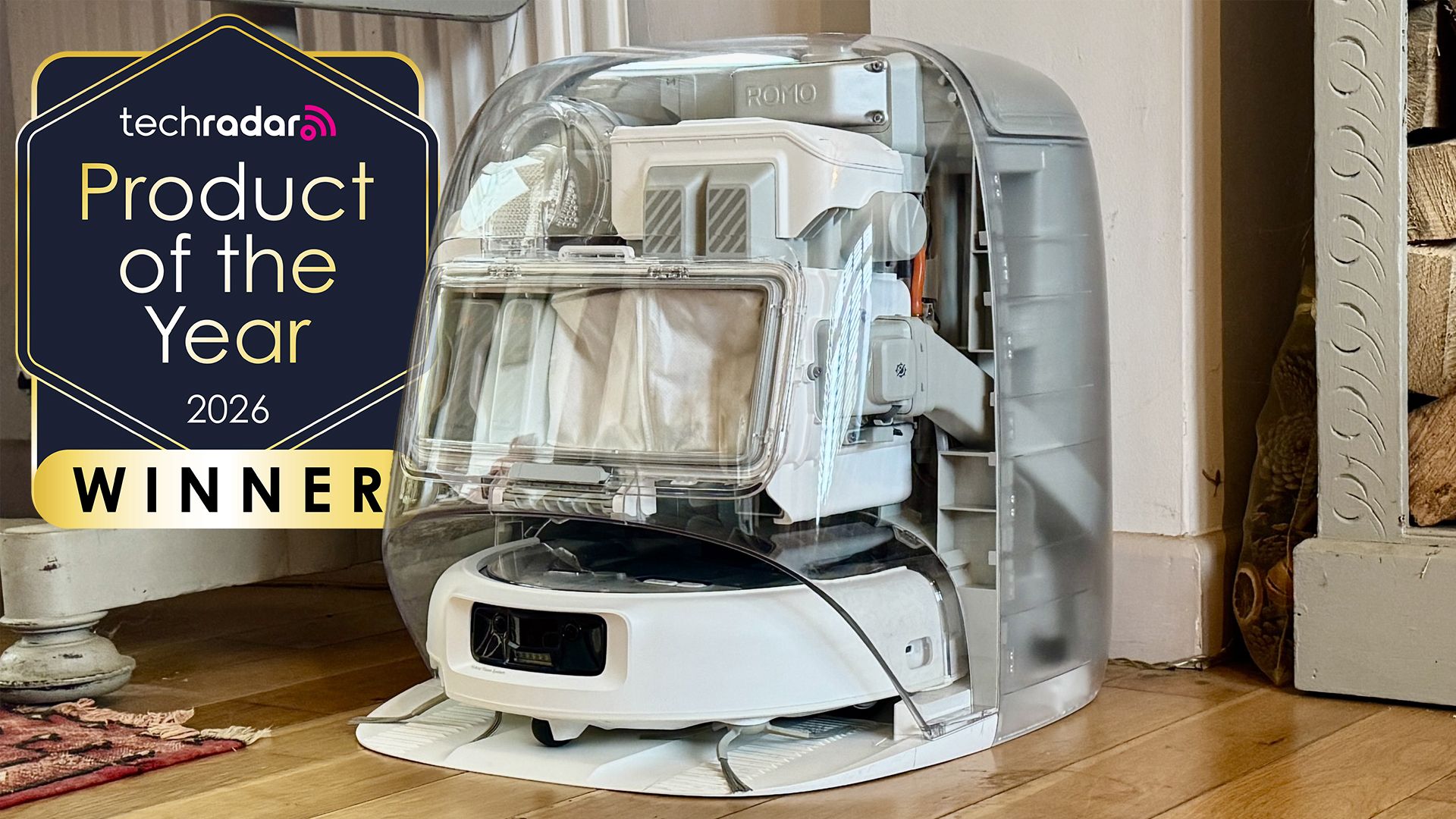
DJI Romo P Review: Drone Navigation Hits Your Floors with Impressive
Quick Verdict The DJI Romo P, our Home Device of the Year for 2026, marks an astonishing debut for DJI in the robot vacuum market. Leveraging its unparalleled drone-navigation technology, the Romo P offers class-leading

November 2026 Skywatching Guide: Your Stellar Companion for Autumn
The "November 2026 Skywatching Guide: Meteors, Planets, Stars and a Full Moon" from CNET positions itself as an essential companion for celestial enthusiasts. This comprehensive guide delivers a detailed roadmap to the