
Verify Your Laptop's USB Port Speed - Avoid Slow Transfers
Modern laptops can be a minefield of USB ports. They might all look the same, especially the sleek USB-C connectors, but their actual data transfer speeds can vary wildly. You might have a blazing-fast port right next
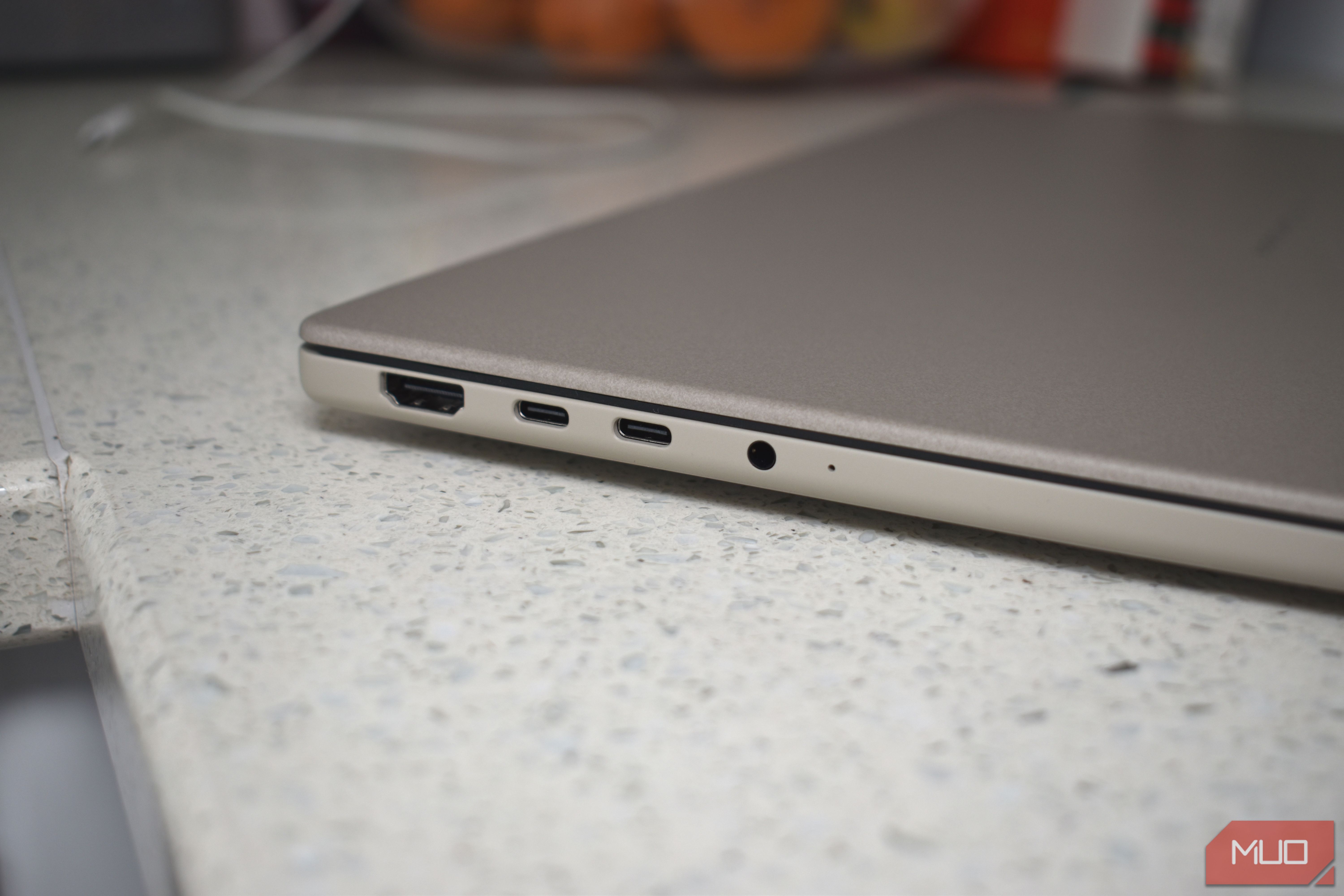
Modern laptops can be a minefield of USB ports. They might all look the same, especially the sleek USB-C connectors, but their actual data transfer speeds can vary wildly. You might have a blazing-fast port right next to one that's ten times slower, leading to frustratingly long file transfers or underperforming external devices.
This guide will walk you through the simple steps to identify the true capabilities of your laptop's USB ports and cables. By the end, you'll know exactly which ports to use for high-speed tasks and how to ensure your cables aren't holding you back, saving you time and headaches.
Why Your USB Port Might Be Slower Than You Think
USB technology has become incredibly complex. What started as a simple plug-and-play standard has evolved into a confusing array of versions (USB 3.0, USB 3.1 Gen 1, USB 3.2 Gen 2, USB4, Thunderbolt) that often share the same physical connector, particularly USB-C. This means a USB-C port could offer basic USB 2.0 speeds (480Mbps) or cutting-edge Thunderbolt 5 performance (up to 80Gbps). The difference in real-world file transfer speed can be monumental—from roughly 40MB/s on a slow port to over 3,000MB/s on a fast one with the right storage device.
Manufacturers often don't clearly label these differences, making it a guessing game. Even if your laptop boasts a high-speed standard, not all its ports might support it. Understanding which port is which is crucial for optimal performance.
Prerequisites
Before you begin, gather these items:
- Your laptop or desktop computer.
- Internet access to check manufacturer specifications.
- (Optional but recommended) A known fast external storage device (like an external SSD) and a high-speed USB cable (e.g., one rated for 10Gbps or higher) for real-world testing.
- (Optional) A marker or labels for marking your cables and ports.
Step-by-Step: How to Verify Your USB Port Speeds
Follow these steps to uncover the actual speeds of your USB ports:
Step 1: Consult Your Device's Specifications
Your first and most reliable source of information is your device's manufacturer specifications. This is usually the clearest way to understand which port offers what speed.
- Find your device's model number: This is typically on a sticker on the bottom of your laptop or within your operating system's system information.
- Go to the manufacturer's website: Search for your device's model number on the support or specifications page.
- Locate the USB port details: Look for a section detailing the type and speed of each USB port. Many laptop and motherboard manufacturers even provide a schematic that visually identifies each port's capabilities.
Tip: If the official site is unclear, a quick internet search for "[your device name] USB port specs" can often yield helpful results from reputable tech review sites.
Step 2: Check Your Operating System
If the spec sheet isn't clear or you want to cross-reference, your operating system can provide insights into the active USB controllers.
On Windows:
- Open Device Manager: Press
Win + Xand selectDevice Managerfrom the menu. - Expand "Universal Serial Bus controllers": Scroll down and click the arrow next to this category.
- Identify controllers: Look for entries that specifically mention "USB 2.0." This indicates a controller limited to slower speeds. While Device Manager can show the physical location, it's often presented in a technical format (e.g., "PCI bus 47") that doesn't easily map to a physical port. This step primarily helps confirm if you have any dedicated USB 2.0 ports.
On macOS:
- Access System Report: Click the Apple icon in the top-left corner, then select
About this Mac>More Info>General>System Report. - Navigate to USB: In the
Hardwaresection of the System Report, selectUSB. - Review port details: This section provides detailed labeling for each USB port on your Mac, often making it clear which ports support higher speeds. You may also receive a notification if you plug a faster device into a slower port, which is helpful given the lack of physical labels on some MacBooks.
On Linux:
- Open a terminal: You can usually find this in your applications menu.
- Run
lsusb -t: Typelsusb -tand press Enter. This command displays a tree-like list of your USB controllers and connected devices, including their reported speeds in Mbps. - Check speeds: Look for
480M(indicating USB 2.0) versus5000Mor higher (indicating USB 3.x or newer). - For detailed information: First, run
lsusbalone to get theBusandDeviceIDs for a specific port or device. Then, runlsusb -v -s [bus]:[device](replacing[bus]and[device]with the actual IDs). Look for thebcdUSBvalue, where2.00means USB 2.0,3.20means USB 3.2, and so on.
Step 3: Don't Forget the Cable
A fast port is useless with a slow cable. Many USB-C cables, despite looking identical, support vastly different speeds—from USB 2.0 to Thunderbolt 5. Some bundled cables are even "charge-only," meaning they lack the internal wiring for data transfer altogether.
Here’s how to check your cables:
- Look for USB-IF certification markings: Cables rated for
SuperSpeed(5 Gbps) orSuperSpeed+(10 Gbps) should carry the corresponding logos. - Check packaging or product listings: The rated speed should be clearly stated. If it only says "USB-C to USB-C" with no speed, assume it's USB 2.0.
- Thunderbolt cables: These should prominently feature the distinctive lightning bolt icon.
- Consider length: Longer USB cables (over about one meter) need to be "active" to maintain signal integrity, which means they contain internal signal boosters.
- Test with a known good cable: If your transfer speeds are unexpectedly low, always try another certified, high-speed cable before concluding the port is the problem.
Step 4: Perform a Real-World Speed Test
The most definitive way to verify is to perform an actual data transfer. Plug a fast external storage device (like an external SSD) into each port and transfer a large file. Use a benchmark tool or simply time a large file copy to see the difference in speeds. This "blunt action check" will show you the real-world performance of each port.
Best Practices & Tips
- Label everything: Once you've identified your fast ports and cables, use a small dot of colored marker or a label to mark them. This is especially useful in households where cables get mixed up.
- Test consistently: If you rely on fast transfers, make it a habit to test new cables or ports when in doubt.
Next Steps
Now that you know which USB ports are truly fast, make it a habit to use them for demanding tasks like external SSDs, high-resolution monitors (if supported), and fast charging. Reserve slower ports for peripherals like keyboards, mice, or basic USB sticks. If your laptop lacks sufficient fast ports, consider a high-quality, powered USB hub that supports the speeds you need.
FAQ
Q: Why does my USB-C port feel slow even with a fast cable? A: Not all USB-C ports are created equal. While the connector is physically the same, the underlying technology can vary from slow USB 2.0 to fast Thunderbolt or USB4. Always check your device's specifications to understand the port's actual capabilities, as a fast cable can only perform as well as the slowest component in the chain.
Q: How can I tell if my USB cable is charge-only?
A: Charge-only cables typically come bundled with devices that primarily need power, like some power banks or inexpensive accessories. They often lack any speed rating on the packaging. If a cable doesn't explicitly state a data transfer speed (e.g., "5Gbps" or "10Gbps") or have USB-IF certification logos (like SuperSpeed), it's safer to assume it might be charge-only or limited to USB 2.0 speeds for data.
Q: What's the difference between theoretical and real-world USB speeds? A: Theoretical speeds (like 5Gbps or 10Gbps) are the maximum possible under ideal lab conditions. Real-world speeds are always lower due to factors like controller overhead, the limitations of your storage device (e.g., the actual speed of your SSD), thermal throttling, and the quality of your cable. It's common for actual transfer rates to be 10-20% lower than theoretical maximums, or even more for older or lower-quality hardware.
Related articles

Ditch Merge & Center: The Better Way to Align Text in Excel
Learn to use Excel's "Center Across Selection" to align text across cells without merging, avoiding common data manipulation issues. This guide provides steps to utilize this newly accessible feature and add it to your Quick Access Toolbar.

Ars Technica's Rocket Report: Your Essential Space Industry Briefing
Quick Verdict Ars Technica's Rocket Report, presented by veteran space reporter Stephen Clark, offers an invaluable and meticulously organized weekly (or similar frequency, implied by "Edition 9.15") digest of the most

Tesla Unveils Thruster-Equipped Roadster, 2028 Production Targeted
Tesla has unveiled its second-generation Roadster, featuring cold-gas thrusters co-developed with SpaceX, enabling it to jump and flip. The electric sports car demonstrated 0-60mph in an astonishing 0.81 seconds, with production targeted for 2028. This highly anticipated reveal also serves as a key recruitment tool for Tesla's ambitious AI and robotics initiatives.

AI's Confidence vs. Formal Methods' Rigor: Design Flaws & Verification
While AI accelerates code generation, formal methods remain critical for ensuring system correctness. Languages like TLA+ and tools like Quint enable developers to model and verify system designs before coding, catching subtle flaws. Quint makes formal methods more accessible with developer-friendly syntax and executability. This approach is vital for verifying AI-generated code through trace validation and model-based testing, ensuring reliability against real-world data.
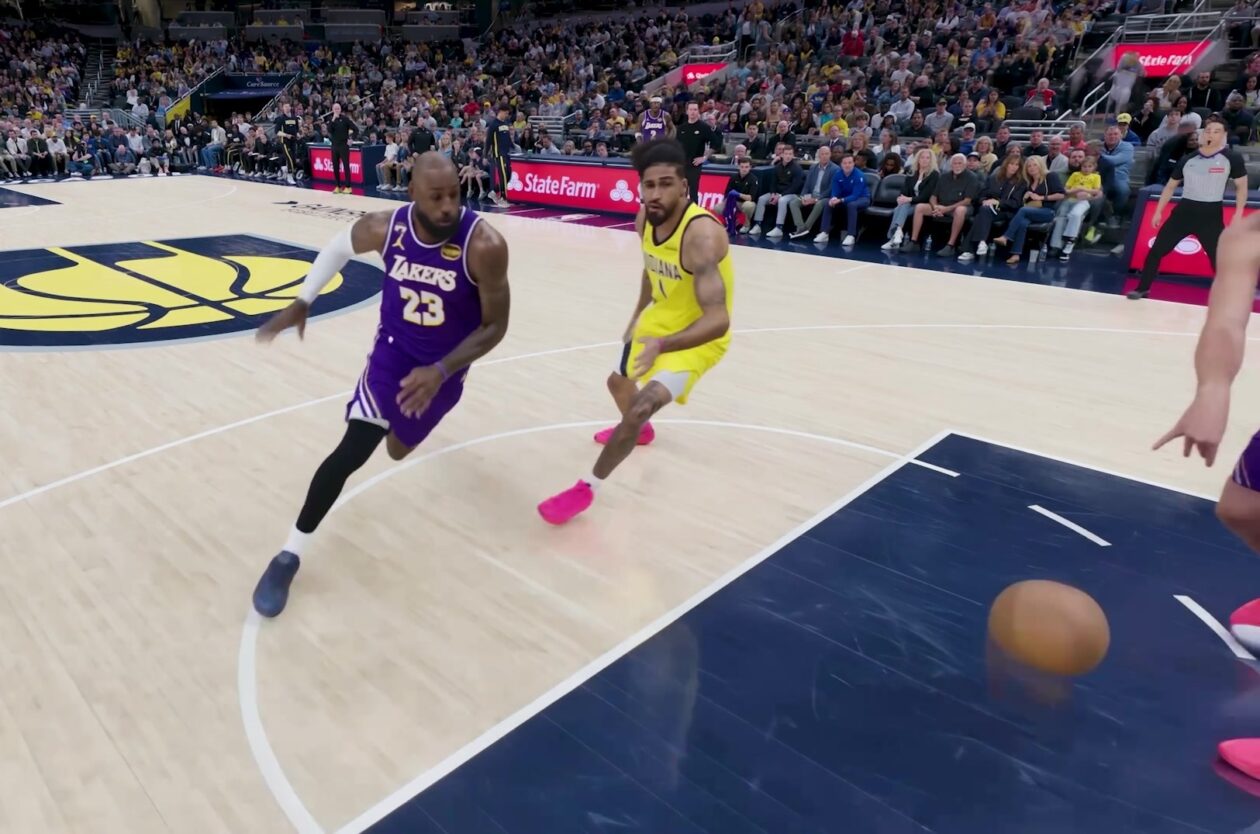
Amazon Prime Video Launches AI-Powered Prime 360 for NBA Coverage
Amazon Prime Video is elevating its NBA coverage with the introduction of Prime 360, an AI-powered replay system offering immersive, 'fly through' views of the action. Kicking off its second season, Prime Video also adds Yahoo fantasy integration and gains exclusive Eastern Conference Finals rights, expanding its tech-driven sports broadcast. The new features aim to deliver a unique and interactive viewing experience for basketball fans.

Stop Android Auto Battery Drain: Essential Features to Disable and
Android Auto offers unparalleled convenience, bringing your phone's most useful features directly to your car's display. From navigation and calls to messages and music, it keeps you connected without distracting you