
Turn Your Mac Mini into a Powerful Streaming & Media Hub
So, you're looking for a top-tier media streaming and local playback solution for your living room, and you're an Apple enthusiast? While the Apple TV 4K is a popular choice, Apple's oft-overlooked Mac mini might
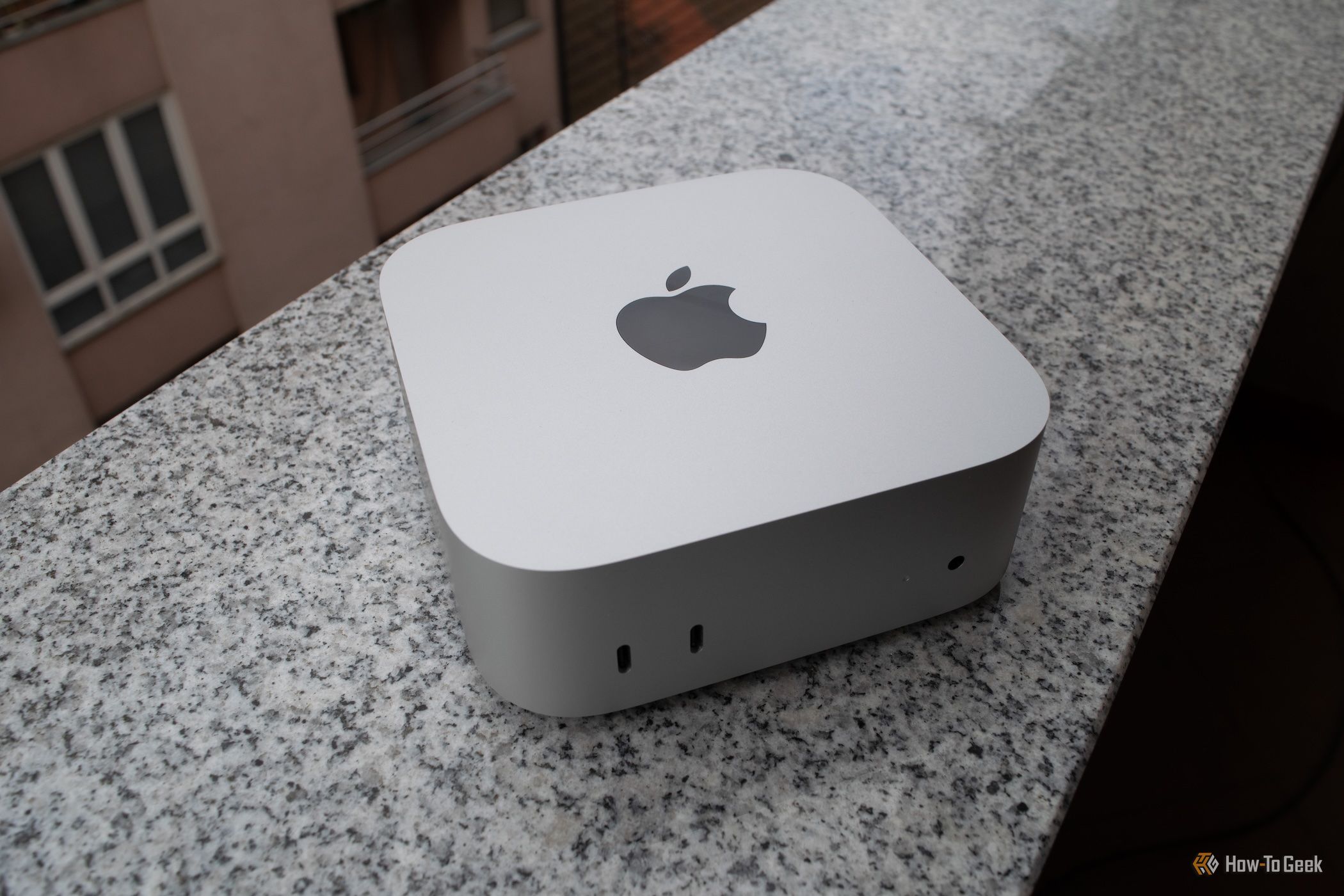
So, you're looking for a top-tier media streaming and local playback solution for your living room, and you're an Apple enthusiast? While the Apple TV 4K is a popular choice, Apple's oft-overlooked Mac mini might surprise you as a far more versatile and capable contender. This guide will walk you through transforming an old or new Mac mini into the ultimate home theater PC, offering unparalleled flexibility beyond simple streaming.
What You'll Accomplish
By following these steps, you'll convert your Mac mini into a powerful, multi-functional media center. You'll gain access to a broader range of streaming services, robust local media playback options, and even unlock server capabilities and gaming potential that the Apple TV 4K simply can't match. You'll have a device that not only streams your favorite content but can also serve as a central hub for your entire digital life.
Prerequisites
Before you dive in, gather these essentials:
- Mac mini: Any model, though M1, M2, or M4 Apple silicon models offer excellent performance for the price. Older Intel models can also work.
- Television or Display: Your primary viewing screen.
- HDMI Cable: To connect your Mac mini to your TV.
- Keyboard and Mouse/Trackpad: Essential for controlling your Mac mini. A wireless option is highly recommended for sofa-friendly use.
- Internet Connection: For streaming services and app downloads.
- Optional: External storage, network-attached storage (NAS), or a game controller for enhanced media and gaming.
Step-by-Step Guide to Setting Up Your Mac Mini Media Center
1. Prepare Your Mac Mini and Connect to Your TV
First, let's get your Mac mini physically set up.
- Acquire Your Mac Mini: If you don't already own one, consider a used M1 Mac mini. They can be found at very competitive prices, often around $160, offering significantly more power and storage than a high-end Apple TV 4K. Newer M4 models offer a redesigned look and even more power.
- Connect to Your Television: Use an HDMI cable to connect the Mac mini's HDMI port to an available HDMI input on your TV. The Mac mini supports 4K resolution on Apple silicon models.
- Connect Input Devices: For comfortable use from your couch, a wireless keyboard with an integrated trackpad is ideal. The Logitech K400 is a popular and practical choice. Alternatively, a smaller "keyboard mouse" device (ensure it connects via Bluetooth) or even a mobile app like Remote Mouse can work, though dedicated hardware is generally more reliable.
- Power On and Initial Setup: Power on your Mac mini and complete the initial macOS setup if it's a new device or a fresh installation. Ensure it's connected to your home Wi-Fi or Ethernet network.
2. Install Essential Streaming and Media Playback Apps
Now, let's get the software installed to turn your Mac mini into a streaming powerhouse.
- Web Browsers for Niche Content: Unlike the restrictive tvOS, macOS allows you to use any web browser (Safari, Chrome, Firefox) to access streaming services. This is invaluable for niche platforms, local TV channels, or massive archives like the Internet Archive that might not have dedicated Apple TV apps.
- Robust Local Media Players: For playing files directly from connected storage or your network, install powerful and free media players like IINA and VLC. These apps support a vast array of video and audio formats, far beyond what typical Apple TV apps offer.
- Advanced Streaming Clients (Stremio & Kodi): These open up a world of possibilities not available on Apple TV:
- Stremio: A streaming client that aggregates content from various sources, often with a rich ecosystem of add-ons.
- Kodi: An incredibly polished local media center front-end with an exhaustive library of plugins, perfect for organizing and playing your own digital collection. Kodi can also function as a UPnP server.
- Install these applications just as you would any other Mac app.
3. Optimize for Local and Networked Media Playback
One of the Mac mini's strongest suits is its ability to handle your entire media collection.
- Mount Networked Locations: Easily connect to and play media from network shares (like a NAS) directly within macOS, centralizing your digital collection. Applications like IINA and VLC make this seamless.
- Connect External Storage: Plug in USB hard drives or SSDs directly to your Mac mini to expand your local storage for media files.
- Set Up a Media Server (Optional but Recommended): Transform your Mac mini into a server to stream media to other devices in your home:
- Jellyfin or Plex: Install either of these powerful media server solutions. Connect your storage directly to the Mac mini, and Jellyfin or Plex will organize your media, fetch metadata, and stream it beautifully to any compatible client device in your home or even remotely. The Mac mini has plenty of overhead to handle this, even older Intel models.
4. Unlock Advanced Server and Gaming Functionality
The Mac mini is a full computer, meaning it can do so much more than just media.
- Home Server: Utilize its always-on nature to serve files, run a small web server for static pages, or even host a smart home project like Home Assistant.
- Time Machine Backup Hub: Configure your Mac mini to act as a Time Machine backup destination for other Apple computers on your network, providing a centralized and reliable backup solution.
- Remote Management: Access and control your Mac mini from another computer using Apple's built-in VNC server (enable it in System Settings > Sharing > Remote Management) or install a third-party app like AnyDesk. This is particularly useful if you want to perform maintenance without needing the keyboard and mouse attached to your TV.
- Gaming Powerhouse: For gamers, the Mac mini has significant potential:
- Native Mac Games: Install Steam and play a wide array of native Mac games, including titles from Apple Arcade.
- Emulation: The Mac mini's power (especially Apple silicon models) makes it excellent for emulating older consoles. You can upscale classic PS2 and Xbox games, and manage your retro game collection far more efficiently with a proper file manager compared to an Apple TV.
Troubleshooting and Best Practices
While the Mac mini offers immense flexibility, there are a couple of specific considerations to keep in mind:
- Dolby Vision and Dolby Atmos Limitations: Be aware that the Mac mini's HDMI port does not support Dolby Vision or Dolby Atmos. You'll be limited to 5.1 Dolby Surround and HDR10 (even on newer HDMI 2.1 ports). If these premium audio/video formats are critical to your setup, this is a significant drawback compared to the Apple TV 4K.
- HDR/SDR Switching: Because macOS is a desktop operating system, it outputs a single display mode. This means you'll either be in HDR or SDR mode continuously. HDR content looks washed out in SDR, and SDR content can appear oversaturated in HDR. To manage this, you'll likely need a workaround. A useful solution involves a Shortcuts workflow that runs a bash script to toggle between HDR and SDR modes, which you can trigger via the menu bar or a keyboard shortcut. It takes some getting used to, but it's effective.
- Dedicated Input Device: For the best experience, invest in a comfortable, integrated keyboard and trackpad combo like the Logitech K400, specifically designed for living room use. It makes navigating macOS from a distance much more pleasant.
- Keep it Quiet: Mac minis are generally very quiet, but ensure good airflow around the device if you're using it as an always-on server, especially if it's an older Intel model.
Conclusion and Next Steps
For those who appreciate tinkering, desire a wider range of apps like Kodi and Stremio, and need more versatility than an Apple TV can offer, the Mac mini is an elegant and powerful solution. Its sleek design complements any entertainment unit, and with used models readily available for a bargain, it offers incredible value. While the lack of Dolby Vision/Atmos and the need for manual HDR/SDR switching are compromises, the sheer flexibility and additional functionalities far outweigh these drawbacks for many users.
If you're someone who uses macOS daily and is comfortable with a keyboard and mouse interface on your TV, the Mac mini is undoubtedly Apple's best streaming and local media playback device. Start scouring online marketplaces like Facebook Marketplace and eBay for a great deal on an M1 or even an M4 Mac mini, and unlock the full potential of your home entertainment system.
FAQ
Q: Can a Mac mini replace my existing media server like a NAS?
A: Potentially, yes! With powerful software like Jellyfin or Plex installed, and external storage connected, a Mac mini can serve media throughout your house just like a dedicated NAS. It offers robust performance and great software integration, especially if you're already using it for local playback.
Q: Do I need a powerful, brand-new Mac mini for streaming 4K content?
A: Not necessarily. Even an older Apple silicon model, like an M1 Mac mini, is incredibly capable. It can effortlessly handle web streams and large 4K HDR video files (even over 100GB). While newer models offer more power, an M1 provides excellent performance for media playback and light server tasks at a bargain price.
Q: What if I'm happy with the Apple TV's app selection and simplicity?
A: If you're content with the apps available on tvOS, prefer a simple remote, and don't require the extra computer functionalities or server capabilities, then the Apple TV 4K remains an excellent choice for its ease of use. You can still enhance its media playback with apps like Infuse for broader file support and advanced features, though it comes with a subscription cost.
Related articles

DJI Solo Video Setups: Smart Choices for Lone Creators
This review delves into DJI's recommended solo video setups, highlighting the Osmo Pocket 3 Creator Combo as a top pick for its integrated camera, gimbal, and mic. It also covers stabilizers like the Osmo Mobile 8 and RS 4, and the DJI Mic Mini series for enhanced audio, providing honest pros, cons, and clear buying advice.

in-depth: Chicago-Area Cops Helped HSI Spy on Minnesota Anti-ICE
Chicago-area law enforcement, including local police and HSI agents, conducted undercover surveillance on Minnesota anti-ICE activists at an April 2, 2022, talk in Chicago. This operation was part of a federal conspiracy probe into 15 Minnesota activists facing felony charges related to immigration enforcement resistance. Civil liberties advocates have condemned the surveillance as a troubling intrusion into protected political activity.

Ditch Merge & Center: The Better Way to Align Text in Excel
Learn to use Excel's "Center Across Selection" to align text across cells without merging, avoiding common data manipulation issues. This guide provides steps to utilize this newly accessible feature and add it to your Quick Access Toolbar.

Ars Technica's Rocket Report: Your Essential Space Industry Briefing
Quick Verdict Ars Technica's Rocket Report, presented by veteran space reporter Stephen Clark, offers an invaluable and meticulously organized weekly (or similar frequency, implied by "Edition 9.15") digest of the most
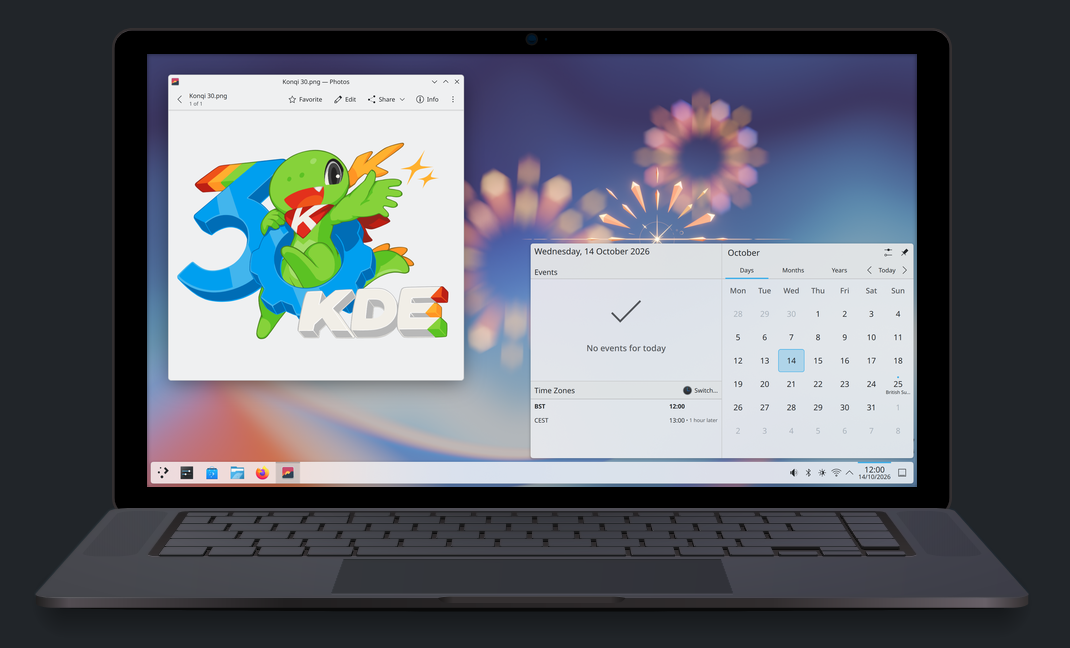
KDE Plasma 6.8: A Future-Focused 30th Anniversary Update
Quick Verdict KDE Plasma 6.8, arriving as the "30th Anniversary Edition," is a pivotal release that decisively pushes the desktop environment into the future. With a definitive farewell to native X11 sessions and a

Stop Android Auto Battery Drain: Essential Features to Disable and
Android Auto offers unparalleled convenience, bringing your phone's most useful features directly to your car's display. From navigation and calls to messages and music, it keeps you connected without distracting you