
Solve Annoying PDF Problems Locally in Your Browser with BentoPDF
Dealing with PDFs can often feel like a never-ending series of small, annoying tasks. You might need to combine several documents, reduce the size of a bulky file, or even make an image-only scan searchable. Typically,
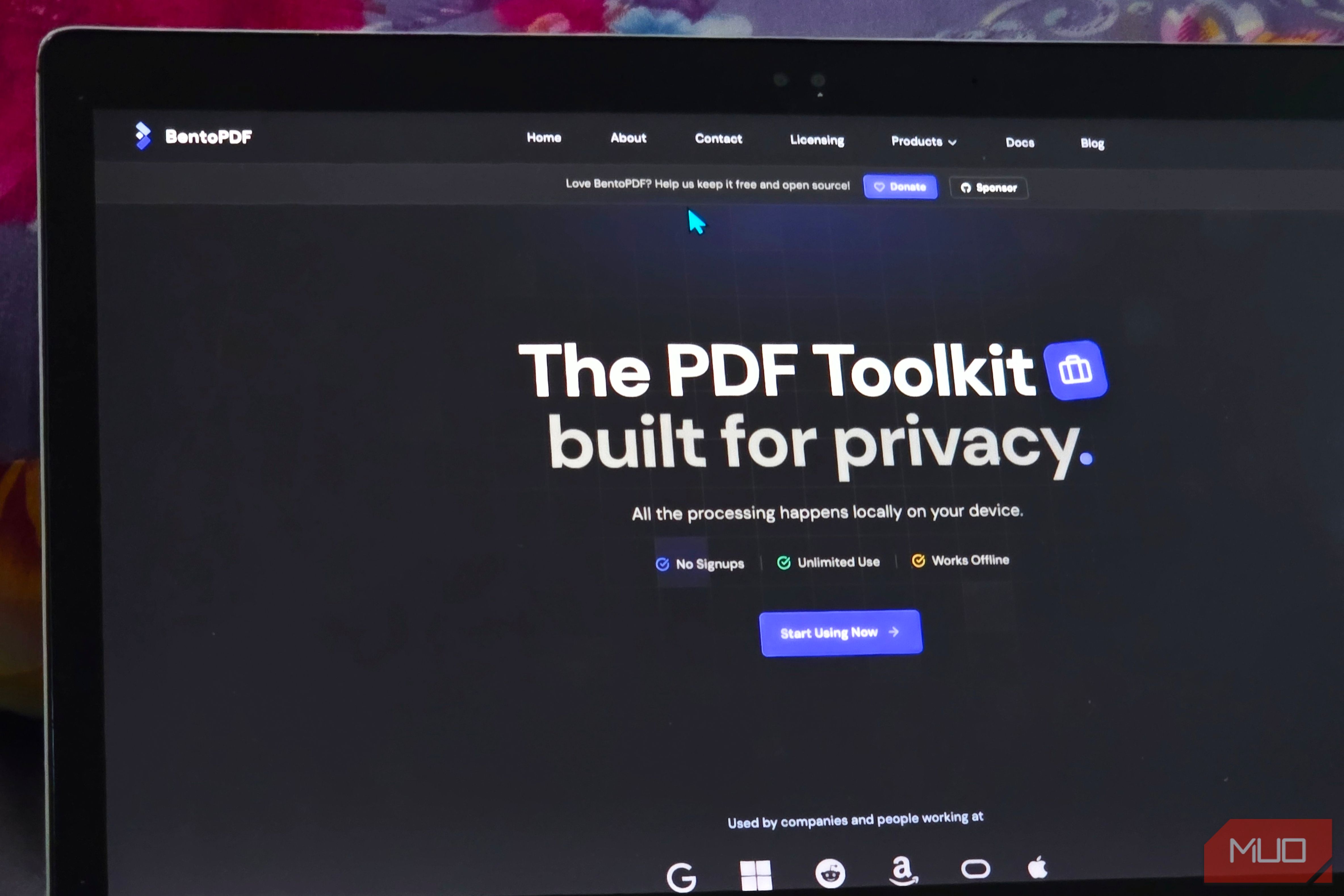
Dealing with PDFs can often feel like a never-ending series of small, annoying tasks. You might need to combine several documents, reduce the size of a bulky file, or even make an image-only scan searchable. Typically, these jobs send you hunting for a new app to download or a random online tool that might compromise your privacy. But what if you could handle almost all these PDF tasks directly in your web browser, with your files never leaving your computer?
This guide will show you how to use BentoPDF, a convenient browser-based tool that processes your PDFs locally, offering a secure and efficient way to tackle common document challenges. Say goodbye to endless software installations and privacy concerns; your browser is about to become your all-in-one PDF toolkit.
What You'll Accomplish
By the end of this guide, you'll be able to:
- Merge multiple PDF files into a single document, even rearranging individual pages.
- Compress large PDF files significantly without losing readability or text selection capabilities.
- Make scanned, image-only PDFs searchable using Optical Character Recognition (OCR).
- Perform various other "PDF surgery" tasks like rotating, deleting, or splitting pages, all within a single, intuitive interface.
- Understand the benefits of local PDF processing for privacy and efficiency.
Prerequisites and Requirements
Good news – there's very little you need to get started!
- A Modern Web Browser: BentoPDF works in any modern browser (Chrome, Firefox, Edge, Safari, etc.).
- Internet Connection (for initial load): You'll need an internet connection to initially load BentoPDF's interface and its WebAssembly modules. Once loaded, many tools can continue to function offline. For a fully air-gapped setup, self-hosting options are available, but not required for basic use.
- Your Computer's Resources: Since processing happens locally, your computer's CPU and memory will be utilized. Most everyday tasks are light, but very large or complex operations (like a massive OCR batch) will naturally require more processing power from your machine.
That's it! No accounts, no installations, just open a tab and go.
Getting Started with BentoPDF
BentoPDF is designed for immediate use. Simply open its hosted version in your browser. The home screen presents a clear, searchable catalog of tools, organized for easy access.
Accessing the Toolbox
- Open BentoPDF: Navigate to the BentoPDF website in your preferred modern browser.
- Explore the Catalog: You'll immediately see a wide range of tools, including Merge, Split, Edit, Compress, OCR, Sign, and Page Organization, all available without any setup.
Step-by-Step Guide: Merging PDF Files
Let's start with a common scenario: combining multiple single-page PDFs into one cohesive document. This is straightforward and demonstrates the local processing advantage.
- Select the 'Merge' Tool: From the BentoPDF home screen, click on the "Merge" option.
- Add Your PDFs: Drag and drop your PDF files directly into the designated area, or use the file selector to browse for them. For this example, imagine you're adding three one-page PDFs.
- Choose Your View Mode: BentoPDF offers two modes:
- File Mode: To arrange entire documents as blocks.
- Page Mode: To view and rearrange individual pages as thumbnails. For precise control, switch to Page Mode.
- Arrange Pages: In Page Mode, simply drag and drop the page thumbnails into your desired order. This allows you to combine pages from different source files seamlessly.
- Initiate Merge: Once the pages are in the correct sequence, click the "Merge" button.
- Download Your Merged File: Because processing occurs locally, your finished PDF will download almost instantly. Your files never left your machine, ensuring privacy.
Step-by-Step Guide: Compressing Large PDF Files
Having a PDF that's too large for email or online forms is another frequent headache. BentoPDF's compression feature is highly effective while maintaining quality.
- Select the 'Compress' Tool: On the BentoPDF home screen, find and click the "Compress" option.
- Add Your Large PDF: Drag and drop your bulky PDF file into the designated area. As an example, let's use a 20.5MB document like a textbook.
- Choose Compression Level: The default and recommended setting is "Medium" compression. For most cases, this provides an excellent balance between file size reduction and visual quality. You can keep this default for now.
- Initiate Compression: Click the "Compress" button.
- Download Compressed File: The optimized file will download quickly. In our example, a 20.5MB file reduced to 11.3MB—a 45% reduction! Crucially, the text remained selectable, and pages looked crisp at normal reading sizes.
Advanced Compression Settings (Optional)
If you need more fine-grained control, click into "Custom Settings." Here, you'll find toggles for image quality, max DPI, font subsetting and merging, rasterization, hidden-data cleanup, and preserving PDF/A formatting. While most users can ignore these for simple tasks, they are invaluable for serious document optimization, eliminating the need to search for a specialized program.
Beyond Merging and Compression: The PDF Multi Tool and OCR
BentoPDF truly shines with its "PDF Multi Tool," a single workspace that combines many small, often annoying, tasks:
- Page Organization: Rearrange, rotate, duplicate, or delete individual pages within a document.
- Content Insertion: Easily add blank pages to your PDF.
- Splitting and Extraction: Split a large file into multiple smaller ones, or extract just a few specific pages for export.
These functions are often scattered across different applications or online services, making BentoPDF's consolidated approach incredibly convenient.
Optical Character Recognition (OCR): For image-only scans, BentoPDF can add a searchable text layer. This means you can select and copy text from scanned documents, a feature usually found in dedicated OCR software. While highly effective, remember that like any OCR tool, the transcription isn't always perfect, so always verify critical details (names, numbers, etc.) against the original scan.
Other dedicated tools within BentoPDF cover conversion, table extraction, repair, deskewing, signatures, watermarks, redaction, and metadata editing, ensuring a comprehensive suite for almost any PDF need.
Tips and Best Practices
- Verify OCR Results: While BentoPDF’s OCR is robust, always double-check important text (names, numbers, dates) against the original image for accuracy.
- Understand Local Processing: Your files stay on your device, which is a major privacy advantage. However, this means your computer's performance (CPU, memory) will influence how quickly tasks are completed, especially for very large files or complex operations like extensive OCR batches.
- Internet Connectivity: BentoPDF primarily needs an internet connection for its initial load and to fetch WebAssembly modules via a CDN. After loading, many tools can work offline. If you require a completely disconnected environment, self-hosting of its processing and OCR modules is an advanced option.
- Complement with Specialized Tools: While BentoPDF handles a vast array of tasks, don't discard your full-featured PDF editors for extremely complex document work or highly specific annotation needs. For example, some users prefer Firefox's built-in editor for straightforward annotations.
- Metadata Management: Always practice removing metadata before sharing sensitive files, regardless of which tool you used to edit the PDF.
Conclusion
BentoPDF transforms those irritating, time-consuming PDF tasks into quick, local operations you can perform right in your browser. By putting your laptop on the clock, it offers a secure, private, and efficient alternative to installing multiple apps or trusting unknown online services. From combining urgent documents to shrinking oversized files, or making old scans searchable, BentoPDF provides a comprehensive toolbox that you'll likely find yourself bookmarking for daily use. Embrace the simplicity and power of local PDF processing and reclaim your time from the mundane.
FAQ
Q: Is BentoPDF safe and private for sensitive documents? A: Yes, a key advantage of BentoPDF is that all PDF processing happens locally on your own computer. Your files do not get uploaded to external servers, which significantly enhances privacy and security for sensitive information.
Q: Do I need to install any software or create an account to use BentoPDF? A: No, you do not need to install any software or create an account. BentoPDF runs directly in a modern web browser, making it incredibly easy and quick to start using right away. Just open a tab, and you're ready to go.
Q: Can BentoPDF handle very large PDF files, or are there file size limits? A: BentoPDF does not impose arbitrary file-size or usage caps. Since processing occurs locally on your device, the practical limit is determined by your computer's capabilities (CPU, memory, browser performance). While a simple merge of a few pages will be very fast, a massive OCR batch or a very large compression job will naturally take longer and demand more resources from your machine. It's designed to comfortably handle most common file sizes without issue.
Related articles

Your Guide to LG's 115-inch QNED evo TV: Features, Gaming & Price
Welcome to an exciting exploration of LG's latest innovation in home entertainment: the colossal 115-inch QNED evo AI Mini LED TV. This guide is designed to walk you through everything you need to know about this

The Super Mouse puts a touchscreen macro pad under your hand: Tech
Arctic Fox Technologies has launched the Super Mouse, an innovative peripheral featuring a 3.1-inch touchscreen for dynamic app controls, macros, and enhanced productivity. Available on Kickstarter for $199, this wired mouse aims to consolidate multiple desktop devices into one intuitive command center. Its contextual display and advanced features redefine user interaction.

How to Stop Google Using Your Gmail & Drive Data for Ads
Google's "Personal Intelligence" feature, designed to offer more tailored AI responses, may inadvertently lead to your personal data from apps like Gmail, Google Drive, and Google Photos being used for targeted
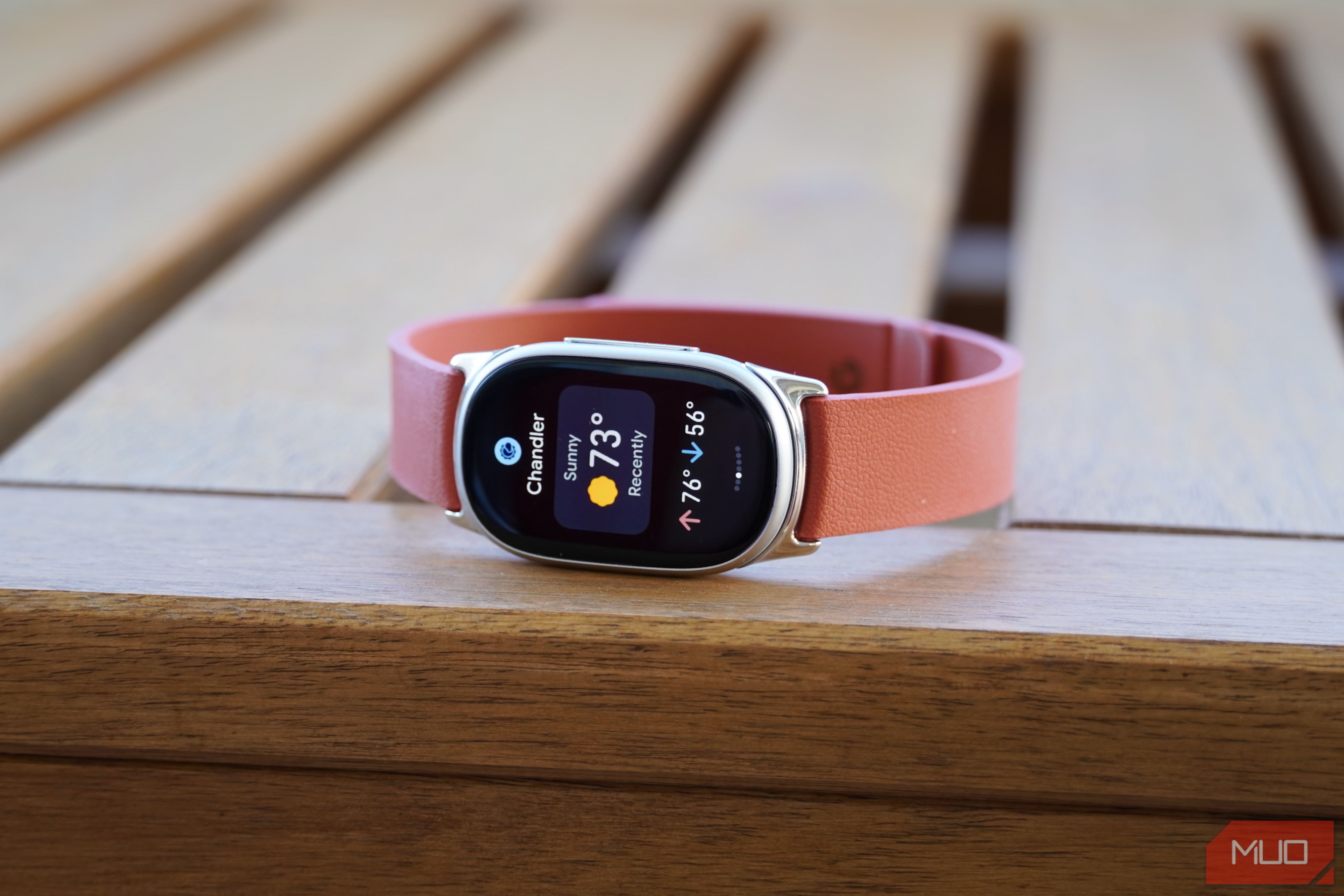
Google Fitbit Edge Review: Your Anti-Smartwatch Fitness Sweet Spot
Learn if the Google Fitbit Edge is the right fitness tracker for you, balancing core health features with a simplified experience. Discover its design, advanced tracking, and software insights to make an informed decision.

Unlock Your Pixel's Hidden Potential: Essential Features to Enable
Learn to enable six essential features on your Pixel phone, including Lockscreen Widgets, Screen Saver, Notification History, Clear Calling, Smooth Display, and Adaptive Vibration, to enhance your user experience in just a few steps.

AI delivers ‘zero financial payoff’ to most companies, Apollo
Apollo Global Management's chief economist, Torsten Slok, reports that AI has delivered "zero financial payoff" to most companies outside the tech sector. His analysis of the S&P 493 shows stagnant profit margins and revenue per worker, challenging the widespread expectation of AI-driven productivity gains. Slok emphasizes that AI, while a powerful calculator, lacks the human judgment, ethics, and cultural understanding crucial for business success.