
Unlock Your Pixel's Hidden Potential: Essential Features to Enable
Learn to enable six essential features on your Pixel phone, including Lockscreen Widgets, Screen Saver, Notification History, Clear Calling, Smooth Display, and Adaptive Vibration, to enhance your user experience in just a few steps.
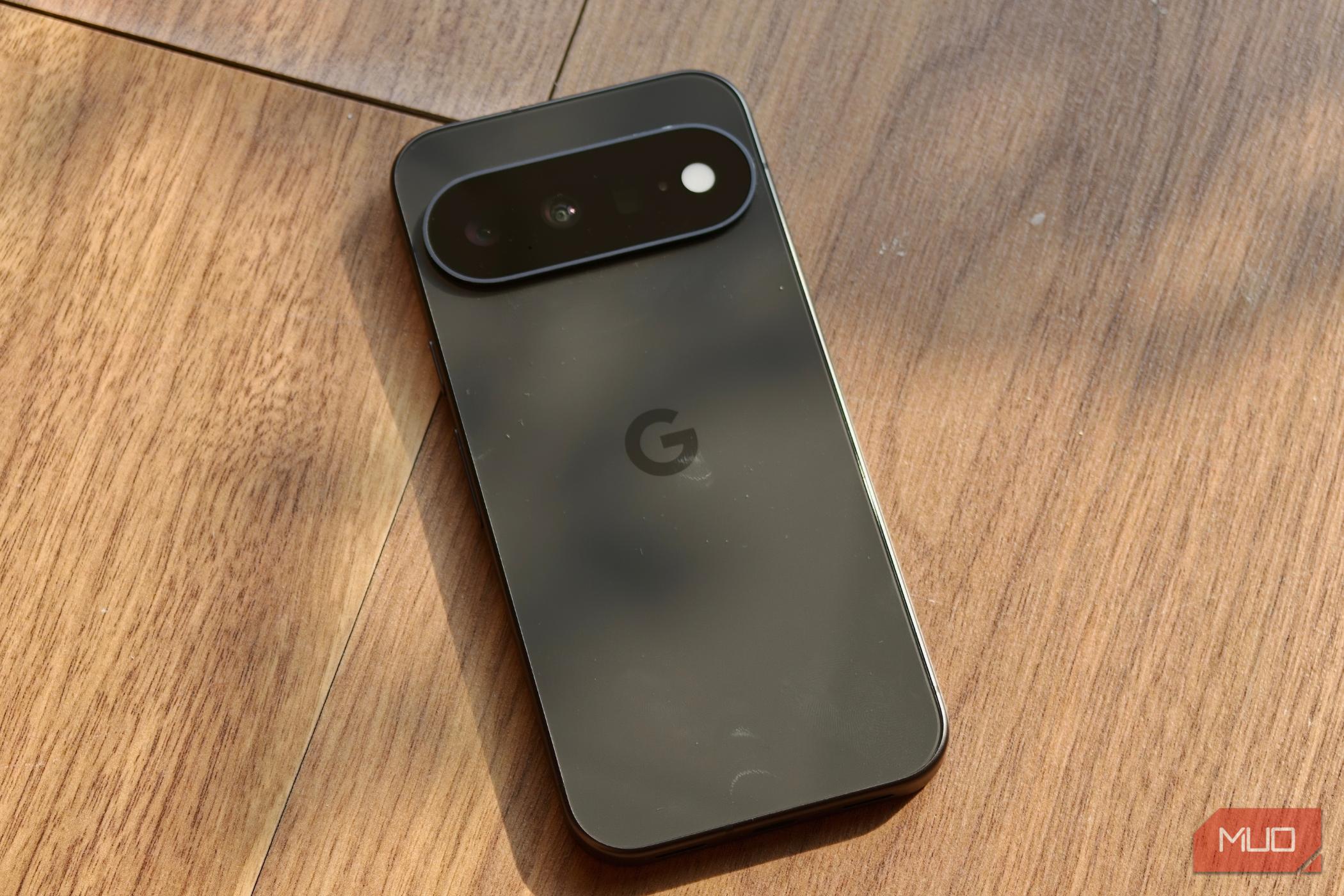
Welcome, new Pixel owner! You've got a fantastic device in your hands, packed with intelligent features designed to make your daily life easier and more enjoyable. However, some of the most useful functionalities aren't activated right out of the box. It's like finding a secret menu of enhancements waiting to be discovered! This guide will walk you through enabling these powerful, often overlooked settings on your Pixel phone, transforming your user experience from good to absolutely brilliant. Get ready to personalize your device, enhance convenience, and leverage the full capabilities you paid for.
Prerequisites
Before we dive in, make sure you have:
- A Google Pixel smartphone (models like the Pixel 10a, 9a, 9, or 11 are mentioned in the source, but these tips generally apply to most recent Pixel devices).
- Your Pixel should be running a recent version of Android (Android 16 is specifically mentioned for Lockscreen Widgets, so ensuring your software is up to date is always a good practice).
Enable Essential Pixel Features
Let's get started on unlocking these handy features:
1. Lockscreen Widgets: Information at a Glance
Imagine quickly checking your daily schedule, battery levels for your connected devices, or even jotting down a quick note without ever needing to unlock your phone. Lockscreen widgets make this possible, offering a convenient way to access important information discreetly and efficiently. It's a game-changer for quick updates throughout your day.
How to Enable Lockscreen Widgets:
- Open the Settings app on your Pixel.
- Navigate to Wallpaper and style.
- Tap on More lock screen settings.
- Toggle on Widgets on lock screen.
Using Lockscreen Widgets:
Once enabled, simply swipe left from your Pixel's lock screen. You'll reveal a dedicated screen where you can add and customize various widgets. Consider adding widgets like a battery monitor for your earbuds or smartwatch, a calendar for upcoming events, or a Google Keep widget for quick notes. When choosing widgets, prioritize those that don't display highly sensitive information to maintain your privacy.
2. Screen Saver: Bring Your Charging Screen to Life
Charging your phone is a daily necessity, but it doesn't have to be a dull experience. Pixel's built-in screensaver feature can transform your charging display into a dynamic visual, making your phone a more engaging part of your home environment. Whether it's showing off your favorite photos or acting as a mini Nest Hub on your nightstand, this feature adds a touch of personality.
How to Enable Screen Saver:
- Open the Settings app.
- Go to Display and touch.
- Tap on Screen saver.
- Enable the main toggle to activate the feature.
- Choose your preferred screensaver type from the available options: Clock, Photos, Home controls, or Weather. Experiment to find what you like best!
Tip: The weather screensaver is particularly striking when your Pixel is placed on a wireless charger in landscape mode, giving it a smart display feel.
3. Notification History: Never Miss an Alert Again
In our busy digital lives, it's all too easy to accidentally swipe away a notification before you've had a chance to fully process it. With countless apps vying for our attention, the notification panel can become crowded. Notification History acts as your digital safety net, providing a comprehensive log of all your recent alerts, so you never have to regret a hasty dismissal again.
How to Enable Notification History:
- Open the Settings app.
- Scroll down and tap on Notifications.
- Select Notification history.
- Toggle the feature on.
Using Notification History:
Once activated, your Pixel will automatically keep a 24-hour record of every notification you receive. To quickly access this log, simply pull down your notification shade and tap the dedicated history icon within the panel.
4. Clear Calling: Crystal-Clear Conversations
We've all been there: trying to have an important conversation while battling the cacophony of a busy cafe or a bustling airport. Background noise can make calls frustrating for both you and the person on the other end. Clear Calling is a powerful Pixel feature that intelligently detects and suppresses ambient noise, ensuring your voice comes through with exceptional clarity, no matter your surroundings.
How to Enable Clear Calling:
- Open the Settings app.
- Go to Sound and vibration.
- Tap on Clear Calling.
- Enable the toggle.
Privacy Note: All the sound processing for Clear Calling happens directly on your Pixel, so you don't need to worry about your conversations being sent to external servers or compromising your privacy.
5. Smooth Display: Experience 120Hz Fluidity
Many Pixel models boast a high refresh rate display, capable of refreshing up to 120 times per second (120Hz). However, by default, your phone might be capped at 60Hz. Enabling Smooth Display unlocks this potential, making scrolling, navigation, and gaming feel incredibly fluid and responsive. It's a visual upgrade that truly makes your Pixel feel faster and more premium.
How to Enable Smooth Display:
- Open the Settings app.
- Navigate to Display and touch.
- Toggle on Smooth display.
Considerations: While enabling 120Hz can slightly increase battery usage, your Pixel is designed to intelligently adjust the refresh rate, only utilizing 120Hz when it's truly beneficial (e.g., during active scrolling or gaming), thus conserving battery when not needed.
6. Adaptive Vibration: Smart Alerts for Any Environment
Keeping your phone on silent mode is common, relying on vibrations for alerts. But what happens when you're in a noisy environment? Standard vibrations can easily go unnoticed. Adaptive Vibration is a clever feature that uses your phone's microphone to assess your surroundings and dynamically adjust the intensity of vibrations. This ensures you're more likely to feel important calls and notifications, even when you're in a loud place.
How to Enable Adaptive Vibration:
- Open the Settings app.
- Go to Sound and vibration.
- Tap on Adaptive vibration.
- Enable the toggle.
Troubleshooting Tips
- Can't find a setting? The Pixel's Settings app has a powerful search bar at the top. Simply type in the feature name (e.g., "Notification history") to quickly locate it.
- Feature not working as expected? Ensure your Pixel's software is fully updated to the latest version. A simple restart of your phone can also resolve minor software glitches.
Best Practices and Next Steps
- Customize Your Experience: Don't stop here! Explore other Pixel features like theming options, gesture navigation, and advanced camera settings to truly make your device your own.
- Battery Management: While some features might slightly impact battery life, the Pixel's adaptive nature often mitigates significant drain. If you're concerned, regularly review your battery usage in Settings to identify power-hungry apps.
- Stay Curious: Google frequently updates Pixel phones with new features and improvements. Keep an eye out for system updates and explore new additions to your device.
FAQ
Q: Will enabling these features significantly drain my battery?
A: While features like Smooth Display (120Hz refresh rate) and a continuously active Screen Saver can use more power, your Pixel is designed to manage these intelligently. Smooth Display, for example, only uses the full 120Hz when necessary. Screen Saver activates primarily when charging. Clear Calling and Adaptive Vibration have minimal impact on overall battery life.
Q: Is Clear Calling truly private, given it uses the microphone?
A: Yes, your privacy is maintained. The source explicitly states that all sound processing for Clear Calling happens directly on your Pixel phone. This means your audio data is processed locally and not transmitted to Google's servers, so you don't need to worry about privacy concerns.
Q: How long does Notification History keep a record of my notifications?
A: Notification History is designed to provide a recent log of your alerts. It keeps a record of every notification you receive for up to 24 hours, giving you a full day's window to review anything you might have missed or accidentally dismissed.
Related articles
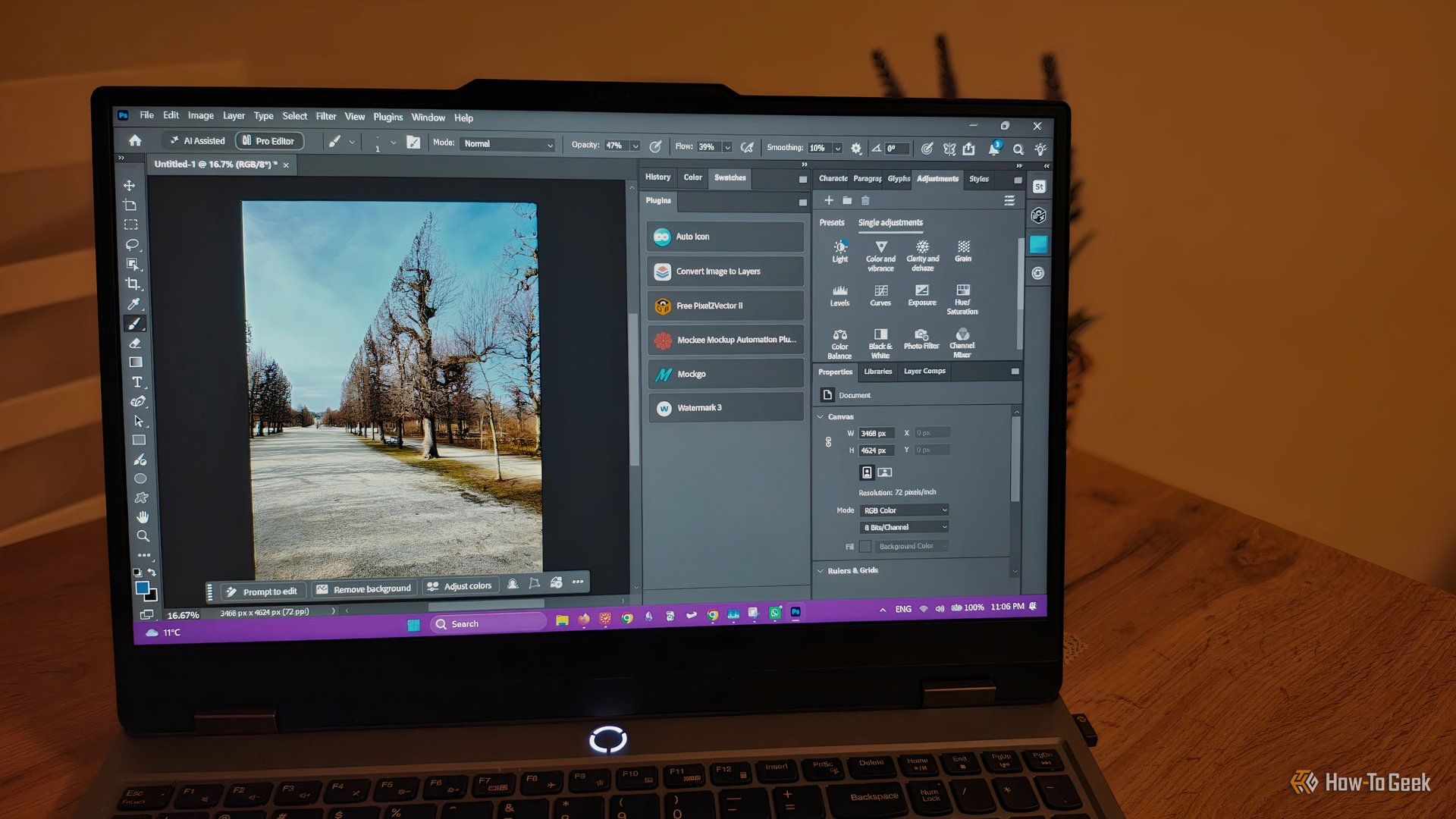
howto: 4 Photoshop plugins so essential they should be built-in
Discover four essential Photoshop plugins that streamline your workflow, save time, and unlock new creative possibilities, making you wonder why they aren't built-in features.
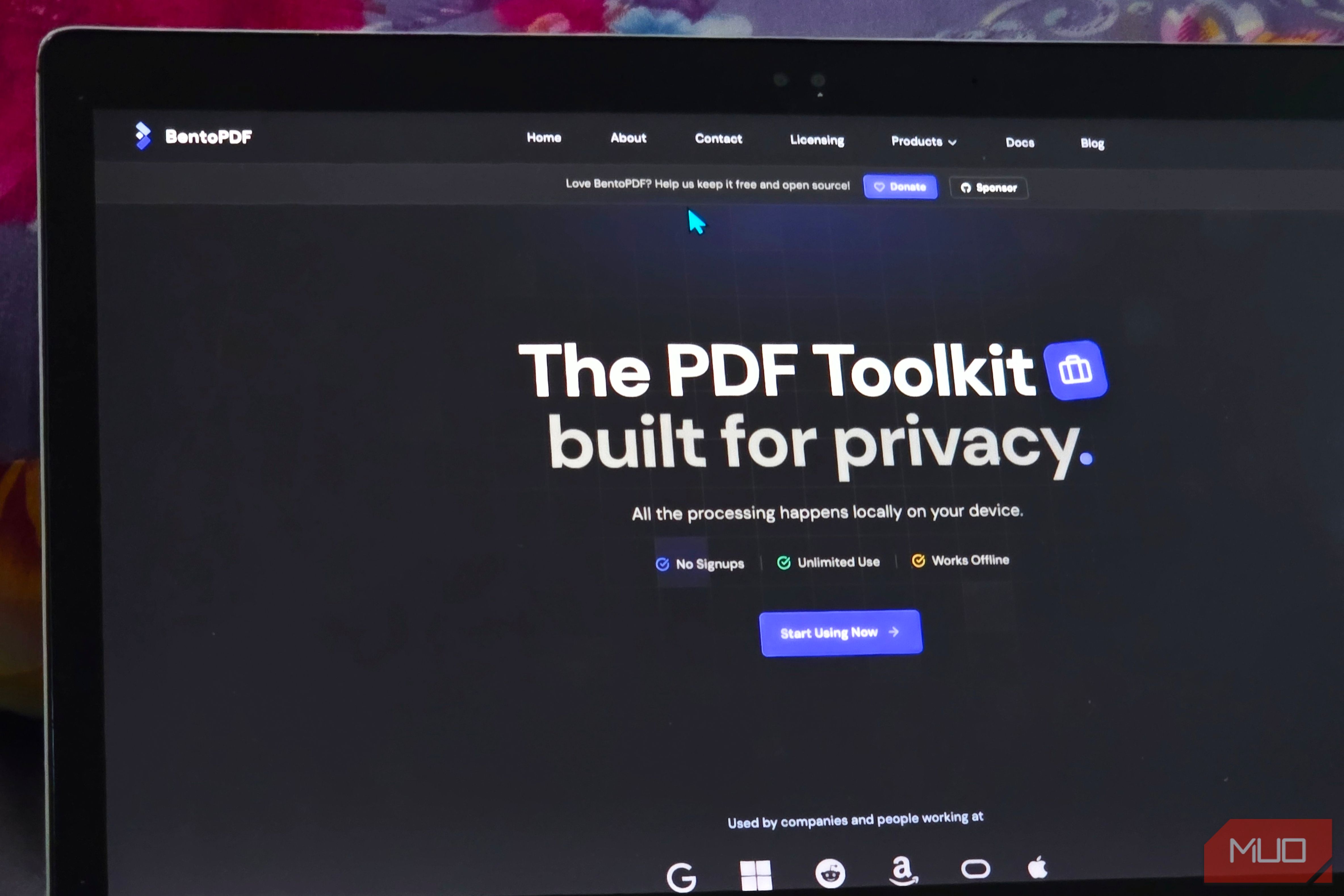
Solve Annoying PDF Problems Locally in Your Browser with BentoPDF
Dealing with PDFs can often feel like a never-ending series of small, annoying tasks. You might need to combine several documents, reduce the size of a bulky file, or even make an image-only scan searchable. Typically,

ICE's Covert Anti-Left Surveillance Operations Uncovered
New evidence reveals ICE is running a vast, potentially unconstitutional surveillance operation against left-wing activists nationwide. Leveraging post-9/11 tools and extensive data, experts liken it to a 'COINTELPRO 2.0,' marking an unprecedented scale of domestic spying.

Your Guide to LG's 115-inch QNED evo TV: Features, Gaming & Price
Welcome to an exciting exploration of LG's latest innovation in home entertainment: the colossal 115-inch QNED evo AI Mini LED TV. This guide is designed to walk you through everything you need to know about this

Apple's Touchscreen MacBook Pro: A Long-Awaited Touch
The Verdict Apple's rumored touchscreen MacBook Pro represents a long-overdue evolution, promising to blend the convenience of direct screen interaction with the powerful macOS laptop experience. While not an essential

The Super Mouse puts a touchscreen macro pad under your hand: Tech
Arctic Fox Technologies has launched the Super Mouse, an innovative peripheral featuring a 3.1-inch touchscreen for dynamic app controls, macros, and enhanced productivity. Available on Kickstarter for $199, this wired mouse aims to consolidate multiple desktop devices into one intuitive command center. Its contextual display and advanced features redefine user interaction.