
Restore Instant Notifications: Disable Android's App Hibernation
Restore instant notifications on your Android phone by disabling app hibernation. This guide provides step-by-step instructions for Google Pixel and Samsung Galaxy devices to ensure important alerts are delivered on time, along with troubleshooting tips.
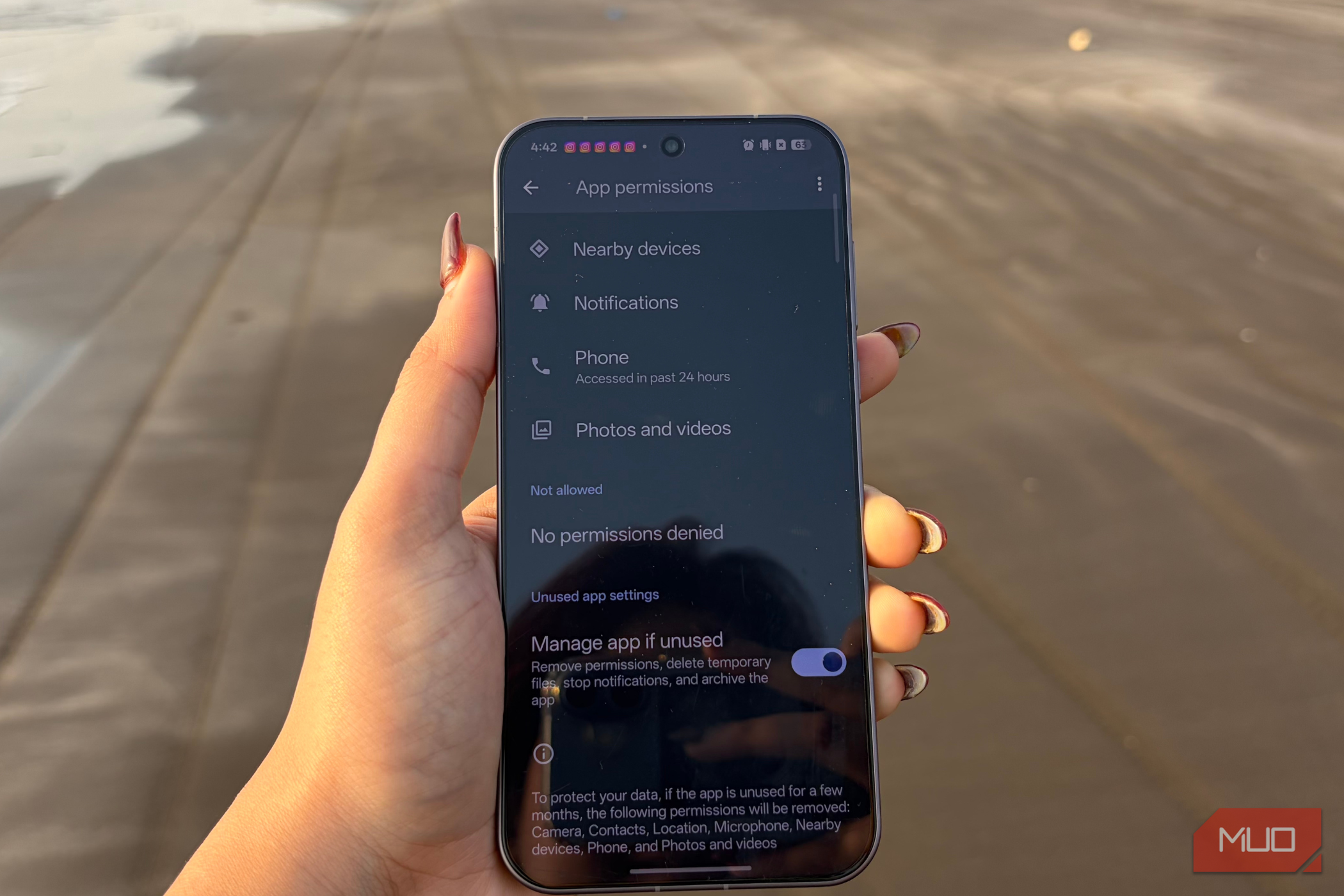
Are you missing important notifications from apps you don't open daily? Android's app hibernation feature, designed to save battery and resources, might be silently pausing these apps, preventing them from delivering timely alerts. This guide will walk you through how to disable app hibernation on both Google Pixel and Samsung Galaxy devices, helping you get your instant notifications back.
What You'll Accomplish
By following these steps, you will prevent your Android phone from automatically putting less-used apps into a 'hibernated' state. This ensures that even if you don't open an app frequently, it will continue to run in the background, maintain its permissions, and deliver notifications immediately when they arrive.
Prerequisites
Before you begin, ensure you have:
- An Android smartphone running Android 11 or later.
- Basic familiarity with navigating your phone's Settings menu.
- Identified specific apps that are experiencing delayed or missing notifications.
Understanding App Hibernation
Android's app hibernation is a system-level feature that helps optimize battery life and performance by managing apps that haven't been used in a long time. Introduced with Android 11, which brought automatic permission resets, and expanded with Android 12 into full app hibernation, this system takes a comprehensive approach to 'unplug' inactive apps.
When an app is hibernated, it's not just a minor setting. The system can:
- Reset its runtime permissions.
- Remove cached files.
- Prevent it from running background jobs or alarms.
- Stop it from receiving push notifications.
This means that even if an app's individual notification settings appear correct, the broader hibernation state can override them, effectively silencing the app until you manually open it. While beneficial for truly abandoned apps like an old game, it can be problematic for essential services like messaging, banking, or delivery apps that are designed to alert you without needing to be launched first.
How to Disable App Hibernation on Google Pixel Phones
For Google Pixel devices, the process involves checking individual app settings and a broader system page for unused apps.
-
Access App Settings:
- Open your phone's Settings app.
- Tap on Apps, then select See all apps.
-
Locate the Affected App:
- Scroll through the list or use the search function to find the app that's missing notifications.
- Tap on the app to open its App info page.
-
Disable Unused App Management:
- On the App info page, scroll down to find a section titled Unused app settings.
- Toggle off the option labeled Manage app if unused. (On some Android versions, this might be named Pause app activity if unused).
-
Check Broad Unused Apps List (Optional but Recommended):
- Return to the main Apps menu within Settings.
- Look for an option called Unused apps. This page provides a centralized list of all apps Android has identified as unused. You can review and manage their hibernation status from here without going into each app's individual settings.
How to Disable App Hibernation on Samsung Galaxy Phones
Samsung Galaxy devices have an additional layer of battery management, so you'll need to check a couple of places.
-
Disable Individual App Management:
- Open your phone's Settings app.
- Tap on Apps.
- Find and tap on the app that's causing notification issues.
- Scroll down to the Privacy section.
- Toggle off Manage app if unused. (On older One UI versions, this might be labeled Remove permissions if app is unused).
-
Adjust Background Usage Limits:
- Go back to the main Settings menu.
- Tap on Battery.
- Select Background usage limits.
-
Manage Sleeping Apps:
- On the Background usage limits page, you'll see sections for Sleeping apps, Deep sleeping apps, and Never auto sleeping apps.
- Check both the Sleeping apps and Deep sleeping apps lists. A sleeping app has restricted background activity, and a deep-sleeping app won't run in the background at all unless opened. If your important app appears in either of these lists, remove it.
- For crucial apps, consider adding them to the Never auto sleeping apps list. This tells Samsung's system to always allow them background activity and prevent them from being automatically put to sleep again.
After making these changes, close the app, and have someone send you a message or trigger a notification to confirm that alerts are now arriving instantly.
Troubleshooting: Other Causes for Missing Notifications
If disabling app hibernation doesn't resolve your notification issues, the problem might stem from other settings. Here are some common impersonators of hibernation:
- Disabled Notification Categories: Check the app's internal notification settings. You might have accidentally muted specific types of alerts within the app itself.
- Restricted Battery Usage: Ensure the app's battery setting isn't set to 'Restricted'. This limits or prevents background activity, similar to hibernation but explicitly configured.
- Background Data Restrictions: Verify that background data is enabled for the app and that Android's Data Saver feature isn't blocking its mobile data usage.
- Notification Cooldown (Android 15+): If you're receiving notifications but without sound, vibration, or pop-ups, check for Notification Cooldown. This feature, introduced in Android 15, reduces the intensity of repeated alerts but doesn't remove them from the notification shade.
- App-Specific or Server Issues: Sometimes, the problem lies with the app's own notification settings or its push notification service on the server side.
Best Practice: Utilize Notification History
If you're unsure whether an alert arrived silently or was never delivered, Android's notification history can be a valuable tool. This feature keeps a recent record of all notifications delivered to your device, even those you might have accidentally dismissed. Accessing it can help you distinguish between an alert that was suppressed visually/audibly and one that the app failed to send entirely.
Conclusion
While Android's app hibernation is a useful feature for conserving battery, it can inadvertently disrupt the timely delivery of notifications from essential applications. By proactively managing these settings, you can ensure that important alerts reach you the moment they happen, keeping you connected and informed.
FAQ
Q: Will disabling app hibernation significantly drain my battery? A: Disabling hibernation for a few specific apps that you consider important is unlikely to cause significant battery drain. These apps likely don't consume much power in the background anyway. However, disabling it for many apps, especially those with heavy background activity, could have an impact.
Q: What is the difference between "sleeping apps" and "deep sleeping apps" on Samsung? A: On Samsung devices, 'Sleeping apps' have restricted background activity and may experience delays in notifications. 'Deep sleeping apps' are completely inactive in the background and only become active when you open them. If you need instant notifications, ensure your app is neither sleeping nor deep sleeping and, ideally, added to 'Never auto sleeping apps'.
Q: How do I know if my phone has app hibernation? A: App hibernation features were introduced starting with Android 11 (for automatic permission resets) and expanded with Android 12. If your phone runs Android 11 or a newer version, it likely has some form of app hibernation or unused app management. The specific setting names may vary slightly by manufacturer (e.g., Pixel vs. Samsung).
Related articles
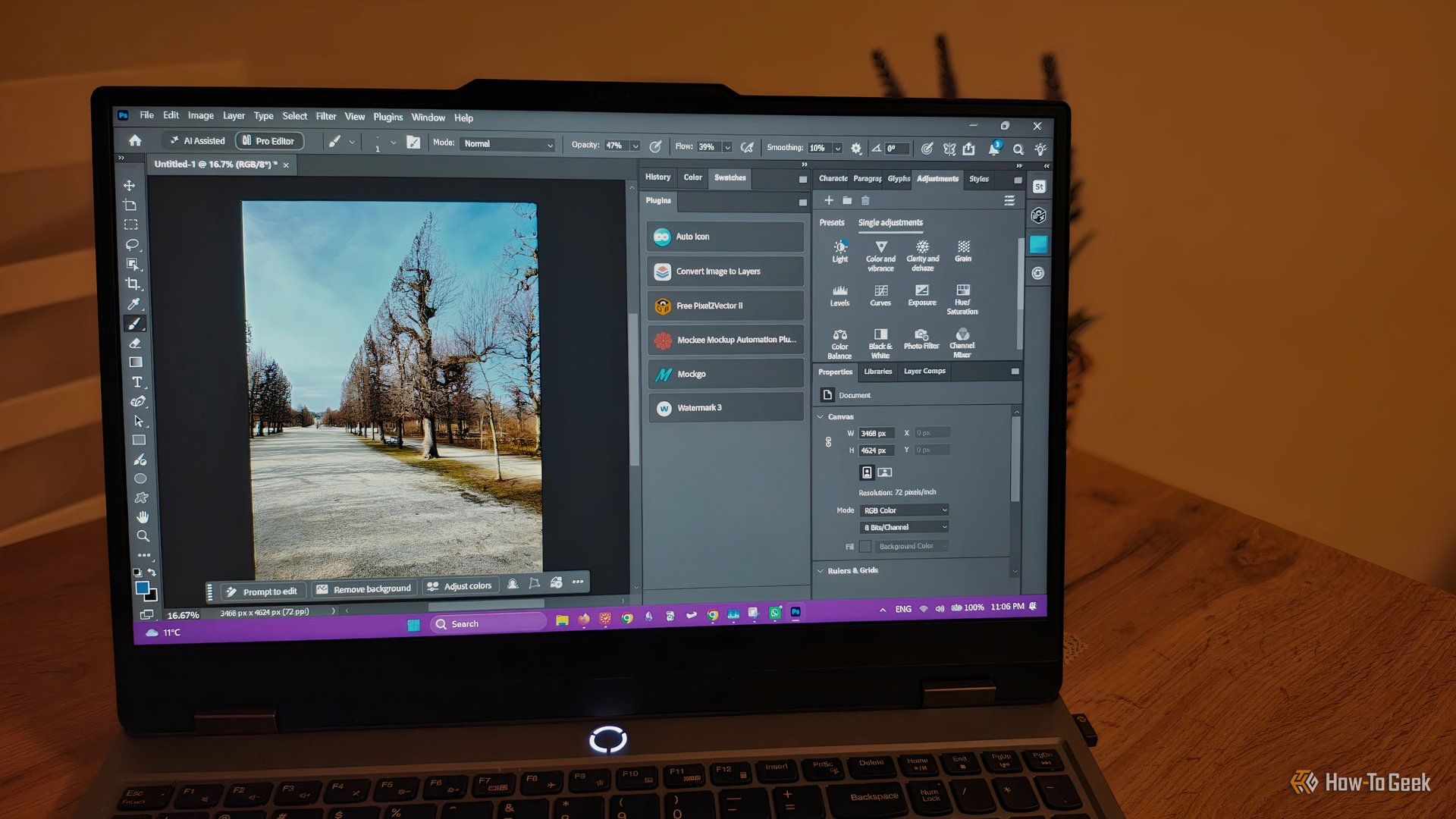
howto: 4 Photoshop plugins so essential they should be built-in
Discover four essential Photoshop plugins that streamline your workflow, save time, and unlock new creative possibilities, making you wonder why they aren't built-in features.

Xreal Unveils Aura Wired Smart Glasses Running Android XR
At the Android Dev Summit on Wednesday, Xreal, Google's smart glasses collaborator, officially introduced its new Xreal Aura wired smart glasses. The device, which had been teased earlier in the year at Google's I/O
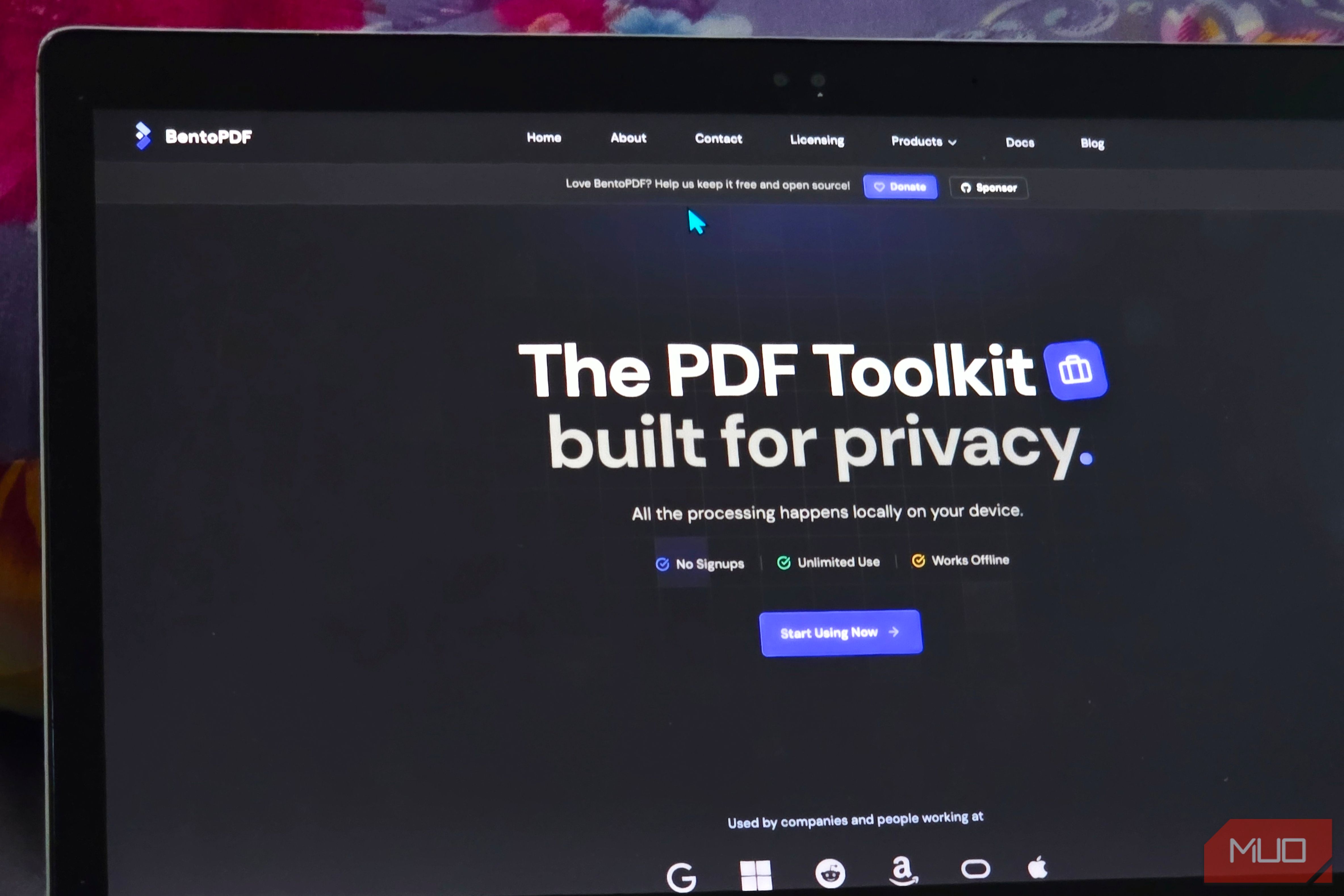
Solve Annoying PDF Problems Locally in Your Browser with BentoPDF
Dealing with PDFs can often feel like a never-ending series of small, annoying tasks. You might need to combine several documents, reduce the size of a bulky file, or even make an image-only scan searchable. Typically,

Your Guide to LG's 115-inch QNED evo TV: Features, Gaming & Price
Welcome to an exciting exploration of LG's latest innovation in home entertainment: the colossal 115-inch QNED evo AI Mini LED TV. This guide is designed to walk you through everything you need to know about this

How to Stop Google Using Your Gmail & Drive Data for Ads
Google's "Personal Intelligence" feature, designed to offer more tailored AI responses, may inadvertently lead to your personal data from apps like Gmail, Google Drive, and Google Photos being used for targeted
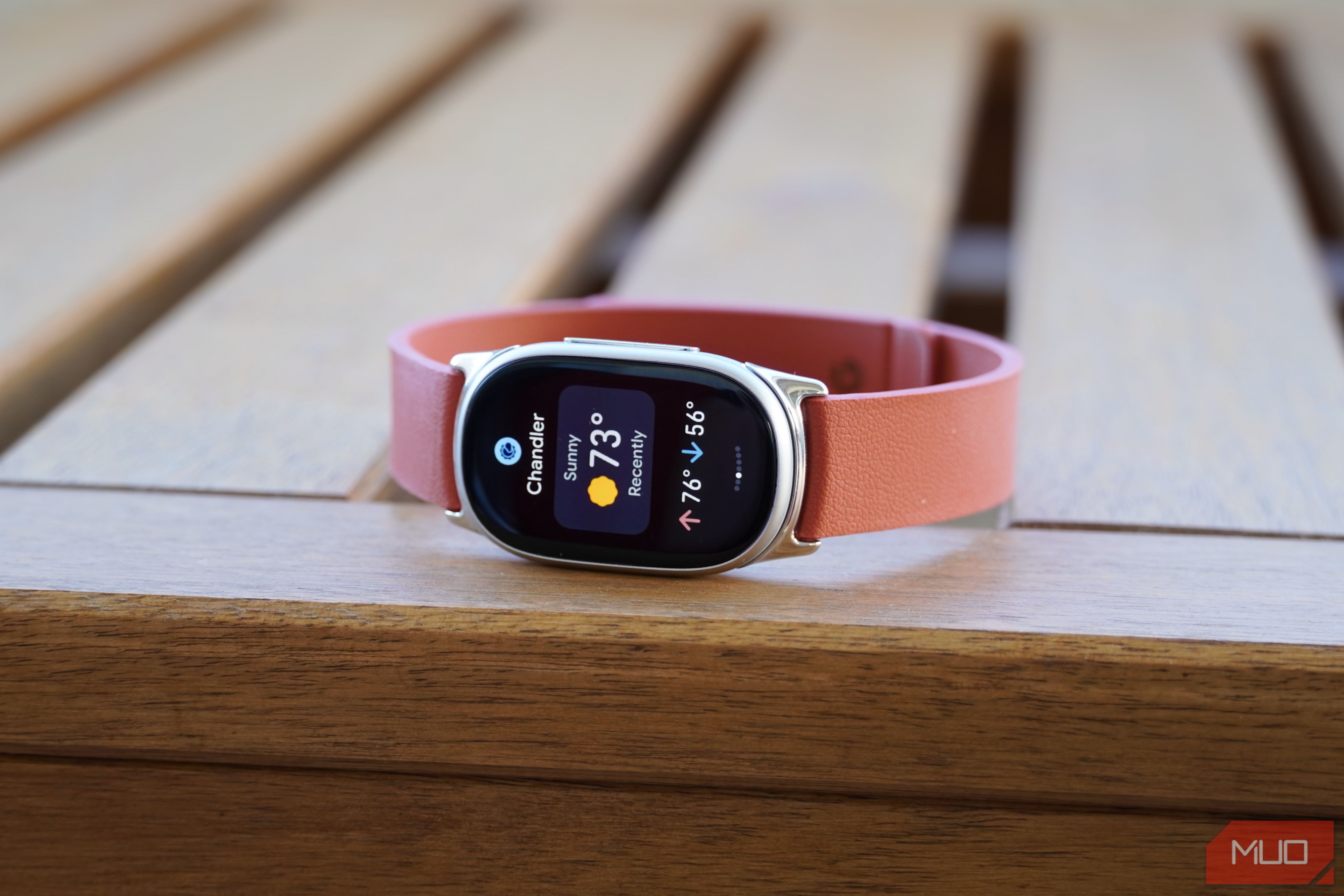
Google Fitbit Edge Review: Your Anti-Smartwatch Fitness Sweet Spot
Learn if the Google Fitbit Edge is the right fitness tracker for you, balancing core health features with a simplified experience. Discover its design, advanced tracking, and software insights to make an informed decision.