
Mac Backup Guide: Your Essential Data Protection Plan
Quick Verdict: Don't Delay, Back Up Your Mac Today! In the digital age, data loss is a silent threat, but thankfully, Apple provides powerful, user-friendly tools to protect your precious Mac data. Utilizing both Time

Quick Verdict: Don't Delay, Back Up Your Mac Today!
In the digital age, data loss is a silent threat, but thankfully, Apple provides powerful, user-friendly tools to protect your precious Mac data. Utilizing both Time Machine for comprehensive system backups and iCloud for essential file syncing offers a robust, multi-layered defense. Time Machine, integrated directly into macOS, makes full system backups incredibly straightforward, safeguarding everything from your personalized settings to your entire application library. Complementing this, iCloud offers convenient cloud storage for your most important files, ensuring they're accessible and protected off-site. While Time Machine requires an upfront investment in an external drive, its ability to restore your Mac to a previous state — including every tweak and password — makes it an indispensable tool. Ignoring these tools is a gamble you don't want to take with your digital life.
Why Back Up Your Mac?
It's a question often asked, and the answer is simple: peace of mind. Your Mac isn't just a collection of files; it's a meticulously crafted digital environment, unique to you. Every application, every custom setting, every Wi-Fi password, and every photo contributes to your personalized computing experience. Losing this data due to hardware failure, accidental deletion, or even a software glitch can be devastating. Apple has made data protection a core feature of macOS, primarily through its Time Machine application. This built-in utility allows you to create full, restorable backups of your entire system, a feature that many third-party cloud services simply cannot replicate. Furthermore, having a complete system backup vastly simplifies the transition to a new Mac, allowing you to transfer all your apps, data, and settings effortlessly. Don't wait for a crisis; proactive backup is the smart move.
Time Machine: Your Mac's Digital Safety Net
Time Machine is Apple's robust, automated backup solution included with macOS, designed to save you from future data loss. Once configured, it operates largely in the background, creating historical snapshots of your entire Mac. These backups include not only your documents and photos but also system files, applications, and all the custom settings that make your Mac uniquely yours – even obscure details like your local coffee shop's Wi-Fi password.
Getting Started with Time Machine:
The setup process is surprisingly simple. First, you'll need an external storage device. The general recommendation is to select a drive that is 1.5 to two times the size of your Mac's internal storage. For example, if your Mac has 512GB of storage, a 1TB external drive would be ideal. These drives are readily available and relatively inexpensive. Time Machine supports various connection types:
- Directly connected USB or Thunderbolt drives.
- Network-attached storage (NAS) devices that support Time Machine over SMB.
- Another Mac configured as a Time Machine backup destination.
- External drives connected to AirPort Extreme Base Stations (802.11ac) or AirPort Time Capsules (though the latter is discontinued, refurbished units may still be found).
Upon connecting a new external drive, your Mac may prompt you to use it with Time Machine. If it doesn't, navigate to System Settings > General, select Time Machine on the right, and click the Add Backup Disk button. If your drive isn't formatted correctly, Time Machine will offer to do so, but be warned: this process will erase all existing data on the drive. You'll also have the option to encrypt your backups, adding a layer of security by requiring a password to restore your data.
Understanding Time Machine Backups:
Once set up, Time Machine diligently works in the background, maintaining a detailed history of your system. It creates:
- Hourly backups for the past 24 hours.
- Daily backups for the past month.
- Weekly backups for all previous months.
This continuous process ensures you have multiple restore points. When the backup drive reaches capacity, Time Machine automatically makes space by deleting the oldest backups. While Time Machine generally runs unobtrusively, older Mac models might experience a slight slowdown during active backup periods. You can monitor the backup status, pause it, or initiate a manual backup via the Time Machine icon in your Mac's menu bar.
Restoring Your Data:
The true power of Time Machine lies in its restoration capabilities. Should you need to recover your entire system or even just a single file, simply click the Time Machine icon in the menu bar and choose Browse Time Machine Backups. This presents your past backups in an intuitive, visual interface, akin to cards in a Rolodex. You can scroll through these snapshots, find the specific point in time you wish to restore from, and then click the Restore button.
iCloud: Essential File Syncing, Not a Full Backup
While incredibly useful, it's crucial to understand that iCloud serves a different purpose than Time Machine. iCloud is primarily a cloud storage and synchronization service for selected files and data, not a comprehensive system backup solution. It excels at keeping specific documents, photos, and other user data current and accessible across your Apple devices.
What iCloud Does and Doesn't Do:
iCloud will sync and store files that you designate, such as documents in iCloud Drive, photos in iCloud Photos, and data from various apps that integrate with iCloud. However, it does not back up your entire macOS installation, system settings, application data (unless specifically integrated), or those unique system tweaks that Time Machine captures. For instance, your local Wi-Fi passwords and custom macOS preferences are not typically saved by iCloud.
To view and manage what's currently being synced and stored in your iCloud account, go to System Settings > Internet Accounts > iCloud. Your available storage is determined by your iCloud or Apple One subscription.
iCloud Storage Options:
Apple provides a modest 5GB of iCloud storage for free. For most users, this quickly becomes insufficient, necessitating an upgrade to an iCloud Plus plan. Here are the monthly pricing tiers:
- 50GB: $1
- 200GB: $3
- 2TB: $10
- 6TB: $30
- 12TB: $60
Time Machine vs. iCloud: A Comparison
These two Apple services, while both involved in data management, fulfill distinct roles. Understanding their differences is key to a robust backup strategy.
| Feature | Time Machine (External Drive) | iCloud (Cloud Service) |
|---|---|---|
| Primary Function | Comprehensive System Backup | Selected File & Data Sync / Cloud Storage |
| Data Coverage | Entire macOS system, apps, settings, user files, preferences, Wi-Fi passwords | Designated user files, photos, contacts, calendar, notes, app data (if synced) |
| Storage Location | Local external drive, Network-Attached Storage (NAS) | Apple's cloud servers |
| Cost (Service/Software) | Free (software included in macOS), requires purchase of external drive | Free (5GB base), Paid iCloud Plus subscriptions (e.g., $1 for 50GB, $10 for 2TB) |
| System Restore/Migration | Enables full system restoration, easy migration to new Mac with all settings | Does not enable full system restoration; files can be downloaded to new Mac |
| Accessibility | Primarily local access (drive must be connected) | Anywhere with an internet connection across devices |
| Offline Access | Yes, data is local | Yes, for synced files that are downloaded locally |
| Data Security | User-controlled encryption option for local drive | Apple's cloud security, data encrypted in transit and at rest |
Pros and Cons of Mac Backup Strategies
Pros:
- Comprehensive Data Protection: Time Machine offers a complete, point-in-time snapshot of your entire Mac, including system settings and personalized tweaks that cloud services often miss.
- Ease of Use: Both Time Machine and iCloud are deeply integrated into macOS, making setup and ongoing management relatively painless and mostly automatic after initial configuration.
- Seamless Migration: Time Machine simplifies upgrading to a new Mac by allowing you to transfer all your apps, data, and settings effortlessly.
- Cost-Effective (Time Machine): The Time Machine software itself is free, requiring only a one-time purchase of an external drive.
- Off-Site Storage (iCloud): iCloud provides an excellent way to store crucial files off-site, protecting them from physical damage to your Mac or local drive.
- Accessibility (iCloud): Files stored in iCloud are accessible across all your Apple devices and via web browsers, offering great flexibility.
Cons:
- Hardware Requirement (Time Machine): Requires an additional external hard drive, which represents an upfront cost and another physical device to manage.
- Performance Impact (Time Machine): Older Macs might experience some sluggishness during the backup process, although it typically runs in the background.
- Limited Free Storage (iCloud): The free 5GB iCloud tier is often quickly outgrown, necessitating a paid subscription for meaningful usage.
- Not a Full System Backup (iCloud): iCloud is not a substitute for a full system backup; it only syncs selected files and data, missing critical system settings and application configurations.
- Reliance on Internet (iCloud): Accessing and syncing large amounts of data on iCloud requires a stable internet connection.
Buying Recommendation
For every Mac user, a robust backup strategy is not an option but a necessity. We strongly recommend a two-pronged approach: utilize Time Machine for comprehensive, full-system backups, and leverage iCloud for convenient file syncing and off-site storage of critical documents.
Time Machine is your primary defense against catastrophic data loss, ensuring that every facet of your Mac can be restored. Invest in an external drive (1.5 to 2 times your Mac's internal storage) and set it up today. It’s a small investment for immense peace of mind.
iCloud, on the other hand, perfectly complements Time Machine by keeping your most important files accessible and synchronized across devices, and safely in the cloud. While the free 5GB might suffice for minimal use, most users will benefit greatly from an affordable iCloud Plus subscription (e.g., 50GB or 200GB plans) to secure their photos, documents, and other vital data off-site. Together, these tools provide an unbeatable shield for your digital life.
FAQ
Q: Is Time Machine completely free to use?
A: The Time Machine software is included free with macOS. However, to use it, you must purchase an external hard drive or other compatible storage device to store your backups.
Q: Can iCloud replace Time Machine for my Mac's backup needs?
A: No, iCloud cannot replace Time Machine. Time Machine performs a full system backup, including macOS itself, applications, all settings, and user files. iCloud, conversely, is primarily a file synchronization and cloud storage service for selected files and data, not a comprehensive system backup solution.
Q: How large of an external drive do I need for Time Machine?
A: A good rule of thumb is to get an external drive that is 1.5 to two times the size of your Mac's internal hard drive. For instance, if your Mac has 512GB of storage, a 1TB external drive would provide ample space for historical backups.
Related articles
Android 17 QPR2 Beta 7.1: The Performance Relief You've Been Waiting
Android 17 QPR2 Beta 7.1: Finally Fixing the QPR1 Performance Woes Verdict: Android 17 QPR2 Beta 7.1 is a crucial and highly anticipated software update for Google Pixel users, specifically targeting and resolving the

DJI Solo Video Setups: Smart Choices for Lone Creators
This review delves into DJI's recommended solo video setups, highlighting the Osmo Pocket 3 Creator Combo as a top pick for its integrated camera, gimbal, and mic. It also covers stabilizers like the Osmo Mobile 8 and RS 4, and the DJI Mic Mini series for enhanced audio, providing honest pros, cons, and clear buying advice.

Ditch Merge & Center: The Better Way to Align Text in Excel
Learn to use Excel's "Center Across Selection" to align text across cells without merging, avoiding common data manipulation issues. This guide provides steps to utilize this newly accessible feature and add it to your Quick Access Toolbar.

Ars Technica's Rocket Report: Your Essential Space Industry Briefing
Quick Verdict Ars Technica's Rocket Report, presented by veteran space reporter Stephen Clark, offers an invaluable and meticulously organized weekly (or similar frequency, implied by "Edition 9.15") digest of the most
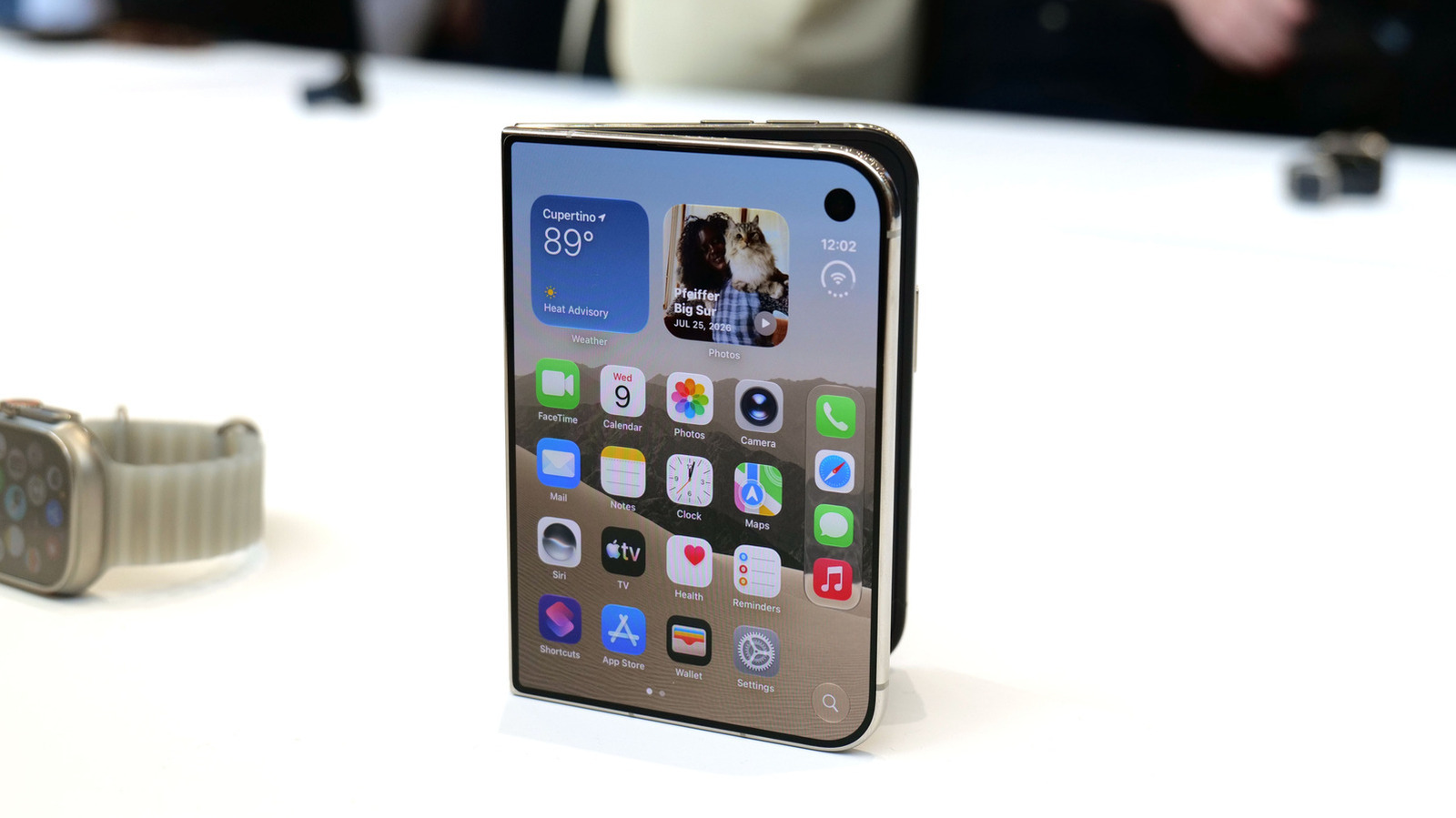
Apple iPhone Duo: A Daring Debut with Notable Compromises
Apple's highly anticipated iPhone Duo, priced at $2,000, has gone on pre-order. While hailed as "Apple's most exciting device in a decade" for its innovative foldable design and immersive display, it comes with significant drawbacks like the absence of FaceID and a premium camera.

AI's Confidence vs. Formal Methods' Rigor: Design Flaws & Verification
While AI accelerates code generation, formal methods remain critical for ensuring system correctness. Languages like TLA+ and tools like Quint enable developers to model and verify system designs before coding, catching subtle flaws. Quint makes formal methods more accessible with developer-friendly syntax and executability. This approach is vital for verifying AI-generated code through trace validation and model-based testing, ensuring reliability against real-world data.