
How to Plan Scenic Routes with Kurviger's Extra Curvy Mode
Learn to plan adventurous, winding routes using the Kurviger app, especially its "Extra Curvy" mode. Discover how to create memorable road trips and utilize features like round-trip planning for spontaneous exploration.
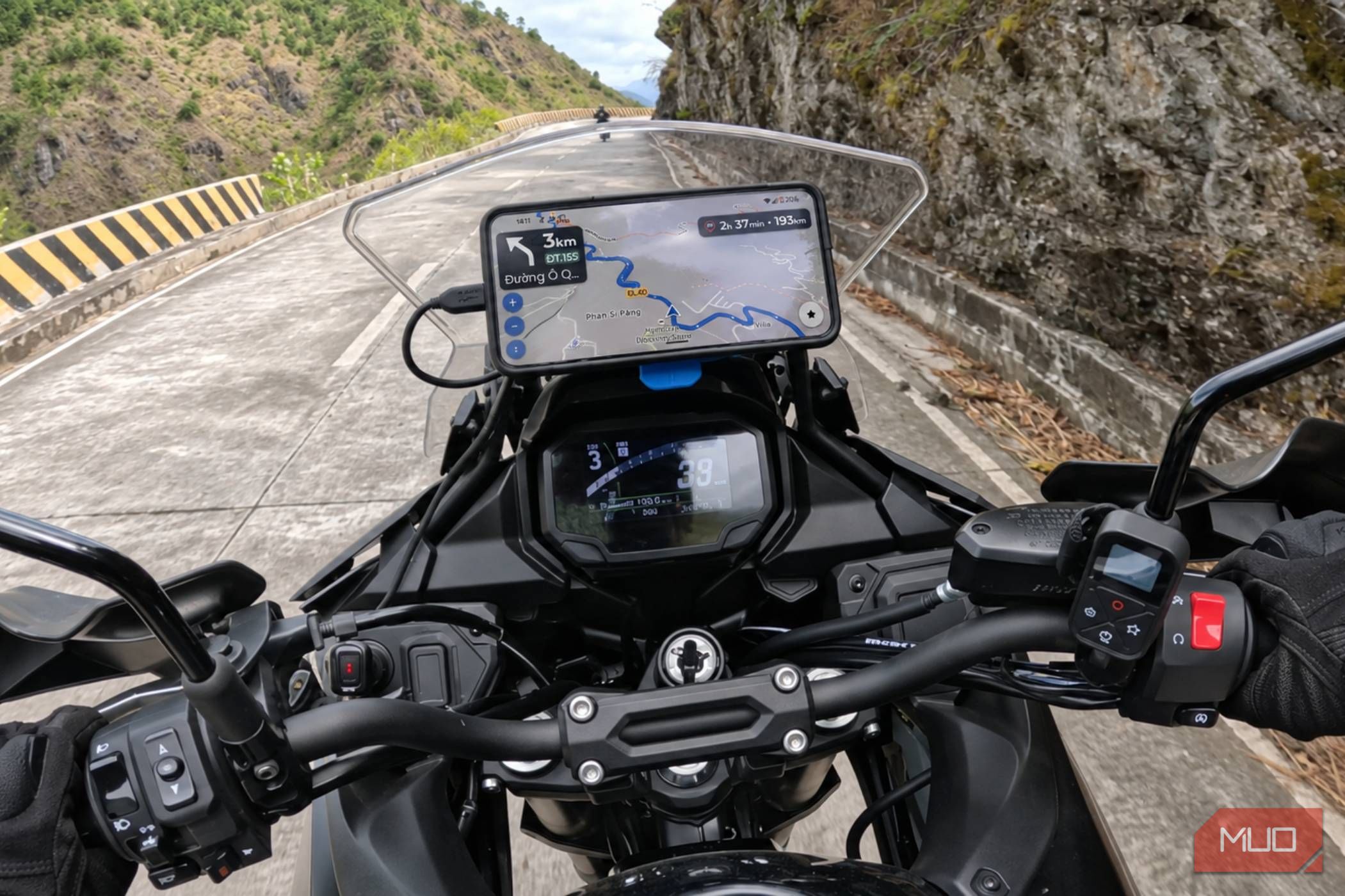
Are you tired of navigation apps always pushing you toward the fastest, most direct routes? For roadtrippers, cyclists, and especially motorcyclists, the journey itself is often the destination. If you crave winding roads, breathtaking scenery, and a more engaging travel experience, Kurviger offers a unique solution that Google Maps and Waze often overlook. This guide will walk you through how to use Kurviger, focusing on its innovative "Extra Curvy" mode, to transform your travels from mere commutes into memorable adventures.
What You'll Accomplish:
By following this guide, you will learn to:
- Discover and plan routes that prioritize curves and scenic beauty over speed.
- Utilize Kurviger's distinct route profiles, including the adventurous "Extra Curvy" mode.
- Plan automatic round trips for spontaneous explorations without a fixed destination.
- Understand Kurviger's additional navigation features and how they enhance your journey.
- Integrate Kurviger effectively alongside your existing navigation tools like Google Maps for a comprehensive travel strategy.
Prerequisites and Requirements:
To get started with Kurviger, you'll need:
- A compatible smartphone: Kurviger is available on both Android and Apple devices.
- The Kurviger app: Download the free version from the Google Play Store or Apple App Store.
- An internet connection: Initially required for route planning and downloading maps (if you opt for offline maps later).
- A desire for adventure: Be ready to embrace longer, more winding paths!
Getting Started with Kurviger: Your Guide to Curvy Adventures
Step 1: Download and Install the Kurviger App
Begin by downloading Kurviger to your smartphone. Search for "Kurviger" in your device's app store (Google Play Store for Android, Apple App Store for iOS) and install it. The free version provides access to the core route planning features, including the "Extra Curvy" mode.
Step 2: Set Your Starting Point
Once installed, open the Kurviger app. The first step in planning any journey is to define your starting location. This can typically be your current GPS location, or you can manually enter an address or drop a pin on the map.
Step 3: Choose Your Destination (or Plan a Round Trip)
Kurviger offers flexibility in how you define your journey:
- For a specific destination: Enter your desired endpoint, just as you would with other navigation apps.
- For a spontaneous round trip: This feature is excellent when you want to simply enjoy a ride without a fixed destination.
- Select the round-trip planning option.
- Specify your starting point.
- Indicate the approximate distance you wish to travel.
- Kurviger will then generate a circular route that brings you back to your origin, allowing you to adjust parameters like direction and curvature preferences to tailor the results. This eliminates the need to endlessly zoom in and out of maps searching for interesting roads.
Step 4: Select Your Route Profile
This is where Kurviger truly differentiates itself. Instead of just "fastest" or "shortest," you have options that prioritize the sheer enjoyment of the ride. Kurviger offers four distinct route profiles:
- Fastest: Prioritizes speed and efficiency, similar to standard navigation apps.
- Fast and Curvy: A balanced approach, offering a mix of speed with a good amount of winding roads.
- Curvy: Leans more heavily towards winding roads, providing a more engaging experience.
- Extra Curvy: This is the adrenaline-seeker's choice. It pushes the route planning to its limits, seeking out the most twisty, technical roads available. For motorcyclists who relish banking through turns, this mode is a game-changer, and it also benefits car drivers and cyclists looking for scenic backroads.
To select a profile, simply tap on the desired option within the route planning interface. You can even customize individual sections of a longer route, allowing you to speed through less interesting segments and then switch to "Extra Curvy" for the scenic parts.
Step 5: Refine and Customize Your Route
After selecting a profile, Kurviger will display your route. You can further customize it to match your preferences:
- Add Waypoints: Insert intermediate stops along your journey.
- Set Avoidances: While the source content doesn't explicitly list specific avoidances for Kurviger, it generally implies the ability to avoid certain road types (e.g., highways) to enhance the curvy experience. Most advanced navigation apps allow for avoiding features like unpaved roads, ferries, or motorways if they detract from the desired route type.
- Adjust Curvature Preferences: Particularly useful for round trips, you can fine-tune how much emphasis the app places on winding roads.
- Explore Map Views and Overlays: Kurviger provides various map views to help you visualize your route and surroundings.
Step 6: Begin Navigation
Once your route is perfected, initiate navigation. Kurviger provides voice-guided, turn-by-turn directions, so you can keep your eyes on the road and enjoy the ride without constantly checking your phone.
Step 7: Leverage Advanced Features (Optional Subscription)
While the core "Extra Curvy" planning is available for free, Kurviger offers a range of powerful features through its Tourer or Tourer+ subscriptions ($12.99 and $24.99 per year, respectively). These features elevate Kurviger from a simple route planner to a comprehensive navigation system:
- Downloadable Offline Maps: Essential for areas with no mobile coverage. Plan ahead and download the maps for your intended region before you lose signal.
- Record Your Rides: Track and save your routes, making it easy to revisit favorite journeys or share them with others.
- Petrol Station Searches: Find fuel stops along your route.
- Dynamic Route Recalculation: The app intelligently adjusts your route if you deviate from the planned path.
- Android Auto and Apple CarPlay Support: Seamlessly integrate Kurviger into your vehicle's infotainment system for a larger display and easier control.
Tips and Best Practices for Using Kurviger
- Embrace the Journey: Remember that Kurviger prioritizes experience over efficiency. "Extra Curvy" routes will almost certainly take longer than Google Maps' fastest option, but that's the point!
- Plan Ahead for Offline Use: If you have a subscription and plan to travel through remote areas, download offline maps in advance. Losing signal mid-ride can be frustrating.
- Combine with Google Maps: For daily commutes, finding businesses, or checking traffic, Google Maps remains a strong choice. Use Kurviger for your dedicated leisure rides and adventures. They complement each other well.
- Experiment with Profiles: Don't be afraid to try "Curvy" or "Fast and Curvy" initially to get a feel for the app before diving straight into "Extra Curvy."
- Utilize Round-Trip Planning: This feature is perfect for spontaneous afternoon rides or drives when you don't have a specific destination but want to explore.
Troubleshooting Common Scenarios
- My "Extra Curvy" route is too long/technical: The "Extra Curvy" mode is designed to maximize winding roads, which naturally increases journey length and complexity. If a route feels too long or challenging, try a less aggressive profile like "Curvy" or "Fast and Curvy," or add waypoints to guide the route.
- The app isn't working in an area without signal: Ensure you have downloaded offline maps for that region if you have a Tourer or Tourer+ subscription. Without pre-downloaded maps, navigation functionality will be limited in areas without data coverage.
- I'm having trouble understanding the route suggestions: Kurviger has a slight learning curve compared to standard navigation apps due to its specialized focus. Take some time to experiment with different settings and profiles. The visual representation of the route on the map often helps in understanding the app's choices.
Next Steps and Related Adventures
Now that you're familiar with Kurviger, download the free version and start planning your next adventure. Experiment with its unique route profiles and round-trip planning. You'll likely find yourself with a saved collection of exciting routes, eager to hit the road.
Remember, navigation doesn't always have to be about saving time. Sometimes, the best journey is the one that takes you somewhere unexpected, introduces you to unfamiliar roads, and makes you forget the destination. Kurviger's "Extra Curvy" mode is precisely for those moments.
FAQ
Q: What are the main differences between Kurviger and Google Maps? A: Google Maps primarily optimizes for the fastest or shortest routes, traffic avoidance, and finding points of interest like businesses and restaurants. Kurviger, on the other hand, specializes in finding and navigating scenic, winding, and technically engaging routes, prioritizing the enjoyment of the ride over efficiency.
Q: Do I need a subscription to use Kurviger's "Extra Curvy" mode? A: No, the "Extra Curvy" mode and other route profiles (Fastest, Fast and Curvy, Curvy) are available in Kurviger's free version. A Tourer or Tourer+ subscription unlocks advanced features such as offline maps, ride recording, petrol station searches, and support for Android Auto/Apple CarPlay.
Q: Can Kurviger help me plan a trip if I don't have a specific destination in mind? A: Absolutely! Kurviger features automatic round-trip planning. You just need to specify your starting point and the desired distance you want to travel, and the app will suggest a circular route that brings you back to where you began, which you can further customize for curvature and direction.
Related articles

Get the Honeywell Smart Color Thermostat for $80 and Start Saving on
Learn to get and install the Honeywell Home Wi-Fi Smart Color Thermostat for just $80, a 55% saving, and start reducing your utility bills by leveraging its Energy Star certified features and smart home integration.

Nvidia CEO Jensen Huang resigns amid spy, affair scandals: CEO
Nvidia CEO and co-founder Jensen Huang has resigned, effective immediately, following reports of two extramarital affairs: one with an alleged Chinese spy and another with a subordinate executive. CFO Colette Kress has been appointed interim CEO as the board initiates a search for a permanent replacement. Huang's departure marks the end of a 33-year tenure at the helm of the AI chip giant.
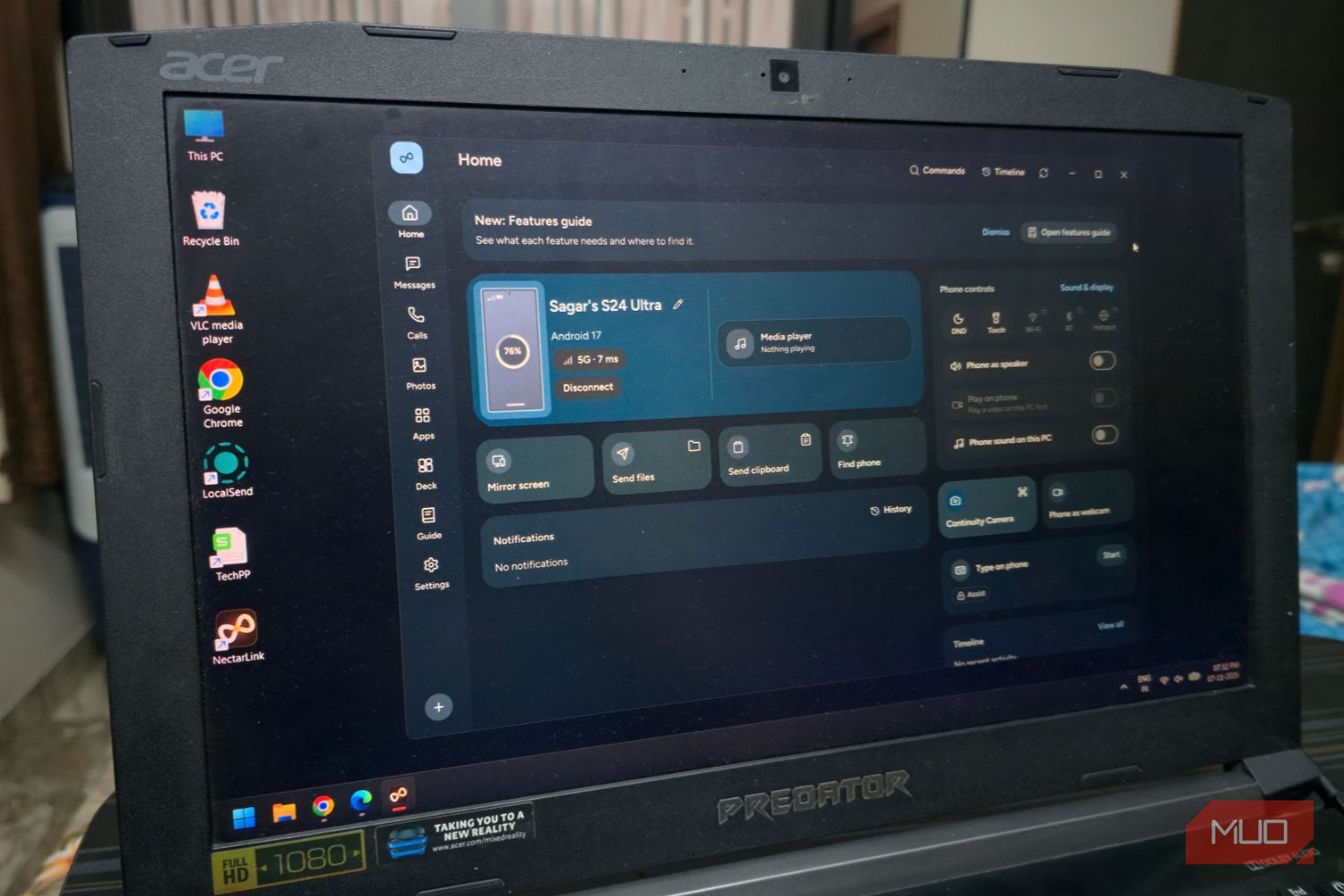
Seamlessly Connect Your Android to Windows with NectarLink
Learn to connect your Android phone to Windows using NectarLink, a free, open-source hub, in a few simple steps. Get notifications, sync files, mirror screens, and control your phone securely without cloud accounts.

Jensen Huang's Crisis Deepens Amid Ouster Reports and Second Affair
Nvidia CEO Jensen Huang is facing potential ouster amid revelations of two alleged extramarital affairs—one with a suspected Chinese spy, Alice Huang, and another with Nvidia VP Kimberly Powell. The scandal, which has caused Nvidia's stock to drop, has triggered national security concerns and a congressional inquiry into his ties to Chinese intelligence assets.

CNET's Wordle #1972 Guide: A Solid Daily Puzzle Companion
Quick Verdict CNET's daily offering of Wordle hints, answers, and strategic help for puzzle #1972 is a robust and reliable resource for both casual players and those seeking to refine their game. While the concept of a
Make 8GB of RAM Work on Windows 11 - Boost Performance
Optimize your Windows 11 PC with 8GB RAM for better performance by updating Windows, managing background apps, optimizing your browser, configuring virtual memory, and using lightweight software alternatives.