Seamlessly Connect Your Android to Windows with NectarLink
Learn to connect your Android phone to Windows using NectarLink, a free, open-source hub, in a few simple steps. Get notifications, sync files, mirror screens, and control your phone securely without cloud accounts.
Bring Your Android to Windows with NectarLink: A Free, Open-Source Hub
Connecting your Android smartphone to your Windows PC can significantly boost your productivity and streamline your digital life. While tools like Phone Link exist, they often come with limitations, such as exclusive features tied to specific phone models or a requirement for cloud accounts. This guide introduces you to NectarLink, a powerful, free, and open-source application designed to bridge the gap between your Android device and Windows PC without the need for accounts or cloud services, prioritizing your privacy through local-first connectivity.
What You'll Accomplish
By following this guide, you will set up NectarLink to:
- Receive and manage Android notifications directly on your Windows PC.
- Send and receive messages across various platforms (SMS, MMS, WhatsApp, Telegram, Signal, RCS) from your computer.
- Manage phone calls, including answering or declining, right from your PC.
- Seamlessly sync your clipboard between your phone and PC, with enhanced security features.
- Transfer files between your devices at high speeds.
- Mirror your phone's screen or run individual Android apps in separate Windows on your PC.
- Utilize your Android phone as a webcam, speaker, touchpad, keyboard, or even a customizable remote control for your PC.
Prerequisites
Before you begin, ensure you have the following:
- A Windows 11 PC (NectarLink is compatible with Windows).
- An Android smartphone.
- A stable Wi-Fi connection for both devices (they must be on the same local network for direct communication).
- Basic knowledge of downloading and installing applications on both Windows and Android.
Discover NectarLink's Powerful Features
NectarLink offers a comprehensive suite of features that can centralize your mobile experience on your PC:
- Smart Notifications: Get real-time alerts from your Android phone on your PC. You can respond to messages, dismiss notifications, and even copy one-time passcodes (OTPs) with a dedicated button. Clearing a notification on one device automatically clears it on the other.
- Integrated Messaging & Calls: Access your SMS, MMS, RCS, WhatsApp, Telegram, and Signal conversations from a unified inbox on your PC. You'll see caller ID for incoming calls and can choose to answer or decline directly from your computer, or even initiate calls.
- Effortless Clipboard Sync: Copy text or images on your phone and paste them on your PC, and vice versa. NectarLink includes an option for encrypted clipboard history, and it intelligently handles sensitive data, preventing passwords from password managers from being saved in history and keeping one-time codes out of the clipboard history.
- High-Speed File Transfers: Move files bidirectionally between your Android and Windows devices at Wi-Fi speeds. Transfers can be resumed if interrupted, and you'll find a "Send to" option in File Explorer for quick sharing. You can also easily access your phone's camera roll and view screenshots on your PC.
- Advanced Screen Mirroring: Mirror your entire phone screen to your PC at up to 60 frames per second, complete with sound, screenshot capabilities, and recording. Alternatively, launch individual Android apps in their own windows on your desktop, each with its own taskbar icon.
- Versatile Device Control: Transform your Android phone into a powerful PC accessory. Use its camera as a webcam for video conferencing apps like Zoom, Teams, Meet, and OBS. Turn your phone into a speaker for your PC's audio, or use it as a touchpad, keyboard, or presentation remote. There's even a Stream Deck-style button grid for custom shortcuts, media controls, and app launchers.
Setting Up NectarLink: A Step-by-Step Guide
NectarLink is designed for local-first communication, meaning your devices connect directly over your network or a USB cable without relying on external servers or requiring account sign-ups, enhancing your privacy. Each feature within NectarLink can be individually toggled for each paired device, giving you granular control over what information is shared.
Here’s how to get NectarLink up and running:
-
Download NectarLink:
- Open your web browser on your Windows PC and navigate to the NectarLink GitHub repository (the source material mentions GitHub as the download location:
https://github.com/thtbee/nectarlink). - Download the PC version of the NectarLink application.
- On your Android smartphone, download the NectarLink APK file from the same GitHub repository.
- Open your web browser on your Windows PC and navigate to the NectarLink GitHub repository (the source material mentions GitHub as the download location:
-
Install on Both Devices:
- On your PC: Run the downloaded installer and follow the on-screen prompts to install NectarLink.
- On your Android phone:
- Before installing the APK, you might need to adjust a security setting. Go to
Play Store > Profile icon > Play Protect > Settings > Turn off Scan apps with Play Protect. This step is crucial as Play Protect may block the installation of third-party APKs. - Locate the downloaded NectarLink APK file (usually in your
Downloadsfolder) and tap it to install. If prompted, grant permission to install from unknown sources.
- Before installing the APK, you might need to adjust a security setting. Go to
-
Open and Pair:
- Launch the NectarLink application on your Windows PC. It will present an overview of its main features.
- The PC app will display a unique QR code for pairing.
- Open the NectarLink app on your Android smartphone. Use the app to scan the QR code shown on your PC screen.
-
Grant Permissions:
- After scanning the QR code, your Android phone will prompt you to grant several permissions for NectarLink to function fully. Grant all necessary permissions for a complete and robust connection. These permissions are essential for features like notification access, file access, and more.
-
Explore and Control:
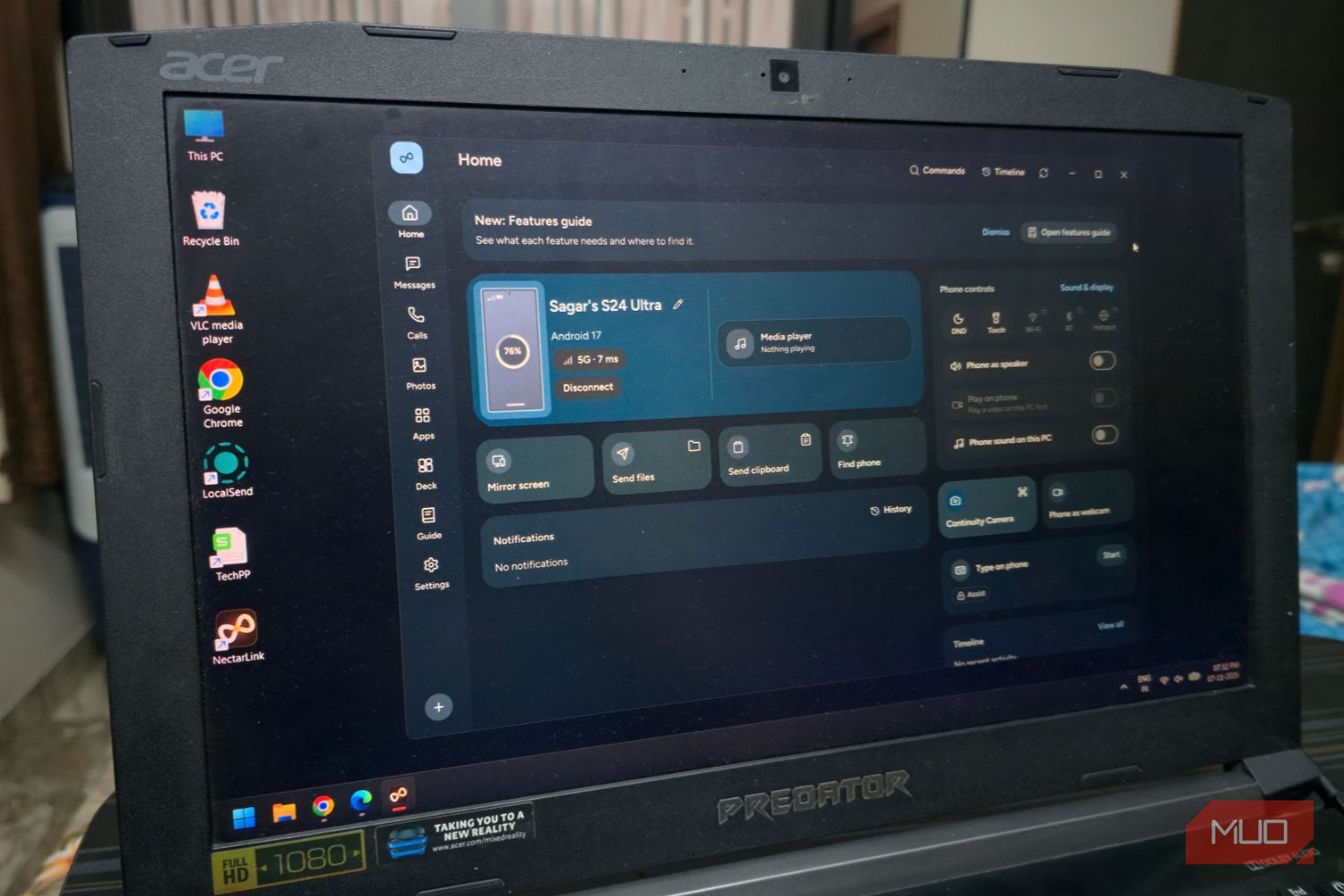
- Once paired and permissions are granted, your NectarLink PC app will display a dashboard with various options to control your phone. You can toggle features like using your phone's camera as a webcam, routing PC audio through your phone's speaker (or vice versa), and controlling Wi-Fi, Bluetooth, and the flashlight directly from your PC.
Troubleshooting Tips
- Play Protect Warning: The most common issue during Android installation is Play Protect blocking the NectarLink APK. Remember to temporarily disable "Scan apps with Play Protect" in the Google Play Store settings before installing the APK. You can re-enable it after NectarLink is successfully installed, though doing so might flag NectarLink again. Consider the implications of disabling Play Protect.
- Connection Issues: Ensure both your PC and Android phone are connected to the same local Wi-Fi network. If connection problems persist, try restarting both NectarLink applications and your devices.
- Feature Not Working: NectarLink allows granular control over each feature. If a specific function isn't working, check the NectarLink settings on both your PC and phone to ensure that feature is enabled for the paired device.
Tips for Best Practices
Given NectarLink's extensive feature set, it's a good idea to:
- Start Small: Begin by enabling core functionalities like notifications, clipboard sync, and file transfers. Once comfortable, gradually add more advanced features.
- Customize Permissions: Utilize NectarLink's per-feature toggle switches. This allows you to personalize your setup and grant access only to the functionalities you intend to use, maintaining better control over your privacy and device access.
- Regular Updates: As an open-source project, NectarLink is likely to receive updates and bug fixes. Regularly check the GitHub repository for the latest versions to benefit from improvements and new features.
Next Steps
With NectarLink now connecting your Android and Windows devices, explore the various control options and integrations. Experiment with mirroring single apps, setting up custom control deck shortcuts, or using your phone as a versatile input device. Dive into the settings to fine-tune each feature to your workflow.
FAQ
Q: Is NectarLink truly private? How does it compare to cloud-based solutions? A: Yes, NectarLink prioritizes privacy. It's a local-first application, meaning your devices communicate directly over your local network or via a USB cable. No data passes through external servers, and it doesn't require any account creation or cloud storage, making it inherently more private than solutions that rely on cloud infrastructure or user accounts.
Q: Why do I need to disable Play Protect to install NectarLink on Android? A: Google Play Protect is designed to scan apps downloaded from the Play Store and other sources for potential threats. Since NectarLink is downloaded as an APK directly from GitHub (an outside source), Play Protect might flag it as an unrecognized or potentially harmful app. Temporarily disabling Play Protect allows you to install it, but it's important to understand the security implications of installing apps from outside the official app store.
Q: Can I use NectarLink if my PC and Android device are on different Wi-Fi networks? A: No, for NectarLink's local-first communication to work seamlessly, both your Windows PC and Android smartphone must be connected to the same local Wi-Fi network. This allows them to discover and communicate with each other directly, ensuring high-speed data transfer and responsiveness without routing through the internet.
Related articles
Get the Honeywell Smart Color Thermostat for $80 and Start Saving on
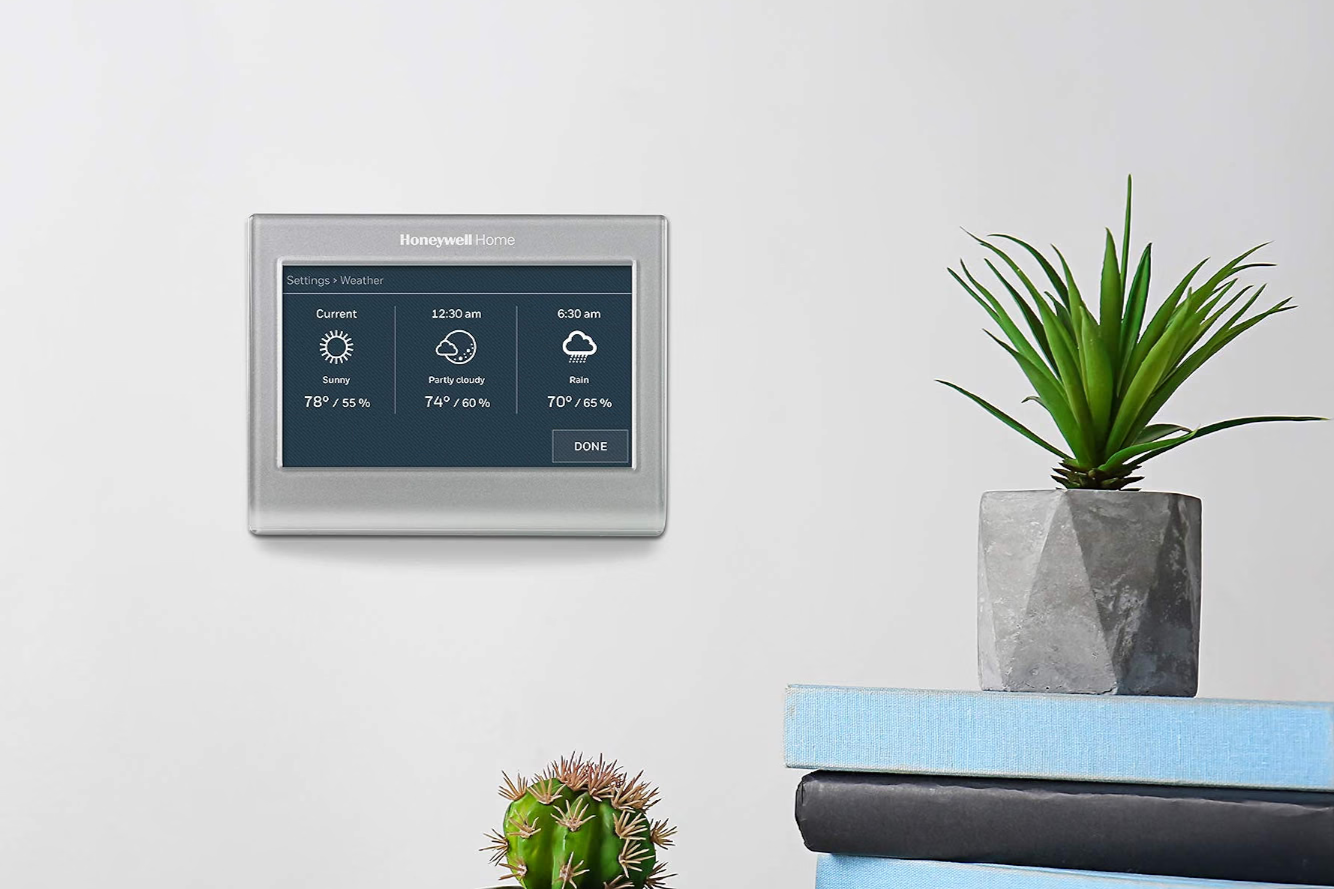
Learn to get and install the Honeywell Home Wi-Fi Smart Color Thermostat for just $80, a 55% saving, and start reducing your utility bills by leveraging its Energy Star certified features and smart home integration.

Gemini Memory Summary: Essential User Control
Google Gemini, like many advanced AI systems, aims to personalize your interactions by remembering details about you. While this can enhance your experience, it also brings up natural privacy concerns regarding what

Android XR Smartglasses: Display-less Specs Redefine AI Wearables
For years, I've approached smartglasses without integrated displays with a healthy dose of skepticism. My thinking was simple: if I can't see augmented reality overlays or discrete notifications right in my line of

Pixel's Android Auto Gemini AI: A Proactive Leap Rivaling Siri
Pixel's Android Auto Gemini Intelligence: A Proactive Leap Rivaling Siri Quick Verdict: The latest Android Auto update brings Google's advanced Gemini Intelligence to eligible Pixel users, delivering a profoundly
Make 8GB of RAM Work on Windows 11 - Boost Performance
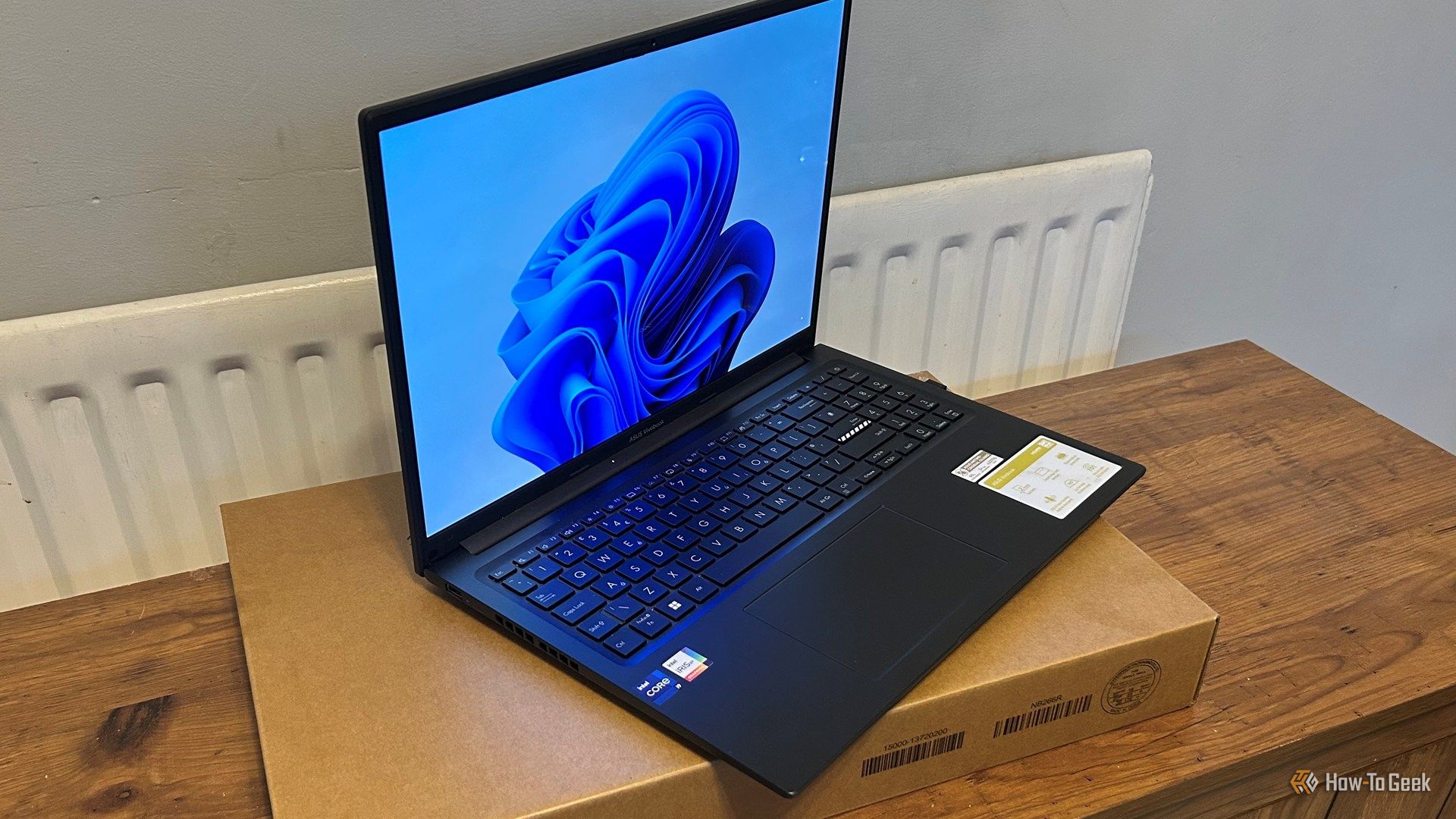
Optimize your Windows 11 PC with 8GB RAM for better performance by updating Windows, managing background apps, optimizing your browser, configuring virtual memory, and using lightweight software alternatives.

How to Understand Leaked Vivo X500 Series Prices for India Launch Prep
Get a clear, step-by-step breakdown of the rumored Vivo X500 series prices, configurations, and how they compare to previous models, helping you prepare for the official India launch.