
Get the Honeywell Smart Color Thermostat for $80 and Start Saving on
Learn to get and install the Honeywell Home Wi-Fi Smart Color Thermostat for just $80, a 55% saving, and start reducing your utility bills by leveraging its Energy Star certified features and smart home integration.
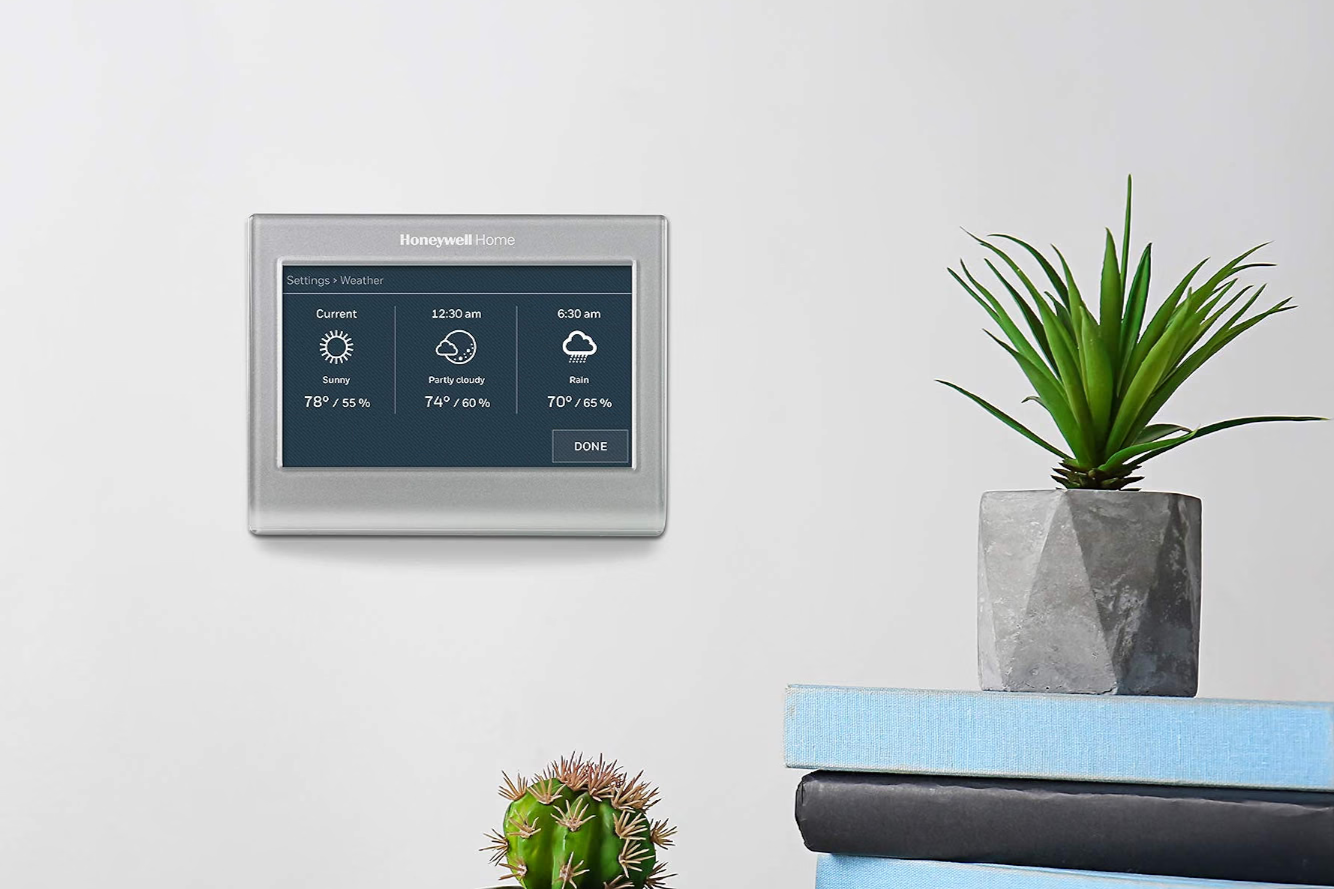
Are you looking for an easy, affordable way to make your home smarter and reduce your energy bills? Adding a smart thermostat is a fantastic step, offering convenient voice control over your heating and cooling while boosting efficiency. Right now, the Energy Star certified Honeywell Home Wi-Fi Smart Color Thermostat is available for an incredible $80, providing a significant upgrade for your home at a budget-friendly price. This guide will walk you through what you need to know to take advantage of this offer and begin enjoying a more comfortable and cost-effective home.
What You'll Accomplish
By following this guide, you will understand how to:
- Identify if your home is compatible with the Honeywell Home Wi-Fi Smart Color Thermostat.
- Learn about the key features and benefits that make this smart thermostat a valuable addition.
- Maximize the energy-saving capabilities of your new thermostat.
- Integrate the thermostat seamlessly into your existing smart home ecosystem.
Essential Prerequisites Before You Buy
Before you dive into purchasing and installing your new smart thermostat, there are two crucial checks to make to ensure a smooth experience:
-
C-Wire Requirement: This is critical! The Honeywell Home Wi-Fi Smart Color Thermostat requires a C-wire for installation. A C-wire (common wire) provides continuous power to your thermostat, which is essential for powering its Wi-Fi and smart features. To check if you have one, carefully remove your current thermostat from its base plate. Look for a wire labeled 'C' or a blue, black, or brown wire that is not connected to a letter terminal. If you don't see one, this model might not be suitable for your system without additional wiring or a C-wire adapter (which is not included). Verifying this beforehand will save you time and potential frustration.
-
Wi-Fi Connectivity: The thermostat connects to your home network via Wi-Fi. Ensure you have a stable 2.4 GHz Wi-Fi network available in the location where your thermostat will be installed. While most modern routers support 2.4 GHz, it's good to be aware of the specific frequency requirement.
Why Choose the Honeywell Home Wi-Fi Smart Color Thermostat?
For anyone looking to upgrade from an older, less efficient thermostat, this Honeywell model offers a host of modern features that contribute to comfort and savings:
-
Unbeatable Value: Priced at just $80, this thermostat represents a 55% saving, putting it in line with budget thermostat options despite its advanced capabilities. It's an accessible entry point into smart home energy management.
-
Proven Energy Efficiency: This thermostat is Energy Star certified under the Certified Smart Thermostats v1.0 specification. This isn't just a marketing claim; it means the device has been independently checked against rigorous program requirements for connected thermostats. Its certification confirms features like time-of-day usage sensing and humidity sensing, which are key to efficient operation and potential utility savings.
-
Seamless Smart Home Integration: Take control with your voice or integrate with your preferred smart home platform. The thermostat works with:
- Amazon Alexa
- Google Home
- SmartThings It also supports IFTTT (If This Then That), allowing you to build custom automations and connect it with other smart devices in your home for truly personalized control.
-
User-Friendly Design: Enjoy a customizable color touchscreen display that can show a daily weather forecast, as well as indoor and outdoor humidity levels, right on the screen. Its 7-day programmability allows you to set detailed schedules to match your lifestyle, ensuring comfort when you're home and savings when you're away.
Taking Advantage of the $80 Offer
The source content indicates that the Honeywell Home Wi-Fi Smart Color Thermostat is currently available for just $80, representing a 55% discount. To secure this deal, you should check major online and in-store retailers specializing in smart home technology and electronics. Look for promotions specifically mentioning the Honeywell Home Wi-Fi Smart Color Thermostat to ensure you're getting the discounted price. This offer makes upgrading your home's climate control an easy decision, especially if you meet the C-wire requirement.
Installation and Setup Tips
Once you've confirmed compatibility and purchased your new thermostat, here are some tips for installation and setup:
-
Review Instructions Carefully: Always refer to the detailed installation manual that comes with your Honeywell thermostat. It will provide specific wiring diagrams and step-by-step instructions for your model.
-
Safety First: Before starting any electrical work, always turn off the power to your HVAC system at your circuit breaker. Take a photo of your existing thermostat's wiring before disconnecting any wires; this will be invaluable if you need to reference it later.
-
C-Wire Connection: Re-emphasize connecting the C-wire securely. If you determined you have a C-wire, connect it to the 'C' terminal on the new thermostat's base plate. This is crucial for consistent operation.
-
Wi-Fi Connection: After physical installation, follow the on-screen prompts or app instructions to connect your thermostat to your 2.4 GHz Wi-Fi network. This step enables all its smart features, including voice control and remote access.
-
Consider Professional Help: If you encounter any difficulties during installation, especially with wiring, or if you don't have a C-wire and are considering adding one, it's always best to consult a qualified HVAC professional. They can ensure safe and correct installation.
Maximizing Your Savings and Comfort
Installing a smart thermostat is just the first step. To truly benefit, you need to leverage its features:
-
Smart Scheduling: Utilize the 7-day programmable feature to create schedules that align with your family's routine. Program the thermostat to automatically adjust temperatures when you're asleep or away from home, ensuring you're not heating or cooling an empty house.
-
Voice Control Convenience: Integrate your thermostat with Amazon Alexa or Google Home. This allows you to adjust the temperature with simple voice commands, adding a layer of convenience to your daily life.
-
IFTTT Automations: Explore IFTTT support to create custom rules. For example, you could set up an automation to adjust the thermostat when your smart home security system is armed or disarmed, or even link it to your location services.
-
Monitor Conditions: Use the on-screen weather forecast and indoor/outdoor humidity readings to make informed decisions about your home's comfort and energy usage. High humidity can make a home feel warmer, allowing you to raise the temperature slightly without sacrificing comfort.
-
Understand Energy Star Benefits: Remember that the Energy Star certification isn't just a label; it signifies features designed to save energy. The thermostat's ability to sense time-of-day usage and humidity helps it operate more efficiently, contributing directly to lower utility bills.
Troubleshooting Common Questions
Even with clear instructions, questions can arise. Here are some common concerns:
-
"What if I don't have a C-wire?" If your existing system lacks a C-wire, this specific Honeywell model will not function correctly. You might explore options like purchasing a C-wire adapter kit (sold separately by various manufacturers), having an HVAC professional run a new C-wire, or considering alternative smart thermostat models that can operate without a C-wire (though this Honeywell model requires one).
-
"My thermostat isn't connecting to Wi-Fi." First, ensure your Wi-Fi network is active and broadcasting on the 2.4 GHz band. Try rebooting your router and then attempting the connection again. Make sure the thermostat is within a reasonable range of your Wi-Fi router. If problems persist, consult the thermostat's manual for specific troubleshooting steps.
FAQ
Q: What is a C-wire and why is it required for this Honeywell thermostat? A: A C-wire, or common wire, provides continuous low-voltage power from your furnace or air handler to the thermostat. Smart thermostats like the Honeywell Home Wi-Fi Smart Color Thermostat need this constant power supply to operate their advanced features, such as Wi-Fi connectivity, backlighting, and smart home integration, without relying on batteries.
Q: Can I integrate this thermostat with my existing smart home system? A: Yes, absolutely! The Honeywell Home Wi-Fi Smart Color Thermostat is designed for broad compatibility. It works seamlessly with popular smart home platforms like Amazon Alexa, Google Home, and SmartThings. Additionally, it supports IFTTT, allowing you to create personalized automations with other smart devices.
Q: How does this thermostat help save money on utilities? A: This thermostat contributes to utility savings in several ways. It is Energy Star certified, meaning it meets strict efficiency standards, including time-of-day usage sensing and humidity control. Its 7-day programmability allows you to set efficient schedules, ensuring heating and cooling only when needed. Furthermore, smart features like remote access and voice control help prevent energy waste by enabling easy adjustments from anywhere.
Your Next Steps
With your new Honeywell Home Wi-Fi Smart Color Thermostat installed, you're on your way to a smarter, more efficient home. Continue to explore the Honeywell Home app for additional features and insights into your energy usage. Consider linking it with other smart devices for a fully automated home environment. Enjoy the comfort and savings!
Related articles

Android XR Smartglasses: Display-less Specs Redefine AI Wearables
For years, I've approached smartglasses without integrated displays with a healthy dose of skepticism. My thinking was simple: if I can't see augmented reality overlays or discrete notifications right in my line of
Seamlessly Connect Your Android to Windows with NectarLink
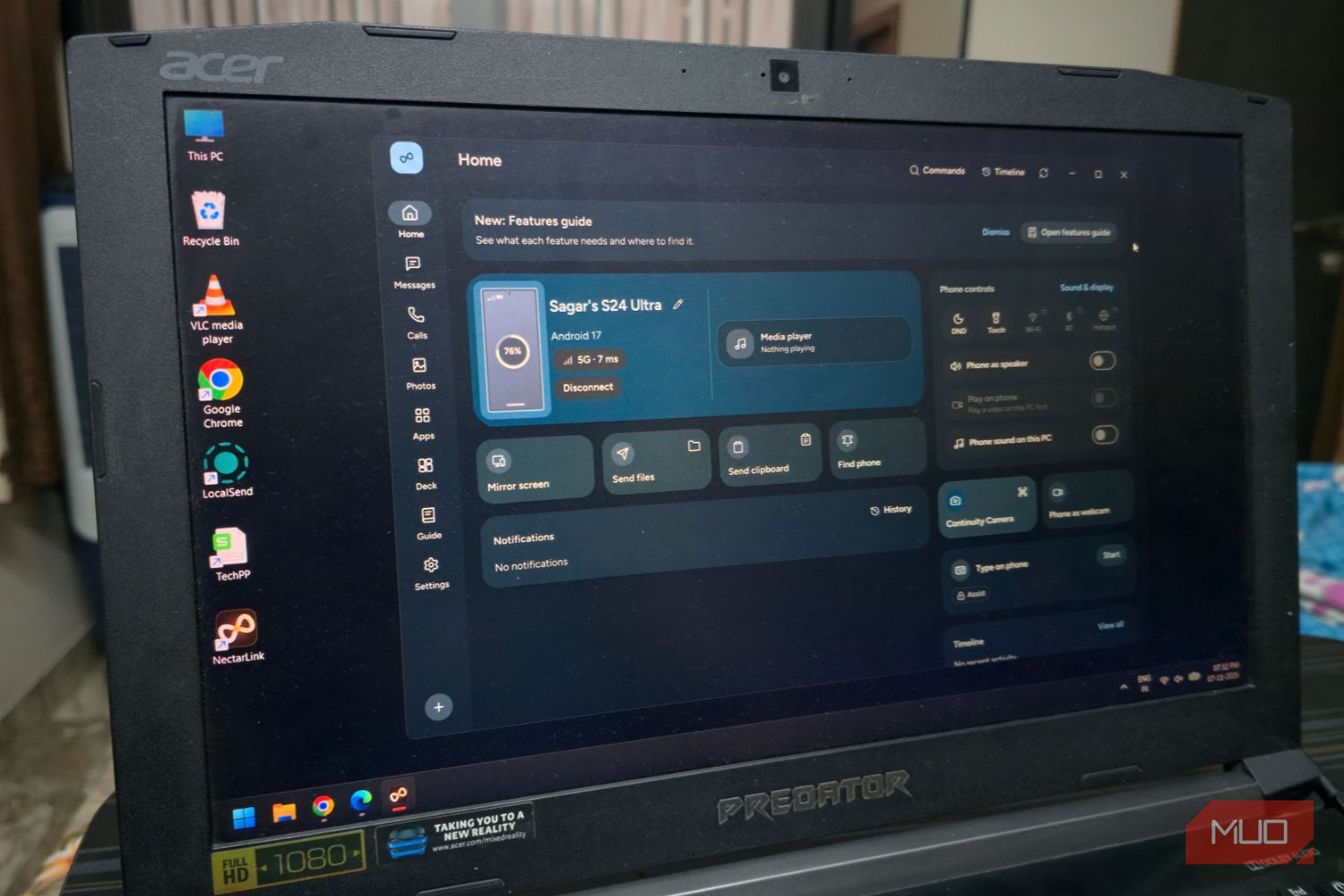
Learn to connect your Android phone to Windows using NectarLink, a free, open-source hub, in a few simple steps. Get notifications, sync files, mirror screens, and control your phone securely without cloud accounts.

Seattle VC Firm Ascend Closes $17M Fund for Physical AI, Hardware
Seattle-based VC firm Ascend has successfully closed its $17 million third fund, overcoming a tough fundraising environment. The fund will strategically invest in early-stage "physical AI" and hardware startups across robotics, defense, and energy, tapping into what it calls Seattle’s "Third Act" of innovation. This significant raise includes its first institutional investor, FirstLook Partners.
Make 8GB of RAM Work on Windows 11 - Boost Performance
Optimize your Windows 11 PC with 8GB RAM for better performance by updating Windows, managing background apps, optimizing your browser, configuring virtual memory, and using lightweight software alternatives.

How to Understand Leaked Vivo X500 Series Prices for India Launch Prep
Get a clear, step-by-step breakdown of the rumored Vivo X500 series prices, configurations, and how they compare to previous models, helping you prepare for the official India launch.
Master the <= Excel Operator for More Accurate Formulas
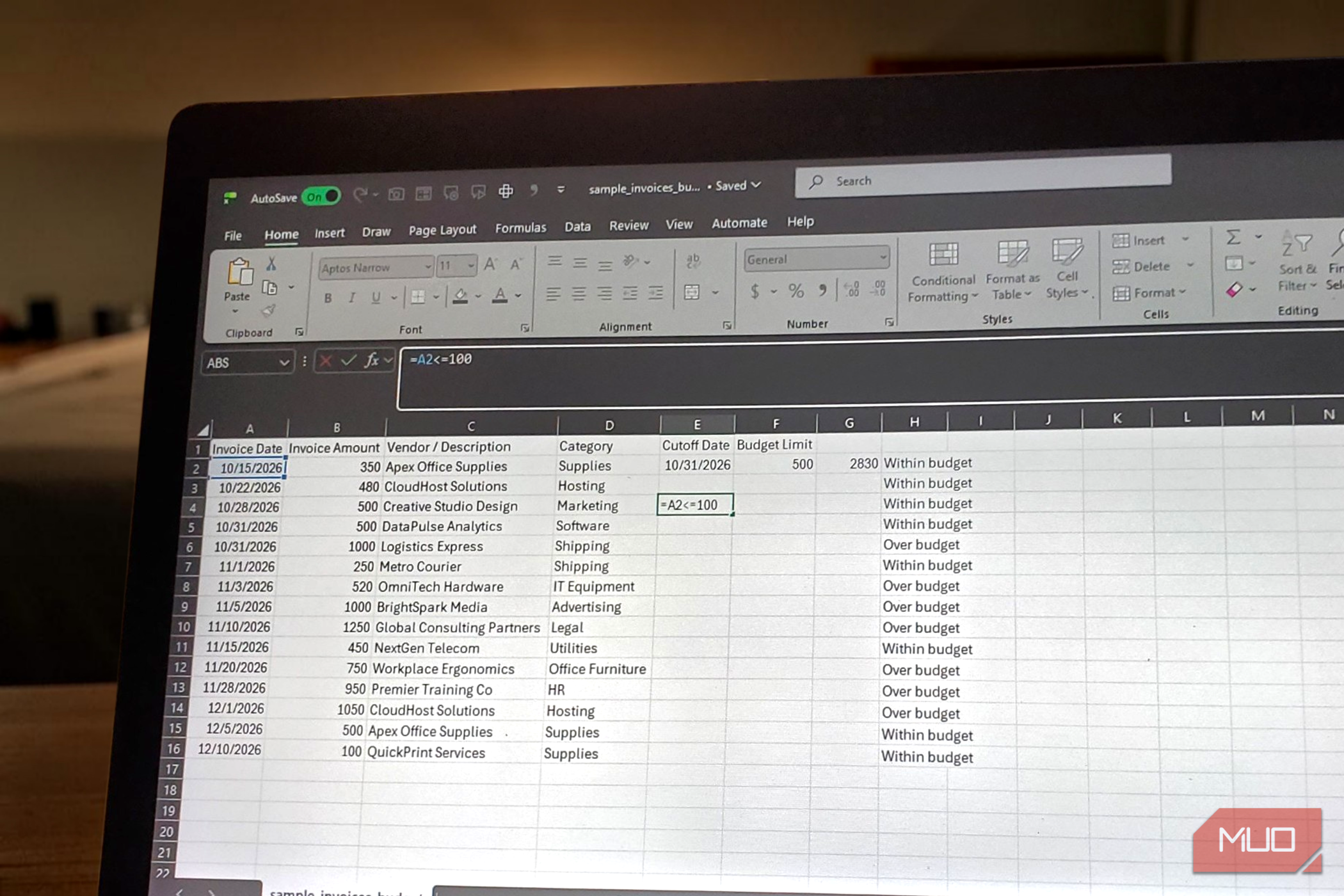
Learn to accurately handle boundary conditions in your Excel formulas by mastering the "less than or equal to" (`<=`) operator. This guide covers its use in IF statements and criteria functions like COUNTIF and SUMIFS, along with best practices and troubleshooting.