
Build Your Own Private Cloud Workspace with KASM Workspaces
Learn to build your own private cloud workspace with KASM Workspaces in a few easy steps, leveraging Ubuntu Server, a custom domain, and Let's Encrypt for a secure, browser-based remote access solution.
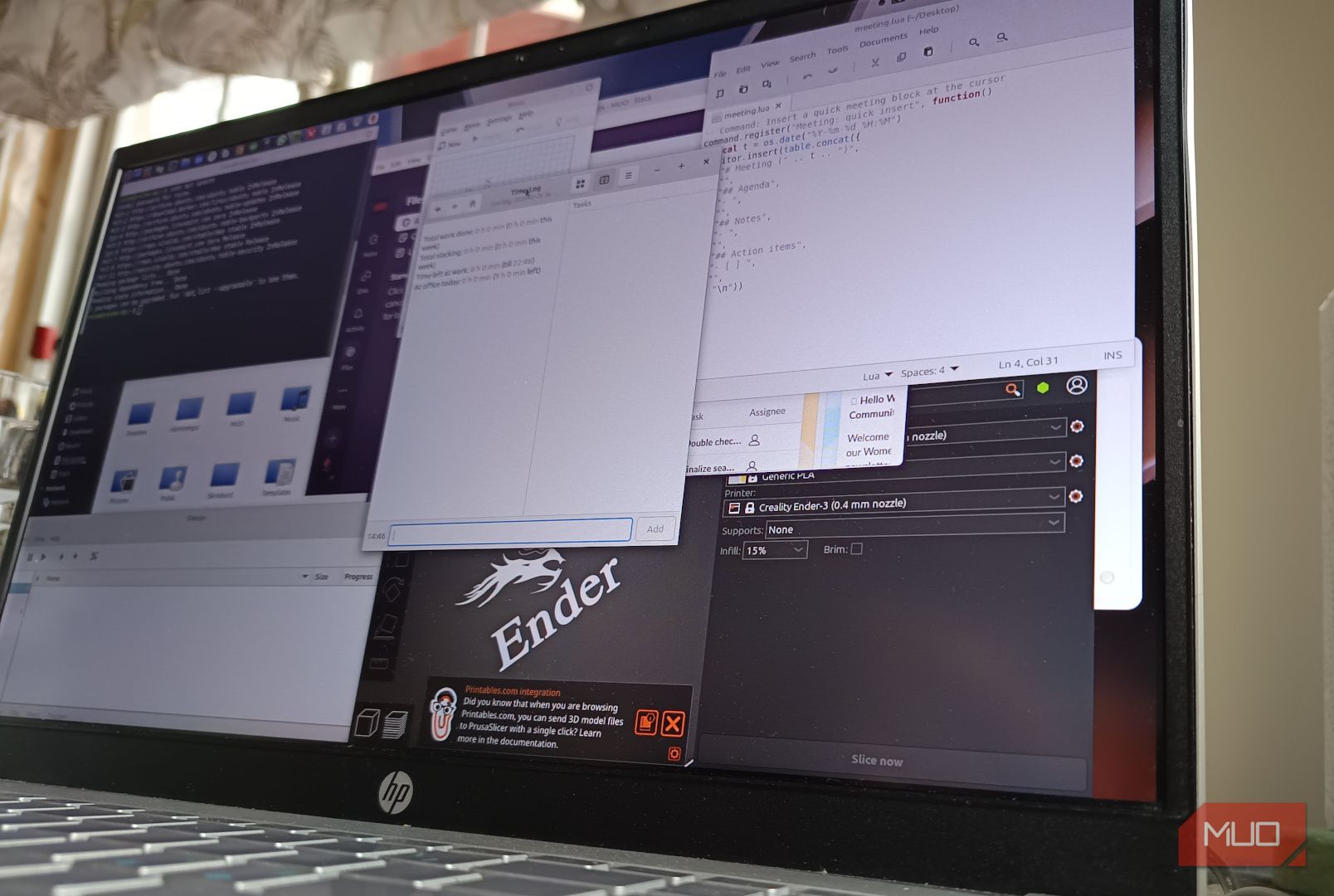
Tired of clunky RDP/VNC? Build a private, browser-based cloud workspace at home with KASM Workspaces. Access personalized desktops and apps from anywhere, securely. This guide walks you through setup, transforming how you work remotely.
What You'll Accomplish:
- Set up KASM Workspaces on an Ubuntu VM.
- Secure your server with a custom domain and Let's Encrypt TLS certificate.
- Configure persistent user profiles to save settings and files.
- Create a versatile, private cloud workspace accessible from any device.
Why KASM Workspaces? Unlike RDP/VNC connecting to a remote machine, KASM is a remote app publishing platform. You log into a clean web portal, launching disposable environments, full desktops, or individual apps. It feels like a private launcher, not just remote access, and is free for private use.
Prerequisites and Requirements
Before starting, ensure you have:
Software/OS:
- Ubuntu Server 24.04 LTS or Debian 12: Fresh, minimal install.
- Domain Name: Registered domain with a public subdomain (e.g.,
kasm.yourdomain.com) pointing to your server's public IP. Cloudflare for DNS is recommended.
Hardware (KASM server):
- CPU: Min 2 cores/2 vCPUs (4 cores/4 vCPUs recommended).
- RAM: Min 8GB (32GB+ recommended – critical for workspace performance).
- Storage: OS + 50GB min (OS + 200GB+ recommended – workspaces grow).
- Network: Local or public access (no CGNAT). A VPS is an option.
Network Configuration:
- Open Ports: Ensure these are open/forwarded to your KASM server:
22(SSH)80(HTTP - for Let's Encrypt)443(HTTPS - for KASM web interface)
Step-by-Step Installation
1. Prepare Your Ubuntu Server
Set up basic security and network configuration.
-
Update and Upgrade: bash sudo apt update && sudo apt upgrade -y
-
Install Tools and Firewall: bash sudo apt install curl ufw -y
-
Configure UFW Firewall: bash sudo ufw allow OpenSSH sudo ufw allow 80/tcp sudo ufw allow 443/tcp sudo ufw enable
2. Install KASM Workspaces
Use the KASM installer script for quick setup.
-
Download and Extract Installer: bash cd /tmp curl -O https://kasm-static-content.s3.amazonaws.com/kasm_release_1.18.1.tar.gz tar -xf kasm_release_1.18.1.tar.gz
(Check KASM docs for latest version.)
-
Run Installation Script: bash sudo bash kasm_release/install.sh
Important: Copy the default
admin@kasm.localanduser@kasm.localcredentials. Access KASM athttps://kasm.yourdomain.com. Expect a self-signed certificate warning initially.
3. Secure KASM with Let's Encrypt
Install a free TLS certificate to remove browser warnings.
-
Stop KASM Service: bash sudo /opt/kasm/1.18.1/bin/stop
(Adjust version if needed.)
-
Install Certbot and Request Certificate: bash sudo apt install certbot -y sudo certbot certonly --standalone -d kasm.ggcontentlabs.com
Replace
kasm.ggcontentlabs.comwith your subdomain. -
Replace Certificates and Start KASM: Configure KASM to use Certbot-generated certificates (e.g.,
fullchain.pem,privkey.pemfrom/etc/letsencrypt/live/your.domain/), replacing KASM's default files. bash sudo /opt/kasm/1.18.1/bin/startRefresh your browser; the warning should be gone.
4. Configure Persistent Profiles
Save your work between sessions by enabling persistent profiles.
-
Log into KASM admin panel.
-
Create Profile Storage on Server: bash sudo mkdir -p /mnt/kasm_profiles/
Ensure KASM has write permissions.
-
Configure within KASM: In the admin panel, assign
/mnt/kasm_profiles/{user_id}to workspaces for dedicated user storage.
Important Note: KASM persistent profiles are not backups. Regularly back up /mnt/kasm_profiles/ to prevent data loss.
Key Security and Maintenance Practices
Maintain your KASM server diligently.
- User Security: Create a strong new admin account, disable the default
admin@kasm.local. Enable Multi-Factor Authentication (MFA). - Regular Updates: Keep your Ubuntu server, KASM, and workspace registries updated.
- Monitor Disk Space: Workspaces consume significant disk space. Monitor regularly to prevent server failure.
Conclusion
KASM Workspaces can become a robust daily-use private cloud. While not a full PC replacement or for simple SSH, its browser-based access, HTTPS, and isolated environments are invaluable. It enables secure browsing, testing, and tool access from anywhere without exposing homelab servers to RDP/VNC risks. KASM is a highly practical self-hosted productivity project.
FAQ
Q: Do I need a super powerful server to run KASM Workspaces?
A: Not necessarily. Minimums are 2 cores/2 vCPUs and 8GB RAM, with RAM being critical for performance. Recommended specs are 4 cores/4 vCPUs and 32GB+ RAM.
Q: Are persistent profiles the same as backups for my data?
A: No. Persistent profiles save settings and files between sessions but don't protect against server failure. You must implement your own backup solution for the /mnt/kasm_profiles/ path.
Q: Why should I use KASM instead of just RDP or VNC to access my home PC?
A: KASM provides a clean, browser-based portal for launching fresh desktops or apps, reducing direct exposure of your home PC. It offers enhanced security and a more flexible, less clunky experience, especially on mobile.
Related articles

TCG Pocket Responds: A Much-Needed Pace Shift for Pokémon Fans
Pokémon TCG Pocket is rolling out a major update for its second anniversary, primarily addressing player concerns about overwhelming content releases by shifting to a six-week set schedule. This aims to curb player decline and improve overall engagement by giving trainers more time to collect and strategize. The update also adds new collection methods, improved deck-building features, and enhanced trading functionality.

Ditch Merge & Center: The Better Way to Align Text in Excel
Learn to use Excel's "Center Across Selection" to align text across cells without merging, avoiding common data manipulation issues. This guide provides steps to utilize this newly accessible feature and add it to your Quick Access Toolbar.

Ars Technica's Rocket Report: Your Essential Space Industry Briefing
Quick Verdict Ars Technica's Rocket Report, presented by veteran space reporter Stephen Clark, offers an invaluable and meticulously organized weekly (or similar frequency, implied by "Edition 9.15") digest of the most
Galaxy Watch One UI 9 Beta: Promising Progress, But Patience Needed
Galaxy Watch 8, Watch Ultra, and Watch 7 are receiving a new One UI 9 Watch beta build with bug fixes and a security patch. Active development signals progress, but a stable release date remains elusive.
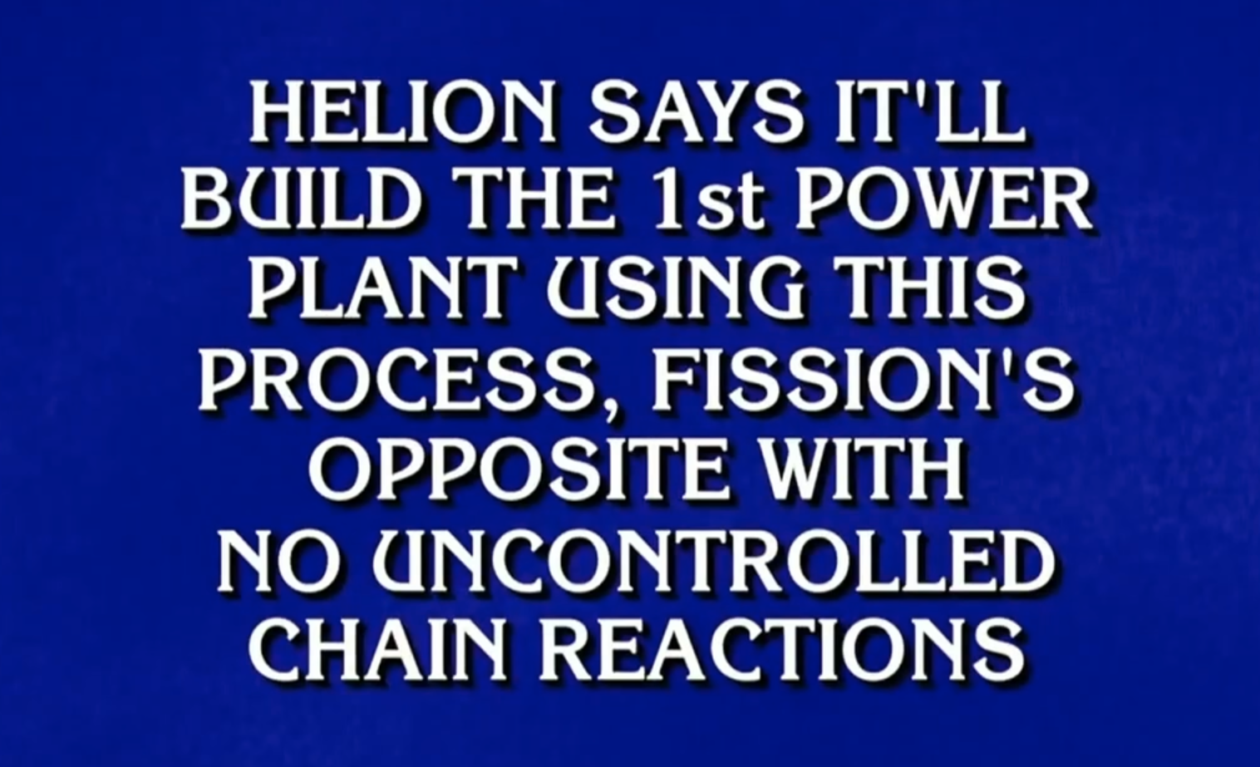
regional: ‘What is fusion?’ Helion Energy harnesses the power of
Helion Energy, the Everett-based fusion startup, gained mainstream attention this week after being featured as a clue on the popular game show "Jeopardy!". The $800 clue, part of a "Y Combinator" category, highlighted Helion's mission to build the first fusion power plant, bringing the concept of clean energy to a wider audience. CEO David Kirtley celebrated the "surreal" moment as a sign that reliable clean power is becoming more accessible.

Stop Android Auto Battery Drain: Essential Features to Disable and
Android Auto offers unparalleled convenience, bringing your phone's most useful features directly to your car's display. From navigation and calls to messages and music, it keeps you connected without distracting you