
Boost Your Laptop's Speed: A Complete Guide to Optimizing Windows
Optimize your Windows laptop's startup by tackling hidden programs, BIOS settings, and post-login delays in 5 key steps.
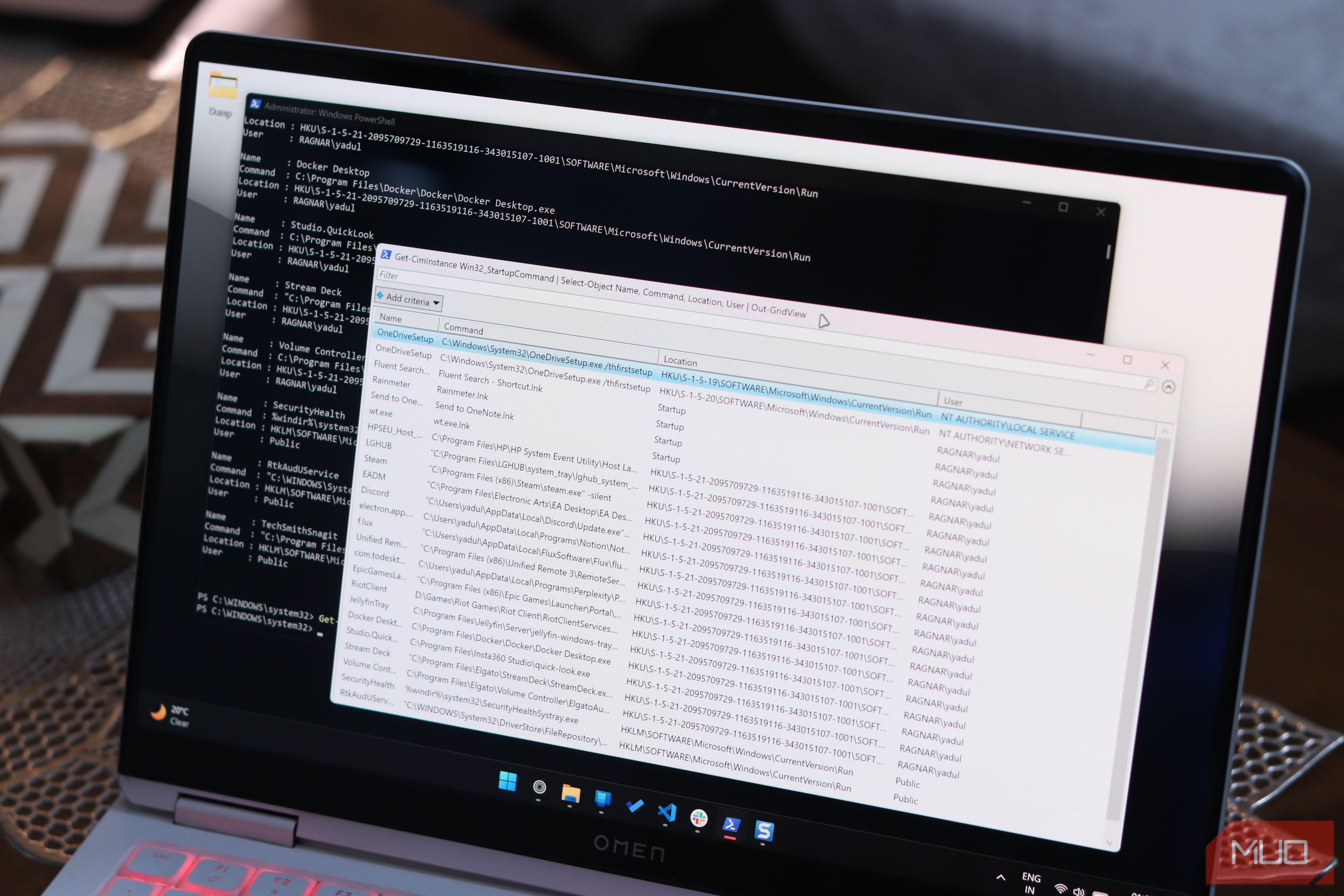
Is your Windows laptop taking forever to boot up? It's a common frustration, and often, it's not a sign of old hardware but rather a stack of hidden processes quietly hogging resources. The good news is, you can take control and significantly speed up your startup and overall system responsiveness.
This guide will walk you through a systematic approach to identify and disable the culprits slowing down your Windows laptop. We'll go beyond the basic Task Manager view, delving into your BIOS, advanced system logs, and hidden settings to help you achieve a quicker, more responsive machine.
Prerequisites
Before you begin, ensure you have:
- A Windows laptop (Windows 10 or 11).
- Administrator access to your computer.
- An internet connection (if you need to download tools like Autoruns).
Let's get started!
1. Diagnose Your BIOS/UEFI Startup Time
Often, the slowdown begins even before Windows starts loading. Your motherboard's firmware (BIOS or UEFI) performs hardware checks, which can take a surprising amount of time.
Actionable Steps:
- Open Task Manager by pressing
Ctrl + Shift + Esc. - Navigate to the Startup apps tab.
- In the top-right corner, locate "Last BIOS time." This value indicates how long the pre-boot phase took during your last startup.
- If your Last BIOS time is consistently above 10 seconds: This is an area for improvement. Anything under 10 seconds is generally acceptable, especially for systems with multiple drives or RGB components.
To optimize your BIOS/UEFI time (if high):
- Restart your computer and enter your BIOS/UEFI setup (the key varies by manufacturer, common keys are
F2,Del,F10,F12during boot). - Look for settings related to boot devices or boot order. Disable any unused boot options, such as network boot, USB boot (if not needed frequently), or an optical drive.
- Find a Fast Boot or Quick Boot option and enable it. This setting can skip some initial hardware checks, speeding up the pre-Windows phase.
- Save your changes and exit the BIOS/UEFI.
Tip: A BIOS update can sometimes improve boot times, but proceed with caution and only if you're comfortable with the process, as incorrect updates can cause issues.
2. Uncover Hidden Startup Programs (Beyond Task Manager)
The Task Manager's "Startup apps" list is notoriously incomplete. Windows has hundreds of points where programs can launch automatically, and Task Manager only monitors a fraction of them. To get the full picture, you'll need more powerful tools.
Option A: Use Autoruns for a Deep Dive
Autoruns is a free, powerful Sysinternals tool from Microsoft that reveals every known autostart location. It's comprehensive but can be overwhelming, so we'll focus on filtering it.
Actionable Steps:
- Download Autoruns from the official Microsoft Sysinternals website.
- Extract the downloaded ZIP file and run
Autoruns.exeas an administrator (right-click the executable and select "Run as administrator"). - Once Autoruns loads, go to Options in the menu bar.
- Check "Hide Windows Entries" and "Hide Microsoft Entries." This will significantly reduce the list, showing primarily third-party applications.
- Carefully review the remaining entries. Pay attention to programs you don't recognize or don't need to run immediately at startup. Autoruns color-codes missing files or unsigned binaries, which can indicate potential issues.
- To disable an entry: Uncheck the box next to it. It's always recommended to disable an entry first rather than deleting it. This allows you to re-enable it if it causes unexpected problems.
Tip: Autoruns reveals everything from scheduled tasks that trigger at logon, to auto-start services, drivers, and shell extensions that Task Manager simply can't see. Focus on items listed under the 'Logon', 'Services', and 'Scheduled Tasks' tabs if you want to be methodical.
Option B: Use PowerShell for a Quick Overview
For a faster, more focused list of common startup entries, PowerShell can provide a readable output.
Actionable Steps:
- Open PowerShell as an administrator. You can do this by typing "PowerShell" into the Start menu search, right-clicking "Windows PowerShell," and selecting "Run as administrator."
- Paste and run the following command:
Get-CimInstance Win32_StartupCommand | Select-Object Name, Command, Location, User | Format-List - Review the output. The
Name,Command,Location, andUserfields will help you identify the purpose of each entry and where it originates.
- For easier scanning: Replace
Format-ListwithOut-GridViewto get an interactive, sortable table. - To save the list: Pipe the output to a text file, for example:
> C:\startup_audit.txt
Caution: This command doesn't capture everything Autoruns does (e.g., scheduled tasks or services). If you find an entry you want to disable, locate it manually in Autoruns or Task Manager, or consider searching online for the Command to understand its function before acting. Always disable before deleting.
3. Pinpoint Performance Hogs with Event Viewer
Windows silently records detailed diagnostic information, including which processes cause boot delays. This hidden log can pinpoint the exact culprits.
Actionable Steps:
- Open Event Viewer by typing "Event Viewer" into the Start menu search and pressing
Enter. - In the left-hand pane, navigate to:
Applications and Services Logs > Microsoft > Windows > Diagnostics-Performance > Operational. - In the right-hand pane, click "Filter Current Log..." under the Actions section.
- In the "Event IDs:" field, enter
101and clickOK. - Review the filtered events. Event ID 101 specifically logs applications that delayed the boot process.
- For each event, look at the "File Name" and "Degradation Time" fields. The
Degradation Timeis the crucial metric, showing how many milliseconds a process added to your boot.
- What to look for: A delay of 1,000 to 3,000 ms (1-3 seconds) is worth investigating, and anything above 3,000 ms indicates a significant drag on performance. Pay special attention if the same application appears repeatedly across multiple boots.
To address identified offenders:
- If it's a known application, you can try disabling it from the Task Manager's Startup apps tab.
- If it's a service, you might change its startup type to "Automatic (Delayed Start)" in the Services manager (
services.msc), allowing your desktop to load before it starts.
4. Optimize Post-Login Responsiveness
Even with a quick boot, your laptop can feel sluggish if too many things are loading or running in the background right after you log in. Addressing these can make your desktop feel instantly snappier.
A. Disable Unnecessary Startup Apps (Settings App)
This is a simpler, more user-friendly version of managing startup apps.
Actionable Steps:
- Open Settings by pressing
Windows key + I. - Go to Apps > Startup.
- Review the list of applications and toggle off any that you don't need to launch immediately when Windows starts. This often includes OEM utilities, cloud sync services like OneDrive, or communication apps like Microsoft Teams, if you don't use them instantly.
B. Turn Off Transparency Effects
Transparency effects add a visual flair but demand continuous GPU and CPU work.
Actionable Steps:
- Open Settings (
Windows key + I). - Go to Accessibility > Visual effects.
- Toggle "Transparency effects" to
Off.
This small change can reduce background resource usage and improve perceived responsiveness.
C. Manage Background App Permissions
Many apps continue to run in the background, consuming resources even when not actively used.
Actionable Steps:
- Open Settings (
Windows key + I). - Go to Apps > Installed apps.
- For apps you rarely use or don't need running silently, click the three dots next to the app, then select "Advanced options."
- Under "Background app permissions," set the option to "Never."
5. Disable Windows "Fast Startup"
Paradoxically, a feature designed to speed up boot times can often cause more problems than it solves, especially on modern systems with SSDs.
Why disable it? Fast Startup is a hybrid hibernation. Instead of a full shutdown, Windows saves the kernel and drivers to a hibernation file. While this saves a few seconds on boot, it can carry over memory leaks or misbehaving services, prevent some updates from fully applying, and cause issues with dual-boot setups.
Actionable Steps:
- Open Control Panel. You can find it by searching in the Start menu.
- Navigate to Hardware and Sound > Power Options.
- In the left-hand pane, click "Choose what the power buttons do."
- Click "Change settings that are currently unavailable" (you'll need administrator privileges).
- Under "Shutdown settings," uncheck "Turn on fast startup (recommended)".
- Click
Save changes.
Disabling Fast Startup ensures a complete, fresh boot every time, which can resolve persistent minor issues and often provides a more stable experience on modern hardware.
Conclusion
Optimizing a slow Windows startup is rarely about fixing a single problem. As you've seen, delays can stem from your BIOS, hidden background programs, or even Windows' default settings. By systematically diagnosing each area – checking BIOS time, using advanced tools like Autoruns or Event Viewer, and refining post-login behavior – you're taking a holistic approach.
You won't likely shave your boot time down to zero, and older hardware always has its limits. However, by eliminating unnecessary processes and tweaking your system intelligently, you'll stop wasting performance and enjoy a noticeably quicker, more responsive Windows laptop from the moment you power it on.
FAQ
Q: Is it safe to disable all startup programs? A: No, exercising caution is key. Disabling essential system processes, critical drivers, or security software can lead to system instability, errors, or security vulnerabilities. Always disable rather than delete an entry initially, and test your system's functionality afterward. Focus on third-party applications you recognize and confirm you don't need running immediately at startup.
Q: Will these changes improve my general laptop performance, not just startup? A: Absolutely! Many of these optimizations, especially those addressing post-login lag (disabling background apps, turning off transparency effects), directly impact your laptop's performance beyond just boot time. Reducing unnecessary processes frees up valuable CPU, RAM, and GPU resources, allowing your active applications to run smoother and making your entire computing experience feel more responsive.
Q: How often should I check these settings? A: It's good practice to revisit these settings periodically, especially after major Windows updates, installing new software, or if you notice a significant slowdown re-emerging. New applications frequently add themselves to startup automatically, and updates can sometimes reset preferences. A quarterly check or an immediate diagnosis when performance degrades is a reasonable approach.
Related articles
Android 17 QPR2 Beta 7.1: The Performance Relief You've Been Waiting
Android 17 QPR2 Beta 7.1: Finally Fixing the QPR1 Performance Woes Verdict: Android 17 QPR2 Beta 7.1 is a crucial and highly anticipated software update for Google Pixel users, specifically targeting and resolving the

Ditch Merge & Center: The Better Way to Align Text in Excel
Learn to use Excel's "Center Across Selection" to align text across cells without merging, avoiding common data manipulation issues. This guide provides steps to utilize this newly accessible feature and add it to your Quick Access Toolbar.

Ars Technica's Rocket Report: Your Essential Space Industry Briefing
Quick Verdict Ars Technica's Rocket Report, presented by veteran space reporter Stephen Clark, offers an invaluable and meticulously organized weekly (or similar frequency, implied by "Edition 9.15") digest of the most
%20102026%20top%20art%20SOURCE%20Govee.jpg)
in-depth: The Best Permanent Outdoor Lights (2026): Govee, Eufy
WIRED, a leading voice in technology journalism, has just released its updated guide for 2026 on the best permanent outdoor lights, spotlighting top contenders Govee, Eufy, and Cync. These innovative eave lights are

Stop Android Auto Battery Drain: Essential Features to Disable and
Android Auto offers unparalleled convenience, bringing your phone's most useful features directly to your car's display. From navigation and calls to messages and music, it keeps you connected without distracting you
Beyond the Bugs: Conquering Studio Headaches in Indie Dev
This guide, part three in a series on running an indie studio, tackles the crucial but often overlooked aspect of dealing with non-development related issues. It introduces creating a shared 'studio backlog' for collective problems and using the IDS (Identify, Discuss, Solve) framework to address them constructively. The core message is to build powerful habits that keep studios from getting quietly derailed by lingering challenges.