
Why Disabling Windows Prefetch Makes Your PC Slower and How to
Discover why turning off Windows Prefetch can degrade performance, understand how Windows manages memory efficiently, and learn to correctly interpret your PC's RAM usage in Task Manager.
Introduction: Debunking the RAM Usage Myth
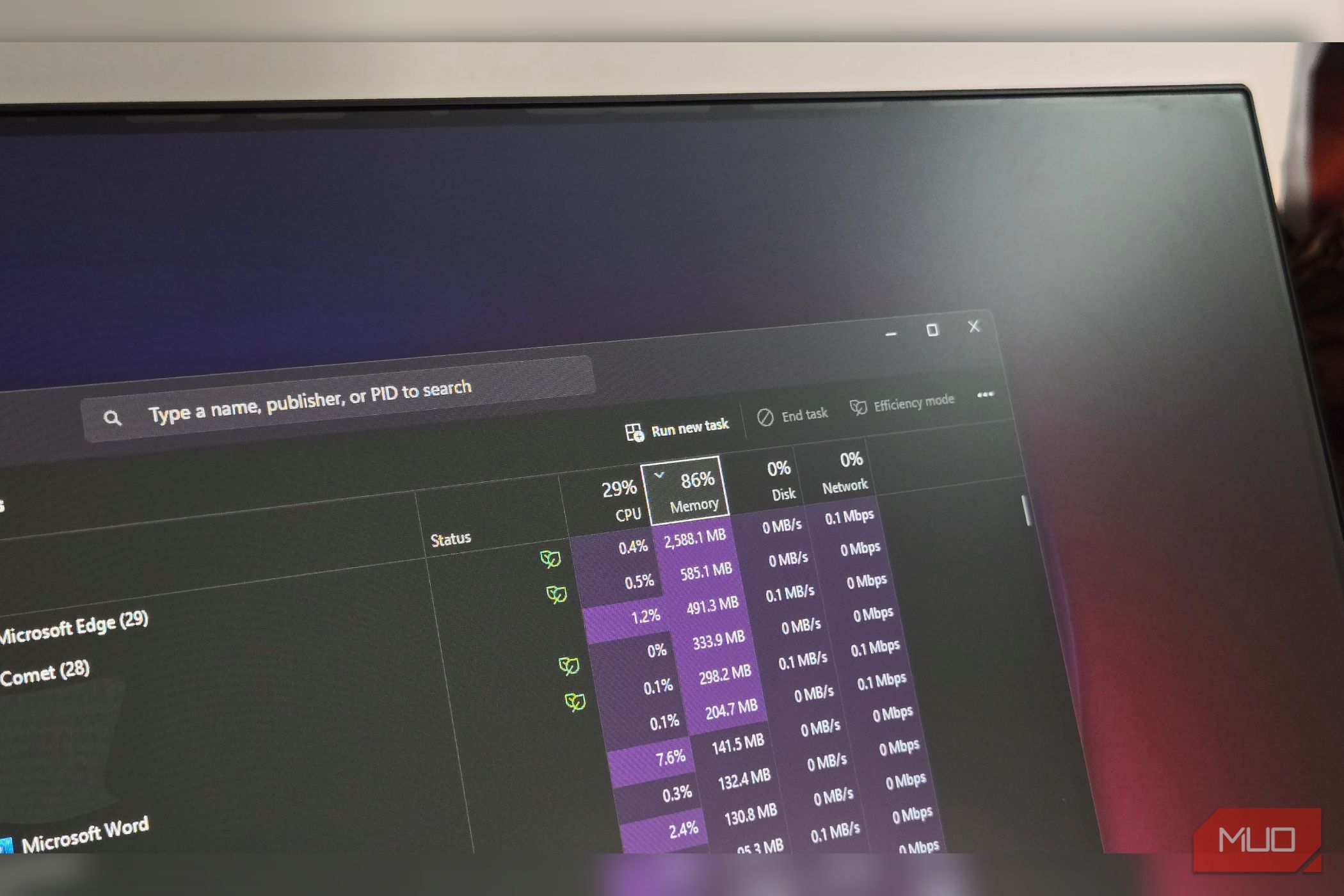
Have you ever opened Task Manager and felt a pang of panic seeing your Windows PC use 80-85% of its total RAM, even when you're not running demanding applications? It's a common misconception that high RAM usage inherently means your computer is struggling. Many users, including the author of the original article, have fallen into the trap of trying to "free up RAM," only to discover they were actually hindering their PC's performance.
This guide will explain why this assumption is flawed, focusing on Windows Prefetch and proper memory management. We'll delve into what Prefetch does, why disabling it is often a mistake, and most importantly, how to correctly interpret your PC's RAM usage in Task Manager. By the end, you'll understand why letting Windows manage your memory is typically the best approach for optimal performance.
Prerequisites
To follow along with the insights in this guide, you'll need:
- A Windows PC (Windows 10 or 11).
- Basic familiarity with navigating your operating system.
- Ability to open and interact with Task Manager.
Understanding Windows Prefetch: Speeding Up Your Apps
Windows Prefetch is a built-in feature designed to significantly speed up how quickly your applications launch. It's a clever mechanism that works by observing your behavior:
- Monitoring App Usage: Prefetch keeps a close eye on which files and resources your applications utilize during their startup process.
- Creating a Record: Based on this monitoring, it creates a record of this activity, essentially learning the "recipe" for a quick app launch.
- Preloading Data: It then leverages this information to preload frequently used data into any available, otherwise idle RAM. This means that when you next launch a particular app, the data it needs is already sitting in fast RAM, ready to go, rather than having to be retrieved from slower storage.
The logic behind disabling Prefetch often stems from the idea that modern PCs with fast Solid State Drives (SSDs) don't need it. While it's true that SSDs themselves offer rapid app launch times, making the performance gains from Prefetch less dramatically noticeable than they were with older mechanical hard drives, this doesn't mean Prefetch is useless or harmful. The author initially believed disabling it would free up memory without affecting performance, perceiving it as a win-win situation. However, this perspective overlooks the fundamental way Windows handles memory.
Why Disabling Prefetch Was a Misstep: Unused RAM is Wasted RAM
The core flaw in thinking that disabling Prefetch helps your PC lies in a misunderstanding of how RAM works, treating it like storage space. With storage, more free space is generally better. RAM, however, operates differently: it's there to be used. Windows is intelligently designed to utilize available memory rather than letting it sit idle. Here's why disabling Prefetch is often a mistake:
- The "Free Up RAM" Myth: The author observed 80-85% RAM usage and interpreted it as a problem needing a fix. This led to the assumption that lower RAM usage equates to better performance. In reality, Windows actively uses available RAM for various caching purposes, including Prefetch, to enhance overall system responsiveness.
- Windows' Efficient Memory Management: Prefetch doesn't permanently occupy RAM. The memory it uses for preloading data is classified as "cached" memory. This cached memory is highly flexible. It's only using RAM that would otherwise be idle, storing data that Windows predicts you'll likely need soon. If an application or the system genuinely needs that memory for another task, Windows can instantly reclaim the cached memory and reallocate it where it's most needed.
- Cached Memory is Not Unavailable Memory: The memory you might think you're "saving" by disabling Prefetch was never truly unavailable. It was serving a useful purpose by making your apps launch faster, while simultaneously remaining ready and available for any other task that required it. Thus, disabling Prefetch doesn't improve things; it simply removes a beneficial background process that uses idle RAM to boost perceived speed.
- SSDs Don't Nullify Benefits: Even with modern, fast SSDs, Prefetch isn't rendered obsolete. While the speed boost might not be as dramatic as with older hard drives, it still contributes to a smoother, more responsive user experience. Crucially, it's not hurting performance; it's providing a subtle, continuous benefit by optimizing data access.
In essence, by disabling Prefetch, you're not improving your PC's efficiency. Instead, you're preventing Windows from fully utilizing its resources to make your computing experience faster and smoother. The author's personal experience confirmed this, as they found their system was actually slower without Prefetch.
Monitoring Your PC's RAM Usage Correctly in Task Manager
The author eventually realized they were focusing on the wrong numbers in Task Manager. Instead of obsessing over "In Use" and "Cached" figures, the crucial metric to understand your PC's RAM situation is "Committed" memory.
Here’s a sequential guide to interpreting your RAM usage correctly:
- Open Task Manager: Press
Ctrl + Shift + Escor right-click the taskbar and select "Task Manager." - Navigate to the Performance Tab: Click on the "Performance" tab at the top of the Task Manager window.
- Select Memory: In the left-hand pane, click on "Memory" to view detailed RAM statistics.
- Focus on "Committed" Memory: You'll see a line labeled "Committed." This metric displays two numbers (e.g., 36.3/48.6 GB).
- The first number (36.3 GB in the example) represents the total amount of RAM Windows has promised to applications and the system. This includes both physical RAM and pagefile space on your storage drive.
- The second number (48.6 GB in the example) is the commit limit, which signifies the total available capacity combining your physical RAM and the allocated pagefile space.
This single metric provides almost everything you need to know about your PC’s RAM situation. As long as the committed memory remains comfortably below the commit limit, your Windows system still has ample room to fulfill new memory requests. High RAM usage by itself isn't a problem if there's enough available capacity.
-
Understand When to Worry: The only time you should be genuinely concerned about your PC's memory is when the committed memory starts to approach the commit limit, specifically reaching 90-95% of that limit. At this point, the system can no longer guarantee new memory allocations, and you'll likely notice significant slowdowns and sluggishness even without Task Manager telling you there's an issue.
-
Use Resource Monitor for Deeper Insights (Optional): If you want to dive deeper into where your memory is being used, Windows includes a tool called Resource Monitor. You can access it by clicking "Open Resource Monitor" at the bottom of the Memory tab in Task Manager. Resource Monitor offers a much more detailed breakdown, showing how much memory is truly in use, on standby, modified, or genuinely free, helping you identify specific applications that might be consuming excessive resources if you do encounter actual performance problems.
Troubleshooting & Best Practices
- Trust Windows: For most users, the best practice is to let Windows manage its memory resources automatically. The operating system is designed to use RAM efficiently to keep things running smoothly.
- Don't Obsess Over Low RAM Usage: If your PC has plenty of RAM (like the author's 24GB), seeing high "In Use" or "Cached" numbers is often a sign that Windows is doing its job well, preloading data and caching frequently accessed files for a snappier experience.
- Identify Actual Bottlenecks: If you experience slowdowns, refer to the "Committed" memory in Task Manager. If it's consistently near its limit, then use Resource Monitor to pinpoint specific applications or processes that are the primary memory consumers. You might need to close heavy applications or consider upgrading your RAM.
Conclusion: Let Windows Optimize
The journey from disabling Prefetch to re-enabling it, and from misunderstanding RAM usage to correctly interpreting it, highlights a critical lesson: Windows is designed to be efficient. Features like Prefetch, far from being obsolete or detrimental, play a vital role in optimizing your PC's performance by intelligently utilizing available memory.
Instead of trying to force lower RAM usage, which often leads to a slower system, focus on monitoring the "Committed" memory metric in Task Manager. This will provide you with a true picture of your PC's memory health, allowing you to trust Windows to manage its resources and deliver a consistently smooth and responsive computing experience.
FAQ
Q: Did disabling Prefetch really free up 5GB of RAM? A: The author observed a decrease of nearly 5GB in cached memory after disabling Prefetch. However, this memory wasn't truly "freed up" in a beneficial way. It was simply no longer being used for preloading data. Windows would have repurposed it if needed, but in the author's case, it meant a useful caching process was halted, leading to slower performance.
Q: When should I be concerned about my PC's RAM usage? A: You should only be concerned when your "Committed" memory in Task Manager starts consistently approaching 90-95% of your total commit limit (physical RAM + pagefile). This indicates a genuine memory shortage that Windows can no longer easily manage, leading to noticeable system sluggishness.
Q: Is Prefetch still beneficial for PCs with fast SSDs? A: Yes, Prefetch is still beneficial even with fast SSDs. While SSDs significantly reduce app launch times, Prefetch further optimizes the process by preloading specific data into RAM, leading to a snappier feel. It doesn't hurt performance and actively contributes to overall system responsiveness by making efficient use of otherwise idle RAM. The author's experience confirms that disabling it actually made their PC slower.
Related articles

Ditch Merge & Center: The Better Way to Align Text in Excel
Learn to use Excel's "Center Across Selection" to align text across cells without merging, avoiding common data manipulation issues. This guide provides steps to utilize this newly accessible feature and add it to your Quick Access Toolbar.

Ars Technica's Rocket Report: Your Essential Space Industry Briefing
Quick Verdict Ars Technica's Rocket Report, presented by veteran space reporter Stephen Clark, offers an invaluable and meticulously organized weekly (or similar frequency, implied by "Edition 9.15") digest of the most

AI's Confidence vs. Formal Methods' Rigor: Design Flaws & Verification
While AI accelerates code generation, formal methods remain critical for ensuring system correctness. Languages like TLA+ and tools like Quint enable developers to model and verify system designs before coding, catching subtle flaws. Quint makes formal methods more accessible with developer-friendly syntax and executability. This approach is vital for verifying AI-generated code through trace validation and model-based testing, ensuring reliability against real-world data.

Stop Android Auto Battery Drain: Essential Features to Disable and
Android Auto offers unparalleled convenience, bringing your phone's most useful features directly to your car's display. From navigation and calls to messages and music, it keeps you connected without distracting you

Windows October Update: A Must-Have Security Overhaul
Microsoft's October 2026 Windows update delivers a critical security overhaul, patching over 1,400 vulnerabilities including two zero-days, one already exploited. It's essential for all users, especially with several Windows 11 versions reaching end of support.

Turn Your Android Phone into a Powerful Desktop Replacement
Learn how to transform your Android phone into a full-fledged desktop computer using external displays and accessories, providing a cost-effective and integrated alternative to new Googlebooks.