
Upgrade Your HDMI Cables for Peak 4K TV Performance
Ensure your new 4K TV delivers its best picture and features by upgrading to the correct HDMI cables. Learn to identify outdated cables, understand modern HDMI standards, troubleshoot common issues, and select the right cables for peak performance in simple, actionable steps.
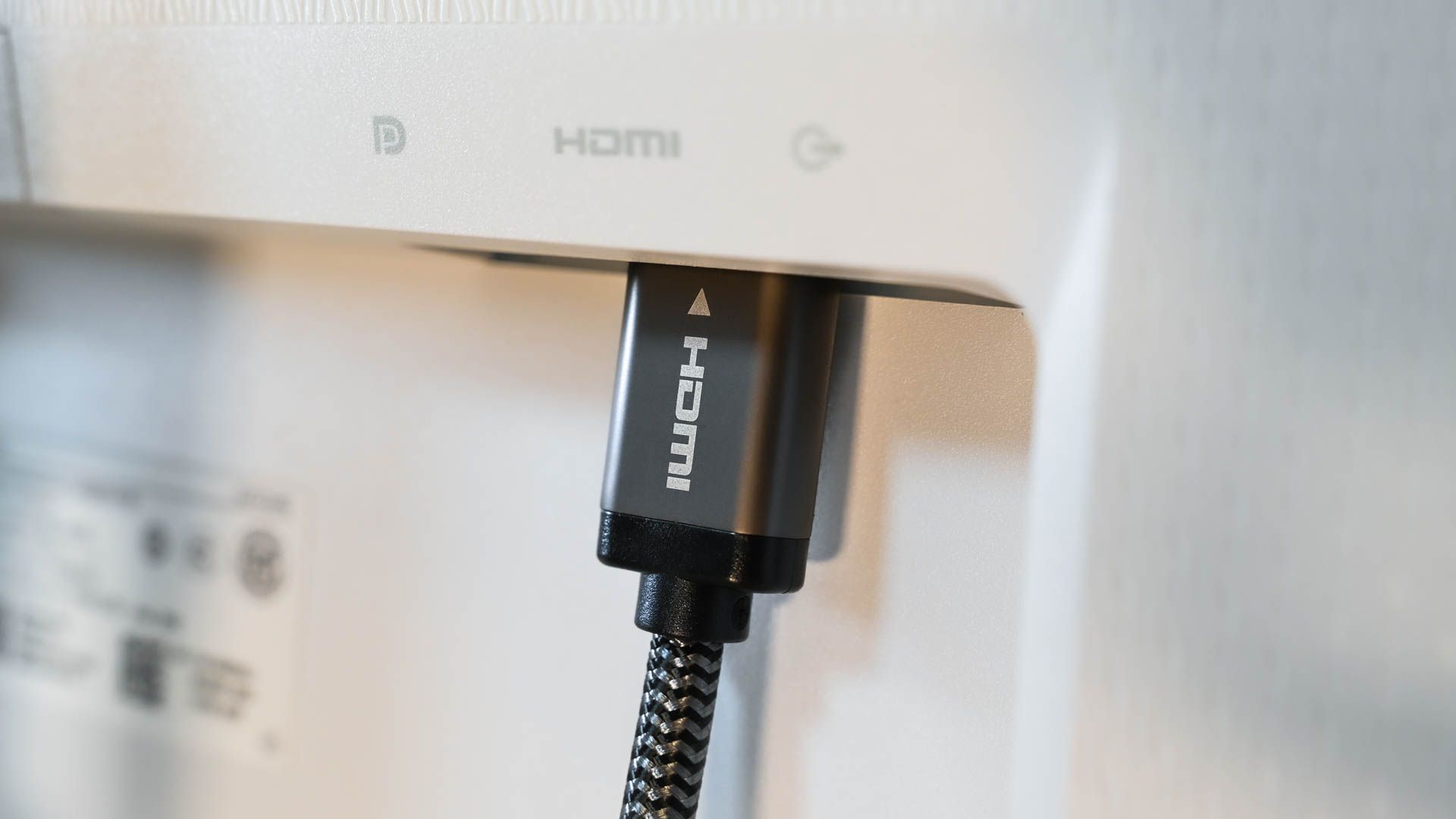
You've invested in a stunning new 4K TV, but are you getting the most out out of its incredible picture and sound capabilities? Often, the culprit for subpar performance isn't the TV itself, but an overlooked detail: your old HDMI cables. While they might still plug in, they could be secretly limiting your new display's potential. This guide will walk you through why older HDMI cables fall short, how to identify if yours are outdated, and what to look for when upgrading to ensure your 4K TV delivers its best.
What You'll Accomplish
By following this guide, you will:
- Understand why newer 4K TVs require specific HDMI cable types.
- Identify common symptoms that indicate your current HDMI cables are holding back your setup.
- Learn how to check your existing cables for their specifications.
- Confidently select and install the right HDMI cables to unlock your 4K TV's full resolution, refresh rate, and advanced audio/video features.
Prerequisites
Before you begin, ensure you have:
- A new 4K (or 8K) television or monitor.
- Any source devices you connect to your TV, such as gaming consoles (PS5, Xbox Series X), PCs, or streaming boxes.
- Access to the HDMI cables currently connecting your devices.
- A willingness to inspect and potentially replace your existing cables.
Why Your Old HDMI Cables Aren't Enough
It's easy to assume "an HDMI cable is an HDMI cable," but this isn't true. The HDMI standard has evolved significantly over the years, with each major revision bringing increased bandwidth and new features. The main problem is that the physical connector has remained unchanged, meaning a cable from 2010 will still plug into a TV from 2025. This backward compatibility in connection design often leads to older, inadequate cables being reused with modern equipment.
Cable manufacturers sometimes add to the confusion with vague marketing terms like "4K ready" or "high performance," which don't provide clear specifications. Without clear labeling, it's nearly impossible to tell an old cable from a new one just by looking at it, making it incredibly easy to inadvertently use the wrong cable with your advanced 4K setup.
Understanding HDMI Cable Types and Capabilities
To ensure your new 4K TV performs optimally, it's crucial to understand the different HDMI cable types and what features they support. The primary improvement with each HDMI revision (like 1.4, 2.0, and 2.1) has been a significant increase in bandwidth, which is essential for higher resolutions, refresh rates, and advanced features.
Here's a breakdown of the common HDMI cable categories and their typical capabilities:
- High Speed HDMI: These cables are generally suitable for 1080p content and basic 4K resolution at 30Hz (4K30). While fine for movies and TV shows at 30Hz, they are insufficient for modern gaming or PC use that demands higher refresh rates.
- Premium High Speed HDMI: Offering more bandwidth, these cables support 4K resolution at 60Hz (4K60) and mainstream HDR (High Dynamic Range) content. This is a common standard for many 4K setups but may still be limiting for the newest TVs.
- Ultra High Speed HDMI: This is the current top-tier for most new 4K and 8K setups. Ultra High Speed cables provide enough bandwidth for features like 4K resolution at 120Hz (4K120), 8K resolution, Variable Refresh Rate (VRR), Auto Low Latency Mode (ALLM), and enhanced Audio Return Channel (eARC). These cables are designed to handle the most demanding modern audio and video requirements.
Older "Standard" HDMI cables exist but are typically only good for 720p or lower 1080p resolutions and are rarely encountered with new equipment today. For official certification details and badges, you can refer to the official HDMI website.
Symptoms of an Outdated HDMI Cable
If you're using an HDMI cable that lacks the necessary bandwidth for your new 4K TV, you might experience several issues. These problems occur because, while the connection is backward compatible, the older cable simply can't transmit enough data for modern features. Look out for these signs:
- Limited Resolution or Refresh Rate: Your display may not reach its advertised resolution or refresh rate. For example, your gaming console might report "4K 30Hz" even if your TV and console support 4K 60Hz or 4K 120Hz.
- Unavailable Advanced Features: Gaming features like VRR (Variable Refresh Rate) or ALLM (Auto Low Latency Mode) on consoles like PS5 or Xbox Series X, or on a gaming PC, might be grayed out or simply not function.
- Subpar Audio Quality or Missing Features: You might notice lower-than-expected audio quality, or advanced audio features like eARC (enhanced Audio Return Channel) might not work at all.
- Visual Artifacts or Intermittence: Flickering screens, random black screens, or frequent "HDMI handshake failures" (where the display loses connection briefly) are strong indicators of an insufficient cable.
If your setup works fine at lower settings but fails to deliver at higher settings that both your display and source device support, your HDMI cable is very likely the bottleneck.
How to Identify Your HDMI Cable
Determining the specific type of HDMI cable you have can be tricky, as many look identical. However, there are a few places to check:
- Inspect the Cable and Connector: The most straightforward way to identify a cable is to look for an imprint on the cable sleeve itself or on the housing of the connector. Newer, certified cables often have their official designation, such as "Ultra High Speed HDMI," printed directly on them.
- Look for a QR Code: Some modern certified cables feature a tiny QR code on the connector. Scanning this code with your smartphone can provide certification details.
- Check Original Packaging: If you still have the cable's original box, it will clearly state the cable's specifications and certification.
- Assume Older if Unmarked: If you find no markings whatsoever on the cable or its connectors, it's generally safe to assume it's an older, lower-spec cable that might not support the demands of a new 4K TV.
Getting the Right Cable and Best Practices
Once you've identified that your cables are insufficient, it's time to upgrade. When purchasing new HDMI cables, prioritize those explicitly labeled as "Ultra High Speed HDMI" to ensure full compatibility with 4K120Hz, 8K, VRR, ALLM, and eARC capabilities.
Tips for a Smooth Setup:
- Test Before Permanent Installation: Before routing cables through walls or trunking, temporarily connect and test your new cables to ensure they deliver the desired performance. Verify that your TV and source devices report the correct resolution, refresh rate, and that advanced features are enabled.
- Check All Devices in the Chain: Remember that any intermediate device in your HDMI chain—such as an HDMI switch, an AV receiver, or a soundbar—must also support the same HDMI standard as your display and source device. If one component is older, it will downgrade the signal to its lowest common denominator.
- Label Your Cables: Once you've confirmed a cable's capabilities, consider labeling it clearly (e.g., "UHS HDMI 4K120") so you can easily identify it in the future.
By following these steps, you'll ensure your new 4K TV is truly delivering the immersive, high-quality experience it was designed for.
FAQ
Q: Do I really need to buy new HDMI cables for my 4K TV if my old ones physically fit? A: Yes, it's highly recommended. While older HDMI cables will physically connect, they often lack the bandwidth to transmit the data required for 4K resolutions at higher refresh rates (like 60Hz or 120Hz), HDR, or advanced gaming features like VRR and ALLM. Using an outdated cable will prevent your new TV from displaying its best picture and utilizing its full feature set.
Q: What's the main difference between "High Speed HDMI" and "Ultra High Speed HDMI" cables? A: The primary difference is bandwidth. High Speed HDMI cables generally support up to 4K at 30Hz and 1080p. Ultra High Speed HDMI cables offer significantly more bandwidth, enabling support for 4K at 120Hz, 8K resolutions, and advanced features like VRR (Variable Refresh Rate), ALLM (Auto Low Latency Mode), and eARC (enhanced Audio Return Channel). For new 4K TVs, Ultra High Speed is the recommended standard.
Q: Will buying a more expensive HDMI cable always guarantee better performance? A: Not necessarily. The key is to look for cables that are officially certified for the speed and features you need, specifically "Ultra High Speed HDMI" for modern 4K and 8K setups. While overly cheap, uncertified cables might be problematic, there's no need to spend exorbitant amounts. Focus on official certifications and reliable brands rather than just price, as vague "audiophile" or "gold-plated" claims don't guarantee better digital signal integrity beyond the certified standard. All certified cables meeting a specific standard perform identically in terms of data transmission. For most home users, a reasonably priced, certified Ultra High Speed HDMI cable will provide excellent performance.
Next Steps
Now that you know what to look for, take the time to inspect your current setup. If you discover you're using older cables, consider upgrading to certified Ultra High Speed HDMI cables to fully enjoy your new 4K TV's capabilities. Remember to label your new cables for future reference!
Related articles
Android 17 QPR2 Beta 7.1: The Performance Relief You've Been Waiting
Android 17 QPR2 Beta 7.1: Finally Fixing the QPR1 Performance Woes Verdict: Android 17 QPR2 Beta 7.1 is a crucial and highly anticipated software update for Google Pixel users, specifically targeting and resolving the

Ditch Merge & Center: The Better Way to Align Text in Excel
Learn to use Excel's "Center Across Selection" to align text across cells without merging, avoiding common data manipulation issues. This guide provides steps to utilize this newly accessible feature and add it to your Quick Access Toolbar.

Ars Technica's Rocket Report: Your Essential Space Industry Briefing
Quick Verdict Ars Technica's Rocket Report, presented by veteran space reporter Stephen Clark, offers an invaluable and meticulously organized weekly (or similar frequency, implied by "Edition 9.15") digest of the most

Stop Android Auto Battery Drain: Essential Features to Disable and
Android Auto offers unparalleled convenience, bringing your phone's most useful features directly to your car's display. From navigation and calls to messages and music, it keeps you connected without distracting you

SpaceX Starlink: Military Drone Service Hit by Unannounced Limits
Quick Verdict SpaceX's Starlink service, particularly the military-grade Starshield terminals, has experienced a significant and unannounced performance reduction for Ukraine's high-speed military drones. While

Turn Your Android Phone into a Powerful Desktop Replacement
Learn how to transform your Android phone into a full-fledged desktop computer using external displays and accessories, providing a cost-effective and integrated alternative to new Googlebooks.