
Upgrade Your Android File Management: Switch to Material Files
Are you tired of your Android phone's default file manager falling short? If you're an Android power user, you've likely encountered situations where apps like Files by Google or Samsung My Files just don't offer the
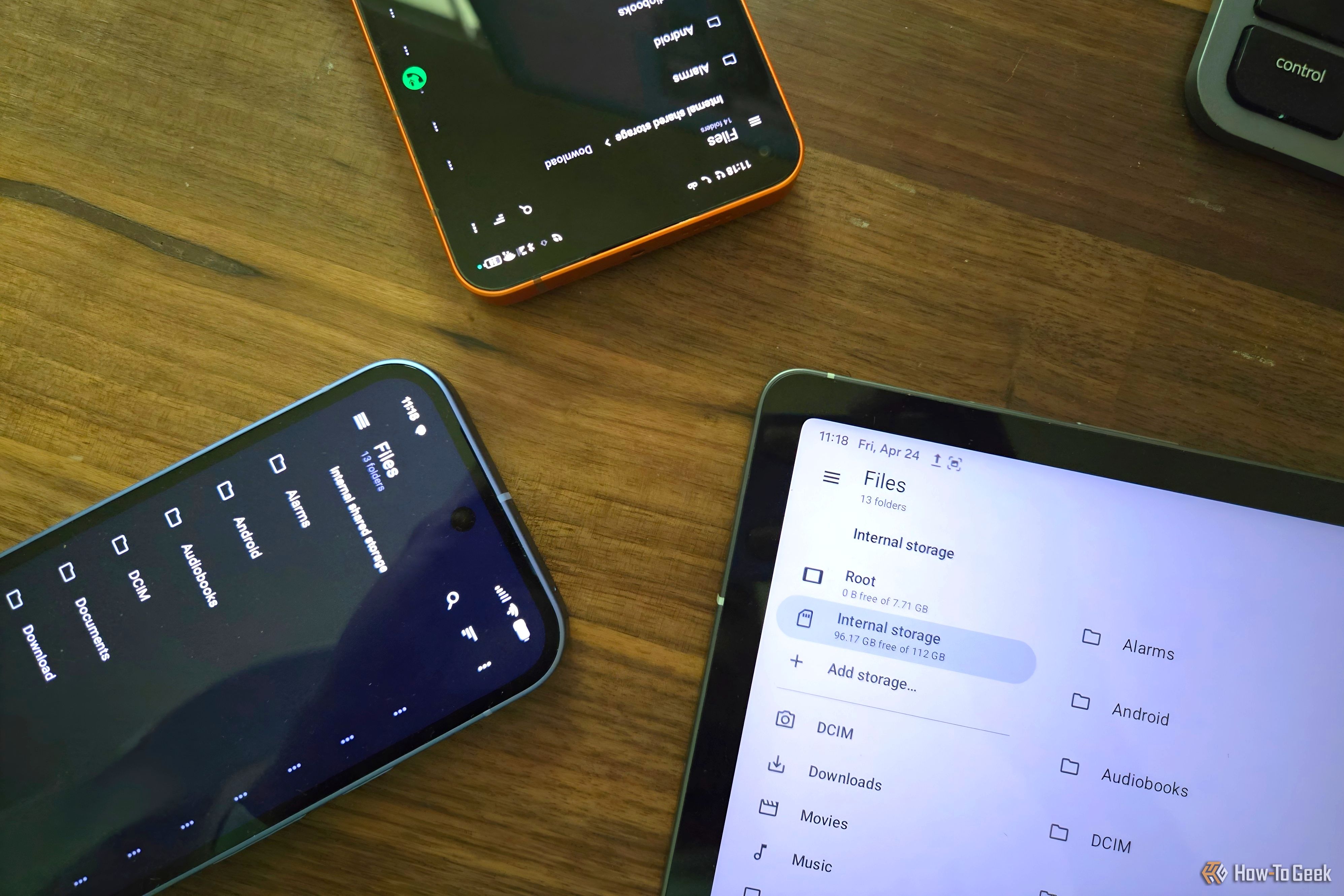
Are you tired of your Android phone's default file manager falling short? If you're an Android power user, you've likely encountered situations where apps like Files by Google or Samsung My Files just don't offer the functionality you need. Whether it's struggling with network storage, poor scaling on tablets, or simply a lack of advanced features, there's a better way to manage your digital life.
This guide will walk you through switching to Material Files, an exceptional open-source Android file manager that provides robust features, a clean interface, and none of the frustrating limitations of pre-installed options. You'll learn how to take control of your files, access network shares, and even turn your phone into a temporary file server, all without ads or subscriptions.
Why Material Files is Your Next Go-To File Manager
Many alternative file managers come with ads, look outdated, or raise privacy concerns. Material Files stands out as a superior alternative for several compelling reasons:
- Open Source and Trustworthy: Its source code is publicly available for anyone to review, ensuring transparency and alleviating privacy worries often associated with closed-source apps. It's completely ad-free and offers full functionality without any subscriptions.
- Modern Design and Adaptability: Material Files features a subtle design that harmonizes beautifully with Android's modern Material 3 theming. Crucially, it adapts seamlessly to any screen size, whether you're using a phone, tablet, or even an Android-based desktop environment. Unlike many apps that just stretch or awkwardly split columns on larger screens, Material Files reconfigures itself to provide a true desktop-like browsing experience.
- Comprehensive Network Storage Access: Default file managers often limit you to local storage or push you towards specific cloud services. Material Files breaks free from these constraints, allowing you to browse and manage files across a wide range of network storage types, including FTP, SFTP, Samba (SMB), and WebDAV shares. This means easy access to your home server, NAS, or other network drives.
- Built-in FTP Server: Need to quickly share files from your phone to another device on your local network without cables or cloud uploads? Material Files includes a handy FTP server feature. You can activate it to make your phone's storage accessible via a simple URL, with the option to secure it with a username and password.
Prerequisites
Before you dive in, here's what you'll need:
- An Android device (phone, tablet, or Android-based desktop). Material Files is designed to work well across all.
- An internet connection to download the app.
- Basic familiarity with installing apps from trusted sources (like F-Droid or Google Play Store).
- (Optional) Credentials for any network storage (FTP, Samba, WebDAV) you wish to access.
Getting Started with Material Files: A Step-by-Step Guide
Follow these steps to replace your default file manager with Material Files and unlock enhanced functionality.
Step 1: Download and Install Material Files
Material Files is available from various sources. For the most up-to-date and open-source version, consider F-Droid, an open-source app store. It's also typically available on the Google Play Store.
- Open your preferred app store (e.g., F-Droid or Google Play Store) on your Android device.
- Search for "Material Files" (it's often developed by "Fawzy").
- Install the app. This usually involves tapping the 'Install' or 'Get' button and confirming any prompts.
Step 2: Grant Necessary Permissions
Like any file manager, Material Files needs permission to access your device's storage to function correctly.
- Launch Material Files for the first time after installation.
- The app will likely prompt you to grant access to your storage. Tap 'Allow' or 'Grant' when prompted.
- Depending on your Android version, you might need to navigate to your device's settings to grant "All files access" or similar permissions. The app will guide you through this process if necessary.
Step 3: Explore Your Local Files
Once installed and permissions are granted, you'll see your device's internal storage.
- The main screen displays your primary storage. You can navigate through folders by tapping on them.
- Long-press on a file or folder to select it and reveal options like Copy, Move, Delete, Rename, and Share.
- Use the navigation drawer (usually accessed by tapping the hamburger icon in the top-left) to quickly jump to common folders like Downloads, Documents, Images, or to access external storage (like an SD card, if present).
Step 4: Connect to Network Storage
This is where Material Files truly shines compared to default options.
- Open the navigation drawer (hamburger icon).
- Scroll down to the 'Network' section and tap the '+' icon (or 'Add storage' option) to add a new network connection.
- Choose the type of network storage you want to add: FTP, SFTP, Samba (SMB), or WebDAV.
- Enter the required details:
- Host/Server Address: The IP address or hostname of your network share.
- Port: (Often default, e.g., 21 for FTP, 445 for Samba, 80/443 for WebDAV)
- Username and Password: If your share requires authentication.
- Display Name: A friendly name for your connection (e.g., "My Home NAS").
- Tap 'Save' or 'Connect'. If successful, your network share will appear in the navigation drawer, ready for browsing.
Step 5: Utilize the Built-in FTP Server for Local Sharing
This feature is incredibly useful for quickly transferring files between devices on the same local network.
- Open the navigation drawer.
- Under the 'Network' section, tap on 'FTP Server'.
- Toggle the 'Enable FTP Server' switch to the ON position.
- Material Files will display a URL (e.g.,
ftp://192.168.1.100:2222). This is the address other devices on your local network can use to access your phone's files. - (Optional but Recommended) Tap 'Set password' to create a username and password. This secures your files so only authorized users can access them.
- On another device (like a PC or another phone), open a web browser or an FTP client.
- Enter the displayed URL into the address bar.
- If you set a password, you'll be prompted to enter the username and password to view your phone's files.
Tip: This is perfect for sharing large files at home or on a private hotspot connection. Avoid using it on public Wi-Fi networks for security reasons.
Troubleshooting Tips
- Permissions Issues: If Material Files can't access your storage, go to your Android Settings > Apps > Material Files > Permissions and ensure "Files and media" or "Storage" permissions are granted, specifically "Allow management of all files" if available.
- Network Connection Errors: Double-check the host address, port, username, and password for your network share. Ensure both your Android device and the network storage are on the same local network.
- FTP Server Not Accessible: Confirm your phone's Wi-Fi is on and connected to the same network as the accessing device. Check for any firewall settings on your phone or router that might block the FTP port (default is 2222 for Material Files).
Great, But Not Perfect
While Material Files is an outstanding file manager for most needs, it's worth noting one limitation mentioned in the source: it currently lacks a built-in feature for bulk renaming files. For this specific task, you might still need to rely on a separate utility. However, for the vast majority of file management tasks—browsing, copying, moving, deleting, sharing, and especially network access—Material Files excels without costing you money, serving ads, or tracking your activity.
Next Steps
Now that you've mastered Material Files, consider exploring:
- Customization: Dive into the app's settings to tweak its appearance or behavior.
- Advanced Network Configurations: Experiment with different network share types if you have them available.
- Open-Source Ecosystem: Look for other open-source apps that might enhance your Android experience, much like Material Files improves file management.
FAQ
Q: Is Material Files truly free and ad-free?
A: Yes, Material Files is completely free to use, offers full functionality without any subscription requirements, and contains no ads whatsoever. Its open-source nature means its code is publicly auditable, reinforcing its transparency and commitment to user experience over monetization.
Q: Can Material Files replace my default file manager entirely?
A: For most users and common tasks, Material Files can absolutely replace your default file manager. It offers superior features, especially for network storage and tablet scaling, far beyond what basic pre-installed apps provide. Its only significant limitation is the lack of a bulk file renaming feature, which might require a separate app for very specific power user tasks.
Q: How secure is the built-in FTP server?
A: The built-in FTP server is ideal for quickly sharing files on your local private network (like your home Wi-Fi or a personal hotspot). You can further secure it by setting a username and password, which is highly recommended. However, it should not be used on public Wi-Fi networks, as standard FTP is not encrypted and your data could be vulnerable to interception.
Related articles
Android 17 QPR2 Beta 7.1: The Performance Relief You've Been Waiting
Android 17 QPR2 Beta 7.1: Finally Fixing the QPR1 Performance Woes Verdict: Android 17 QPR2 Beta 7.1 is a crucial and highly anticipated software update for Google Pixel users, specifically targeting and resolving the

Ditch Merge & Center: The Better Way to Align Text in Excel
Learn to use Excel's "Center Across Selection" to align text across cells without merging, avoiding common data manipulation issues. This guide provides steps to utilize this newly accessible feature and add it to your Quick Access Toolbar.

Ars Technica's Rocket Report: Your Essential Space Industry Briefing
Quick Verdict Ars Technica's Rocket Report, presented by veteran space reporter Stephen Clark, offers an invaluable and meticulously organized weekly (or similar frequency, implied by "Edition 9.15") digest of the most

Stop Android Auto Battery Drain: Essential Features to Disable and
Android Auto offers unparalleled convenience, bringing your phone's most useful features directly to your car's display. From navigation and calls to messages and music, it keeps you connected without distracting you

Turn Your Android Phone into a Powerful Desktop Replacement
Learn how to transform your Android phone into a full-fledged desktop computer using external displays and accessories, providing a cost-effective and integrated alternative to new Googlebooks.
Android Auto 18 Beta: Glimpse into Google's Car Makeover
Verdict: A Sneak Peek at Tomorrow's Drive Android Auto 18.0 beta isn't the flashy, fully-realized redesign many might be hoping for, but it offers an invaluable look under the hood. What Google is signaling here,