
Unlock Smart Home Power: Integrate Your Samsung Smart Monitor M8 with
Learn to integrate your Samsung Smart Monitor M8 with SmartThings, leveraging it as a smart home hub, controller, and sensor to automate and manage your connected devices efficiently.
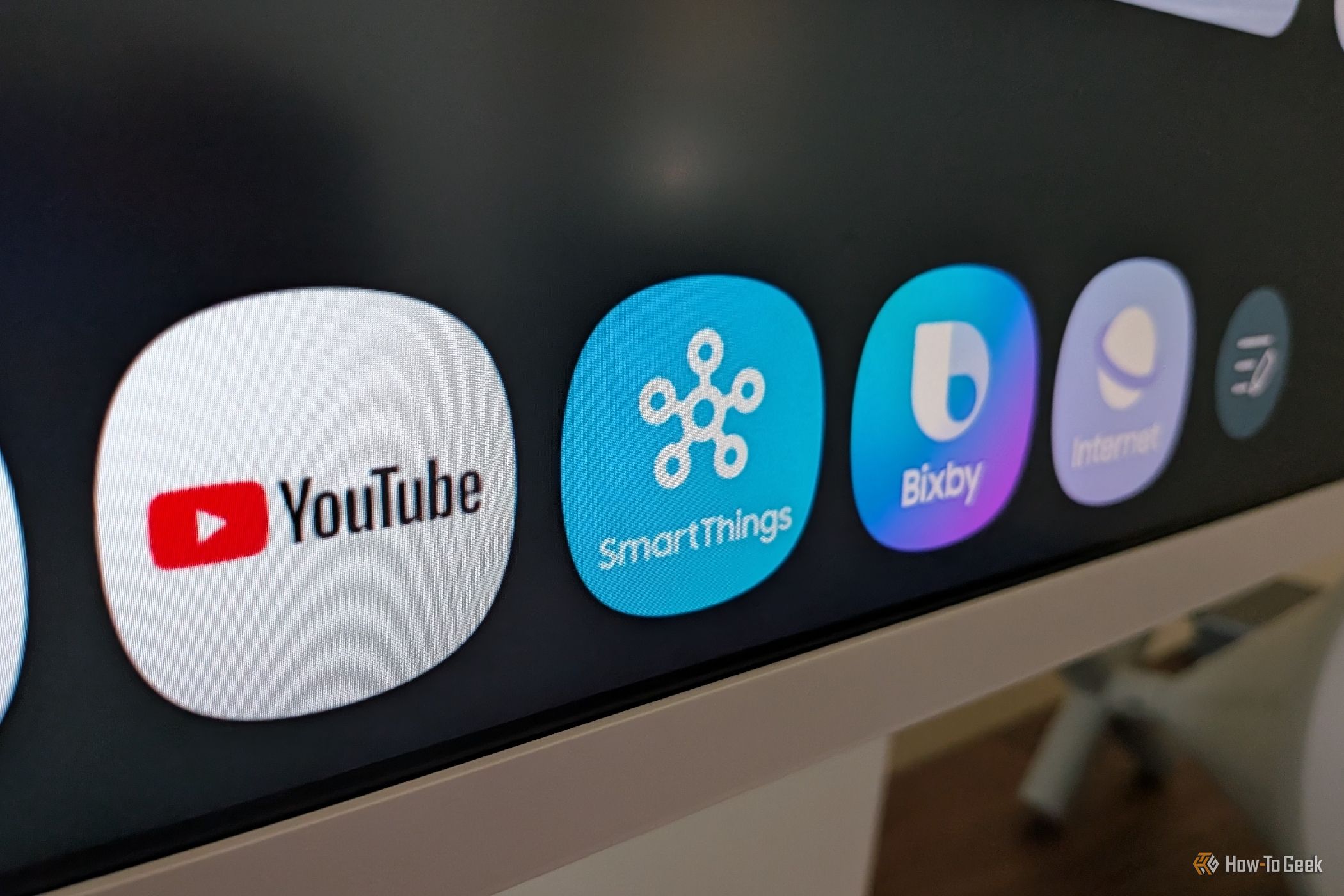
The Samsung Smart Monitor M8 goes beyond a typical display, integrating smart TV features, productivity tools, and—most notably—acting as a powerful addition to your smart home. If you own an M8, you have a versatile tool to enhance your SmartThings ecosystem. This guide will show you how to unlock your M8's full potential, transforming it into a central command point for your connected devices, an entertainment hub, and an intelligent sensor for automations.
What You'll Accomplish
By following this guide, you will learn to:
- Integrate your Samsung Smart Monitor M8 with your SmartThings setup.
- Control your M8 remotely via the SmartThings app.
- Utilize your M8 as a smart home hub and Matter controller.
- Configure the M8's sensors to trigger smart home automations.
- Discover practical tips to maximize your M8's smart home capabilities.
Prerequisites
Before you begin, ensure you have the following:
- Samsung Smart Monitor M8: Any refresh of the M8 model is compatible.
- Samsung SmartThings Account and App: Logged in on your smartphone or tablet.
- Stable Wi-Fi Connection: Both your M8 and SmartThings app must be on the same network.
- Existing SmartThings Setup (Optional): While the M8 can be your first hub, other devices demonstrate its capabilities best.
Sequential Steps to Smart Home Mastery with Your M8
Step 1: Initial Setup of Your Samsung Smart Monitor M8
Upon first power-up, connect your M8 to your Wi-Fi network and log in with your Samsung account. This crucial step links your M8 to your SmartThings ecosystem.
- Power On and Connect: Plug in and power on your M8. Follow on-screen prompts to connect to Wi-Fi.
- Log In with Samsung Account: Use the same Samsung account linked to your SmartThings app.
- Explore Monitor Features: Familiarize yourself with the M8's Tizen-based One UI, which offers built-in streaming apps like a Samsung Smart TV.
Step 2: Verifying M8 Integration with Samsung SmartThings
Once your M8 is set up with your Samsung account, it should automatically appear in your SmartThings app. If not, a quick check and manual addition might be needed.
- Open the SmartThings App: Launch the app on your smartphone.
- Verify Device Presence: Check your "Devices" tab; your M8 should be listed.
- Troubleshooting (If Not Found):
- Samsung Account & Network: Confirm both M8 and SmartThings app use the same Samsung account and Wi-Fi network.
- Manual Add: Use the "+" icon in SmartThings, select "Device," and search for "Monitor" or "TV" to add it manually.
Step 3: Controlling Your Smart Monitor M8 via the SmartThings App
The SmartThings app serves as a versatile remote, enhancing control and resolving common issues.
- Select Your M8: In the SmartThings app, tap your Samsung Smart Monitor M8.
- Access Virtual Remote: Use the virtual D-pad and buttons to navigate the M8's UI.
- Stream Content: Browse and cast shows from your phone directly to your M8.
- Advanced Interactions: Use your phone as a mic for karaoke or a gamepad for games.
- Remote Power Control: Power off your monitor remotely if you forget.
Step 4: Activating Your M8 as a Smart Home Hub and Matter Controller
The M8 functions as a central brain for your smart home, connecting devices and supporting current smart home standards.
- Navigate Smart Home Section: Access the SmartThings section within the app or on your M8's Tizen interface.
- View Connected Devices: See your devices organized by room or via an intuitive 3D map view. The 3D map can significantly speed up control.
- Add New Devices: As a hub, your M8 can discover and connect new compatible smart devices, including Matter-certified ones.
- Utilize Voice Control: With Bixby and Alexa built-in, control devices via voice commands through your monitor.
Step 5: Setting Up M8 as a Presence Sensor for Automations
The M8's built-in sensors for light, movement, and sound enable sophisticated home automations.
- Access Automations: In the SmartThings app, go to the "Automations" tab.
- Create New Automation: Tap "+" to begin.
- Select M8 as Condition: Choose your M8 as the "If" condition. Specify based on:
- Movement: Trigger actions when motion is detected.
- Light: Adjust lighting based on ambient levels.
- Define Actions: Set "Then" actions, such as turning on Govee floor lamps or activating an exhaust fan via a smart switch when you enter the room.
Troubleshooting Tips
- Remote Interference: If multiple M8s are side-by-side, use the SmartThings app for individual control to avoid both reacting to one physical remote.
- DeX Resolution: For 4K resolution in Samsung DeX, adjust settings via Samsung's Good Lock app on your connected Galaxy phone.
- Device Responsiveness: Ensure your M8 has a stable Wi-Fi connection and optimal placement for consistent smart device responses.
Tips and Best Practices
- 3D Map View: For numerous devices, the SmartThings 3D map offers faster, more intuitive control than list views.
- Matter Compatibility: Your M8's role as a Matter controller ensures your smart home is ready for future-proofed devices.
- Dual Hub Advantage: The M8 excels as a secondary hub in a workspace, extending your SmartThings network and providing localized sensing.
- Hidden Talents: Beyond a monitor, value its cable-free casting and robust smart home integrations.
Next Steps
Now that your Samsung Smart Monitor M8 is integrated, explore advanced automations, add new Matter devices, and fully utilize its voice control. Your smart desk is ready to command your home!
FAQ
Q: Can I use the M8 as my only SmartThings hub? A: Yes, the Samsung Smart Monitor M8 can act as your primary SmartThings hub and Matter controller, connecting and managing a wide array of smart home devices directly.
Q: My M8 remote controls both my M8 monitors at once. How can I fix this? A: Use the Samsung SmartThings app on your smartphone or tablet. It allows you to select and control each M8 monitor individually, resolving the simultaneous remote control issue.
Q: Does the M8's presence sensor work when the monitor is in standby or off? A: For the M8's presence sensors (light, movement, sound) to function and trigger automations, the monitor needs to be in a state where its smart features are active, typically a standby or 'smart' mode, rather than being completely powered off.
Related articles
Learningto/Pass: Free, AI-Powered Interview Prep for Developers
Landing a role at a top-tier tech company often hinges on mastering complex data structures and algorithms, coupled with a solid grasp of system design. The problem for many aspiring software developers is that quality

in-depth: Best Bluetooth Speaker (2026): JBL, Sonos, Marshall, and
WIRED's 2026 guide names the JBL Flip 7 the top Bluetooth speaker, recognizing its balance of sound, durability, and affordability. The updated list highlights significant advancements across the portable audio market, with specialized picks from Sonos, Marshall, and KEF offering enhanced smart features, battery life, and sound quality for diverse user needs.

How to Pick and Play Top Roblox Games with Your Siblings This Weekend
Looking for the perfect way to connect and have fun with your siblings this weekend? Roblox offers a vast universe of experiences designed to entertain players across various age groups and preferences. Whether you have

How to Choose Your Next AirPods - Comparing 5, 4, and Pro 3
Navigating Apple's AirPods lineup can be tricky. With the new AirPods 5 potentially offering a better, cheaper option than the AirPods 4, and the AirPods Pro 3 still a premium contender, how do you decide which is right
Stop Random USB Disconnections: Disable Windows Power Saving
Learn to fix random USB device disconnections by disabling Windows' power-saving features in Settings, Control Panel, and Device Manager.

Apple Unleashes iPhone Duo: Three-Screen Foldable Debuts at $2,000
Apple has introduced its first foldable smartphone, the iPhone Duo, on September 9, 2026. Featuring three screens and a book-like hinge, this $1,999 device is the most significant iPhone design change since 2007, establishing a new ultra-premium tier for Apple.