
Prevent Hidden Data Leaks: Inspect Your Excel Files Before Sharing
Sharing an Excel file might seem straightforward, but your workbook could be holding onto more information than you realize. Beyond the visible cells, Excel files often contain hidden worksheets, personal metadata,
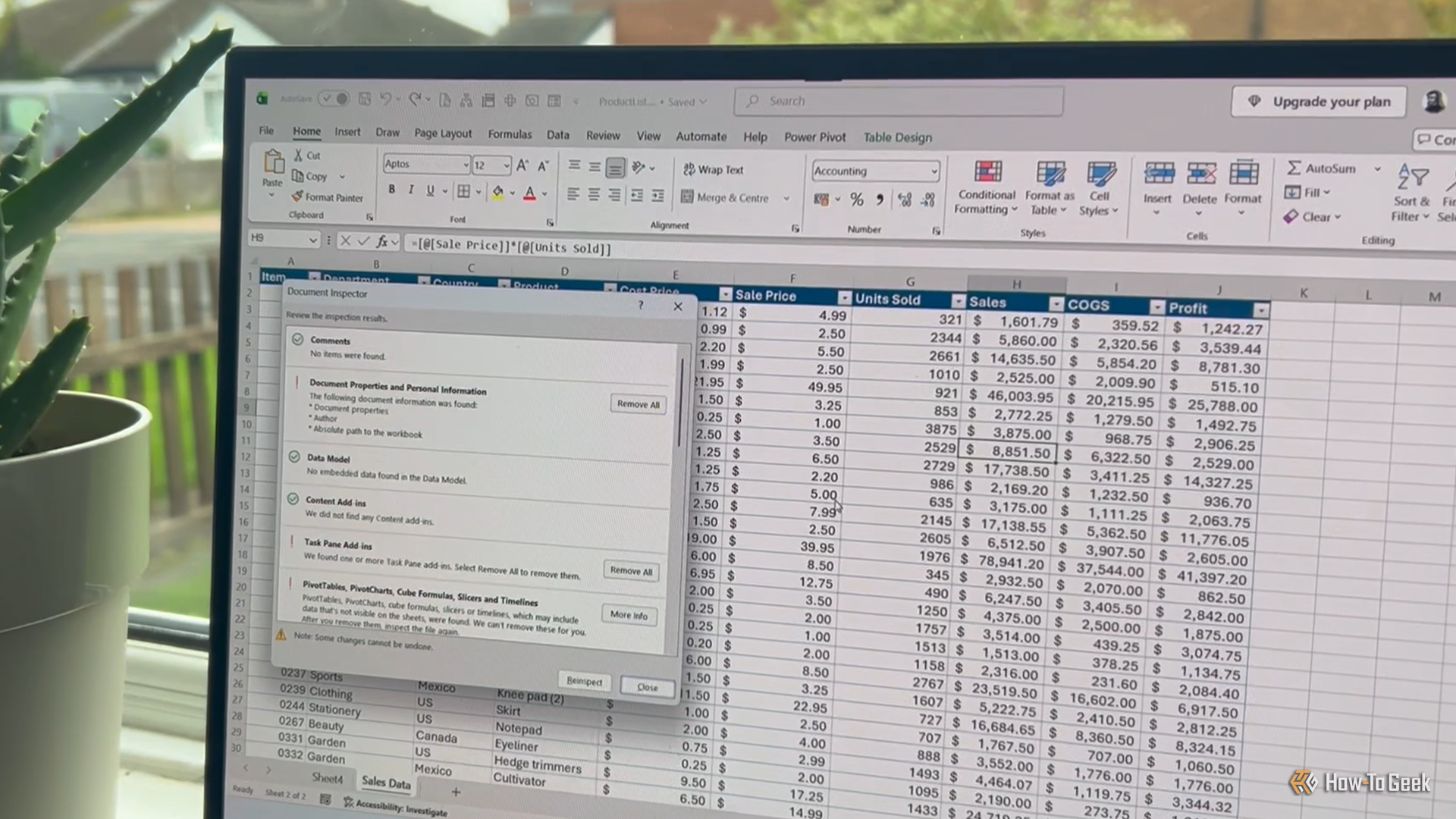
Sharing an Excel file might seem straightforward, but your workbook could be holding onto more information than you realize. Beyond the visible cells, Excel files often contain hidden worksheets, personal metadata, external links, and even embedded documents. These hidden elements can inadvertently share sensitive details or break essential workbook functionality if removed carelessly.
Thankfully, Microsoft Excel includes a powerful built-in tool called the Document Inspector designed to help you uncover and manage this hidden content. This guide will walk you through how to use the Document Inspector to thoroughly check your Excel files, understand what it finds, and confidently decide what to keep or remove before you share.
What You'll Accomplish
By following this guide, you will learn to:
- Identify various types of hidden and personal information within your Excel files.
- Utilize Excel's Document Inspector tool effectively.
- Make informed decisions about removing or retaining hidden content.
- Prepare a clean, private version of your Excel file for sharing.
Prerequisites
Before you begin, ensure you have:
- Microsoft Excel for Windows (Document Inspector features may vary slightly by version).
- An Excel file you wish to inspect and prepare for sharing.
Important Best Practice: Always create and work on a copy of your original Excel file. Some removal actions by the Document Inspector are difficult or impossible to undo, and working on a copy protects your original data.
Step-by-Step: Using Excel's Document Inspector
Follow these steps to access and run the Document Inspector:
- Open Your Excel File: Launch Microsoft Excel and open the workbook you intend to check.
- Navigate to the File Tab: Click on the File tab in the top-left corner of the Excel window.
- Access Workbook Information: In the File menu, select Info from the left-hand pane.
- Find "Check for Issues": Under the "Inspect Workbook" section, locate the Check for Issues dropdown menu.
- Select "Inspect Document": Click on Check for Issues, then choose Inspect Document from the options.
- Choose Inspection Categories: A "Document Inspector" dialog box will appear. Here, you'll see a list of categories Excel can check. By default, most are selected. Review the list and ensure all relevant categories are checked.
- Tip: For a comprehensive privacy check, keep all categories selected unless you have a specific reason not to.
- Run the Inspection: Click the Inspect button. Excel will now scan your workbook for the selected items.
Reviewing and Managing Inspection Results
Once the inspection is complete, Document Inspector will display its findings. For each category where items were found, you'll see a report and often a "Remove All" button. This is where careful review is crucial.
1. Document Properties and Personal Information
This section reveals metadata like the author's name, company, and other properties associated with the file. It also includes comments, headers, footers, and ink annotations.
- What it finds: Author, company, last modified by, comments (which can include usernames and timestamps), custom worksheet properties, headers, footers, and digital ink.
- Privacy Concern: Sharing this information might reveal personal details you prefer to keep private, especially for publicly distributed files.
- Actionable Advice: If you're publishing a workbook, removing Document Properties and Personal Information is usually a good idea. However, carefully consider comments or headers/footers, as they might contain important instructions or branding that the recipient needs.
2. Hidden Content
Content that is hidden from view is not removed from the workbook and can still be accessed by others.
- What it finds: Hidden worksheets, hidden rows and columns, hidden names (named ranges), invisible content (objects covered by other objects), and active filters.
- Privacy Concern: Hidden calculation sheets might contain sensitive data, or hidden rows/columns could hold helper calculations critical to your workbook's logic.
- Actionable Advice: Do not blindly click "Remove All" here. Removing hidden worksheets or rows/columns can break formulas or essential calculations. Take this as a reminder to review the hidden content. Unhide it, assess its importance, and then decide whether to delete it manually or simply leave it hidden (knowing the recipient could unhide it).
3. Content Beyond Visible Worksheets
Some powerful Excel features store data and relationships outside the typical grid view.
- What it finds: Data Models, PivotTables, PivotCharts, Cube Formulas, Slicers, Timelines, and Embedded Documents (e.g., a Word document or PDF inside Excel).
- Privacy Concern: A Data Model might contain imported data not visible on sheets, or an embedded document could have its own content and metadata.
- Actionable Advice: These items are often fundamental to your workbook's functionality. Removing a Data Model, for instance, can break PivotTables and other features. If Document Inspector flags these, use the "More Info" button to understand what's there. Only remove them if you are certain they are not needed and won't affect the workbook's integrity.
4. External Connections
Your workbook can link to or pull data from external sources.
- What it finds: Links to other files, real-time data functions, and long external references (file paths over 218 characters), and custom XML data.
- Privacy Concern: External links can reveal file paths, folder names, or even usernames on your computer. Real-time data functions pull live data from outside your workbook, which may be sensitive.
- Actionable Advice: Evaluate each external link. If a link isn't necessary, you can go to Data > Workbook Links (or Edit Links in older versions) to change its source or break the connection. Be cautious, as removing crucial links will break workbook functionality.
5. Code and Extras
Advanced features like macros or add-ins are integral to some workbooks.
- What it finds: Macros (VBA projects), Forms, ActiveX Controls, Content Add-ins, Task Pane Add-ins, Defined Scenarios, and Excel Surveys.
- Privacy Concern: While generally not a privacy risk in terms of personal data, macros or add-ins could contain proprietary code or perform actions you don't want others to access or trigger.
- Actionable Advice: These components are often vital for complex workbooks. Removing a VBA project would delete the code that makes a macro function. Before removing anything here, ensure you understand its role and whether the workbook will still function as intended without it.
Final Checks and Sharing
After reviewing and carefully removing unwanted items from your copy of the workbook:
- Save the Cleaned Copy: Save your modified copy of the Excel file.
- Manual Review: Document Inspector is powerful, but it's not foolproof. Manually scan your visible worksheets for:
- White text on white background: Text formatted to be invisible.
- Objects covered by other objects: Graphics or shapes hiding text or images.
- Personal information in images: Embedded images that might contain sensitive details.
- Test Functionality: Reopen the cleaned copy and thoroughly test all formulas, PivotTables, charts, macros, and links to ensure everything still works as expected.
- Share with Confidence: Once you're satisfied with the integrity and privacy of your file, this cleaned copy is ready to be shared.
By following this careful inspection process, you gain a clear understanding of your Excel file's true contents, allowing you to share it confidently and securely.
FAQ
Q: Can Document Inspector find every piece of hidden information?
A: Document Inspector is very comprehensive, but it has limitations. It might not detect sensitive text formatted to be invisible (e.g., white text on a white background), objects hidden by other objects, or personal information embedded within images. A manual review of your visible sheets is always recommended as a final check.
Q: Why is it so important to save a copy before using "Remove All"?
A: Many actions performed by the Document Inspector's "Remove All" feature, especially for items like hidden worksheets, data models, or macros, are difficult or impossible to reverse. Working on a copy ensures that if you accidentally remove something vital, your original, untouched workbook is still safe and available.
Q: What should I do if removing an item breaks my workbook's functionality?
A: If you remove an item and discover that essential formulas, PivotTables, or other features no longer work, revert to your original, unedited copy of the workbook. Then, re-run the Document Inspector on a new copy, but this time, be more selective and avoid removing the item that caused the breakage. You might need to find an alternative way to manage that specific piece of content, such as manually deleting sensitive data within a hidden sheet rather than deleting the sheet itself.
Related articles

Mastering Claude for Web Design: Essential Plugins for Polished
Discover the top 3 essential Claude plugins—Frontend Design, Playwright, and Impeccable—to eliminate generic AI outputs and streamline your web design workflow from generation to testing and polish. Learn to install and use them for better results in Claude Code.

Build a Functional Android App with AI in Under 30 Minutes – No
Learn to build a functional Android app in under 30 minutes using AI code assistants like Claude Code, Codex, or Antigravity, without writing any code. This guide provides step-by-step instructions, essential prerequisites, and tips for prompt engineering to bring your app ideas to life quickly.

iPhone 18 Pro Max: Major AT&T Cellular Flaw Forces Free Replacements
The iPhone 18 Pro Max on AT&T is suffering from a critical cellular service failure, rendering phones unable to call or text. Apple has released preventive software updates but will replace already affected devices for free, acknowledging a hardware-level problem.

Proper Ethernet Cable Routing: Prevent Connector Failure & Boost
Learn to properly route Ethernet cables by understanding bend radius and connector limitations, preventing common failures, and boosting network reliability.

Apple Bolsters macOS Full Disk Access Amid AI Agent Security Concerns
Apple is enhancing macOS Full Disk Access controls following concerns about AI agents accessing sensitive user data. This move comes after reports involving Meta's Muse app and a ChatGPT security flaw, aiming to ensure users explicitly understand the risks before granting broad system access.

OpenAI's Dot Agent: Enterprise AI That Can Also Order Your Dinner
OpenAI has launched Dots, a new AI agent platform aimed at enterprise users, accessible via a $100/month Pro account. While it struggled with some personal tasks due to security checks, Dot excelled in complex operations like website redesign and video editing when given direct computer access. This paid model positions Dot as a professional tool for the future of work, contrasting with free, consumer-focused competitors.