
One UI 8.5: 5 Settings to Personalize Your Galaxy Right Away
Learn to personalize your Samsung Galaxy after updating to One UI 8.5 by changing 5 key settings for improved control, privacy, and user experience.
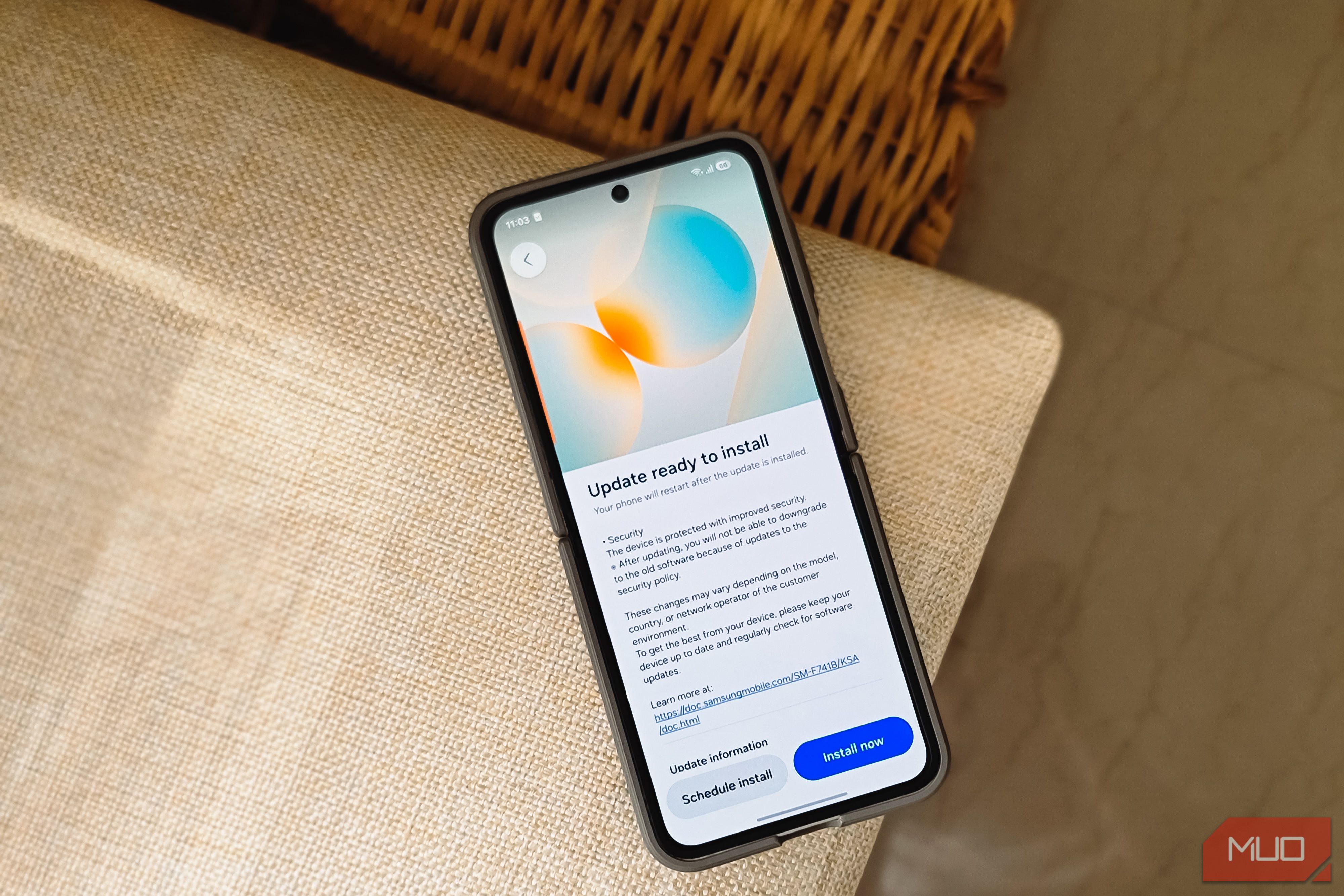
The latest One UI 8.5 update has arrived, bringing a host of exciting enhancements to your Samsung Galaxy device. While there are many new features to explore, some stand out as essential for immediately improving your daily experience. From boosting your privacy to customizing your interface, these five settings are the first I recommend changing to make One UI 8.5 truly your own.
This guide will walk you through each setting, providing clear, actionable steps to help you personalize your device from day one. Get ready to enjoy a more streamlined, private, and efficient Galaxy experience!
Before You Begin
To follow this guide, ensure you have:
- A Samsung Galaxy device updated to One UI 8.5.
- Access to the Galaxy Store and Play Store for installing apps like Good Lock.
1. Resize and Rearrange Your Quick Panel for Ultimate Control
Your Quick Panel is one of the most frequently accessed parts of your phone, and One UI 8.5 gives you unprecedented control over its layout. You can now tailor it to your exact needs, ensuring the toggles and sliders you use most are right where you want them.
How to Customize Your Quick Panel:
- Open the Quick Panel: Swipe down twice from the top of your screen to fully expand the Quick Panel.
- Enter Edit Mode: Tap the edit (pencil) icon in the top right corner.
- Rearrange Toggles: Long-press and drag any toggle to move it to a new position. This allows you to prioritize frequently used settings.
- Resize Toggles: Some toggles can be resized. You'll notice they can shrink to a single square or stretch across two, giving you a cleaner look for less-used options.
- Adjust Sliders: The brightness and volume sliders can now be configured horizontally or vertically, depending on your preference and screen space.
- Remove Toggles: To declutter, tap the minus icon next to any toggle you rarely use.
- Add More Controls: Tap "Add a control" to bring in additional toggles, including those for third-party apps, expanding your Quick Panel's functionality.
Pro Tip: Advanced Customization with Good Lock's QuickStar
For even finer control, consider using Samsung's Good Lock suite. If you don't have it, install Good Lock from the Play Store or Samsung Store, then add the QuickStar module.
- Open QuickStar.
- Navigate to Advanced settings.
- Toggle on "Resize panel items" to adjust toggles beyond the stock editor's limits.
Troubleshooting: While Good Lock offers extensive customization, avoid resizing everything excessively. An overly crowded panel can become less functional than the default layout.
2. Secure Your Photos with the New Private Album in Gallery
Privacy is paramount, and One UI 8.5 introduces a game-changing feature for your photos: the Private Album. While the Secure Folder has been a reliable option for years, the Private Album offers a much more integrated and convenient way to hide sensitive media without leaving the Gallery app.
How to Move Photos to Your Private Album:
- Open the Gallery app.
- Select Items: Long-press on the photos or videos you wish to hide. You can select multiple items.
- Move to Private Album: Tap "More" (the three-dots menu) and choose "Move to private album." The selected items will instantly vanish from your main timeline and albums.
How to View and Unhide Private Photos:
- Access Private Album: From the Gallery home screen, tap "Menu" (usually represented by three horizontal lines or a person icon).
- Open Private Album: Select "Private album" and unlock it using your fingerprint or passcode.
- Unhide an Item: To make an item visible again, open it from the Private Album and tap the "Move" button at the bottom. This will return it to its original location in your Gallery.
Tip: While the Private Album is excellent for media, the Secure Folder remains ideal for securing documents and entire applications due to its sandboxed environment.
3. Clean Up Your Camera Viewfinder with Camera Assistant
The camera viewfinder can often feel cluttered with status indicators for settings you rarely change. One UI 8.5, coupled with a powerful Good Lock module, allows you to streamline this interface for a cleaner, more focused shooting experience.
How to Customize Camera Viewfinder Indicators:
- Install Camera Assistant: This feature requires the Camera Assistant module. You can install it directly from the Galaxy Store or find it within the "Plugins" tab of the Good Lock app.
- Open Camera Assistant: Launch the Camera Assistant app.
- Customize Indicators: Scroll to the bottom and tap "Customize indicators."
- Toggle Off Unwanted Indicators: Go through the list and toggle off any indicators you don't wish to see in your viewfinder. They will disappear instantly.
Tip: Don't worry about losing functionality. All hidden indicators remain accessible through the four-dot menu located at the bottom right of the camera UI. Note that certain indicators, such as Log, HDR, and resolution readout, will always remain visible in Video mode to prevent accidental misconfigurations.
4. Generate Personalized Wallpapers with Creative Studio
Creative Studio previously allowed you to generate AI wallpapers from text prompts. With One UI 8.5, this feature becomes far more personal, enabling you to create stunning AI-generated wallpapers based on your own photos.
How to Create AI Wallpapers from Your Photos:
- Open Creative Studio: Find and launch Creative Studio from your app drawer.
- Start New Wallpaper: Scroll left (if necessary) and tap "Create wallpaper."
- Choose a Style: Tap the wand icon to select a desired artistic style, such as "childhood sketch," "oil painting," "webtoon," or "3D cartoon."
- Select Your Photo: Pick a photo from your Gallery that you want to use as the base for your AI wallpaper.
- Add a Description: Type a brief text prompt describing what you envision. For example, if you chose a landscape photo, you might write "a villa overlooking this view."
- Generate Wallpaper: Tap "Generate" and Creative Studio will blend your photo, chosen style, and prompt to create a unique wallpaper.
Troubleshooting: If your first attempt isn't quite right, try tweaking your text prompt or selecting a different style and regenerate until you achieve a result you love.
- Set as Wallpaper: Once satisfied, tap "Set as wallpaper" and choose whether to apply it to your home screen, lock screen, or both.
5. Enhance Your DeX Experience with Widgets on the Home Screen
Samsung DeX is a powerful tool for extending your phone's capabilities into a desktop-like experience. One UI 8.5 finally brings a much-requested feature: the ability to add widgets directly to your DeX home screen, making it feel more like a tablet and providing quick access to essential information.
How to Add Widgets to Your DeX Home Screen:
- Enter DeX Mode: Connect your phone to a monitor or activate DeX on your phone's display.
- Access Widget Menu: Right-click on any empty area of the DeX desktop. If you're using your phone's display as a trackpad, simulate a right-click by tapping with two fingers.
- Select Widgets: Choose "Widgets" from the context menu.
- Pick Your Widgets: Browse the available widgets and select the ones you want to add. I personally find weather and calendar widgets incredibly useful for glanceable information.
Benefit: Adding widgets transforms your DeX desktop into a more informative and personalized workspace, reducing the need to open apps for quick checks.
Conclusion
One UI 8.5 stands out as one of Samsung's most refined and enjoyable releases. By customizing your Quick Panel, utilizing the Private Album, decluttering your camera, personalizing wallpapers, and enhancing your DeX experience, you can truly unlock the full potential of your Galaxy device. While there might be minor quirks, the balance between customization, aesthetics, and functionality makes these initial changes incredibly impactful.
Dive into these settings today and discover how much more intuitive and personal your One UI 8.5 experience can be. Happy customizing!
FAQ
Q: Do I need Good Lock for all these changes?
A: No, not for all of them. The Quick Panel resizing (basic functions), Private Album, Creative Studio wallpapers, and DeX widgets are built into One UI 8.5. Good Lock modules (QuickStar and Camera Assistant) offer enhanced customization for the Quick Panel and camera viewfinder, respectively.
Q: Is the Private Album as secure as the Secure Folder?
A: The Private Album provides a convenient layer of security by hiding media behind your fingerprint or passcode within the Gallery app. While it's excellent for media privacy, the Secure Folder offers a more robust, sandboxed environment for sensitive documents and applications, completely separating them from the main system.
Q: What if I don't see the One UI 8.5 update on my device?
A: Software updates roll out gradually. Availability can depend on your device model, region, and carrier. You can manually check for updates in your phone's Settings under "Software update" > "Download and install." If it's not available, it should arrive in the coming weeks.
Related articles

Ditch Merge & Center: The Better Way to Align Text in Excel
Learn to use Excel's "Center Across Selection" to align text across cells without merging, avoiding common data manipulation issues. This guide provides steps to utilize this newly accessible feature and add it to your Quick Access Toolbar.

Mark Wahlberg on using AI in film ‘the right way’ and being open to
Actor Mark Wahlberg believes AI has a place in filmmaking if used responsibly for enhancement, not script generation or actor replacement. At TechCrunch Disrupt, he expressed openness to an AI likeness carrying on his legacy, managed by his family, and emphasized storytelling.

Ars Technica's Rocket Report: Your Essential Space Industry Briefing
Quick Verdict Ars Technica's Rocket Report, presented by veteran space reporter Stephen Clark, offers an invaluable and meticulously organized weekly (or similar frequency, implied by "Edition 9.15") digest of the most
Amazon Prime Video Launches AI-Powered Prime 360 for NBA Coverage
Amazon Prime Video is elevating its NBA coverage with the introduction of Prime 360, an AI-powered replay system offering immersive, 'fly through' views of the action. Kicking off its second season, Prime Video also adds Yahoo fantasy integration and gains exclusive Eastern Conference Finals rights, expanding its tech-driven sports broadcast. The new features aim to deliver a unique and interactive viewing experience for basketball fans.
Galaxy Watch One UI 9 Beta: Promising Progress, But Patience Needed
Galaxy Watch 8, Watch Ultra, and Watch 7 are receiving a new One UI 9 Watch beta build with bug fixes and a security patch. Active development signals progress, but a stable release date remains elusive.

Stop Android Auto Battery Drain: Essential Features to Disable and
Android Auto offers unparalleled convenience, bringing your phone's most useful features directly to your car's display. From navigation and calls to messages and music, it keeps you connected without distracting you