
Master NFC Tags with Home Assistant: Automate Your Smart Home with
Discover how Home Assistant offers the most flexible and powerful way to automate your smart home using NFC tags, without being tied to a specific phone model. Learn to set up diverse automations in just a few steps.
Smart home automation can feel like a maze, especially when trying to integrate cool features like NFC tags. Many platforms promise convenience, but often deliver frustration, tying you down to specific phone models or offering clunky workarounds. If you've ever dreamed of tapping your phone to an NFC tag to effortlessly control your lights, start a playlist, or log an activity, but found other systems falling short, you're in the right place.
Home Assistant stands out as the ultimate solution for leveraging NFC tags in your smart home. Unlike other platforms that limit functionality based on your phone brand, Home Assistant offers unparalleled flexibility and power, working seamlessly with both Android and iPhone devices. This guide will walk you through the process, showing you how to unlock the full potential of NFC tags to create truly intelligent and responsive automations in your home.
By the end of this guide, you'll understand why Home Assistant is the superior choice for NFC tag integration and how to set up your own custom automations that respond to a simple tap. Get ready to transform everyday actions into magical smart home experiences, free from the constraints of device dependency.
What You'll Accomplish
Upon completing this guide, you will be able to:
- Understand the unique advantages of using Home Assistant for NFC tag automations.
- Confidently add NFC tags to your Home Assistant dashboard using your smartphone.
- Create powerful and personalized smart home routines triggered by NFC tags.
- Identify best practices for deploying NFC tags throughout your home for maximum utility.
Prerequisites
Before you dive into setting up NFC tag automations, ensure you have the following:
- A running Home Assistant installation: This is your central smart home hub. If you don't have one, consider exploring options like Home Assistant Green or other recommended hardware to get started. (Note: The setup of Home Assistant itself is beyond the scope of this guide, but crucial for proceeding).
- The Home Assistant mobile app: Available for both Android and iPhone, this app is essential for writing and managing your NFC tags.
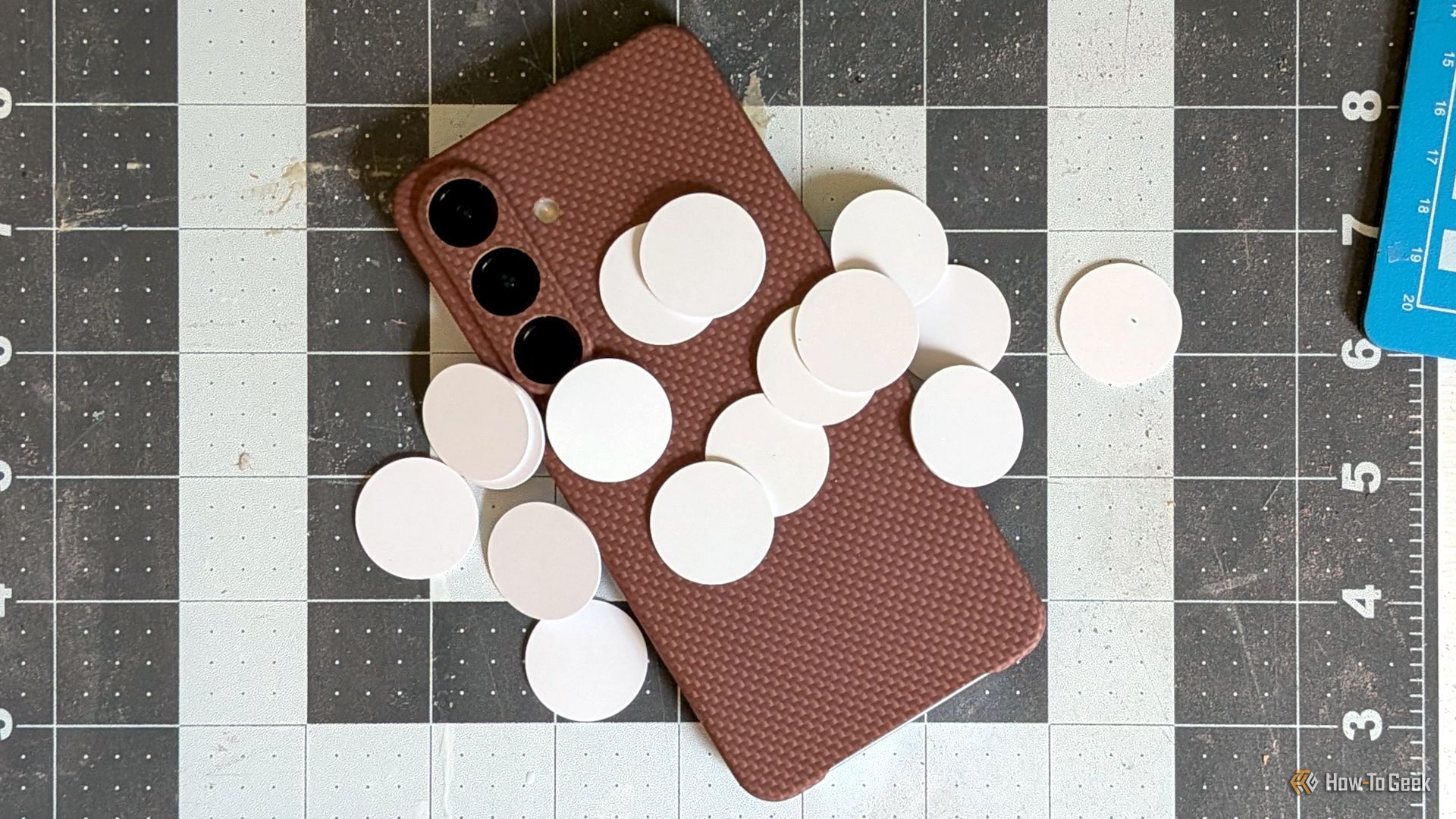
- NFC tags: These inexpensive, small chips are what you'll tap to trigger your automations. They are widely available online.
- (Optional) A standalone NFC tag reader: While not strictly necessary for phone-based triggers, a dedicated reader can expand functionality, allowing household members without phones to interact with automations.
Why Home Assistant Excels with NFC Tags
Many smart home platforms struggle with NFC integration, often leaving users frustrated. For instance, Google Home doesn't natively support NFC as an automation trigger, requiring complex and often unreliable workarounds involving third-party apps and command macros. Even platforms like SmartThings, which does support NFC triggers, limit this functionality exclusively to Samsung Galaxy phone users through Samsung Modes & Routines. This means if you own a Pixel, iPhone, or any non-Samsung Android device, you're out of luck within the SmartThings ecosystem.
Home Assistant bypasses these limitations entirely. Its open and flexible architecture ensures that NFC tag functionality isn't tied to your phone's brand or operating system. Whether you're using an Android device or an iPhone, the Home Assistant app allows you to write to and read NFC tags with ease. Furthermore, Home Assistant introduces the possibility of using standalone NFC tag readers, completely removing the phone from the equation for triggering automations. This means any household member, regardless of their phone ownership, can interact with your smart home using a simple tap. This level of device independence and broad applicability truly sets Home Assistant apart, making it the superior choice for robust NFC tag automations.
Step-by-Step: Setting Up NFC Tag Automations with Home Assistant
Let's get started with bringing your NFC tag automations to life.
Step 1: Ensure Your Home Assistant is Ready
Make sure your Home Assistant instance is up and running and you have the mobile app installed and connected to your Home Assistant server. All your smart devices should already be integrated into Home Assistant.
Step 2: Add Your NFC Tags to Home Assistant
This is where you introduce your physical NFC tags to your Home Assistant system.
- Open the Home Assistant App: Launch the Home Assistant app on your Android or iPhone.
- Navigate to Tags: Look for a "Tags" section within the app. The exact location might vary slightly between app versions, but it's typically found in the app's settings or a dedicated menu.
- Scan a New Tag: The app will prompt you to scan an NFC tag. Hold your phone near the NFC tag you wish to add. Your phone's NFC reader is usually located near the top or middle of the back of the device.
- Name Your Tag: Once detected, Home Assistant will prompt you to give the tag a recognizable name. Choose something descriptive, like "Kitchen Counter Tag" or "Goodnight Routine Tag." This name will appear in your Home Assistant dashboard and be used when creating automations.
- Repeat for All Tags: Continue this process for all the NFC tags you plan to use around your home.
Once added, these tags will appear in your Home Assistant dashboard, ready to be linked to powerful automations.
Step 3: Define NFC Tag Automations
This is the most exciting part – telling Home Assistant what to do when an NFC tag is scanned. The potential here is vast, limited only by your imagination and the devices connected to your Home Assistant. Here’s how you define automations and some practical examples:
- Access Automations in Home Assistant: From your Home Assistant web interface (accessible via a browser), navigate to "Settings" > "Automations & Scenes" > "Automations."
- Create a New Automation: Click the "Create Automation" button.
- Choose a Trigger: For the "Trigger" type, select "Tag scanned." You will then select the specific NFC tag you named in Step 2 from a dropdown list.
- Define Actions: This is where you specify what happens when that particular NFC tag is scanned. You can add one or multiple actions. Here are some examples inspired by real-world Home Assistant users:
- Music Playback: Scan an NFC tag on your Sonos speaker to start a specific music playlist, perfectly setting the mood for your room.
- Health Tracking: Place an NFC tag on your water bottle. Tapping it logs a specific amount of fluid ounces into Apple Health (or a similar health integration), helping you stay hydrated.
- Household Chores Management: Stick an NFC tag on your washing machine. When a household member taps it at the start of a load, Home Assistant notes who started it. When a power monitor detects the wash cycle is complete, Home Assistant can send a notification only to that specific person's phone, avoiding unnecessary alerts for others.
- Commute Announcements: Keep an NFC tag on your desk. Tapping it as you leave the office can broadcast a message on your Alexa speakers at home, informing family members that you're on your way.
- Nighttime Routine: An NFC tag on your nightstand can be configured to turn off all the lights in the house, lock the doors, and set the alarm with a single tap as you head to bed.
- Medication Reminders: Attach an NFC tag to a pill bottle. Tapping it logs that pills have been taken for the day. Home Assistant can then send a reminder if you leave the house later without having scanned the tag.
- Garage Door Control: Scan an NFC tag in your car or by your door to open your garage door, offering a convenient, remote-free entry solution.
- Save Your Automation: Give your automation a descriptive name and save it. Now, whenever you (or anyone with the Home Assistant app on their phone, or using a standalone reader) taps that specific NFC tag, your defined actions will execute!
Step 4 (Optional): Integrating a Standalone Tag Reader
For scenarios where you want to enable NFC interactions without requiring a smartphone, Home Assistant supports standalone tag readers. While the specific setup varies by reader, the principle remains the same: the reader detects the tag and sends that information to Home Assistant, triggering the associated automation. This is particularly useful for children, guests, or in locations where having a phone might not be practical, broadening the accessibility of your smart home automations.
Troubleshooting Tips
While Home Assistant's NFC integration is generally robust, here are a few common issues and their solutions:
- Tag Not Detecting: Ensure your phone's NFC is enabled and that you're holding the correct part of your phone (usually the top-back or center-back) directly over the NFC tag. Some phone cases can interfere with NFC signals. Also, ensure the NFC tag itself is not damaged.
- Automation Not Triggering: Double-check your Home Assistant automation configuration. Verify that the correct NFC tag is selected as the trigger and that the actions are correctly defined. Review your Home Assistant logs for any errors related to the tag scan or automation execution.
- Permissions Issues: Ensure the Home Assistant app has necessary permissions on your phone, especially related to NFC and notifications if your automation involves alerts.
- "Tag already added" Error: If you're trying to add a tag that Home Assistant has previously recognized, you might need to manage existing tags within the Home Assistant app or dashboard before re-assigning it.
Tips for Best Practices
To make the most of your NFC tag automations, consider these best practices:
- Label Your Tags: While Home Assistant knows the tag by its ID, a physical label on the tag (or the surface it's attached to) explaining its function will be invaluable for everyone in your household.
- Strategic Placement: Place tags in logical and easily accessible locations where the automation makes sense. For instance, a "goodnight" tag on a nightstand, or a "kitchen light" tag near the entrance to the kitchen.
- Start Simple, Then Expand: Begin with one or two basic automations to get comfortable with the process. Once you see how effectively they work, you'll feel more confident in tackling complex scenarios.
- Consider Standalone Readers for High Traffic Areas: For frequently used automations that multiple people (including those without phones) might need, a standalone NFC reader can enhance convenience and accessibility.
- Backup Your Home Assistant Configuration: As you build more complex automations, regularly back up your Home Assistant configuration to prevent data loss.
Next Steps
Now that you've harnessed the power of NFC tags with Home Assistant, consider exploring these related topics to further enhance your smart home:
- Advanced Automations: Dive deeper into Home Assistant's automation editor, exploring conditions, templates, and scripts for even more sophisticated routines.
- Integrate More Devices: Connect additional smart devices to Home Assistant to expand the scope of what your NFC tags can control.
- Home Assistant Blueprints: Discover community-shared blueprints for pre-built automations, which can save you time and offer inspiration.
- Voice Assistant Integration: Learn how to integrate Home Assistant with Google Assistant or Amazon Alexa, allowing you to trigger automations with voice commands in addition to NFC tags.
FAQ
Q: Do I need a specific phone model (e.g., Samsung Galaxy) to use NFC tags with Home Assistant?
A: No, that's one of Home Assistant's major advantages! Unlike some other platforms, Home Assistant's NFC tag integration works seamlessly with both Android and iPhone devices, freeing you from brand lock-in.
Q: Can people in my home who don't have a smartphone still use NFC automations?
A: Yes, absolutely. Home Assistant allows you to integrate standalone NFC tag readers. This means anyone can tap a tag to trigger an automation without needing a personal device.
Q: What kind of automations can I create with NFC tags in Home Assistant?
A: The possibilities are incredibly diverse. You can create automations for controlling lights, playing specific music playlists on Sonos, logging health data (like water intake), sending personalized notifications for chores, broadcasting messages on smart speakers, opening your garage door, or even managing medication reminders, among many others.
Related articles

Ditch Merge & Center: The Better Way to Align Text in Excel
Learn to use Excel's "Center Across Selection" to align text across cells without merging, avoiding common data manipulation issues. This guide provides steps to utilize this newly accessible feature and add it to your Quick Access Toolbar.

Ars Technica's Rocket Report: Your Essential Space Industry Briefing
Quick Verdict Ars Technica's Rocket Report, presented by veteran space reporter Stephen Clark, offers an invaluable and meticulously organized weekly (or similar frequency, implied by "Edition 9.15") digest of the most

Stop Android Auto Battery Drain: Essential Features to Disable and
Android Auto offers unparalleled convenience, bringing your phone's most useful features directly to your car's display. From navigation and calls to messages and music, it keeps you connected without distracting you

Apple’s new HomeView smart display is $10 cheaper at Amazon: latest
In a rare move for a new Apple product, the highly anticipated HomeView smart display is already available at a discount on Amazon, weeks before its official launch. Consumers can now pre-order Apple's first dedicated

Turn Your Android Phone into a Powerful Desktop Replacement
Learn how to transform your Android phone into a full-fledged desktop computer using external displays and accessories, providing a cost-effective and integrated alternative to new Googlebooks.

howto: Four Ways the Fitbit Edge Is Better Than the Charge 6, and Two
Learn the key differences between the Fitbit Edge and Charge 6, including four advantages of the Edge and two areas where it falls short, to help you choose the best fitness tracker for your needs.