
Master Excel's Paintbrush: Format Painter for Efficient Formatting
Excel is packed with powerful tools, but some of the most helpful ones often go unnoticed. One such gem is the innocent-looking paintbrush icon, officially known as the Format Painter. If you spend hours manually
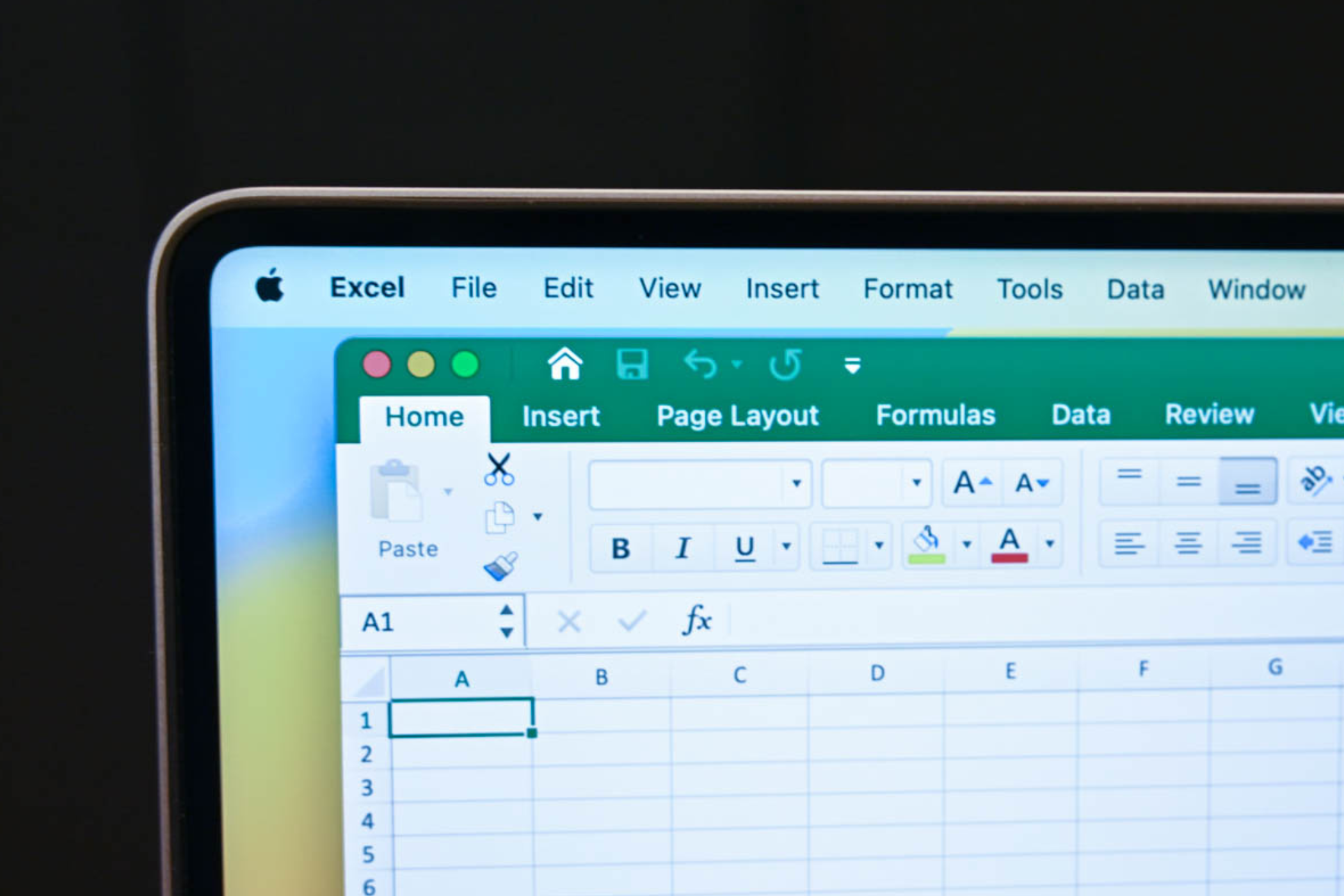
Excel is packed with powerful tools, but some of the most helpful ones often go unnoticed. One such gem is the innocent-looking paintbrush icon, officially known as the Format Painter. If you spend hours manually adjusting fonts, colors, and borders in your spreadsheets, this guide will revolutionize your workflow, saving you significant time and effort.
By the end of this guide, you'll understand exactly what the Format Painter does, how to use it for both single and multiple formatting applications, and discover advanced tips to become an Excel formatting pro. Say goodbye to repetitive clicking and hello to beautifully consistent spreadsheets with minimal effort!
Before You Begin
To follow along with this guide, you'll need:
- Microsoft Excel: Installed and running on your computer (Windows or macOS).
- Basic Excel Knowledge: Familiarity with selecting cells and navigating the ribbon.
What is Excel's Format Painter?
Located in the Clipboard group on the Home tab, the Format Painter button looks like a small paintbrush. Its core function is to copy the visual appearance (formatting) of one item and apply it to another, without affecting the underlying data, text, values, or formulas.
Imagine you've spent time perfecting the look of a cell: a specific font, size, bolding, italics, a custom fill color, and a unique border. Instead of manually reapplying each of these attributes to other cells, Format Painter captures that entire "look" in one go. It works not just for cells, but also for shapes, images, and AutoShapes, ensuring consistent design across your entire worksheet.
What kind of formatting does it copy? Virtually anything visual! This includes:
- Font style, size, and color
- Cell shading/fill color
- Border styles and colors
- Number formatting (e.g., currency, percentage)
- Alignment and text wrapping
- Conditional formatting rules (with some caveats, as discussed later)
Crucially, it leaves the actual content of the cell – the numbers, text, or formulas – completely untouched. You're simply duplicating the presentation, not the information itself.
Step-by-Step: Using Format Painter
There are two primary ways to use Format Painter, depending on whether you need to apply formatting once or multiple times.
Method 1: Apply Formatting Once (Single Click)
This method is perfect when you want to copy the formatting from one source cell to a single destination cell or a contiguous range of cells. The tool will automatically deactivate after one use.
- Select the Source: Click on the cell (or range of cells) that has the formatting you want to copy.
- Activate Format Painter: Go to the Home tab and click the Format Painter button once.
- You'll notice a dotted outline appear around your source cell(s) and your mouse cursor will change to a paintbrush icon.
- Apply to Destination: Click on the single cell or drag your cursor over the range of cells where you want to apply the copied formatting.
- Done! The formatting is applied, and the Format Painter tool automatically switches off.
Method 2: Apply Formatting Multiple Times (Double Click)
When you need to apply the same formatting to several non-adjacent cells or different areas of your spreadsheet, the double-click method saves you from repeatedly selecting the tool.
- Select the Source: Click on the cell (or range of cells) with the desired formatting.
- Activate Format Painter (Persistent Mode): Go to the Home tab and double-click the Format Painter button.
- Again, the dotted outline appears, and your cursor turns into a paintbrush. This time, however, it will stay active after each application.
- Apply to Multiple Destinations: Click on each individual cell, or drag over different ranges of cells, anywhere on your worksheet, to apply the formatting. The paintbrush icon will remain active.
- Deactivate Format Painter: Once you've finished applying all the formatting, press the Escape (Esc) key on your keyboard or click the Format Painter button again to turn the tool off. Your cursor will return to its normal state.
Using Format Painter Like a Pro
Beyond the basic clicks, there are smart workflows and keyboard shortcuts that can make Format Painter even more efficient.
Format Painter vs. F4 Key: Know the Difference
Many users confuse Format Painter with the F4 key (or Fn + F4 on some laptops). While both can repeat actions, they serve different purposes:
- F4 Key: Repeats your last single action. For example, if you just made a cell yellow, pressing F4 on another cell will make that cell yellow. It's great for repeating simple, individual changes.
- Format Painter: Copies an entire set of formatting attributes (fonts, colors, borders, number formats, etc.) from one cell. If your formatting involves multiple elements, Format Painter is the tool to use.
When to use which: If you've just applied a single format (like bolding) and want to apply only that bolding to several other cells, F4 is quicker. If you've applied a complex style with multiple elements, or want to replicate all the formatting from a source cell, reach for the Format Painter.
Essential Keyboard Shortcuts
For those who prefer keeping their hands on the keyboard, here are some shortcuts that work with Format Painter or achieve similar formatting-paste actions:
- Activate Format Painter from Ribbon: Press Alt + H + F + P.
- Copy Cell & Paste Formatting Only:
- Copy your source cell: Ctrl + C.
- Select your destination cell(s).
- Paste Formatting: Alt + H + V + R. This uses the Paste Special menu to apply only formatting.
- Paste Special Dialog (Formatting Only):
- Copy your source cell: Ctrl + C.
- Select your destination cell(s).
- Open Paste Special: Ctrl + Alt + V (or Alt + E + S on older versions).
- In the dialog box, type T for "Formats" and press Enter.
- Direct Copy/Paste Formatting (Microsoft 365): On some newer builds, Alt + Ctrl + C to copy formatting and Alt + Ctrl + V to paste formatting can work directly, bypassing menus.
Troubleshooting Common Format Painter Issues
While Format Painter is powerful, you might occasionally encounter a snag. Here’s how to address them:
- Conditional Formatting Quirks: When copying conditional formatting, Excel sometimes uses absolute references (e.g.,
$A$1) for the original source cell. This can cause the copied conditional formatting to point back to the initial source rather than adjusting to its new location. Always check your conditional formatting rules after applying if you notice unexpected behavior. - Double-Click Lock Not Engaging: If double-clicking Format Painter doesn't activate the persistent (multi-use) mode, your mouse settings might be the culprit. Try adjusting the double-click speed in your Windows or macOS system settings to a slower pace.
- Interference from Clipboard Managers: Third-party clipboard managers for Windows or other operating systems can sometimes interfere with Excel's Format Painter, potentially preventing the paintbrush cursor from appearing or blocking its functionality. If you face such an issue, try temporarily disabling any active clipboard managers.
- Selecting Non-Contiguous Cells: Format Painter does not work with the Ctrl + click method for selecting multiple non-adjacent cells before activating the tool. To format scattered cells, you must use the double-click persistent mode (Method 2) and click on each non-adjacent cell individually.
A Small Tool, Big Time Savings
The Excel Format Painter might be discreet, but its impact on your productivity is immense. Once you integrate it into your routine, you'll wonder how you ever managed without it. It transforms one of the most repetitive aspects of spreadsheet work—formatting—into a quick, efficient task, freeing you up to concentrate on data analysis and insights.
By mastering both the single-click and double-click modes, understanding its distinction from the F4 key, and knowing how to troubleshoot common issues, you'll significantly reduce the time spent on formatting and ensure a professional, consistent look across all your Excel projects.
FAQ
Q: Does Format Painter copy formulas or cell values?
A: No, Format Painter is designed exclusively for visual formatting. It copies attributes like font, color, borders, and number formats, but it leaves the underlying cell content, including formulas, values, and text, completely untouched.
Q: My Format Painter isn't staying active after I double-click it. What could be wrong?
A: If the double-click lock feature isn't working, it's often related to your mouse settings. Try adjusting the double-click speed in your computer's system settings (e.g., Windows Control Panel or macOS System Settings) to a slower speed. Also, check if any third-party clipboard managers are active, as they can sometimes interfere.
Q: Can I use Format Painter to copy formatting to multiple cells that aren't next to each other?
A: Yes, absolutely! This is precisely what the double-click method is for. Double-click the Format Painter button after selecting your source cell, and it will remain active, allowing you to click on as many scattered or non-adjacent cells as you need to apply the formatting. Remember to press Esc or click the button again when you're done.
Related articles

Ditch Merge & Center: The Better Way to Align Text in Excel
Learn to use Excel's "Center Across Selection" to align text across cells without merging, avoiding common data manipulation issues. This guide provides steps to utilize this newly accessible feature and add it to your Quick Access Toolbar.

Kojima Compares Divisive New Film 'Digger' to MGS2's Prescient Vision
Gaming icon Hideo Kojima has praised the divisive 2026 film *Digger*, drawing intriguing parallels to his own prophetic game, *Metal Gear Solid 2*. Both works, he explains, uniquely explore the dangers of misinformation and a fragmented digital reality, anxieties he shares with *Digger*'s director, Alejandro González Iñárritu.

Stop Android Auto Battery Drain: Essential Features to Disable and
Android Auto offers unparalleled convenience, bringing your phone's most useful features directly to your car's display. From navigation and calls to messages and music, it keeps you connected without distracting you

Turn Your Android Phone into a Powerful Desktop Replacement
Learn how to transform your Android phone into a full-fledged desktop computer using external displays and accessories, providing a cost-effective and integrated alternative to new Googlebooks.

howto: Four Ways the Fitbit Edge Is Better Than the Charge 6, and Two
Learn the key differences between the Fitbit Edge and Charge 6, including four advantages of the Edge and two areas where it falls short, to help you choose the best fitness tracker for your needs.

How to Connect Your Googlebook to a Printer - Print Documents with
Learn to quickly connect your Googlebook to a printer via Wi-Fi, USB, or Bluetooth and print documents in minutes. This guide covers direct printing, app-specific connections, troubleshooting, and even printing screenshots as a workaround.