
How to Use Kodi: The Simple, Server-Free Way to Watch Your Media
Learn to set up Kodi to watch your personal media library directly on your TV, bypassing complex servers and subscription fees, in just a few steps.
Are you tired of managing complex media servers or paying for subscriptions just to watch your own movies and TV shows? Many popular options like Plex and Jellyfin are fantastic for streaming content across multiple devices, but they come with the overhead of setting up and maintaining a dedicated server. If you simply want a straightforward way to enjoy your personal media collection on a single screen without the fuss, Kodi might be the perfect solution for you.
Kodi is a powerful, open-source media center application that lets you store and play your media directly from one device, connecting straight to your TV or receiver. It's designed for simplicity and efficiency, making it an excellent choice for anyone looking to reclaim control over their entertainment without server complexities or recurring fees.
What You'll Accomplish
By following this guide, you will learn how to set up Kodi to play your entire media library—including movies, TV shows, and music—directly from a single device. You'll gain a clear understanding of its benefits, how it differs from server-based solutions, and how to optimize your experience for seamless playback. Say goodbye to subscriptions and unnecessary server maintenance, and hello to direct, easy access to your favorite content.
Why Choose Kodi?
Kodi stands out as a unique option for media playback, especially if you're looking for simplicity and control:
- No Server Required: Unlike Plex or Jellyfin, Kodi functions as a self-contained media player. It runs on a single device, storing your media or accessing it from a network share, and outputs video directly to your display. No separate server machine needed!
- No Subscription Fees: Kodi is completely free and open-source. While Jellyfin is also free, Plex often requires a subscription or a one-time fee to unlock its full feature set, adding an unnecessary cost if you just need basic playback.
- User-Friendly TV Interface: Kodi’s interface is specifically designed for large screens and remote control navigation. You won’t be struggling with a desktop UI meant for a mouse and keyboard. You can easily navigate your library using traditional wireless controllers, such as an Xbox controller, or a universal remote.
- Runs on Almost Anything: Kodi boasts broad compatibility, supporting major operating systems like Windows, Linux, Android, macOS, and iOS. Its hardware requirements are modest, meaning most computers or devices made in the last ten years will easily handle 1080p content, and even 4K playback is possible on upper-mid range hardware.
Prerequisites and What You'll Need
Before you dive into setting up Kodi, gather the following essentials:
- A Device to Run Kodi: This could be a desktop PC, laptop, Android TV box, Raspberry Pi, or even a smartphone or tablet. The device needs to be capable of connecting to your display.
- Your Media Library: Have your collection of movies, TV shows, and music files stored on a local drive (internal or external) or accessible on your home network.
- A Display Device: A television, monitor, or projector where you'll watch your media.
- An Input Device: A remote control (universal or specific to your Kodi device), a keyboard, mouse, or even a compatible game controller for navigation.
- Network Access (Optional): If your media files are stored on a network-attached storage (NAS) device or another computer on your network, ensure your Kodi device has network connectivity.
Getting Started with Kodi: A Step-by-Step Guide
Let’s get your personal media library up and running with Kodi!
Step 1: Download and Install Kodi
First, you'll need to install Kodi on your chosen device. Head to the official Kodi website from your device's browser and download the appropriate version for your operating system. Kodi is available for Windows, Linux, Android, macOS, and iOS. The installation process is typically straightforward, following the on-screen prompts like any other application.
Step 2: Launch Kodi and Familiarize Yourself with the Interface
Once installed, launch Kodi. You'll immediately notice its distinct, TV-friendly interface. Take a moment to explore the menus using your chosen input device. You'll see categories for Movies, TV Shows, Music, and more. This design is optimized for comfortable viewing from across a room, making navigation intuitive with a remote.
Step 3: Add Your Media Sources
This is where Kodi connects to your media files. You'll need to point Kodi to the folders where your movies, TV shows, and music are stored.
- Navigate: From the Kodi home screen, go to the content type you want to add (e.g., "Movies").
- Add Source: Select "Add Videos..." (or "Add Music..." for music). A new window will appear.
- Browse for Media: Click "Browse" and navigate to the folder containing your media files. This could be a local drive or a network location if your files are on a NAS or another computer.
- Confirm: Once you've selected the folder, click "OK." Kodi will then prompt you to confirm the content type (e.g., "Movies"). It will then scan your files and add them to your library, fetching cover art and metadata automatically.
- Repeat: Repeat this process for all your media types (TV shows, music, etc.) and locations.
Step 4: Configure Playback Settings (Optional but Recommended)
While Kodi generally works well out of the box, you might want to adjust a few settings for optimal performance and experience, especially if you encounter playback issues.
- Access Settings: From the Kodi home screen, click the gear icon (⚙️) to enter the Settings menu.
- Player Settings: Navigate to "Player" settings. Here, you can adjust various options related to video and audio playback.
- Hardware Acceleration: Look for options related to hardware acceleration. Enabling this can significantly improve performance, especially for higher-resolution content, by offloading decoding tasks to your device's dedicated hardware (like a GPU).
- Audio Settings: If you have a surround sound system, ensure your audio output settings are correctly configured to take advantage of it.
Optimizing Your Kodi Experience
To ensure the smoothest and most enjoyable experience with Kodi, consider these tips and best practices:
Hardware Considerations for Smooth Playback
While Kodi is lightweight, your hardware still plays a role, especially with high-quality media. Low-power devices may struggle with demanding formats like high-bitrate 4K remuxes or videos encoded with HEVC 10-bit and AV1 codecs. For 4K content, a device with a more powerful CPU, a dedicated GPU, or built-in hardware decoding support will deliver the best performance.
Media Library Preparation
If you find certain high-quality files are playing poorly, it might be due to a codec or bitrate that your specific Kodi device struggles with. In such cases, converting your media library to a more compatible format can be beneficial.
- Batch Conversion: Rather than converting files on demand, consider setting up a batch job to convert your entire library over a period of days or weeks. This ensures your media is ready to play without delays.
- Quality Preservation: Remember that re-encoding often leads to some quality degradation. It’s highly recommended to keep your original, highest-quality copy of your media files, even if your current Kodi setup can't play them directly.
Input Devices
Beyond a standard remote, consider using a traditional wireless game controller (like an Xbox controller) or a universal remote for navigation. These can offer a more comfortable and intuitive experience when browsing your extensive media library from the couch.
When to Consider a Media Server
Kodi excels as a single-device solution for dedicated home theater setups. However, if your needs evolve and you want to stream your media to multiple devices simultaneously across your home network—say, to a TV in the living room, a tablet in the bedroom, and a phone in the kitchen—then a proper media server like Jellyfin or Plex would be a more suitable choice. They are designed for this multi-client, streaming-centric use case.
The good news is that the hardware you use for Kodi today could easily serve as the foundation for a Jellyfin server in the future. You would primarily need to change the software, and your existing media library would remain compatible.
Troubleshooting Tips
- Poor Playback Performance: If you experience stuttering or buffering, especially with 4K files or specific codecs (HEVC 10-bit, AV1), consider converting those files to a more device-friendly format using a batch process. Alternatively, evaluate if your Kodi device meets the necessary hardware requirements for demanding content.
- Navigation Difficulties: Ensure you're using an input device suited for a TV interface. A keyboard, mouse, or universal remote designed for media centers will provide a much smoother experience than trying to navigate with a standard desktop mouse.
- Missing Media/Metadata: After adding a source, ensure Kodi has completed its scanning process. If titles or artwork are missing, verify your file naming conventions are consistent, as Kodi relies on these for accurate scraping of metadata.
FAQ
Q: Can Kodi stream my media to other devices?
A: Kodi is primarily designed as a self-contained media player for a single device. While it can access media from network shares, its core functionality isn't to stream content to multiple separate client devices simultaneously like a media server (Plex or Jellyfin) does. If multi-device streaming is your main goal, a server-based solution is generally better.
Q: Do I need powerful hardware to run Kodi?
A: Not necessarily for basic use. Kodi has modest hardware requirements, and a desktop or laptop from the last ten years is typically sufficient for 1080p content. For 4K playback, particularly with high-bitrate files or modern codecs like HEVC 10-bit or AV1, more capable hardware with a powerful CPU, dedicated GPU, or built-in hardware decoding is recommended for optimal performance.
Q: How do I get my media into Kodi?
A: You add your media by navigating to the relevant category (Movies, TV Shows, Music) in Kodi's interface and then selecting "Add Videos" (or "Add Music"). You will then browse to the folder where your media files are stored, whether it's on a local drive connected to the Kodi device or a shared network location like a NAS. Kodi will then scan these folders and build your library.
With Kodi, you have a direct, powerful, and free way to enjoy your entire media library without the complexities of server maintenance or the burden of subscriptions. It's an excellent choice for a dedicated media playback experience, putting you in full control of your entertainment.
Related articles
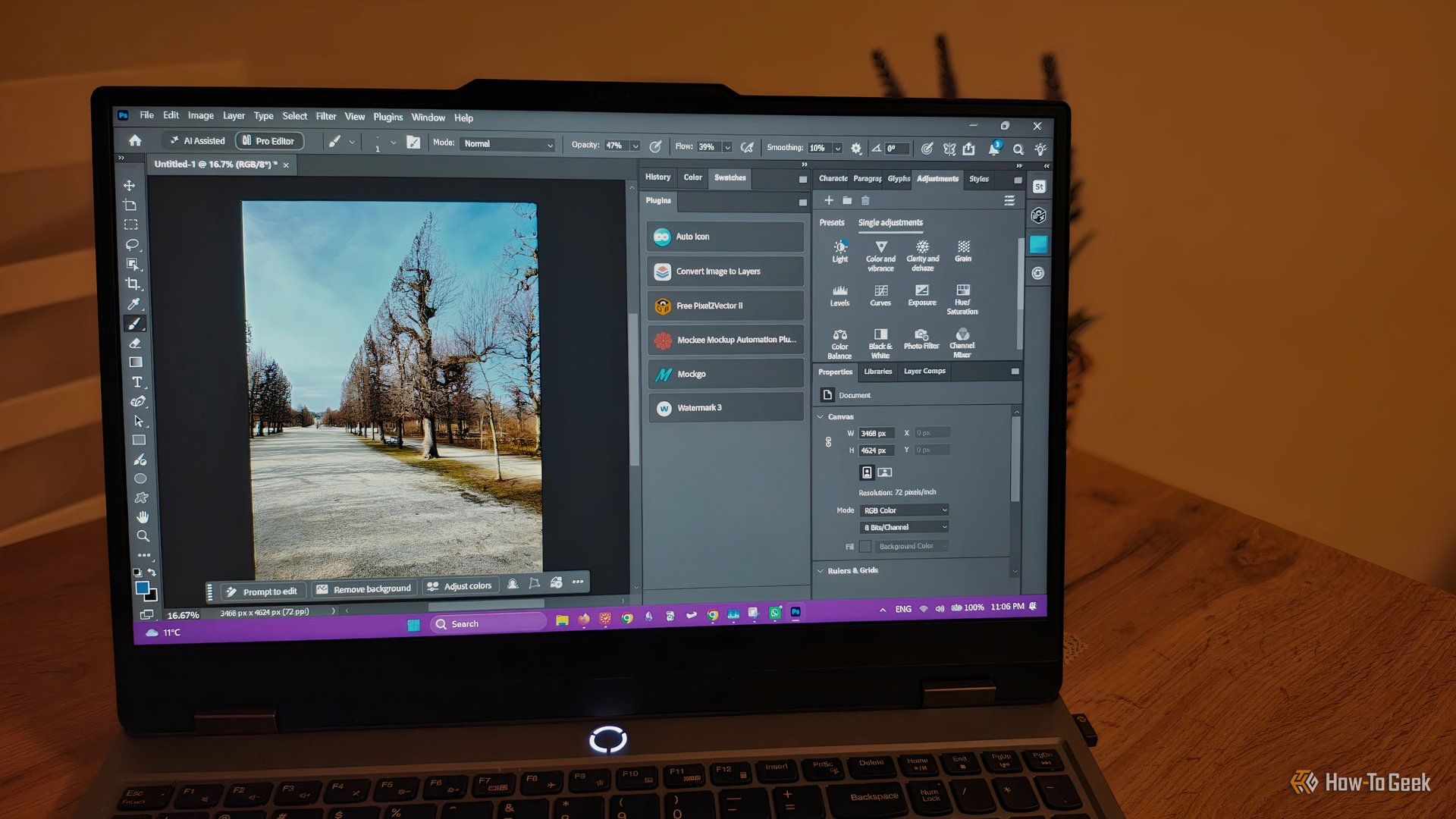
howto: 4 Photoshop plugins so essential they should be built-in
Discover four essential Photoshop plugins that streamline your workflow, save time, and unlock new creative possibilities, making you wonder why they aren't built-in features.
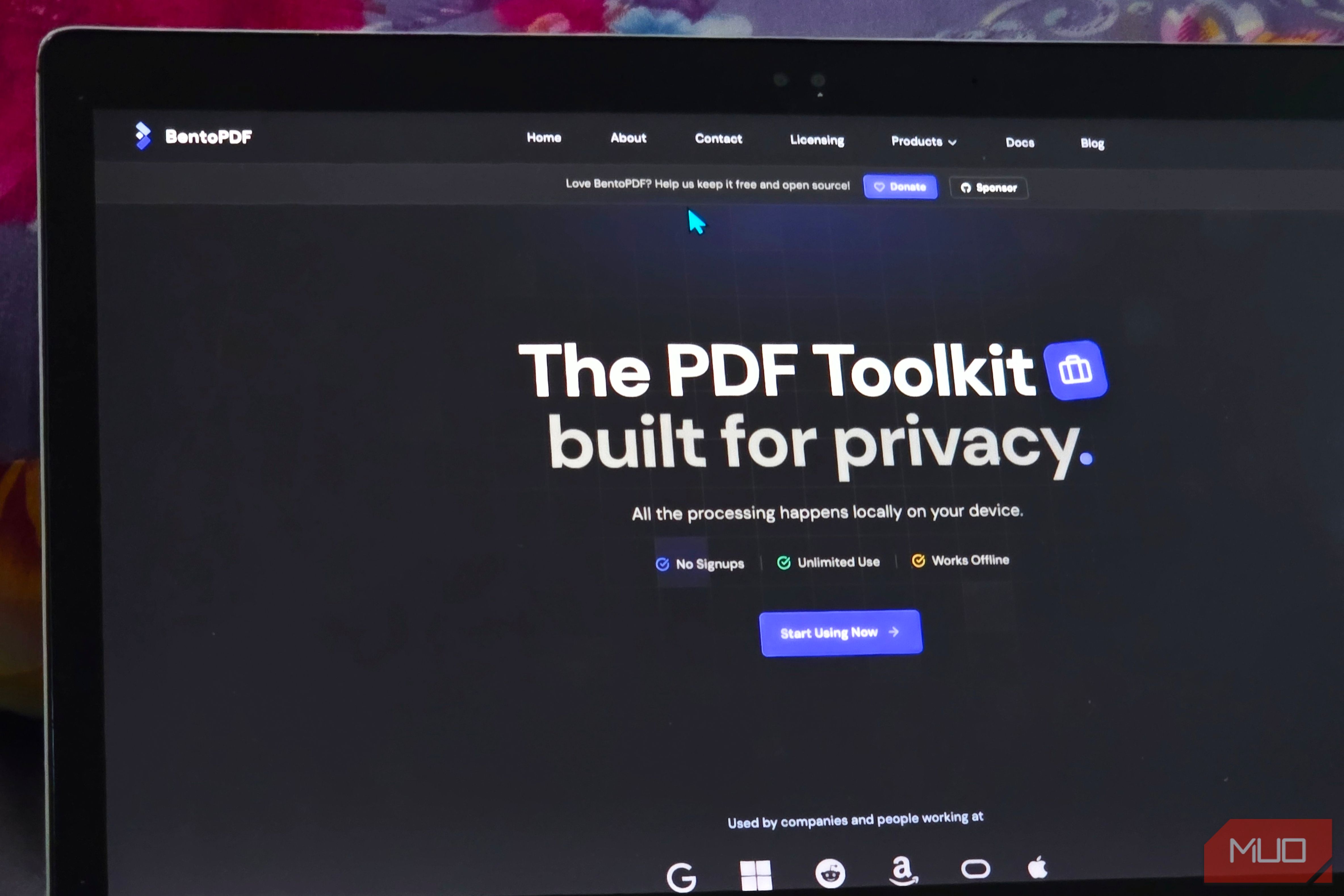
Solve Annoying PDF Problems Locally in Your Browser with BentoPDF
Dealing with PDFs can often feel like a never-ending series of small, annoying tasks. You might need to combine several documents, reduce the size of a bulky file, or even make an image-only scan searchable. Typically,

Your Guide to LG's 115-inch QNED evo TV: Features, Gaming & Price
Welcome to an exciting exploration of LG's latest innovation in home entertainment: the colossal 115-inch QNED evo AI Mini LED TV. This guide is designed to walk you through everything you need to know about this

The Super Mouse puts a touchscreen macro pad under your hand: Tech
Arctic Fox Technologies has launched the Super Mouse, an innovative peripheral featuring a 3.1-inch touchscreen for dynamic app controls, macros, and enhanced productivity. Available on Kickstarter for $199, this wired mouse aims to consolidate multiple desktop devices into one intuitive command center. Its contextual display and advanced features redefine user interaction.

CMF Watch 3 Pro: Affordable Style Meets Solid Performance
CMF Watch 3 Pro: Affordable Style Meets Solid Performance In the crowded market of smartwatches, finding a device that balances features, design, and affordability can be a challenge. Enter the CMF Watch 3 Pro, a

Love Island Australia S8 Guide: Navigating the Stream, Mostly Free
Love Island Australia Season 8 Streaming Guide: Navigating the Digital Waters Verdict: TechRadar's guide to watching Love Island Australia Season 8 is a generally useful, if somewhat navigationally challenged, resource