
How to Transform Discord into Your Personal Note-Taking Hub
Learn to set up Discord as a powerful, free, and instantly syncing note-taking app in a few simple steps. Discover how to organize your notes, leverage threads, and integrate bots for enhanced productivity.
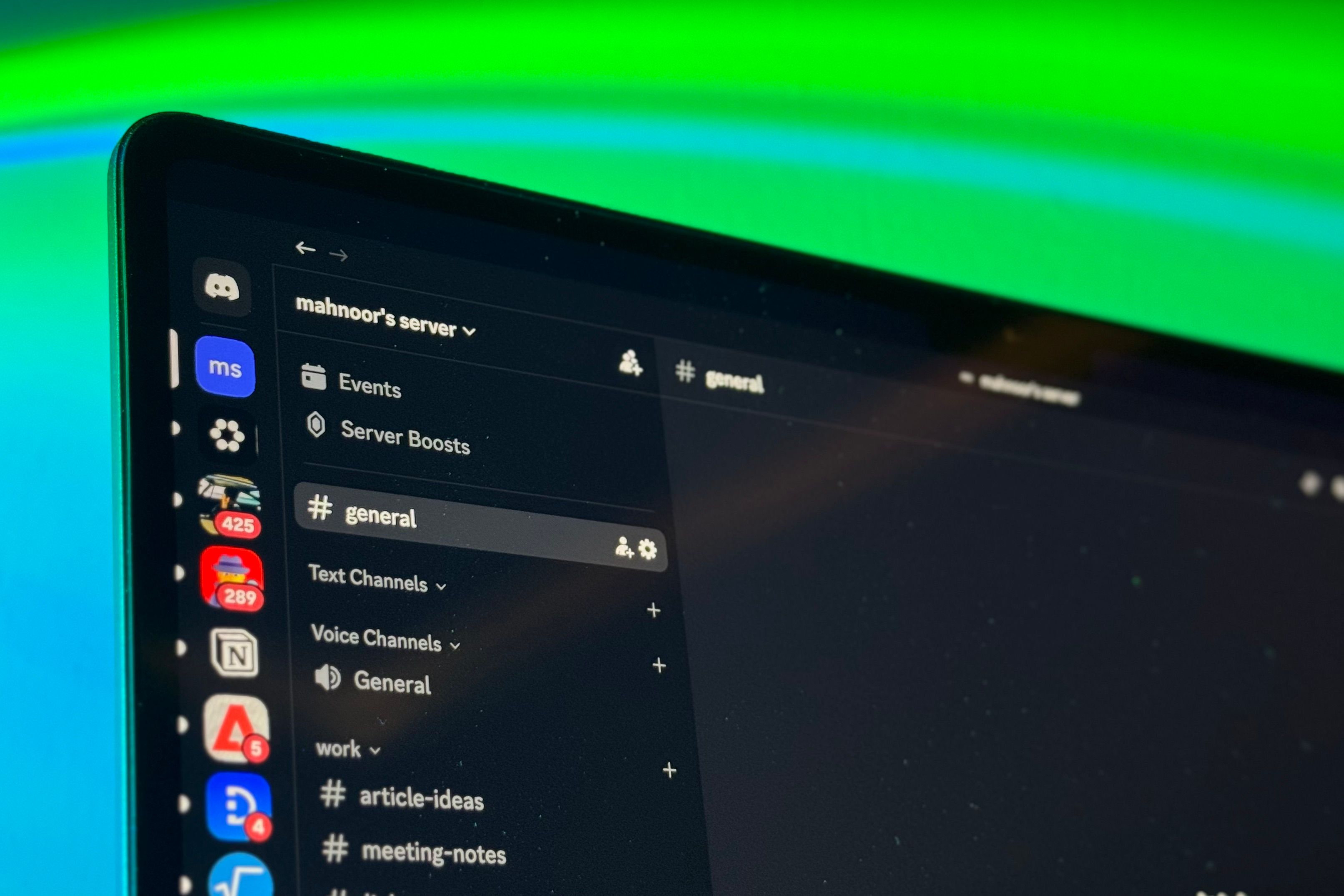
Tired of complex, over-engineered note-taking apps that promise everything but deliver frustration? What if the perfect solution was already sitting in your taskbar? Discord – yes, the platform known for communities – is surprisingly effective for quick, seamless, and absolutely free digital note-taking. This guide shows you how to transform Discord into your personal, lightning-fast note-taking hub, helping you capture thoughts, links, and ideas instantly. For many, Discord's unique benefits make it an ideal choice for daily notes:
- Low Friction: Often already open, making notes as instant as sending a message.
- Free, Flawless Syncing: Notes sync instantly across desktop, mobile, and browser at no cost.
- Mobile-Friendly: Optimized for quick interactions on the go.
- Refreshingly Simple: No complex settings or templates to get in the way.
- Completely Free: No premium features or storage tiers behind a paywall.
Prerequisites
Before you start, make sure you have these basics:
- A Discord Account: You'll need an active Discord account. Signing up is free and quick.
- Discord Application: While you can use Discord in a web browser, having the desktop or mobile app installed provides the most fluid experience for quick note-taking.
Step-by-Step: Setting Up Your Discord Note System
Follow these steps to create and organize your personal note-taking server.
1. Create Your Personal Private Server
Establish a private space for your notes:
- Open Discord: Launch the app.
- Add a Server: Click the
+icon on the left sidebar. - Create My Own: Choose 'Create My Own', then 'For Me and My Friends' (you don't need to invite anyone to keep it private).
- Name Your Server: Give it a clear, personal name (e.g., 'My Notes', 'Idea Bank'). Click 'Create'.
2. Organize with Categories
Categories act as high-level folders to group your note channels:
- Right-Click Your Server: Right-click your server icon in the left sidebar (or long-press on mobile).
- Create Category: Select 'Create Category'.
- Name Your Category: Use descriptive names like 'General', 'Personal', 'Work', or 'College'.
- Repeat: Add as many top-level categories as you need; their structure is always flexible.
3. Set Up Channels for Specific Notes
Within each category, create text channels for specific notes, acting like dedicated notebooks or topic pages:
- Right-Click Category: Right-click a category (or tap its
+icon on mobile). - Create Channel: Select 'Create Channel' and ensure 'Text Channel' is chosen.
- Name Your Channel: Use specific, descriptive names. For example, under 'Work', you might have
#article-ideasor#meeting-notes. Under 'College', channels could be#course-name-101or#deadlines. The#prefix is automatic. - Create as Needed: Easily add new channels in seconds as your note-taking needs evolve – your structure isn't set in stone.
4. Leverage Threads for Deeper Organization
Threads are crucial for keeping your channels clutter-free by allowing sub-discussions on specific notes, preventing clutter in the main channel:
- Post Your Initial Note: Enter your initial idea, link, or thought in the relevant channel.
- Start a Thread: Hover over your message and click the 'Threads' icon, or right-click and select 'Create Thread'.
- Name Your Thread: Give the thread a descriptive name. All subsequent messages within this thread will stay neatly contained, keeping the main channel 'scannable'. This functions like sub-pages without the 'endless nesting' that can lead to lost information.
5. Enhance with Bots (Optional but Recommended)
Discord's flexibility extends to integrating bots, which can add powerful features like reminders and checklists to your note-taking system:
- Find and Add Bots: Search online for useful Discord bots (e.g., 'Discord reminder bot', 'Discord to-do bot'). Websites like Top.gg are excellent resources.
- Invite to Your Server: Follow the bot's instructions to invite it to your personal server, granting any necessary permissions.
- Integrate Functionality: Use bot commands (e.g.,
/remindfor deadlines,/todofor checklists) directly within your channels. Bots enhance specific features without making Discord feel 'overengineered'.
Tips and Best Practices
To get the most out of your Discord note-taking setup, keep these tips in mind:
- Embrace Simplicity: Don't try to force Discord into being a complex database. Its strength for notes is its 'refreshingly dumb' speed for quick captures, links, and text. For intricate data, specialized tools might still be better.
- Utilize Instant Sync: Make it a habit to jot down notes on your phone during commutes or whenever ideas strike. They'll be instantly available on your desktop, leveraging Discord's core strength of constant accessibility.
- Effective Search: Combine Discord's powerful search function with your well-named channels and threads to easily retrieve specific notes later.
- Security Caution: While your private server is designed for personal use, remember that no digital system is entirely foolproof. Avoid sharing highly sensitive personal information, passwords, or critical private data within Discord notes, as account or server compromises are always a possibility, as the original author cautions.
Troubleshooting
Even with a simple setup, you might encounter minor hiccups. Here are quick checks:
- Notes Not Syncing: If a note you entered on one device isn't appearing on another, first confirm your internet connection. Restarting the Discord app on both devices often resolves minor sync glitches. You can also check Discord's official status page for any service outages.
- Server Clutter: If your channels feel messy, it's a sign to utilize threads more. Start threads for follow-up thoughts or related discussions on specific messages. If a channel truly becomes too broad, don't hesitate to create a new, more focused channel – it's quick and easy to do.
Next Steps
With your Discord note-taking system now active, you've unlocked a fast, simple way to capture information. Feel free to explore other Discord features or bots that align with your productivity style. You might also find that combining Discord for quick digital notes with a dedicated handwritten system (like an e-ink tablet or iPad for subjects requiring diagrams, as the original author suggests) creates a powerful, comprehensive approach for all your note-taking needs.
FAQ
Q: Is Discord truly free for note-taking, including syncing across all devices?
A: Yes, absolutely. A key benefit highlighted in the source content is that Discord provides flawless, instant syncing across desktop, mobile, and browser at no cost, which is often a premium feature in dedicated note-taking applications.
Q: Can this setup be adapted for collaborative note-taking with others?
A: While this guide focuses on creating a private server for personal notes, Discord is fundamentally designed for collaboration. You can invite specific trusted individuals to your private server or create a separate server specifically for a study group, managing channel permissions as needed.
Q: How do I efficiently find specific notes as my server grows?
A: Discord includes a robust search feature. By consistently organizing your notes into distinct channels and utilizing threads for detailed discussions, you create a highly searchable structure. You can use keywords, filter by channel, or even by date to quickly locate past information.
Related articles

How to Quote Movies Accurately - Avoid Common Misquotes
Learn to identify and correct 10 frequently misquoted movie lines to impress your friends and become a true cinematic aficionado.
Unofficial Sony Headphone PC Apps: Ditch Your Phone, Take Control
Tired of Sony's mobile app? These unofficial, open-source PC tools like Sony Device Center and SonyBridge offer desktop control over your Sony headphones' ANC, EQ, and more. A convenient, albeit unofficial, solution for Windows, Linux, and Mac users looking to ditch their phone for audio adjustments.

How to Choose and Maximize Your Bissell Pet Carpet Cleaner Deal
Dealing with unexpected pet messes or persistent carpet stains can be a real headache. Whether it’s muddy paw prints, accidental spills, or allergens from pet dander, keeping carpets clean and fresh is an ongoing
No More Robots Sails into New Territory with Cruise Control
After nine years of publishing success, indie studio No More Robots is launching its first self-developed IP, `Cruise Control`, a puzzle game born from a pivot away from a shelved online shooter. Founder Mike Rose reflects on the company's unconventional, lean approach, the accidental success of `Descenders`, and the massive potential of upcoming title `Another Door`, while also considering his own future in the demanding industry.

Ace Combat 8 Takes Flight with Star-Studded Prequel Series
Ace Combat 8: Wings of Theve is launching soon, but not before a live-action prequel miniseries, Hour Zero, drops exclusively on IGN. Starring Josh Holloway, Brandon Routh, and Tamlyn Tomita, this four-part show will build narrative context for the game's campaign, starting September 15. Holloway shared his renewed love for gaming and a desire to adapt games into movies.

How to Pick and Play Top Roblox Games with Your Siblings This Weekend
Looking for the perfect way to connect and have fun with your siblings this weekend? Roblox offers a vast universe of experiences designed to entertain players across various age groups and preferences. Whether you have