
How to Quickly Cool Your GPU: Set a Power Limit Instead of
Your Graphics Processing Unit (GPU) is a powerhouse, but it often generates considerable heat and noise in its quest for maximum performance. While chasing the absolute highest frame rates, GPUs can become inefficient,
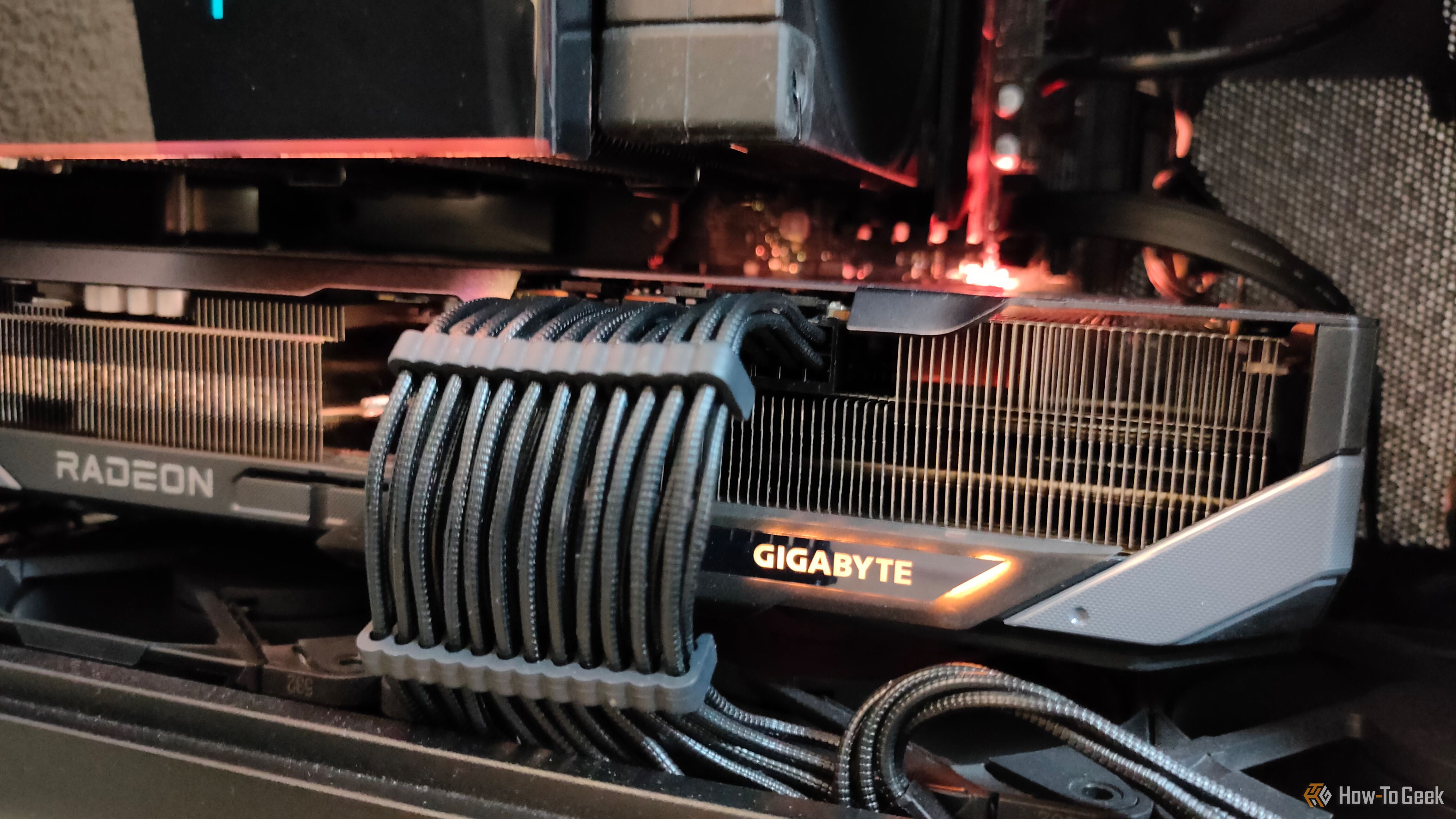
Your Graphics Processing Unit (GPU) is a powerhouse, but it often generates considerable heat and noise in its quest for maximum performance. While chasing the absolute highest frame rates, GPUs can become inefficient, consuming a lot of power for only a marginal boost. If you're looking to reduce your GPU's operating temperature, fan noise, and power consumption without a significant performance hit, you might be considering undervolting. However, for most desktop users, there's a much simpler and quicker solution: setting a power limit.
This guide will walk you through how to use a power limit to effectively cool your GPU in seconds, bypassing the complexities and lengthy testing associated with undervolting. You'll learn what a power limit does, why it's a great alternative, and how to implement it with ease.
Why Opt for a Power Limit Over Undervolting?
Understanding Undervolting's Complexity
Undervolting involves reducing the voltage supplied to your GPU until you find the lowest stable point where it still functions correctly. This process can significantly cut down total power draw, which in turn leads to less heat and potentially higher boost clocks (because it's cooler and less prone to thermal throttling). Winning the "silicon lottery" means your GPU might run perfectly well on much less voltage than its factory defaults.
While undervolting isn't inherently risky, it's a highly individual process. Each GPU, even of the same model, might have a different voltage sweet spot. Discovering this requires extensive tweaking, testing, and retesting to ensure stability across various workloads. For a desktop PC, this can be a time-consuming hassle. Undervolting often makes more sense in thermally-constrained environments like laptops, where maximizing performance within strict power and heat envelopes is crucial.
The Simplicity and Effectiveness of a Power Limit
Modern GPUs are highly sophisticated and can dynamically adjust their internal parameters. They don't operate at fixed voltages or frequencies all the time; instead, they adapt to the workload. A power limit acts as a ceiling, telling your GPU the absolute maximum amount of wattage it is allowed to consume. Once this limit is set, the GPU intelligently manages its own voltage and clock speeds to stay within that defined boundary.
Here's the crucial insight: setting a power limit (for instance, to 90% of its default) often doesn't translate to a 10% drop in performance. In many scenarios, the performance difference can be negligible. Research, such as tests conducted by XDA-Developers, has shown that even an 80% power limit can result in almost identical performance, but with significantly reduced heat and power consumption. This makes power limiting an incredibly efficient way to gain the benefits of cooler operation with minimal effort and no stability concerns.
Prerequisites for Setting a GPU Power Limit
Before you begin, ensure you have the following:
- A desktop PC with a dedicated GPU: This guide primarily targets desktop users. On some gaming laptops, the ability to adjust power limits might be restricted by the laptop's firmware or pre-installed software, potentially graying out the necessary options.
- MSI Afterburner installed: This popular and widely compatible utility provides an easy-to-use interface for adjusting GPU settings, including power limits. You can download it from the official MSI website.
Step-by-Step: How to Set Your GPU's Power Limit
Setting a power limit is remarkably straightforward, typically involving just a few clicks. Follow these steps:
- Download and Install MSI Afterburner: If you haven't already, get MSI Afterburner from MSI's official website and install it on your system. Follow the on-screen prompts.
- Launch MSI Afterburner: Once installed, open the MSI Afterburner application. You'll be greeted by its main interface, which displays various GPU metrics and adjustment sliders.
- Locate the "Power Limit" Slider: On the main screen of MSI Afterburner, look for a slider labeled "Power Limit %." This slider controls the maximum wattage your GPU is allowed to draw, expressed as a percentage of its default maximum.
- Adjust the Power Limit: Click and drag the "Power Limit %" slider to the left to decrease the maximum power allowed. A common starting point is around 90%, but you can experiment with lower values like 85% or even 80% depending on your desired outcome and tolerance for potential performance variation. As you move the slider, you might notice an accompanying "Temp. Limit" slider also adjusts; this is often linked, ensuring the GPU operates safely within thermal boundaries.
- Apply Your Changes: After setting your desired power limit, click the Apply button (usually a checkmark icon) to activate the new settings. For persistence across reboots, you can also save your profile using one of the profile numbers and enable the Windows startup option.
- Test Your Settings: Launch a demanding game or a benchmarking tool to observe the effects of your new power limit. Monitor your GPU temperatures (often shown in MSI Afterburner's monitoring window or an in-game overlay), fan speeds, and most importantly, your frame rates. Assess if the temperature drop is satisfactory and if any performance loss is acceptable to you.
Tips for Best Results & Troubleshooting
- Start Incrementally: Begin with a modest reduction, such as 90%, and gradually decrease it further (e.g., 5% at a time) while monitoring your system. This allows you to find the optimal balance between temperature, noise, and performance for your specific setup.
- Monitor Everything: Use MSI Afterburner's built-in monitoring graphs or other tools to keep an eye on GPU temperature, power draw, clock speeds, and frame rates while testing. This data is crucial for informed adjustments.
- Performance is Key: The goal is usually to significantly reduce heat and noise with minimal performance impact. If a certain power limit causes too much frame rate loss, increase it slightly until you find a satisfactory compromise.
- Slider Grayed Out? If the "Power Limit" slider is grayed out or unresponsive, it's most likely because you're on a gaming laptop. Many laptops have their GPU's power settings controlled by the manufacturer's firmware or proprietary software, overriding third-party tools like Afterburner. In such cases, check your laptop's pre-installed utility software for similar power management options.
Next Steps
Once you've found a stable and effective power limit, you can consider further optimizations:
- Adjust Fan Curves: Customizing your GPU fan curve in MSI Afterburner can further fine-tune noise levels and cooling performance. With a lower power limit, your GPU will run cooler, potentially allowing for quieter fan speeds.
- Explore Slightly Lower Limits: If your initial tests are positive, try pushing the power limit a bit lower to see if you can achieve even better thermal or acoustic results without sacrificing too much performance.
- Revert if Necessary: If you experience instability or unacceptable performance, simply increase the power limit back to a higher value or the default (100%) and apply the changes.
FAQ
Q: Is setting a power limit safe for my GPU?
A: Yes, setting a power limit is a very safe modification. You are simply instructing the GPU to operate within a specific maximum power envelope. GPUs are designed with internal protections and management systems that ensure they operate safely within any set limit, preventing damage. It's much less likely to cause instability than undervolting, which directly modifies voltage.
Q: How much performance will I lose by setting a power limit?
A: Often, the performance loss is negligible, especially for moderate reductions like 80% or 90%. Modern GPUs are engineered to squeeze out the very last bit of performance, but the power cost for those final few frames is disproportionately high. By cutting off this inefficient top-end power draw, you can achieve significant reductions in heat and power consumption with minimal, or even unnoticeable, impact on your frame rates during typical gameplay.
Q: Why should I choose power limiting over undervolting if undervolting can also reduce power and heat?
A: The primary reason is simplicity and speed. Undervolting demands extensive testing, tweaking, and validation to find a stable voltage for your unique GPU silicon, which is a time-consuming and often iterative process that can introduce instability. Power limiting, on the other hand, achieves similar benefits in seconds by adjusting a single slider. For most users, the ease of use and immediate positive results of a power limit make it a far more practical and less frustrating solution.
Related articles

Ditch Merge & Center: The Better Way to Align Text in Excel
Learn to use Excel's "Center Across Selection" to align text across cells without merging, avoiding common data manipulation issues. This guide provides steps to utilize this newly accessible feature and add it to your Quick Access Toolbar.

Ars Technica's Rocket Report: Your Essential Space Industry Briefing
Quick Verdict Ars Technica's Rocket Report, presented by veteran space reporter Stephen Clark, offers an invaluable and meticulously organized weekly (or similar frequency, implied by "Edition 9.15") digest of the most
Amazon Prime Video Launches AI-Powered Prime 360 for NBA Coverage
Amazon Prime Video is elevating its NBA coverage with the introduction of Prime 360, an AI-powered replay system offering immersive, 'fly through' views of the action. Kicking off its second season, Prime Video also adds Yahoo fantasy integration and gains exclusive Eastern Conference Finals rights, expanding its tech-driven sports broadcast. The new features aim to deliver a unique and interactive viewing experience for basketball fans.

Ephemeral PR Preview Environments on GKE: A Deep Dive
Every development team eventually grapples with the limitations of shared staging environments. The familiar scenario: multiple features deployed simultaneously, database migrations clashing, and the phrase "it works on

Secure Internal API Access for AI Agents with MCP
AI agents accessing internal APIs directly pose significant risks, including identity loss, unrestricted queries, and security bypasses. The Model Context Protocol (MCP) offers a solution by defining explicit tools. A secure architecture involves an MCP server wrapping the API with strict input validation, coupled with a gateway that handles authentication, rate limiting, and audit logging, ensuring safe and accountable access.

regional: ‘What is fusion?’ Helion Energy harnesses the power of
Helion Energy, the Everett-based fusion startup, gained mainstream attention this week after being featured as a clue on the popular game show "Jeopardy!". The $800 clue, part of a "Y Combinator" category, highlighted Helion's mission to build the first fusion power plant, bringing the concept of clean energy to a wider audience. CEO David Kirtley celebrated the "surreal" moment as a sign that reliable clean power is becoming more accessible.