
How to Customize Your Android After a Factory Reset - Your Phone
Learn to personalize your Android phone with four essential setting changes right after a factory reset, from navigation gestures to notification history, making it feel truly yours in minutes.
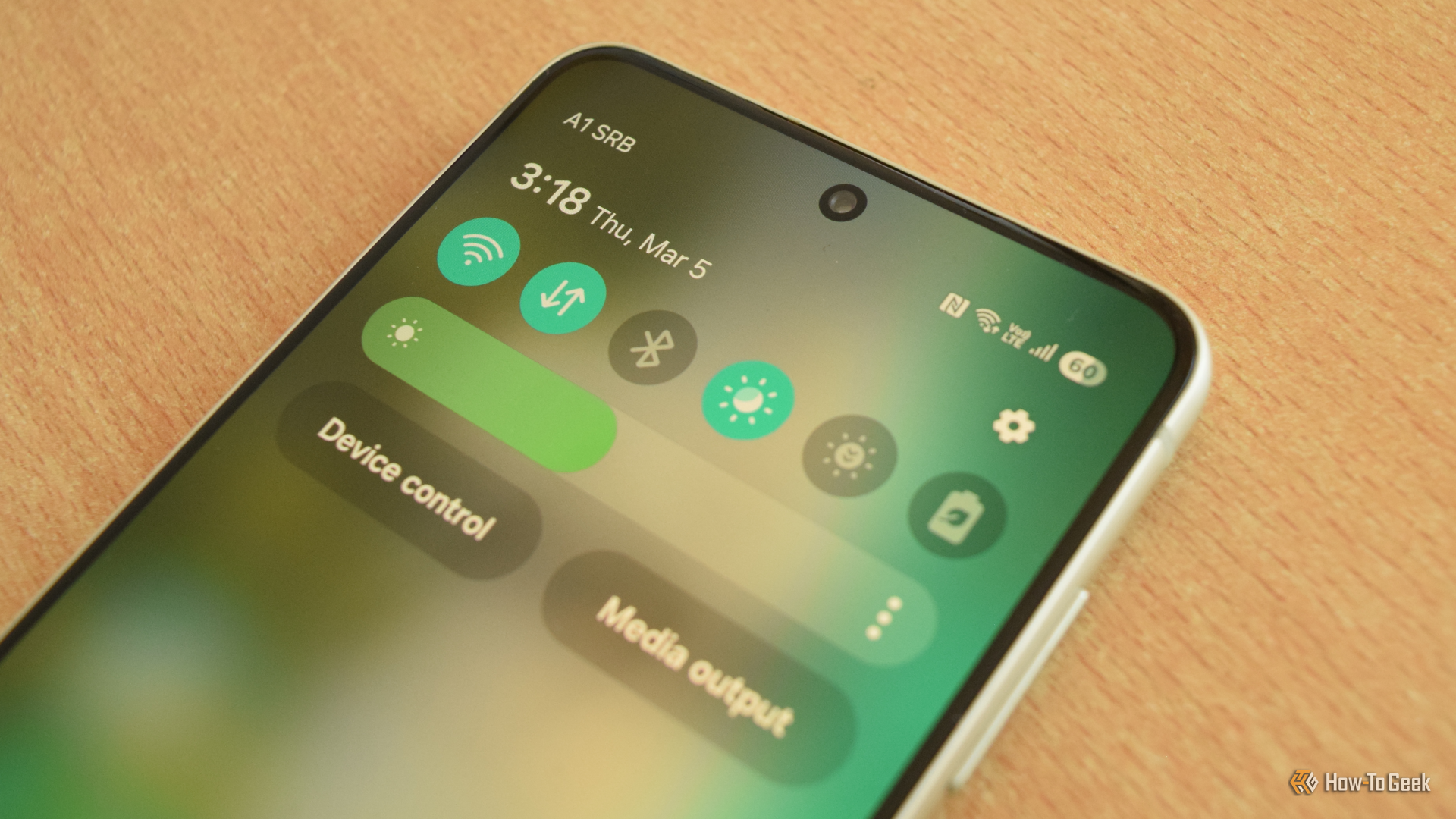
A factory reset on your Android phone offers a fresh start, but it often leaves you with default settings that don't quite match your personal preferences. Instead of immediately diving into app downloads and data restoration, taking a few extra minutes to tweak key settings can transform your phone from a generic device into one that truly feels like yours. This guide will walk you through four essential Android settings to change right after a factory reset, helping you personalize your experience and avoid common frustrations.
By following these steps, you'll accomplish more than just a clean slate; you'll gain a more intuitive navigation system, handy shortcuts, a safety net for missed notifications, and an optimized screen experience. Make these simple adjustments, and you'll find your freshly reset phone feels less "factory" and much more personal.
Prerequisites and Requirements
Before you begin, ensure you have:
- An Android phone that has just undergone a factory reset.
- For Back-Tap actions, a Samsung Galaxy phone and the "Good Lock" app (available from the Galaxy Store) will be necessary, as well as its "RegiStar" module.
1. Ditch Buttons for Intuitive Gesture Navigation
Many Android phones default to a three-button navigation bar at the bottom of the screen, which can feel less efficient in today's mobile landscape. Switching to gesture navigation offers a fluid, modern way to interact with your device, making it feel more natural and often easier for one-handed use.
Why it helps: Gesture navigation allows you to navigate with simple swipes, eliminating the need to physically reach for on-screen buttons. This can reduce thumb strain and make multitasking smoother, turning navigation into muscle memory rather than a conscious effort.
How to enable gesture navigation:
- Open your phone's Settings app.
- Search for "navigation" or look for a section like Display, System Navigation, or Gestures.
- Select the option for Gesture navigation (or similar, depending on your Android version and phone model).
Tips for mastering gestures:
- Go Home: Swipe up from the bottom of the screen.
- See Recent Apps: Swipe up from the bottom and hold.
- Go Back: Swipe inward from either the left or right edge of the screen.
- Switch Between Recent Apps: Perform a short swipe along the bottom edge of the screen. This is particularly useful for quickly jumping between two active applications.
2. Make the Back of Your Phone Do More with Back-Tap Actions
Imagine turning the back of your phone into a customizable shortcut button. For Samsung Galaxy users, the Back-Tap action, available through the RegiStar module in Good Lock, allows you to do just that. It's an incredibly convenient feature that can save you time and effort on frequently performed tasks.
Why it helps: This feature provides an invisible, easily accessible button for common actions. Instead of fumbling with physical buttons or navigating through menus, a simple tap on the back of your phone can trigger your chosen shortcut, streamlining your daily interactions.
**How to set up Back-Tap actions (Samsung Galaxy phones only): **1. Ensure you have the Good Lock app installed from the Galaxy Store. 2. Open Good Lock. 3. Install the RegiStar module within Good Lock. 4. Tap on Back-tap action within RegiStar. 5. Turn the feature on. 6. Choose what you want a double-tap or triple-tap to do. Common choices include taking a screenshot, opening a specific app, or triggering another shortcut.
Best practices:
- Assign the double-tap action to a function you use dozens of times a day, such as taking screenshots. This makes the most of its convenience.
- Consider assigning the triple-tap to a less frequent but still useful action, like launching a calculator or a specific utility app.
Troubleshooting note: This feature is specific to Samsung Galaxy phones and requires the Good Lock and RegiStar modules. It may not be available on other Android devices.
3. Stop Letting Your Notifications Disappear with Notification History
After a factory reset, your phone can quickly become flooded with notifications from newly installed apps, updates, and messages. It's easy to swipe away important alerts inadvertently amidst the noise. Enabling Notification History provides a crucial safety net, ensuring you never miss a vital message again.
Why it helps: Notification History keeps a chronological record of all your recently dismissed notifications. If you accidentally swipe away a message from a loved one or an important work email, you can easily go back and retrieve it, preventing missed communications and unnecessary panic.
**How to enable Notification History: **1. Open your phone's Settings app. 2. Navigate to Notifications. 3. Tap on Advanced settings. 4. Select Notification History. 5. Toggle the feature on.
Best practices: Make this one of the very first changes you implement. It's a small adjustment that offers significant peace of mind, allowing you to review anything you might have dismissed in a hurry.
4. Give Yourself More Screen Time with Adjusted Screen Timeout
Many Android phones default to a 30-second screen timeout, which can be incredibly inconvenient. If you're reading an article, following a recipe, or simply looking at a photo, the screen frequently turning off forces you to constantly re-engage your device, interrupting your workflow.
Why it helps: Extending your screen timeout duration or enabling features that keep your screen on when you're looking at it prevents frustrating interruptions. This allows you to focus on your content without constantly having to wake up your phone, providing a smoother and more enjoyable experience.
**How to adjust screen timeout and enable smart screen features: **1. Open your phone's Settings app. 2. Go to Display. 3. Scroll down and tap on Screen timeout. 4. Choose a longer duration that suits your needs, such as 2 minutes, 5 minutes, or even 10 minutes, depending on your usage habits. 5. Look for and enable an option called "Keep screen on while viewing" (this is typically found on Samsung Galaxy models and uses the front camera to detect when you're looking at the screen, keeping it on automatically).
Best practices:
- While 10 minutes can be ideal for avid readers or cooks, choose a duration that balances convenience with battery life for your personal use.
- If available, turning on "Keep screen on while viewing" offers the best of both worlds, keeping your screen active when you need it without running down the battery unnecessarily when you're not looking.
Troubleshooting note: The "Keep screen on while viewing" feature may not be available on every Android phone model or software version.
A Fresh Reset, Your Way
A factory reset offers an unparalleled opportunity to truly make your phone your own. By taking a few extra minutes to customize these essential settings, you'll avoid the frustrations of default configurations and build a foundation for a more personalized and efficient mobile experience. Don't rush past these critical adjustments; your future self will undoubtedly appreciate the effort.
FAQ
Q: Will changing these settings impact my phone's battery life?
A: Some settings, like extending your screen timeout, can have a minor impact on battery life if the screen stays on unnecessarily long. However, features like "Keep screen on while viewing" are designed to minimize this by only keeping the screen active when you're looking at it. Gesture navigation generally has negligible impact, and Back-Tap is usually energy-efficient as it only triggers on physical interaction.
Q: I don't see the "Back-tap action" option on my Android phone. Is it available on all devices?
A: No, the Back-Tap action as described is specific to Samsung Galaxy phones and relies on the "Good Lock" app and its "RegiStar" module. This particular feature may not be available on other Android brands or models. You might check your phone's settings for similar accessibility or gesture controls, but the exact implementation and name may differ.
Q: Can I revert these changes if I don't like them?
A: Absolutely! All the settings mentioned in this guide can be easily changed back to their default or to another preferred option at any time. Simply revisit the respective settings menus and adjust them as needed.
Related articles
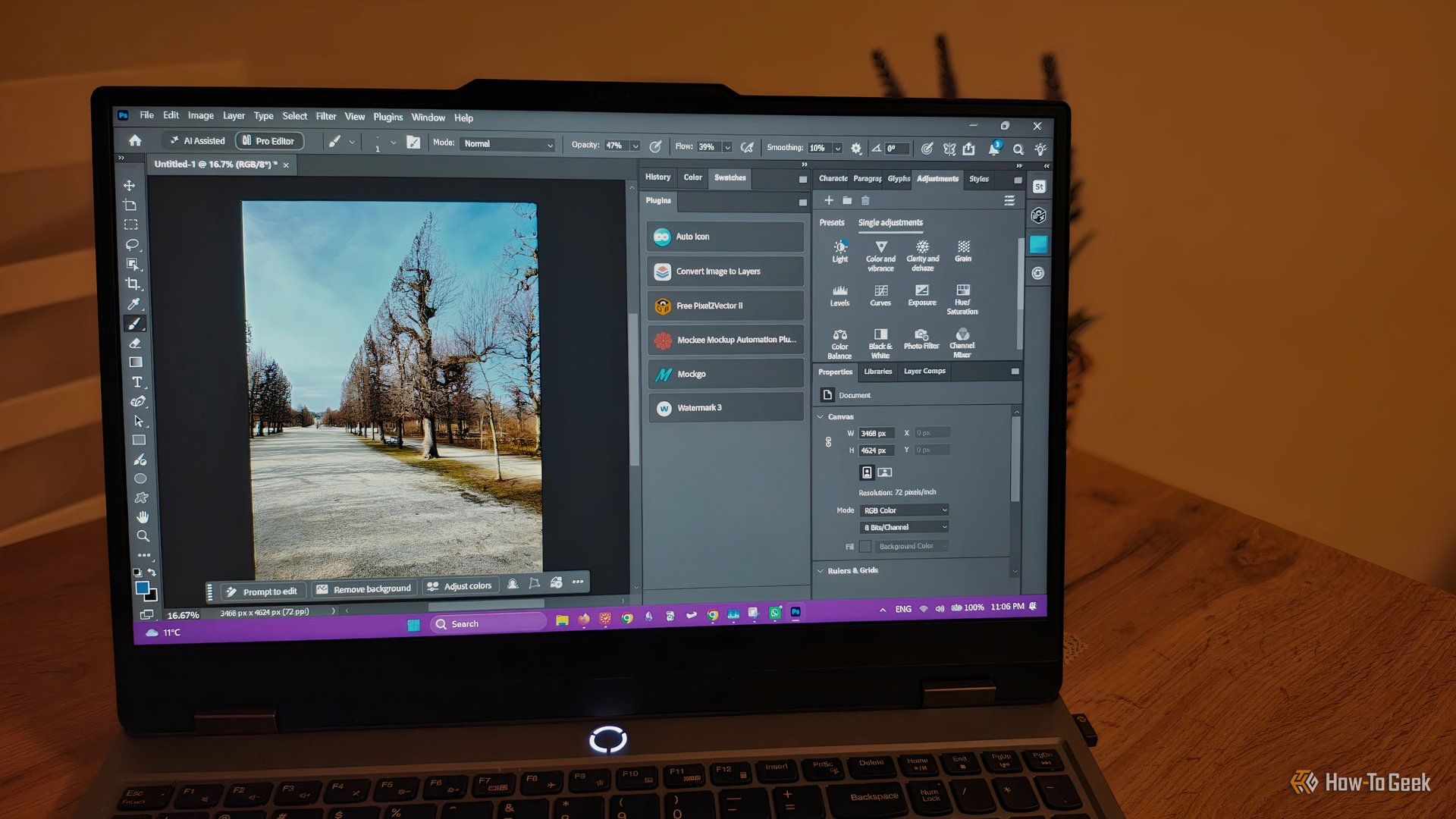
howto: 4 Photoshop plugins so essential they should be built-in
Discover four essential Photoshop plugins that streamline your workflow, save time, and unlock new creative possibilities, making you wonder why they aren't built-in features.

Xreal Unveils Aura Wired Smart Glasses Running Android XR
At the Android Dev Summit on Wednesday, Xreal, Google's smart glasses collaborator, officially introduced its new Xreal Aura wired smart glasses. The device, which had been teased earlier in the year at Google's I/O
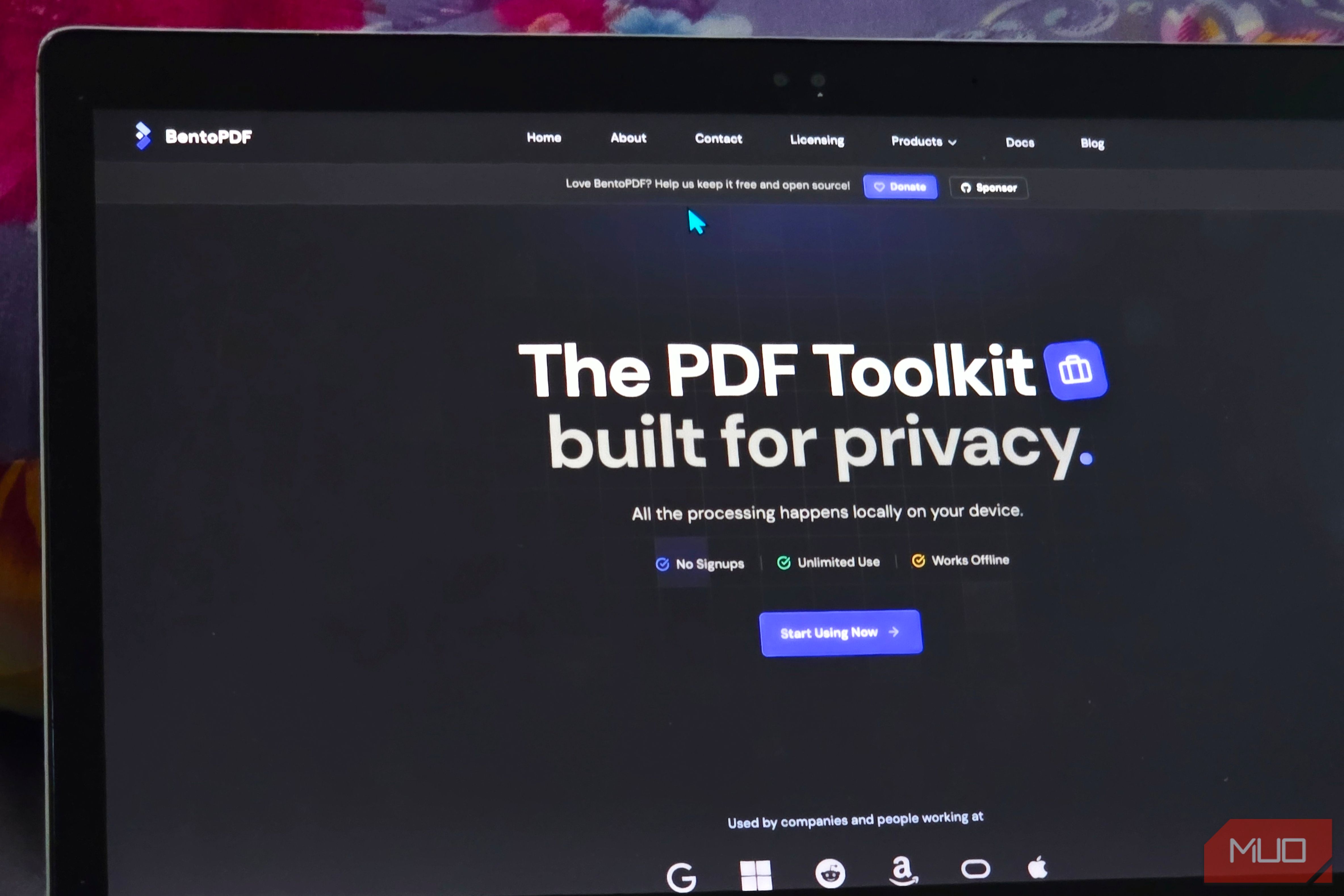
Solve Annoying PDF Problems Locally in Your Browser with BentoPDF
Dealing with PDFs can often feel like a never-ending series of small, annoying tasks. You might need to combine several documents, reduce the size of a bulky file, or even make an image-only scan searchable. Typically,

Your Guide to LG's 115-inch QNED evo TV: Features, Gaming & Price
Welcome to an exciting exploration of LG's latest innovation in home entertainment: the colossal 115-inch QNED evo AI Mini LED TV. This guide is designed to walk you through everything you need to know about this

The Super Mouse puts a touchscreen macro pad under your hand: Tech
Arctic Fox Technologies has launched the Super Mouse, an innovative peripheral featuring a 3.1-inch touchscreen for dynamic app controls, macros, and enhanced productivity. Available on Kickstarter for $199, this wired mouse aims to consolidate multiple desktop devices into one intuitive command center. Its contextual display and advanced features redefine user interaction.

How to Stop Google Using Your Gmail & Drive Data for Ads
Google's "Personal Intelligence" feature, designed to offer more tailored AI responses, may inadvertently lead to your personal data from apps like Gmail, Google Drive, and Google Photos being used for targeted