
How to Add Android Auto to Your Old Car for Free
Easily add Android Auto to your older car using an old Android tablet or your current smartphone with the Open Headunit app, for free or low cost.
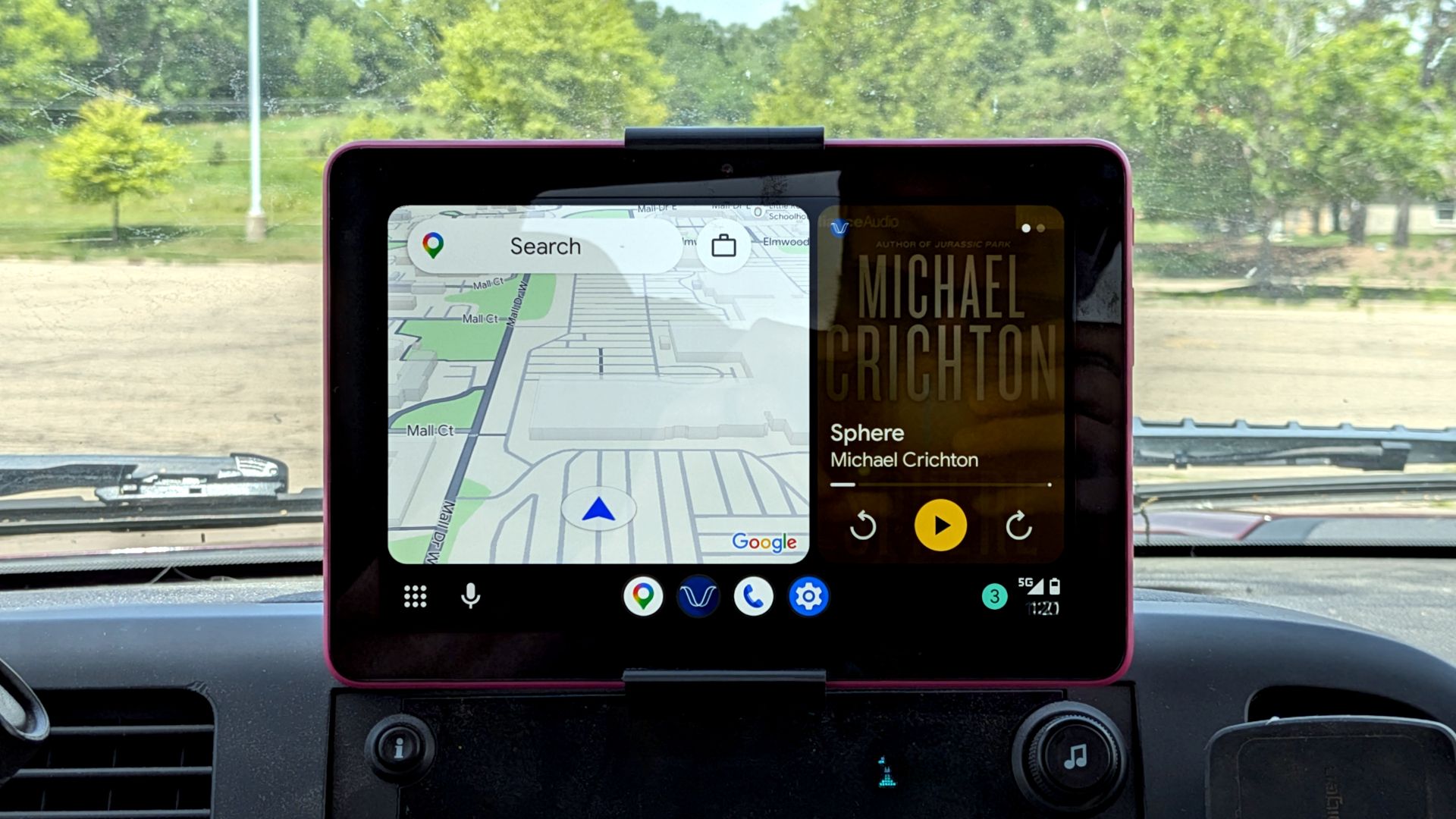
Do you drive an older car without the convenience of Android Auto? Many modern vehicles come with built-in infotainment systems, but you don't need to buy a new car or expensive aftermarket equipment to enjoy these features. With a little setup and hardware you likely already own, you can bring the full Android Auto experience to your dashboard for free or at minimal cost. This guide will walk you through two main methods: transforming an old Android tablet into a dedicated car display or using your smartphone directly.
Prerequisites
Before you begin, gather the following items and ensure these conditions are met:
- An Android Phone: This will be the source for your Android Auto experience.
- An Android Tablet (for Method 1): An older tablet works perfectly as a secondary display. Ensure it's charged and functional.
Open HeadunitApp: This crucial application acts as the receiver. You can purchase it from the Google Play Store ($3.99) or download it for free from its GitHub page.WiFi HelperApp (for Method 1): This companion app facilitates the wireless connection between your phone and tablet. It's available on the Google Play Store.- Car Mount: A secure way to mount your tablet or phone in your car.
- Power Source: A car charger or USB port to keep your device powered during drives.
- Bluetooth Audio Connection: Your car's built-in Bluetooth, an auxiliary input, or a Bluetooth audio dongle for sound output.
- Basic Android Knowledge: Familiarity with installing apps and navigating Android settings, especially for sideloading on devices like Amazon Fire Tablets if you opt for the free GitHub version of Open Headunit.
Method 1: Turn Your Android Tablet into an Android Auto Display
This method mimics a traditional in-car infotainment system, using an old Android tablet as the dedicated screen for Android Auto. This allows your phone to stay in your pocket while you interact with the larger display.
Step 1: Install Open Headunit on Your Tablet
Download and install the Open Headunit app on your Android tablet. If you're using an Amazon Fire Tablet and prefer the free GitHub version, you'll need to enable app sideloading or install the Google Play Store first.
Step 2: Configure Open Headunit Settings
Launch Open Headunit on your tablet. You'll be guided through a "Quick Setup" process to optimize the app for your device. Once complete, navigate to the app's Settings:
- Select "WiFi" as the "Connection mode."
- In the "Wireless Mode" section, choose "Wireless Helper."
- Expand the "Advanced" settings and set "Helper Connection Strategy" to "WiFi Direct."
Step 3: Install WiFi Helper on Your Phone
On your Android phone, download and install the WiFi Helper companion app from the Google Play Store.
Step 4: Configure WiFi Helper Settings
Open the WiFi Helper app on your phone:
- Select "Wi-Fi Direct" as the "Connection Mode."
- Enter the device name displayed at the top of the main screen in
Open Headunit(on your tablet) into the "Wi-Fi Direct Device Name(s)" field on your phone.
Step 5: Connect and Launch Android Auto
With both apps configured, it's time to connect:
- On your tablet, tap the purple "WiFi" button within the
Open Headunitapp. - On your phone, tap "Start Android Auto" in the
WiFi Helperapp.
Within a few moments, the full Android Auto interface should appear on your tablet screen, ready for use.
Method 2: Use Your Phone Directly as the Android Auto Display (Self Mode)
If you prefer a simpler setup or don't have an extra tablet, you can run Android Auto directly on your phone. This effectively brings back Google's discontinued "Android Auto for Phone Screens" functionality.
Step 1: Install Open Headunit on Your Phone
Download and install the Open Headunit app on your Android phone. This is the same app used for the tablet method.
Step 2: Complete Quick Setup
Launch Open Headunit and proceed through the initial "Quick Setup" process.
Step 3: Enable Self Mode and Start Headunit Server
While older versions of Open Headunit allowed a simple tap of "Self Mode," Android Auto version 17.4 and newer require an additional step:
- From the
Open Headunitapp, tap "Self Mode." The app will likely direct you to the Android Auto developer menu. - In the Android Auto developer settings (which
Open Headunitcan guide you to), you must manually start the headunit server. Once activated, your phone will display the full Android Auto experience.
Tips for a Smooth Experience
To maximize convenience and ensure a seamless Android Auto experience, consider these tips:
Automate the Connection
For the Tablet Method (Tablet + Phone):
- Pair Devices via Bluetooth: Ensure your Android phone and tablet are paired in their respective Bluetooth settings.
- Configure Open Headunit Auto-start: On your tablet, go to
Open Headunit's "Auto-start settings" and select your phone under the "Auto-start on Bluetooth" menu. - Configure WiFi Helper Auto-start: On your phone, open
WiFi Helperand choose your tablet for the Bluetooth connection "Auto Start Service."
With these settings, both apps will automatically launch when your phone and tablet connect via Bluetooth.
For the Self Mode Method (Phone Only):
- Enable Self-Mode Auto-start: On your phone, open
Open Headunit, navigate to "Auto-Connect Settings," and ensure "Auto start Self-Mode" is enabled and prioritized. - Configure Bluetooth Auto-start: Go to the app's "Auto-start settings" and select your car's Bluetooth system or a Bluetooth audio dongle as the "Auto-start on Bluetooth" device. This will automatically launch
Open Headunitin Self-Mode when you connect to your car.
Improve Audio Quality
If your car has an auxiliary input, consider using a wired Bluetooth audio dongle instead of a wireless one. Wired models, like the UGREEN "wired" model, receive direct power and can significantly reduce static and interference often found with battery-powered wireless dongles, providing a much cleaner sound experience.
Next Steps
While these methods offer a free or very low-cost way to get Android Auto, if you're looking for dedicated hardware without replacing your car's head unit, there are also affordable add-on devices available that might suit your needs.
FAQ
Q: Is the Open Headunit app truly free?
A: The Open Headunit app is available for purchase on the Google Play Store ($3.99). However, you can download it for free from its GitHub page if you are comfortable with sideloading applications onto your Android devices.
Q: Can I use an Amazon Fire Tablet for the tablet method?
A: Yes, you can. If you plan to use the free GitHub version of Open Headunit, you will need to follow guides on how to install the Google Play Store or how to sideload apps onto your Amazon Fire Tablet, as it doesn't natively support Play Store apps.
Q: Why do I have to manually start the headunit server in Self Mode with Open Headunit?
A: This additional step became necessary with Android Auto version 17.4 and newer. Google implemented changes that require manually initiating the headunit server from the Android Auto developer menu for apps like Open Headunit to function in Self Mode. The Open Headunit app should direct you to the correct settings when you attempt to use Self Mode.
Related articles
Mastering Claude for Web Design: Essential Plugins for Polished
Discover the top 3 essential Claude plugins—Frontend Design, Playwright, and Impeccable—to eliminate generic AI outputs and streamline your web design workflow from generation to testing and polish. Learn to install and use them for better results in Claude Code.
Build a Functional Android App with AI in Under 30 Minutes – No
Learn to build a functional Android app in under 30 minutes using AI code assistants like Claude Code, Codex, or Antigravity, without writing any code. This guide provides step-by-step instructions, essential prerequisites, and tips for prompt engineering to bring your app ideas to life quickly.

iPhone 18 Pro Max: Major AT&T Cellular Flaw Forces Free Replacements
The iPhone 18 Pro Max on AT&T is suffering from a critical cellular service failure, rendering phones unable to call or text. Apple has released preventive software updates but will replace already affected devices for free, acknowledging a hardware-level problem.
Proper Ethernet Cable Routing: Prevent Connector Failure & Boost
Learn to properly route Ethernet cables by understanding bend radius and connector limitations, preventing common failures, and boosting network reliability.
Android Auto Signal Bars: A Long-Awaited Return
Quick Verdict After months of user frustration, Android Auto’s cellular signal strength indicator is finally making its comeback to dashboards. This isn't a groundbreaking new feature, but rather the restoration of a

OpenAI's Dot Agent: Enterprise AI That Can Also Order Your Dinner
OpenAI has launched Dots, a new AI agent platform aimed at enterprise users, accessible via a $100/month Pro account. While it struggled with some personal tasks due to security checks, Dot excelled in complex operations like website redesign and video editing when given direct computer access. This paid model positions Dot as a professional tool for the future of work, contrasting with free, consumer-focused competitors.