
Give Your Old Android a New Life: 7 Free Apps to Repurpose It
Repurpose your old Android phone with 7 free apps to create a webcam, dash cam, e-reader, and more, saving money and reducing waste.
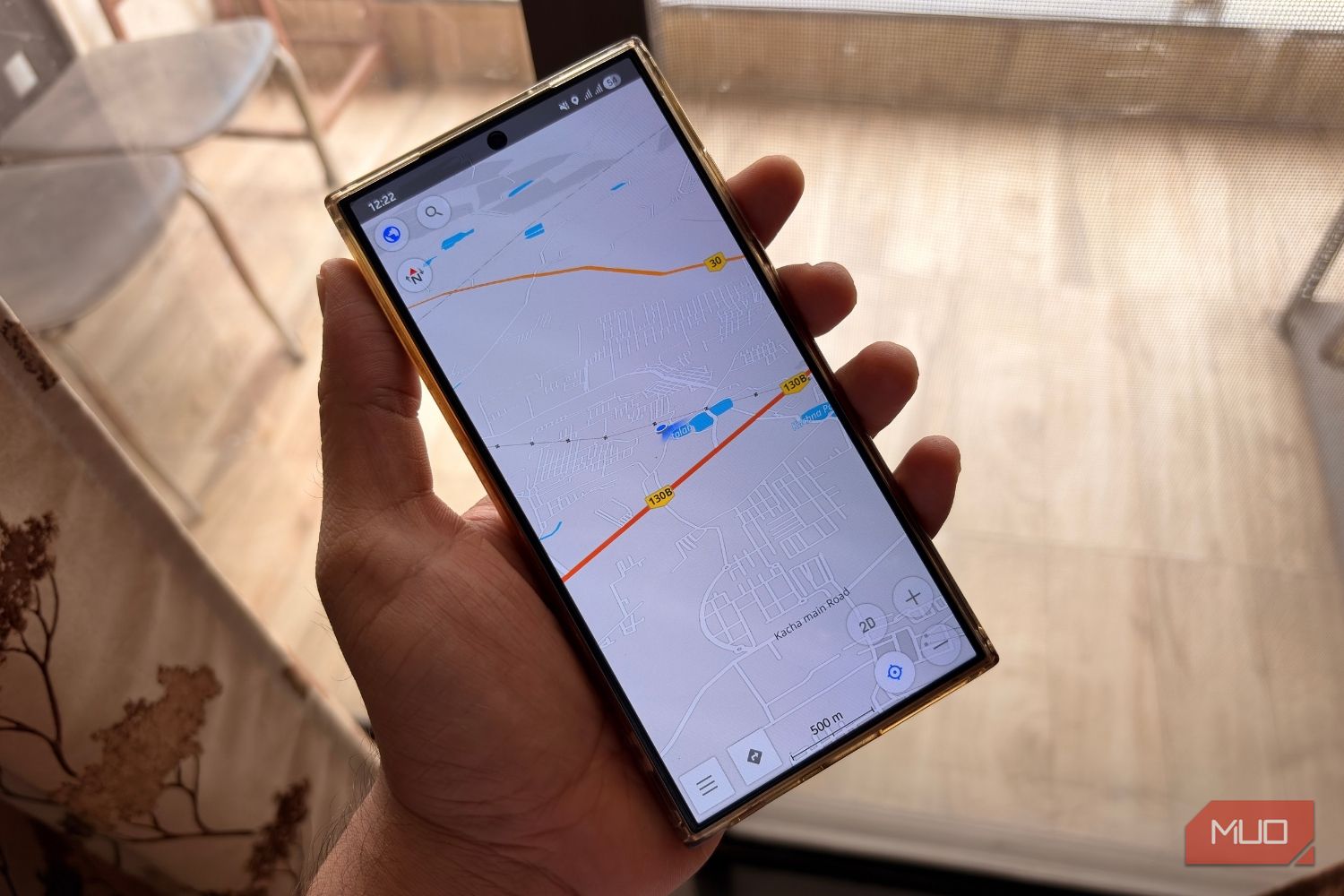
Don't let your old Android phone gather dust in a drawer! With a little creativity and some free apps, you can transform it into a surprisingly useful gadget, saving you money and reducing e-waste. This guide will walk you through turning your unused device into everything from a high-quality webcam to a dedicated retro gaming console.
What You'll Accomplish
By the end of this guide, you'll know how to install and configure seven different free applications that repurpose your old Android phone for practical, everyday uses. You'll learn to make it function as a professional webcam, a car dash cam, a custom control panel, an e-reader, a baby/pet monitor, a digital photo frame, or a retro gaming hub.
Prerequisites and Requirements
Before you start, make sure you have:
- An old Android phone: Fully functional, even if the battery is degraded.
- Wi-Fi connection: Most of these apps require both your phone and other devices (like your PC) to be on the same Wi-Fi network for communication.
- Charging cable and adapter: Essential for continuous use, as older phone batteries may drain quickly.
- Computer (PC/Mac): Required for apps like Camo Studio and Touch Portal, which use companion desktop clients.
- Optional accessories: A phone mount (for dashcam/photo frame), a Bluetooth controller (for gaming), or another Android phone (for the baby monitor).
Repurpose Your Old Android Phone: Step-by-Step Guide
1. Transform It into a High-Quality Webcam with Camo Studio
Most laptop webcams offer mediocre quality. Your old Android phone, however, likely boasts a far superior camera. Camo Studio lets you harness this power for crystal-clear video calls and streaming.
What it does: Turns your Android phone into a high-definition wireless webcam for your computer.
How to set up:
- Install companion apps: Download and install the free Camo Studio desktop client on your PC (or Mac) and the Camo Studio app on your old Android phone.
- Ensure Wi-Fi connection: Make sure both your computer and phone are connected to the same Wi-Fi network.
- Pair devices: Open the Camo Studio desktop application. In the "Device" dropdown, select "Pair a device." On your phone, open the Camo app and scan the QR code displayed on your computer screen.
- Configure settings: Once connected, your phone will appear as a standard webcam option in video conferencing apps like Zoom, Teams, or Discord. You can adjust resolution (up to 4K), switch between front and rear cameras, and fine-tune exposure and white balance directly from the desktop client.
Tips: For extended use, especially at high resolutions, keep your phone plugged in to prevent battery drain and manage heat. High-resolution streaming over Wi-Fi can make your phone warm.
2. Get a Free Dash Cam with Droid Dashcam
Dedicated dash cams can be pricey, but your old Android phone can serve as an excellent, feature-rich alternative.
What it does: Records driving footage, logs crucial data, and manages storage automatically.
How to set up:
- Install the app: Download and install the Droid Dashcam app from the Google Play Store on your old phone.
- Mount your phone: Secure your phone to your car's windshield using a clip-on car mount, ensuring it has a clear view of the road.
- Connect to power: Plug your phone into a USB charger in your car. Droid Dashcam can be configured to start recording automatically when it detects USB power, Bluetooth connection, or when the phone boots up.
- Customize settings: Explore the app's settings to enable features like loop recording (overwrites old files when storage is full), adding your car's license plate number to footage, and automatically logging date, time, GPS coordinates, speed, and location.
Tips: Always keep your phone plugged into power while using it as a dash cam to ensure continuous recording and prevent battery depletion. Clear internal storage for maximum recording time.
3. Create a Custom Control Panel with Touch Portal
Forget expensive Stream Decks. Your old phone can act as a customizable button panel for launching apps, macros, and shortcuts.
What it does: Provides a touch-based control panel to trigger actions on your computer (e.g., launch apps, run macros, activate keyboard shortcuts).
How to set up:
- Install companion apps: Download the Touch Portal desktop client for your PC (or Mac) and the Touch Portal app on your Android phone.
- Ensure Wi-Fi connection: Both devices must be on the same Wi-Fi network.
- Pair devices: Open the Touch Portal apps on both your phone and computer. Pair them by scanning the QR code displayed on your computer from your phone.
- Build your buttons: Use the desktop client to design pages of tappable buttons. Each button can be configured to perform an action, such as launching a specific application (e.g., Slack, Spotify), firing a keyboard shortcut, or executing a multi-step macro.
Tips: The initial setup can be a bit complex, so take your time. The free version limits you to a 4x2 grid and two pages, which is often sufficient for basic productivity. For more options, a one-time Pro upgrade is available.
4. Become a Dedicated E-book Reader with Moon+ Reader
Why buy an e-reader when your old phone can do the job? Moon+ Reader offers extensive features for a comfortable reading experience.
What it does: Transforms your phone into a versatile e-book reader, supporting various formats and customization options.
How to set up:
- Install the app: Download Moon+ Reader from the Google Play Store.
- Load your books: Transfer your e-book files (EPUB, PDF, MOBI, CBR, etc.) to your phone's storage.
- Customize your reading: Open the app and import your books. Dive into the settings to adjust fonts, margins, line spacing, and background color. You can also set up custom gestures for page turns and activate the built-in blue light filter for night reading.
- Enhance the experience: To minimize distractions, disable notifications on your old phone and enable "Do Not Disturb" mode while reading.
Tips: Moon+ Reader supports syncing your reading progress across devices via Google Drive or Dropbox, allowing you to pick up where you left off on another device. While not an E Ink screen, the customization options make it comfortable for a few hours of reading at a time.
5. Set Up a Baby or Pet Monitor with Simple Nanny
Save money on a dedicated monitor by using two old phones (or one old phone and your current one) with Simple Nanny.
What it does: Converts two phones into a baby or pet monitoring system with audio and alerts.
How to set up:
- Install the app on two devices: Download Simple Nanny on both your old Android phone (camera unit) and another device (monitor unit).
- Designate roles: Open the app on both phones and choose one as the "Camera" and the other as the "Monitor."
- Position the camera: Place the camera phone near your baby or pet, ensuring it's plugged in and stable.
- Configure features: On the monitor phone, you'll receive alerts. The app offers features like noise detection (with push notifications), and the ability to play lullabies or white noise remotely through the camera phone's speaker.
Tips: Simple Nanny has a free tier for basic features, but premium options are subscription-based. More importantly, always review the app's privacy policy and user reviews carefully, especially for an application that involves constant monitoring. Ensure a stable Wi-Fi connection for reliable alerts.
6. Create a Digital Photo Frame with Fotoo
Your old phone's high-resolution screen is perfect for cycling through cherished memories without buying a new device.
What it does: Turns your phone into a digital photo frame, displaying photos from various sources.
How to set up:
- Install the app: Download Fotoo from the Google Play Store.
- Choose photo sources: Open Fotoo and select where to pull photos from. You can use images already on your phone or link cloud storage services like Google Photos, Dropbox, or OneDrive.
- Position and power: Place your phone on a stand on your desk or nightstand and keep it plugged in for continuous display.
- Customize slideshow (optional): The free version offers a basic pan-style transition. The premium upgrade unlocks more transition effects, non-stop slideshows, a date and time overlay, and options to schedule auto-start and set a sleep timer.
Tips: For the best experience, keep the phone plugged in. Clear out unnecessary apps and data to dedicate the phone's resources and storage to displaying photos. Ensure proper lighting to avoid screen glare.
7. Build an All-in-One Retro Gaming Emulator with RetroArch
Relive classic gaming by turning your old phone into a portable retro console.
What it does: A comprehensive emulator platform that supports multiple retro gaming systems (NES, SNES, Game Boy Advance, PlayStation, and more).
How to set up:
- Install RetroArch: Download the RetroArch app from the Google Play Store (or its website for direct APK).
- Download cores: Within RetroArch, you'll need to download "cores" which are essentially individual emulators for each gaming system you want to play (e.g., NES core, SNES core).
- Load ROMs: You will need to legally acquire and load your own game ROM files onto the phone's storage. (Ensure you only use ROMs of games you own).
- Connect accessories (optional): For a console-like experience, connect your phone to a TV via HDMI (if supported) or cast it wirelessly. Pair a Bluetooth controller for a more authentic gaming feel.
Tips: RetroArch can be complex to set up due to its extensive features. If you find it overwhelming, consider simpler, individual emulators available on the Google Play Store for specific consoles. Ensure your old phone has sufficient processing power for the systems you wish to emulate.
Troubleshooting Tips
- Battery drain: If your old phone's battery is poor, always keep it plugged in for stationary uses like a webcam, photo frame, or dash cam.
- Connectivity issues: For apps relying on Wi-Fi (Camo Studio, Touch Portal, Simple Nanny), ensure both devices are on the same, stable network. Restarting your router can sometimes help.
- App performance: Older phones may struggle with very demanding tasks (e.g., 4K webcam streaming, complex emulation). Try lowering settings (e.g., webcam resolution) or closing background apps to improve performance.
- Storage full: Delete unnecessary files, photos, or apps from your old phone to free up space, especially important for dash cams and gaming ROMs.
- App compatibility: Very old Android versions might not support newer app updates. Check the app's minimum Android version requirements on the Play Store.
Next Steps
Now that your old Android phone has a new purpose, consider exploring custom launchers to streamline its interface for its dedicated task, or invest in a quality stand or mount to make its new role even more convenient. Don't stop at one use; some phones can even juggle a couple of these roles, like being an e-reader during the day and a photo frame at night.
FAQ
Q: Will these apps work on any Android phone, no matter how old?
A: While most free apps are designed to be relatively lightweight, very old Android versions (e.g., Android 4.x or earlier) might not be compatible with the latest versions of these apps. Always check the minimum Android version requirement listed on the Google Play Store page for each app. Generally, phones running Android 6.0 (Marshmallow) or newer have better compatibility.
Q: My old phone's battery doesn't hold a charge well. Is it still useful?
A: Absolutely! For most stationary uses like a webcam, digital photo frame, or dash cam, you will need to keep the phone continuously plugged into a power source. While the battery might not last long unplugged, it won't affect its performance when powered. For portable uses like an e-reader or retro gaming, you might be limited to shorter sessions unless you have access to a power bank.
Q: Do I need an internet connection for all these functions?
A: An internet (Wi-Fi) connection is essential for initial setup and pairing with companion desktop apps (Camo Studio, Touch Portal), and for monitoring features in Simple Nanny. Cloud-based photo syncing for Fotoo also requires internet. However, once set up, uses like a dash cam (Droid Dashcam) or an e-reader (Moon+ Reader with downloaded books) can function largely offline. RetroArch requires internet for downloading cores, but most actual gameplay can happen offline with downloaded ROMs.
Related articles
howto: 4 Photoshop plugins so essential they should be built-in
Discover four essential Photoshop plugins that streamline your workflow, save time, and unlock new creative possibilities, making you wonder why they aren't built-in features.

Xreal Unveils Aura Wired Smart Glasses Running Android XR
At the Android Dev Summit on Wednesday, Xreal, Google's smart glasses collaborator, officially introduced its new Xreal Aura wired smart glasses. The device, which had been teased earlier in the year at Google's I/O
Solve Annoying PDF Problems Locally in Your Browser with BentoPDF
Dealing with PDFs can often feel like a never-ending series of small, annoying tasks. You might need to combine several documents, reduce the size of a bulky file, or even make an image-only scan searchable. Typically,

Your Guide to LG's 115-inch QNED evo TV: Features, Gaming & Price
Welcome to an exciting exploration of LG's latest innovation in home entertainment: the colossal 115-inch QNED evo AI Mini LED TV. This guide is designed to walk you through everything you need to know about this

The Super Mouse puts a touchscreen macro pad under your hand: Tech
Arctic Fox Technologies has launched the Super Mouse, an innovative peripheral featuring a 3.1-inch touchscreen for dynamic app controls, macros, and enhanced productivity. Available on Kickstarter for $199, this wired mouse aims to consolidate multiple desktop devices into one intuitive command center. Its contextual display and advanced features redefine user interaction.

Love Island Australia S8 Guide: Navigating the Stream, Mostly Free
Love Island Australia Season 8 Streaming Guide: Navigating the Digital Waters Verdict: TechRadar's guide to watching Love Island Australia Season 8 is a generally useful, if somewhat navigationally challenged, resource