
Get Wired Internet Anywhere with Powerline Adapters
Struggling with Wi-Fi dead zones or slow wireless speeds in certain rooms? Imagine being able to use any electrical outlet in your home to deliver a stable, wired internet connection. Powerline networking makes this
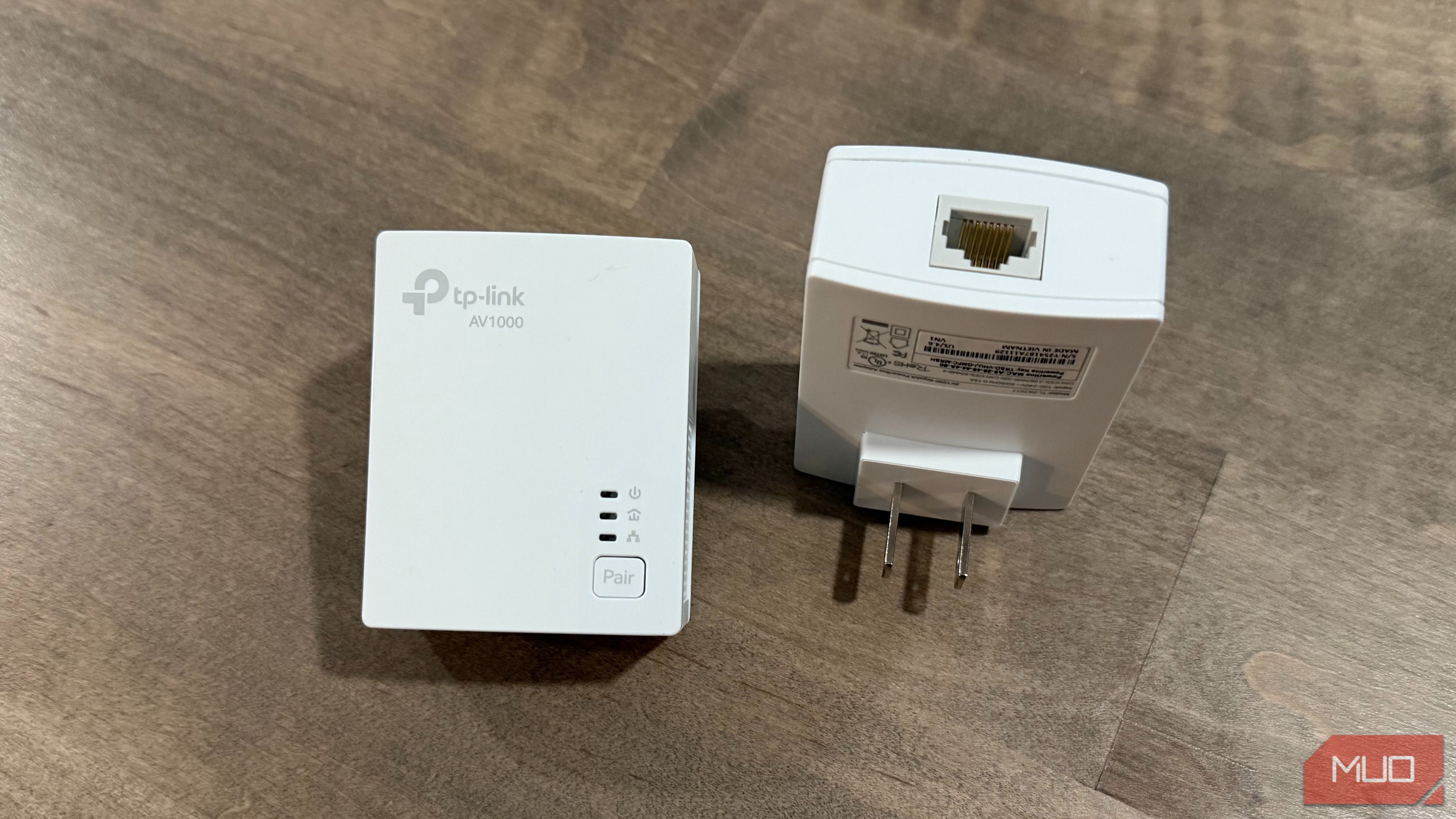
Struggling with Wi-Fi dead zones or slow wireless speeds in certain rooms? Imagine being able to use any electrical outlet in your home to deliver a stable, wired internet connection. Powerline networking makes this possible, transforming your existing electrical wiring into a robust data network without the hassle of running new cables or opening up walls.
This guide will walk you through setting up powerline adapters, helping you achieve reliable internet access for devices like smart TVs, gaming consoles, or desktop computers that are far from your router. You'll learn how these clever devices work and discover practical tips to optimize their performance, even in older homes or complex electrical setups.
What You'll Need
Before you begin, gather these essential items:
- A Powerline Adapter Kit: This typically includes two adapters. Ensure they adhere to a compatible standard (e.g., HomePlug AV2, which is common in the US).
- Ethernet Cables: You'll need at least two: one to connect the first adapter to your router, and another to connect the second adapter to your device.
- An Existing Internet Router: Your central internet connection point.
- Available Electrical Outlets: Two grounded wall outlets for the adapters.
How Powerline Networking Works
Your home's electrical wiring primarily carries alternating current (AC) at a frequency of 60 Hz. Powerline adapters work by injecting a high-frequency data signal (in the megahertz range) onto this electrical current. They essentially layer this data on top of the standard power waveform and then extract it at the other end. Most modern kits, like those using the HomePlug AV2 standard, are designed to use all three electrical conductors—hot, neutral, and ground—simultaneously to achieve higher data transfer rates, often up to 200 Mbps for older gear, or much higher for newer AV2 devices.
The beauty of powerline networking is its simplicity: every 120V electrical outlet in your house ultimately traces back to the same breaker panel. This shared electrical infrastructure allows any pair of outlets to become the endpoints for a wired data link, providing a solution for internet access over distances up to 300 meters of wiring, which is more than sufficient for most homes.
Step-by-Step Setup Guide
Getting started with powerline adapters is a straightforward process. Follow these steps to establish your new wired connection:
Step 1: Plug in the First Adapter Near Your Router
Locate an electrical outlet close to your internet router. Plug the first powerline adapter directly into this wall outlet. Avoid using surge protectors or power strips, as these can interfere with the signal (more on this below).
Step 2: Connect the First Adapter to Your Router
Use one of your Ethernet cables to connect the powerline adapter to an available LAN (Local Area Network) port on your internet router.
Step 3: Plug in the Second Adapter in Your Desired Location
Go to the room where you need a wired internet connection. Plug the second powerline adapter directly into a wall outlet. Again, ensure it's plugged directly into the wall, not a surge protector.
Step 4: Connect Your Device to the Second Adapter
Use your second Ethernet cable to connect the powerline adapter to the Ethernet port on your device (e.g., smart TV, computer, gaming console).
Step 5: Pair the Adapters (If Necessary)
Most modern powerline kits are designed to connect automatically. However, some may require a simple pairing process, usually involving pressing a button on each adapter within a certain timeframe. Check your specific kit's instructions if the connection doesn't establish immediately.
Step 6: Test Your Connection
Once the adapters are plugged in and connected, check the indicator lights on the adapters. A solid data light usually signifies a good connection. Test your internet speed and connectivity on your connected device to ensure everything is working correctly.
Optimizing Your Connection and Troubleshooting Tips
Not every outlet or home electrical system is created equal. Here are some key considerations and troubleshooting tips to get the best performance from your powerline network:
-
Always Plug Directly into the Wall: This is crucial. Surge protectors and uninterruptible power supplies (UPS) are designed to filter out high-frequency electrical noise, which unfortunately includes your powerline data signal. Plugging an adapter into one of these devices will likely severely degrade or completely block your internet connection. Some powerline adapters offer passthrough outlets, which are designed to filter power for other devices while allowing the powerline adapter to plug directly into the wall.
-
Understand Your Home's Electrical Layout: In the US, household power arrives as split-phase service, meaning your breaker panel has two separate hot legs. Roughly half of your 120V outlets connect to one leg, and the other half to the second. A powerline signal crossing between these two legs can experience a significant drop in strength (20dB or more). Appliances on 240V circuits (like an electric dryer, range, or central AC) span both legs and can help couple the signal between them. This means that performance can vary depending on which leg your outlets are on, and even if a 240V appliance is actively running.
- Troubleshooting Tip: If you experience poor performance in a particular location, try plugging the second adapter into a different wall outlet, ideally on a different electrical circuit, to see if the signal improves.
-
Beware of Electrical Noise: Many common household devices can inject electrical noise into your power lines, interfering with your powerline network. These include LED dimmers, inexpensive phone chargers, generic switching power supplies, and especially large motor loads from appliances like refrigerators, washing machines, or HVAC systems. While you can't eliminate all noise, being aware of these sources can help you diagnose issues.
-
Wiring Condition Matters: The quality of your home's electrical wiring also plays a role. Long or poorly maintained wiring, backstabbed outlets, or marginal splices can all lead to signal degradation.
Understanding Speed Ratings and Standards
When buying powerline adapters, you'll see speed ratings like "AV1000" or "AV2000." These numbers represent the theoretical maximum raw link rate between the adapters, not the actual usable throughput you'll experience. Real-world speeds are typically between 30% and 60% of the advertised figure. For example, an AV1000 kit might deliver closer to 500 Mbps in practice, which is still ample for 4K streaming and most online activities.
Also, be mindful of different standards:
- HomePlug AV2: This is the most prevalent standard in US retail and generally allows adapters from different brands to work together.
- G.hn: Offered by brands like Zyxel and Comtrend, G.hn adapters may advertise higher speeds and better performance on noisy lines, but they are not compatible with HomePlug AV2 adapters. You must choose one standard and stick with it throughout your home.
Finally, check the Ethernet port specification on the adapter. Some budget-friendly kits might still come with 100 Mbps Ethernet ports, which will cap your actual network speed even if the powerline link itself is capable of much faster data transfer.
When Powerline is Your Best Option
Powerline networking is an excellent solution when you need a stable, wired internet connection in a room with closed walls, and running new Ethernet cable isn't feasible or desirable. It's particularly useful for renters who cannot make permanent alterations to their living space. For the money and effort involved, a pair of powerline adapters can significantly improve your home network in stubborn dead spots.
However, if you're undertaking a renovation and your walls are already open, running dedicated Ethernet cables will almost always provide the most robust and fastest connection. Another excellent alternative, if your home has coaxial cable outlets in the rooms you need to connect, is MoCA (Multimedia over Coax Alliance). MoCA uses shielded coaxial cables, which are designed for signal transmission and can often provide significantly faster speeds than powerline.
FAQ
Q: Can I use powerline adapters with a surge protector?
A: No, it's strongly recommended to plug powerline adapters directly into a wall outlet. Surge protectors are designed to filter out high-frequency electrical noise, which includes the data signal transmitted by the powerline adapter, severely impacting or blocking the connection.
Q: What if my internet speed is slow using powerline adapters?
A: Several factors can affect speed. First, ensure both adapters are plugged directly into wall outlets. Second, try moving the second adapter to a different outlet in the same room or on a different circuit, as your home's electrical panel can affect signal strength. Lastly, check for other noisy devices like LED dimmers or old phone chargers on the same circuit and temporarily unplug them to see if performance improves.
Q: Are all powerline adapters compatible with each other?
A: Not necessarily. Most adapters adhering to the HomePlug AV2 standard are generally compatible across different brands. However, a newer standard called G.hn is incompatible with HomePlug AV2. Ensure all your powerline adapters use the same standard to guarantee interoperability.
Next Steps
With your powerline network set up, you can now enjoy a fast and stable internet connection in previously challenging areas of your home. If you're looking for even higher speeds or have coaxial cable already installed, consider exploring MoCA adapters as a potential upgrade.
Related articles

Ditch Merge & Center: The Better Way to Align Text in Excel
Learn to use Excel's "Center Across Selection" to align text across cells without merging, avoiding common data manipulation issues. This guide provides steps to utilize this newly accessible feature and add it to your Quick Access Toolbar.
%20102026%20top%20art%20SOURCE%20Govee.jpg)
in-depth: The Best Permanent Outdoor Lights (2026): Govee, Eufy
WIRED, a leading voice in technology journalism, has just released its updated guide for 2026 on the best permanent outdoor lights, spotlighting top contenders Govee, Eufy, and Cync. These innovative eave lights are

Stop Android Auto Battery Drain: Essential Features to Disable and
Android Auto offers unparalleled convenience, bringing your phone's most useful features directly to your car's display. From navigation and calls to messages and music, it keeps you connected without distracting you

Turn Your Android Phone into a Powerful Desktop Replacement
Learn how to transform your Android phone into a full-fledged desktop computer using external displays and accessories, providing a cost-effective and integrated alternative to new Googlebooks.

howto: Four Ways the Fitbit Edge Is Better Than the Charge 6, and Two
Learn the key differences between the Fitbit Edge and Charge 6, including four advantages of the Edge and two areas where it falls short, to help you choose the best fitness tracker for your needs.

How to Connect Your Googlebook to a Printer - Print Documents with
Learn to quickly connect your Googlebook to a printer via Wi-Fi, USB, or Bluetooth and print documents in minutes. This guide covers direct printing, app-specific connections, troubleshooting, and even printing screenshots as a workaround.