
How to Connect Your Googlebook to a Printer - Print Documents with
Learn to quickly connect your Googlebook to a printer via Wi-Fi, USB, or Bluetooth and print documents in minutes. This guide covers direct printing, app-specific connections, troubleshooting, and even printing screenshots as a workaround.
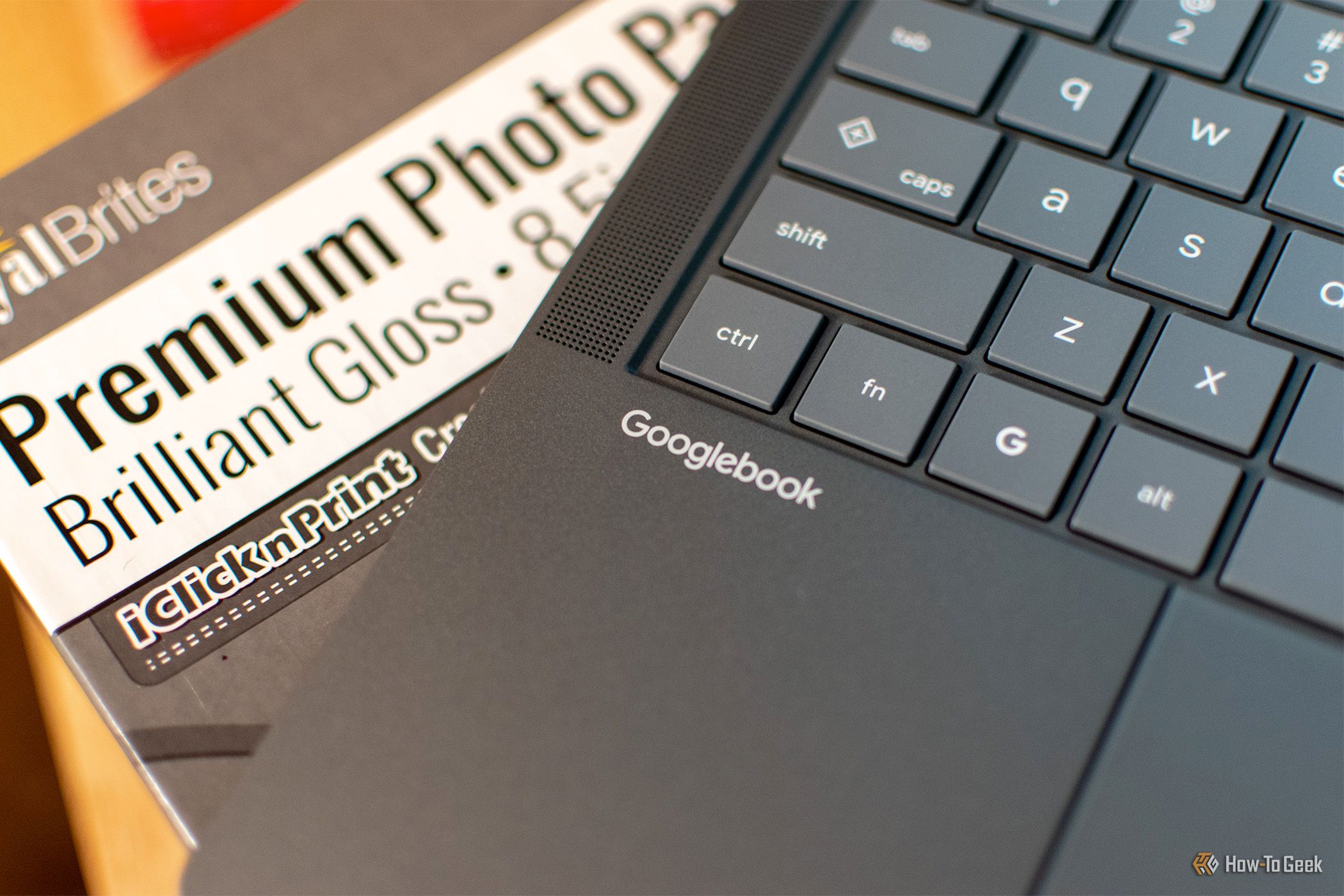
Need to print something from your Googlebook? Whether it's an important document or a fun web page, connecting your Googlebook to a printer is a quick and straightforward process, often taking less than a minute. While many Googlebook apps may not have built-in printing features, common tools like Chrome and other Google-made applications offer seamless printing functionality. This guide will walk you through connecting your printer using Wi-Fi, USB, or Bluetooth, help you troubleshoot any issues, and even show you a clever workaround for printing from unsupported apps.
Prerequisites
Before you begin, ensure you have the following:
- A Googlebook device.
- A compatible printer (Wi-Fi enabled, USB compatible, or Bluetooth).
- Printer powered on and ready.
- For Wi-Fi printing: Your Googlebook and printer must be connected to the same Wi-Fi network.
- For USB printing: A USB cable to connect your Googlebook to the printer.
- An internet connection (if you need to download printer apps).
How to Print from Chrome and Google Apps (Wi-Fi or USB)
This method is ideal for printing web pages from Chrome or documents from most Google-made applications like Google Docs or Google Photos. It works seamlessly whether your printer is connected via Wi-Fi or USB.
-
Connect Your Printer:
- For Wi-Fi: Ensure your printer and Googlebook are both powered on and connected to the same Wi-Fi network.
- For USB: Plug one end of a USB cable into your printer and the other end into an available USB port on your Googlebook.
Your Googlebook is designed for easy printer discovery, so it should detect your printer automatically once connected.
-
Open Your Document or Web Page: Navigate to the content you wish to print within your Chrome browser or a compatible Google application. (See Image 6: View of Googlebook desktop with a Chrome window open to HowToGeek.)
-
Access the Print Menu: You have two easy ways to open the print dialog:
- Keyboard Shortcut: Press the
Ctrl + Pkeys simultaneously on your Googlebook keyboard. - Browser Menu: Click the three-dot menu icon, usually located in the top-right corner of your browser window or app interface. From the dropdown menu, select the "Print" option. (See Image 7: Highlighting the three dot menu and printing open in Chrome on a Googlebook.)
- Keyboard Shortcut: Press the
-
Select Your Printer: In the print preview window that appears, locate and click the "Select a printer" button, typically found in the top-left corner. A list of available printers will appear. (See Image 8: Select a printer option highlighted on a Googlebook.) Choose your desired printer from this list. (See Image 9: Selecting an Epson printer from the Googlebook printer popup.)
-
Adjust Print Settings (Optional): You can customize various printing preferences in this window, such as:
- Paper size
- Color settings (e.g., color or grayscale)
- Paper orientation (portrait or landscape)
- Number of copies
-
Initiate Printing: Once you've finalized your settings, click the large "Print" button, usually located in the bottom-right corner of the window, to send your document to the printer. (See Image 10: Print button highlighted on Googlebook.)
Note: While most Google-made apps follow this printing schema, many third-party apps, particularly Android mobile apps installed on Googlebook, may not offer built-in printing functionality. Some might provide printing through a "Share" menu (represented by an icon with three dots connected by lines).
Connecting a Bluetooth Printer
Bluetooth printers often require a specific application from the manufacturer to function correctly, similar to how they operate on Android devices. Fortunately, Googlebook provides a straightforward way to install these necessary apps.
-
Open Googlebook Settings: Click on the clock or quick settings panel in the bottom-right corner of your Googlebook screen, then click the gear icon to open Settings.
-
Navigate to Printing Preferences:
- In the Settings sidebar, click on the "Connected Devices" tab.
- Select the "Connection preferences" button that appears.
- Click on "Printing." (See Image 26: Adding a new printer service to a Googlebook.)
- Quick alternative: You can also type "Printer" into the search bar within the Settings app and select the relevant option that appears.
-
Add a Printer Service: Tap the "Add service" button. This action will open a Google Play Store window on your screen.
-
Install the Manufacturer's App: Search for and install the application that matches your Bluetooth printer's brand. If a specific manufacturer app isn't available, look for universal printer connectivity apps on the Play Store, which might offer broader compatibility.
-
Manual APK Installation (If Needed): In rare cases, if your printer's app isn't on the Google Play Store, you might find an Android Package Kit (APK) file on the printer manufacturer's official website. Download this APK file to your Googlebook, then double-click it to begin the installation process.
-
Pair and Print: After the app is installed, open it and follow the in-app instructions to pair your Bluetooth printer and proceed with printing.
Diagnosing Printing Problems
It's common to encounter errors when using a printer. Like other operating systems, GooglebookOS offers ways to find and understand these issues.
There are two primary methods to check for printing errors on your Googlebook:
-
Check Your Notifications: This is the quickest way to see recent errors. Click the bell icon in the top-right corner of your screen (or swipe down from the top-right if you have a touchscreen) to open the notification menu. Any recent printing errors or alerts will typically appear here. (See Image 27: Printer error highlighted on a Googlebook.)
-
Access Printer Settings for Detailed View: For a more organized and detailed overview of printing errors:
- Open your Googlebook's Settings app.
- Click on "Connected Devices."
- Tap the "Connection preferences" button.
- Select "Printing." This section will list all your most recent printing errors, providing clearer context than the notification tray.
- Quick alternative: As before, you can type "Printer" into the Settings app's search bar and select the first relevant option to jump directly to printing settings.
Printing Content from Any App (Screenshots)
If you absolutely need to print something from an app that doesn't offer native printing functionality, such as a messaging app, taking a screenshot is an effective workaround. You can then print the image of what was on your screen.
-
Capture Your Screen:
- Full Screen: Press
Ctrl + Show Display(the function key that looks like a tiny square or rectangle with two lines on the Googlebook keyboard) to capture your entire screen. - Partial Screen: Press
Ctrl + Shift + Show Displayand then click and drag your cursor to select only the portion of the display you wish to capture.
- Full Screen: Press
-
Print Immediately (Optional): After capturing, a small preview of your screenshot will appear in the corner of your screen. Alongside it, you'll see a "Share" button. Click this button to access printing options directly.
-
Print Later from Files: All screenshots are automatically saved to your Googlebook's files. You can open the screenshot from your files at any time and use the standard
Ctrl + Pshortcut to print it, just as you would any other document or web page.
FAQ
Q: Can I print directly from any app on my Googlebook?
A: Not all apps support direct printing. While Chrome and Google-made apps generally do (using Ctrl + P or the three-dot menu), many third-party apps, especially Android mobile apps, do not have built-in printing functionality. For these, printing a screenshot is a reliable workaround.
Q: My Googlebook isn't finding my Wi-Fi printer. What should I do?
A: First, ensure both your Googlebook and your printer are connected to the exact same Wi-Fi network. Also, make sure your printer is powered on and ready. If issues persist, try restarting both devices. You might also want to check your printer's manual or the manufacturer's website for any specific network setup instructions, as some printers have unique configuration steps.
Q: How do I know if my printer is compatible with my Googlebook?
A: Most modern Wi-Fi and USB printers are compatible with Googlebooks, as they typically use standard printing protocols. If your printer is relatively new and supports either Wi-Fi or USB connections, it's very likely compatible. For Bluetooth printers, compatibility usually depends on the availability of a manufacturer-specific Android app on the Google Play Store or from the manufacturer's website. If you can find and install an app for your printer, it should work.
With these methods, printing from your Googlebook should be a hassle-free experience. Whether you're sending a quick web page to the printer or a crucial document, your Googlebook provides flexible options to get the job done. If you encounter persistent issues, always refer to your printer's specific manual or the manufacturer's support resources for further assistance.
Related articles

Ditch Merge & Center: The Better Way to Align Text in Excel
Learn to use Excel's "Center Across Selection" to align text across cells without merging, avoiding common data manipulation issues. This guide provides steps to utilize this newly accessible feature and add it to your Quick Access Toolbar.

Ars Technica's Rocket Report: Your Essential Space Industry Briefing
Quick Verdict Ars Technica's Rocket Report, presented by veteran space reporter Stephen Clark, offers an invaluable and meticulously organized weekly (or similar frequency, implied by "Edition 9.15") digest of the most

Stop Android Auto Battery Drain: Essential Features to Disable and
Android Auto offers unparalleled convenience, bringing your phone's most useful features directly to your car's display. From navigation and calls to messages and music, it keeps you connected without distracting you

Turn Your Android Phone into a Powerful Desktop Replacement
Learn how to transform your Android phone into a full-fledged desktop computer using external displays and accessories, providing a cost-effective and integrated alternative to new Googlebooks.

howto: Four Ways the Fitbit Edge Is Better Than the Charge 6, and Two
Learn the key differences between the Fitbit Edge and Charge 6, including four advantages of the Edge and two areas where it falls short, to help you choose the best fitness tracker for your needs.
How to Debloat Windows 11 for a Faster, Cleaner PC
Learn to reclaim your Windows 11 PC's performance by removing bloatware, disabling ads, and optimizing startup processes in five easy steps.