
Fix Android 17's Annoying Wi-Fi & Mobile Data Toggles on Pixel
Fix Android 17's broken Wi-Fi and mobile data toggles on your Pixel phone in a few steps, restoring single-tap control and removing annoying warnings using Better Internet Tiles and Shizuku.
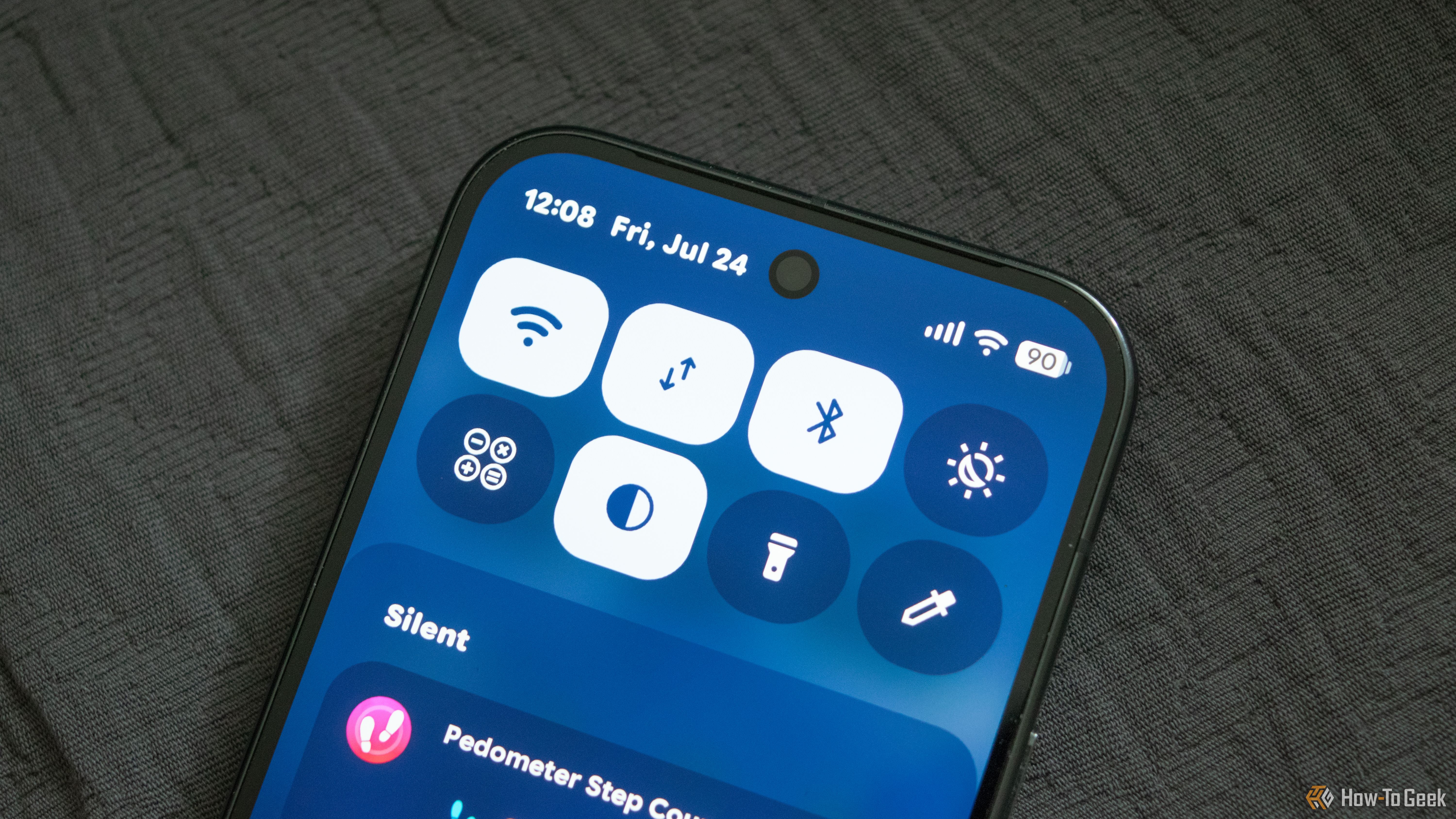
Android 17 was supposed to bring a much-needed improvement to Pixel phones by separating the Wi-Fi and mobile data toggles in the Quick Settings panel. For years, users endured a combined "Internet" tile that required multiple taps to simply turn Wi-Fi or mobile data on or off. While Google did introduce separate toggles with Android 17, the implementation regrettably made the experience worse.
Specifically, tapping the new Wi-Fi tile no longer fully disables the Wi-Fi radio; it merely disconnects you from the current network, often leading to immediate reconnection. Disabling the Wi-Fi radio now requires a cumbersome tap-and-hold action. Similarly, the mobile data toggle, while single-tap to disable, prompts an unnecessary warning about potential charges every time you enable it, turning a single-step action into two. This guide will walk you through installing a third-party application called Better Internet Tiles, leveraging Shizuku, to restore the efficient, single-tap functionality you expect for both Wi-Fi and mobile data on your Pixel phone.
By following these steps, you'll regain control over your network settings, allowing you to turn your Wi-Fi radio completely off and toggle mobile data without annoying confirmation messages, just as it worked for more than a decade prior to Android 17.
Prerequisites
Before you begin, ensure you have the following:
- An eligible Pixel phone running Android 17.
- Approximately 15-20 minutes of time.
- The ability to download and install applications from outside the Google Play Store (sideloading).
- The Shizuku app installed on your phone. (Download Shizuku)
- The Better Internet Tiles app installed on your phone. (Download Better Internet Tiles)
Step-by-Step: Restore Single-Tap Wi-Fi and Mobile Data Toggles
This process involves enabling Developer Options, setting up Shizuku to grant system-level permissions, and then configuring Better Internet Tiles to replace the problematic native toggles.
Step 1: Enable Developer Options
To allow Shizuku to function, you first need to enable Developer Options on your Pixel phone. This menu provides advanced settings, including wireless debugging.
- Open your phone's Settings app.
- Scroll down and tap on About phone.
- Locate Build number and tap it seven times rapidly. You may need to enter your PIN or password.
- A message will appear stating, "You are now a developer!" or "Developer options are now enabled."
Step 2: Install Shizuku and Prepare for Pairing
If you haven't already, install Shizuku. Then, you'll start the pairing process.
- Install Shizuku: If you downloaded the Shizuku APK, navigate to your phone's file manager and tap the APK to install it. Ensure you have "Install unknown apps" enabled for your file manager if prompted.
- Open the Shizuku app.
- On the main screen, find the section labeled "Start via Wireless Debugging".
- Tap the "Pairing" button within this section. Shizuku will then prompt you to navigate to your Developer Options.
Step 3: Pair Shizuku Using Wireless Debugging
This is the most crucial part of setting up Shizuku, as it grants the necessary system-level access.
-
After tapping "Pairing" in Shizuku, your phone will likely open the Developer Options menu automatically. If not, go to Settings > System > Developer Options.
-
Scroll down to find "Wireless debugging".
-
Crucially, tap the text "Wireless debugging" (not the toggle itself) to open its sub-menu.
-
In the Wireless debugging screen, tap "Pair device with pairing code".
-
A pop-up will appear displaying a Wi-Fi pairing code and an IP address & Port.
-
Quickly switch back to the Shizuku app. (You might use the recent apps switcher or swipe up and select Shizuku).
-
In Shizuku, enter the Wi-Fi pairing code you just saw in the Developer Options pop-up.
-
Tap "Send". Shizuku should then display a success message and allow you to "Start" the Shizuku service. Tap "Start".
Self-correction: If Shizuku fails to pair, ensure you are fast enough switching back to Shizuku and entering the code before the pairing code expires. Also, verify that Wi-Fi is actively connected on your device.
Step 4: Install and Configure Better Internet Tiles
With Shizuku running and providing the necessary permissions, you can now set up Better Internet Tiles.
- Install Better Internet Tiles: If you downloaded the APK, install it as you did with Shizuku. If you downloaded from the Play Store, simply open it.
- Open the Better Internet Tiles app.
- The app will likely request permissions, which Shizuku facilitates. Grant all necessary permissions.
- Within the Better Internet Tiles app, you will see options to add the new Wi-Fi and Mobile Data Quick Settings tiles.
- Add the new tiles to your Quick Settings panel:
- Swipe down from the top of your screen twice to fully expand the Quick Settings panel.
- Tap the pencil icon (edit button) at the bottom left.
- Locate the new Wi-Fi and Mobile Data tiles provided by Better Internet Tiles (they might have a distinct icon or name, as shown in the source, they look similar to stock but provide correct functionality).
- Drag these tiles to your preferred position among your active Quick Settings tiles.
- Remove the problematic stock Android 17 Wi-Fi and Mobile Data tiles if you wish to avoid confusion (these might be the "Internet" tile if it still exists, or the new flawed separate ones).
Now, you can enjoy single-tap functionality for both your Wi-Fi radio and mobile data, without the unwanted reconnection issues or persistent warnings.
Troubleshooting Tips
- Shizuku pairing fails: Ensure both your phone and Shizuku app are open and visible during the pairing code entry. The pairing code is time-sensitive. If it expires, simply tap "Pair device with pairing code" again in Developer Options to get a new one.
- Shizuku service won't start: Double-check that Wireless Debugging is enabled in Developer Options. Sometimes a phone restart can resolve temporary glitches.
- Better Internet Tiles doesn't work: Verify that Shizuku is running successfully (the Shizuku app should indicate it's active). Also, ensure you have granted all requested permissions to Better Internet Tiles.
- Wi-Fi still reconnects or Mobile Data warning persists: Make sure you've added the new tiles from Better Internet Tiles to your Quick Settings and are using those, not the problematic default Android 17 ones. Remove the default ones from your Quick Settings to prevent accidental use.
Best Practices
- Regularly check Shizuku: Shizuku sometimes needs to be restarted after a phone reboot. If your custom tiles stop working, open Shizuku first to ensure its service is running.
- Understand Permissions: Shizuku grants significant system access. While it's a trusted open-source tool, always be cautious about which apps you grant permissions to via Shizuku. Better Internet Tiles is a well-known solution for this specific issue.
- Stay Updated: Keep both Shizuku and Better Internet Tiles updated via the Play Store or their respective sources to benefit from bug fixes and improvements.
Next Steps
With your Wi-Fi and mobile data toggles working intuitively again, you've removed a significant daily annoyance. You might also want to explore other Android customization options or further optimize your Pixel's battery life now that you have full control over your radios. Google may eventually address this issue in a future Android update, but for now, this third-party solution offers the best way to restore desired functionality.
FAQ
Q: Why did Google implement the Wi-Fi and mobile data toggles this way in Android 17? A: While not explicitly stated by Google, it appears to be a design choice intended to streamline the "Internet" panel. However, for many users, this approach has proven less intuitive and more cumbersome, particularly by changing the long-standing behavior of the Wi-Fi toggle and introducing an extra step for mobile data activation.
Q: Is it safe to use Shizuku and a third-party app like Better Internet Tiles? A: Shizuku is an open-source tool widely used in the Android community to grant apps system-level access without requiring root. Better Internet Tiles is designed specifically to address this common Pixel frustration. While granting system permissions always carries a degree of risk, Shizuku is a reputable tool, and Better Internet Tiles is generally considered safe for its intended purpose. Always download apps from trusted sources.
Q: Will this solution work on Android phones other than Pixel devices running Android 17? A: The source content specifically discusses the issue on Pixel phones with Android 17. While the underlying problem might exist on other Android 17 devices, this guide's steps are tailored to the Pixel experience described. Compatibility with other manufacturers' Android 17 implementations may vary, but the principles of Shizuku and custom Quick Settings tiles are often similar across devices.
Related articles
howto: 4 Photoshop plugins so essential they should be built-in
Discover four essential Photoshop plugins that streamline your workflow, save time, and unlock new creative possibilities, making you wonder why they aren't built-in features.

Xreal Unveils Aura Wired Smart Glasses Running Android XR
At the Android Dev Summit on Wednesday, Xreal, Google's smart glasses collaborator, officially introduced its new Xreal Aura wired smart glasses. The device, which had been teased earlier in the year at Google's I/O
Solve Annoying PDF Problems Locally in Your Browser with BentoPDF
Dealing with PDFs can often feel like a never-ending series of small, annoying tasks. You might need to combine several documents, reduce the size of a bulky file, or even make an image-only scan searchable. Typically,

ICE's Covert Anti-Left Surveillance Operations Uncovered
New evidence reveals ICE is running a vast, potentially unconstitutional surveillance operation against left-wing activists nationwide. Leveraging post-9/11 tools and extensive data, experts liken it to a 'COINTELPRO 2.0,' marking an unprecedented scale of domestic spying.

Your Guide to LG's 115-inch QNED evo TV: Features, Gaming & Price
Welcome to an exciting exploration of LG's latest innovation in home entertainment: the colossal 115-inch QNED evo AI Mini LED TV. This guide is designed to walk you through everything you need to know about this

Warhorse Studios Under Siege: Cyberattack Hits Kingdom Come Dev
Warhorse Studios, known for Kingdom Come: Deliverance 2, has been hit by a cyberattack, resulting in unauthorized access to their company systems and data. CEO Martin Frývaldský called it a "serious incident," and the studio is working with cybersecurity experts to investigate. This incident follows similar breaches at Capcom and Rockstar, highlighting a growing industry concern.