
Enable LE Audio on Android for Longer Earbud Battery Life
Learn to enable LE Audio on your Android phone in just a few steps to significantly extend your earbud's battery life, improve audio sync, and enhance connection stability.
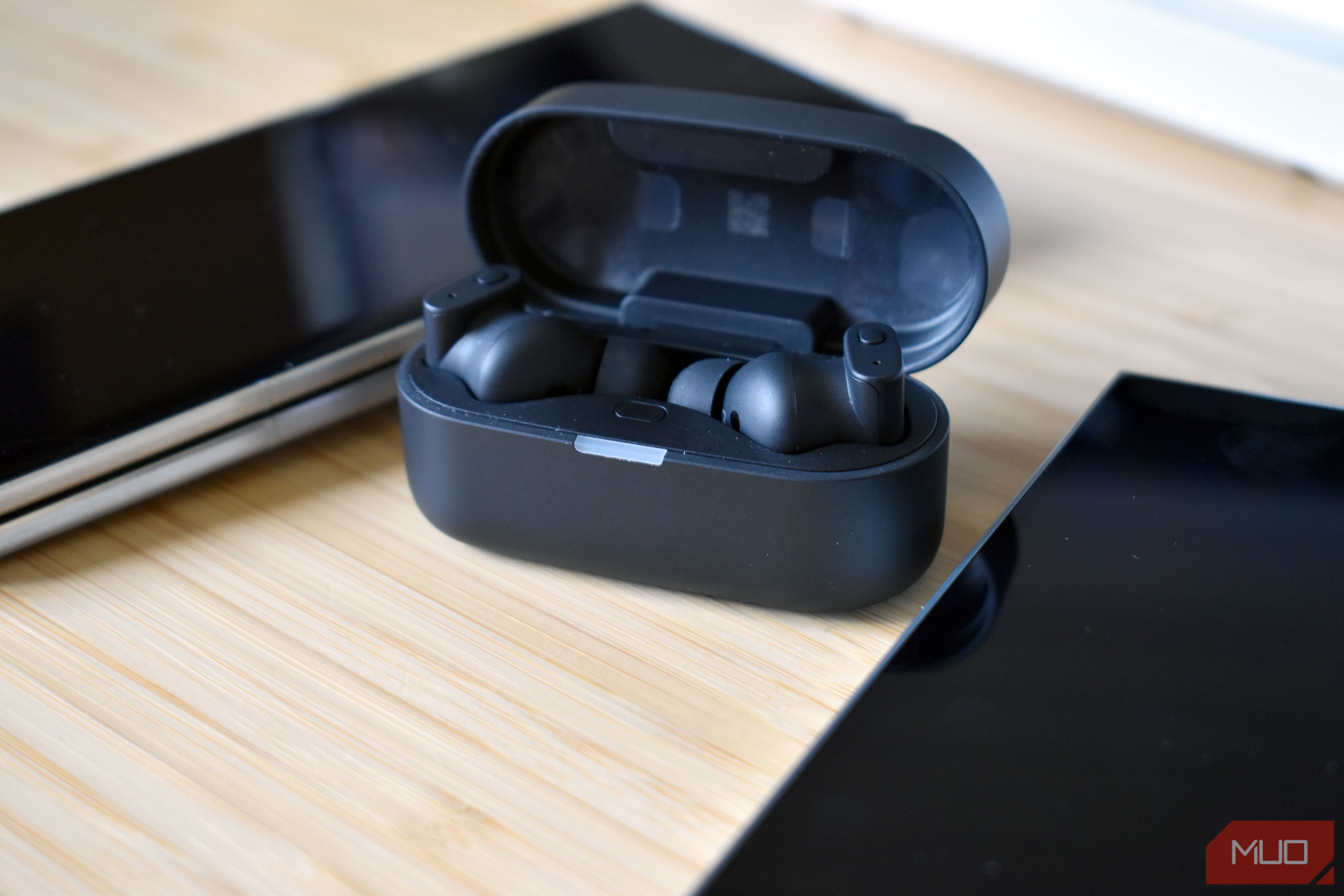
Are your earbuds dying too quickly? What if you could get extra hours of listening time, simply by flipping a switch on your Android phone? Many modern Android phones and earbuds support a newer Bluetooth standard called LE Audio, which is designed for lower power consumption and improved performance. However, it's often disabled by default.
This guide will walk you through the simple steps to enable LE Audio on your Android device, potentially extending your earbud's battery life by several hours, improving audio-video sync, and enhancing connection stability. You'll learn what LE Audio is, why it's more efficient, and how to activate it, even if the option isn't immediately visible.
Prerequisites
Before you begin, ensure you meet the following requirements:
- Android 13 or Newer: LE Audio support was built into Android starting with version 13.
- LE Audio-Compatible Phone: Your Android phone must support LE Audio. While Bluetooth 5.2 or newer is a good indicator, it doesn't guarantee LE Audio. Check your phone's specifications or manufacturer's support page for explicit mention of "LE Audio" or "LC3" (the codec it uses).
- LE Audio-Compatible Earbuds: Your wireless earbuds must also support LE Audio. Similar to your phone, look for "LE Audio" or "LC3" in their specifications. Many LE Audio earbuds are "dual-mode," meaning they can operate with either Classic Audio or LE Audio.
Understanding LE Audio: The Fuel-Efficient Connection
Bluetooth audio traditionally uses "Classic Audio" (also known as BR/EDR), which consumes more power. LE Audio, on the other hand, utilizes the "Bluetooth Low Energy" (LE) radio. Think of it as choosing a more fuel-efficient route for your music – you still reach your destination (your ears), but with less energy expended by your earbuds.
The secret to LE Audio's efficiency lies in its advanced codec, LC3 (Low Complexity Communications Codec). Co-developed by Fraunhofer, LC3 can deliver comparable or even better audio quality than the older SBC codec, but at a significantly lower bit rate – often 50% less. A lower bit rate means your earbuds' internal chips have to process less data, requiring less effort and, consequently, less power. This is where the extended battery life comes from.
Since most LE Audio-compatible earbuds are dual-mode, your phone might default to the older Classic Audio connection even if LE Audio is available. This guide helps you ensure your devices are using the more efficient LE Audio mode.
Step-by-Step: Enabling LE Audio on Android
While menu names may vary slightly between Android brands, the general process is consistent. The following steps are based on a Samsung Galaxy phone and generally apply to most Android devices:
-
Open Settings: Swipe down from the top of your screen and tap the gear icon (Settings), or find the "Settings" app in your app drawer.
-
Navigate to Connections: In the Settings menu, tap on Connections (or "Connected devices" or similar).
-
Select Bluetooth: Within the Connections menu, tap on Bluetooth.
-
Access Earbud Settings: Locate your connected LE Audio-compatible earbuds in the list of paired devices. Tap the gear icon or settings icon next to your earbuds' name.
-
Enable LE Audio: Look for an LE Audio switch or toggle. Turn it On.
- Brand-Specific Note: For some brands, like Sony, you might need to use their dedicated companion app (e.g., Sony's Sound Connect app) to find and set the "LE Audio priority" option.
- Reconnect Tip: In some cases, after enabling LE Audio, you may need to unpair your earbuds from your phone and then re-pair them for the setting to take full effect.
Troubleshooting: If LE Audio Option is Missing or Greyed Out
If both your phone and earbuds are LE Audio compatible, but you can't find the switch or it's greyed out, you might need to access Android's Developer options:
-
Unlock Developer Options:
- Go to Settings > About phone.
- Tap on Software information.
- Repeatedly tap on the Build number seven times until a message confirms "You are now a developer!"
-
Access Developer Options: Go back to the main Settings menu. You'll typically find Developer options at the very bottom.
-
Find Bluetooth LE Audio Mode: Inside Developer options, scroll down to the "Networking" section. Look for a setting related to Bluetooth LE Audio mode or similar. If found, ensure it's enabled.
What to Expect After Enabling LE Audio
After switching to LE Audio, you're likely to experience several benefits:
- Extended Battery Life: The most noticeable improvement for many users is a significant increase in earbud battery life. The original author reported an extra two hours, and this can vary depending on your specific earbuds and usage patterns.
- Improved Audio-Video Synchronization: LE Audio is designed for lower latency, meaning the sound you hear will be more in sync with the video you're watching. This can greatly enhance the experience for streaming videos, gaming, and video calls.
- Enhanced Connection Stability: You may notice a more robust and consistent connection between your phone and earbuds, leading to fewer dropouts or interruptions.
- Audio Quality (Variable): While the LC3 codec can deliver better audio quality at lower bitrates, your personal experience might vary. Some users report no significant change, while others have noted differences. If you notice any undesirable audio quality, you can always revert to Classic Audio.
If you frequently use your earbuds for extended periods, take many calls, or watch videos on your phone, enabling LE Audio is a highly recommended optimization. It's a free change that can yield tangible benefits in daily use.
FAQ
Q: What exactly is LE Audio? A: LE Audio is a new Bluetooth standard designed for low-power audio transmission. It uses the Bluetooth Low Energy radio and the LC3 codec to provide better battery life, lower latency, and improved connection stability compared to older Bluetooth audio standards.
Q: How can I confirm if my devices support LE Audio? A: Check the product specifications or support pages for both your Android phone and your earbuds. Look for explicit mentions of "LE Audio" or the "LC3" codec. Additionally, you can check your earbuds' Bluetooth settings on your Android phone for the presence of the "LE Audio" toggle switch.
Q: Will enabling LE Audio negatively impact my audio quality? A: LE Audio's LC3 codec is designed to deliver high-quality audio efficiently. However, user experiences with perceived audio quality can vary. Some users report no change or even an improvement, while others might have different preferences or notice subtle differences. It's best to try it yourself and see if you prefer the sound profile. You can always switch back if needed.
Related articles
howto: 4 Photoshop plugins so essential they should be built-in
Discover four essential Photoshop plugins that streamline your workflow, save time, and unlock new creative possibilities, making you wonder why they aren't built-in features.

Xreal Unveils Aura Wired Smart Glasses Running Android XR
At the Android Dev Summit on Wednesday, Xreal, Google's smart glasses collaborator, officially introduced its new Xreal Aura wired smart glasses. The device, which had been teased earlier in the year at Google's I/O
Solve Annoying PDF Problems Locally in Your Browser with BentoPDF
Dealing with PDFs can often feel like a never-ending series of small, annoying tasks. You might need to combine several documents, reduce the size of a bulky file, or even make an image-only scan searchable. Typically,

Your Guide to LG's 115-inch QNED evo TV: Features, Gaming & Price
Welcome to an exciting exploration of LG's latest innovation in home entertainment: the colossal 115-inch QNED evo AI Mini LED TV. This guide is designed to walk you through everything you need to know about this

How to Stop Google Using Your Gmail & Drive Data for Ads
Google's "Personal Intelligence" feature, designed to offer more tailored AI responses, may inadvertently lead to your personal data from apps like Gmail, Google Drive, and Google Photos being used for targeted

Java's Enduring Foundations: Interconnectedness, Reliability, and
Java's origins, driven by creator James Gosling at Sun Microsystems, addressed critical challenges in early computing. The language tackled significant 'networking friction' to enable seamless interconnectedness across diverse systems. Simultaneously, the 'stringent reliability requirements' of consumer electronics inspired the robust design of the Java Virtual Machine (JVM) and its evolving garbage collectors, crucial for 'large-scale concurrent memory management.'