
Build Your Apple Smart Home: A Guide to the New Home Ecosystem
Welcome Home! Apple's latest hardware event introduced a suite of new devices designed to enhance your smart home experience. From a dedicated smart hub that recalls the classic iMac G4 to upgraded entertainment and

Welcome Home! Apple's latest hardware event introduced a suite of new devices designed to enhance your smart home experience. From a dedicated smart hub that recalls the classic iMac G4 to upgraded entertainment and audio options, and even a collection of third-party devices, building an interconnected Apple home is now more intuitive than ever.
This guide will walk you through the key features of these new products and provide a clear, step-by-step approach to setting up and integrating them into your smart home. Get ready to experience a seamlessly connected and intelligent living space powered by Apple.
What You'll Accomplish
By following this guide, you will understand how to:
- Set up and personalize Apple's new HomeView smart hub.
- Integrate the latest Apple TV 4K for enhanced entertainment and smart home control.
- Utilize the upgraded HomePod mini 2 for superior audio and voice commands.
- Incorporate compatible third-party devices from the Apple Home Collection for a unified smart home experience.
Prerequisites and Requirements
Before you begin, ensure you have the following:
- An iPhone or iPad running iOS 27.2 or iPadOS 27.2 or later to set up and manage HomeView.
- A strong, reliable Wi-Fi network throughout your home.
- Power outlets accessible for all your new devices.
- (Optional) An iCloud+ plan for extended video event history and storage with Home Collection cameras.
Step-by-Step Guide to Your New Apple Smart Home
1. Introducing and Setting Up Your Apple HomeView Hub
The Apple HomeView is your central command center, offering a dedicated display for managing your smart home and interacting with family members. It comes in two configurations: a seven-inch display connected to a domed speaker base, or a wall-mounted display-only version.
Actionable Steps:
- Unbox and Power On: Place your HomeView in a central location, or install the wall-mounted version using one of the separately sold options.
- Initial Setup: Follow the on-screen prompts on the HomeView, guided by your iPhone or iPad (running iOS/iPadOS 27.2 or later). This will connect it to your Wi-Fi network and link it to your Apple ID.
- Personalize User Profiles: HomeView supports up to six individual user profiles. Set up unique Home Screens with custom apps and widgets for each household member. Shared data, like photos and music, remains accessible to everyone, including guests.
- Customize HomeView Faces: Choose from Apple Watch-like faces to display calendars, clocks, full-screen images, or weather information, tailoring the look to your preference.
- Explore Siri AI: Engage with the built-in AI assistant for questions, tasks, and smart home control. Conversations with Siri on HomeView will sync with Siri on your other Apple Intelligence-compatible devices.
- Utilize Communication Features: Experiment with FaceTime calls using the Center Stage camera, send and receive voice messages, and use Intercom to broadcast audio messages to other HomeViews or HomePods in your house.
- Access the Smart Home Dashboard: Navigate the dashboard to control all your connected smart devices, view multiple camera feeds simultaneously, adjust lighting, or manage your thermostat.
2. Enhancing Entertainment with the Apple TV 4K
The redesigned Apple TV 4K not only delivers superior streaming but also functions as an advanced home hub, integrating seamlessly with your smart home ecosystem.
Actionable Steps:
- Connect and Configure: Plug in your new Apple TV 4K to your television and power. Follow the on-screen setup process, connecting it to your Apple ID and Wi-Fi network.
- Discover Siri AI on Apple TV: Utilize natural language commands with Siri AI to find content, ask questions about what's playing, or control your smart home devices. Answers appear as subtle overlays without interrupting your viewing.
- Locate Your Remote with Find My: If your remote goes missing, use your iPhone to play a sound on the remote or get guided directions via Precision Finding.
- Calibrate Speakers (Optional): If you have HomePod mini 2s or original HomePods, pair up to four with your Apple TV 4K. The A19 chip will analyze their position and calibrate the audio to your room.
- Control Smart Home Devices: Use the Apple TV 4K's smart home dashboard to monitor video feeds, unlock doors, adjust lights, or even enable guest mode for visitors.
3. Upgrading Audio with the HomePod mini 2
The second-generation HomePod mini offers improved sound quality, a new S10 chip, and vibrant new color options, making it a stylish and powerful addition to your smart home audio setup.
Actionable Steps:
- Placement and Setup: Position your HomePod mini 2 strategically for optimal sound. Use your iPhone to quickly set it up on your Wi-Fi network and link it to your Apple ID.
- Experience Computational Audio: The S10 chip automatically optimizes sound, adjusting dynamic range, loudness, and acoustics to fit your space.
- Enjoy Sound Glow: Observe how the glowing touchpad pulses and changes color in sync with your music, reacting to bass and treble in real-time and even matching album art.
- Expand Your Sound System: Consider pairing multiple HomePod mini 2s (or a mix of HomePods and HomePod mini 2s) for a richer, multi-room audio experience, especially with the Apple TV 4K.
- Voice Control Your Smart Home: Use Siri AI on the HomePod mini 2 to configure smart home devices or access manual controls through the Home app.
4. Integrating Apple Home Collection Devices
Apple's Home Collection features third-party devices from partners like LG and Schneider, designed for seamless integration and a consistent aesthetic with your Apple ecosystem.
Actionable Steps:
- Browse the Collection: Explore devices like LG Video Doorbells, Floodlight Cams, Outdoor/Indoor Cams, and Smart Deadbolt Locks, as well as LG and Schneider Smart Thermostats.
- Installation and Pairing: Install these devices according to their manufacturer's instructions. They are designed to be easily discoverable and pairable within the Apple Home app.
- Utilize Advanced Features: For example, the LG Video Doorbell will play chimes on your HomeView, HomePod, and HomePod mini. The Smart Deadbolt Lock uses Ultra Wideband for automatic unlocking as you approach.
- Leverage iCloud+ (Optional): If you have an iCloud+ plan, enable it for Home Collection cameras to access up to 10 days of video event history, automatic video descriptions, summaries, and natural language search capabilities for specific clips.
Troubleshooting Tips
- Device Not Responding: Ensure all devices are powered on and connected to the same Wi-Fi network. Check the Apple Home app for device status.
- Siri AI Issues: Confirm your iPhone or iPad is running iOS 27.2 or later for full Apple Intelligence compatibility. Verify the HomeView or HomePod mini 2 has a clear path to your voice.
- Remote Lost (Apple TV 4K): Use the Find My app on your iPhone. If Precision Finding isn't working, ensure your iPhone is also updated and near the expected location of the remote.
- Connectivity Drops: Restart your Wi-Fi router and the affected Apple devices. Ensure there's no interference from other electronics.
Tips for a Seamless Smart Home
- Leverage Multi-User Recognition: Encourage all family members to set up their profiles on HomeView for personalized experiences.
- Strategic Speaker Placement: Optimize audio quality by considering the acoustics of your room when placing HomePod mini 2s, especially when pairing them with Apple TV 4K.
- Automate with Scenes: Use the Home app to create custom scenes (e.g., "Good Morning" to open blinds, turn on lights, and start coffee) that integrate all your Apple and Home Collection devices.
- Security First: Take advantage of HomeView's Secure Enclave and Face ID verification for personal data like Messages, and enable iCloud+ for encrypted video storage.
Next Steps and Related Topics
- Explore More Home Collection Devices: Keep an eye out for additional third-party devices that join the Apple Home Collection.
- Advanced Siri AI Commands: Experiment with more complex and contextual Siri AI queries across all your compatible Apple devices.
- Customizing Automations: Dive deeper into the Home app to create sophisticated automations based on time of day, presence detection, or sensor readings.
FAQ
Q: Can I use the Apple HomeView without an iPhone or iPad? A: No, you need an iPhone or iPad running iOS 27.2 or iPadOS 27.2 or later to initially set up and configure the HomeView.
Q: What's the main advantage of using the new Apple TV 4K as a home hub over just a HomePod mini 2? A: While both can act as home hubs, the Apple TV 4K offers the added benefit of visual control on your television, integrating directly with your entertainment system, and providing advanced features like Siri AI interaction during content playback and the ability to calibrate up to four speakers for a surround sound experience.
Q: Are all devices in the Apple Home Collection made by Apple? A: No, the Apple Home Collection consists of devices made by partner companies like LG and Schneider. These devices are designed to work seamlessly within Apple's smart home ecosystem, ensuring compatibility and often matching Apple's design aesthetic, but they are not manufactured by Apple itself.
Related articles

TCG Pocket Responds: A Much-Needed Pace Shift for Pokémon Fans
Pokémon TCG Pocket is rolling out a major update for its second anniversary, primarily addressing player concerns about overwhelming content releases by shifting to a six-week set schedule. This aims to curb player decline and improve overall engagement by giving trainers more time to collect and strategize. The update also adds new collection methods, improved deck-building features, and enhanced trading functionality.

Ditch Merge & Center: The Better Way to Align Text in Excel
Learn to use Excel's "Center Across Selection" to align text across cells without merging, avoiding common data manipulation issues. This guide provides steps to utilize this newly accessible feature and add it to your Quick Access Toolbar.

Ars Technica's Rocket Report: Your Essential Space Industry Briefing
Quick Verdict Ars Technica's Rocket Report, presented by veteran space reporter Stephen Clark, offers an invaluable and meticulously organized weekly (or similar frequency, implied by "Edition 9.15") digest of the most
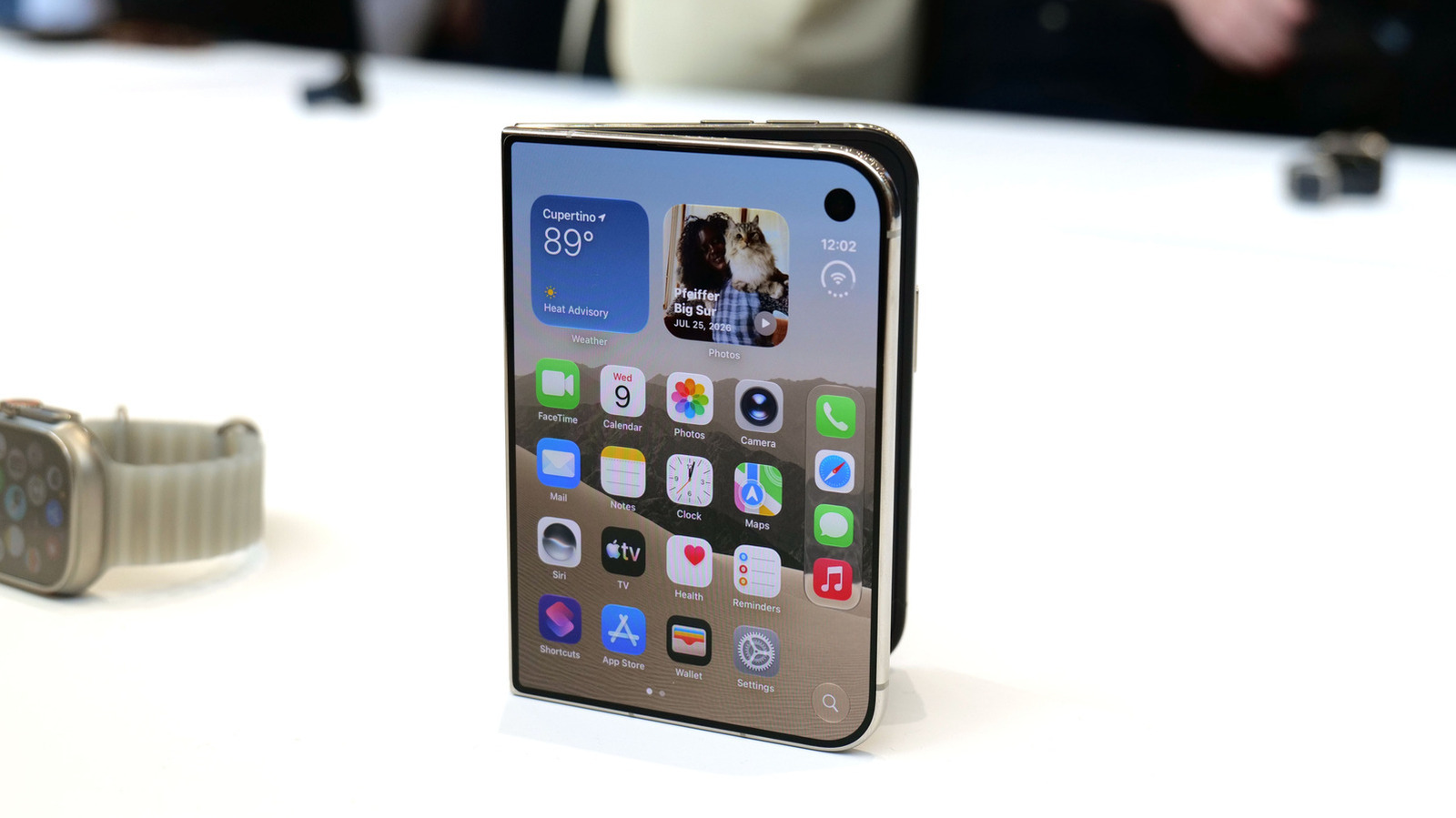
Apple iPhone Duo: A Daring Debut with Notable Compromises
Apple's highly anticipated iPhone Duo, priced at $2,000, has gone on pre-order. While hailed as "Apple's most exciting device in a decade" for its innovative foldable design and immersive display, it comes with significant drawbacks like the absence of FaceID and a premium camera.

Ephemeral PR Preview Environments on GKE: A Deep Dive
Every development team eventually grapples with the limitations of shared staging environments. The familiar scenario: multiple features deployed simultaneously, database migrations clashing, and the phrase "it works on
Galaxy Watch One UI 9 Beta: Promising Progress, But Patience Needed
Galaxy Watch 8, Watch Ultra, and Watch 7 are receiving a new One UI 9 Watch beta build with bug fixes and a security patch. Active development signals progress, but a stable release date remains elusive.