
Build a Browser-Based Image Converter with JavaScript — Key Details
This article demonstrates how to build a browser-based image converter using JavaScript, leveraging client-side APIs to ensure fast, private, and efficient image processing. It covers setting up a basic HTML interface, reading local files with `FileReader`, converting images via the `Canvas` API's `toDataURL` method, and enabling direct downloads. The guide also discusses practical considerations like handling large images, controlling JPEG quality, and ensuring robust input validation.

Image conversion is a recurring task for many developers, whether it's optimizing a PNG to JPEG for reduced size or exporting to WebP for enhanced web performance. Traditionally, developers often turn to online tools for these tasks. However, these tools frequently involve uploading your images to a server, introducing potential privacy concerns for sensitive files and delays due to network latency.
The good news is that modern web browsers possess remarkable capabilities, allowing us to handle image conversion entirely on the client side using JavaScript. This approach ensures speed, privacy, and reduces the need for server-side infrastructure.
In this guide, we'll walk through building a browser-based image converter that leverages client-side JavaScript to process and convert images without ever sending them to a server. You'll gain insights into browser-based file processing and the power of modern web APIs.
How Browser-Based Image Conversion Works
At its core, browser-based image conversion relies on several powerful web APIs. JavaScript can access local files, manipulate images within a canvas element, and then export the modified image in various formats. The entire process unfolds within the user's browser, maintaining privacy and speed.
The key components we'll utilize include:
- File input: To allow users to select an image from their device.
- FileReader: To read the selected image file's content.
- Canvas API: A versatile tool for drawing, redrawing, and manipulating image data.
toDataURLortoBlob: Methods provided by the Canvas API to export the processed image in a desired format.
Crucially, all operations occur locally, ensuring no files leave the user's device.
Project Setup: The User Interface
For simplicity, our project will consist of an index.html file for the user interface and a script.js file for the logic. Let's start with the basic HTML structure:
html
<!DOCTYPE html> <html> <head> <title>Image Converter</title> </head> <body> <h2>Browser Image Converter</h2> <input type="file" id="upload" accept="image/*"> <select id="format"> <option value="image/png">PNG</option> <option value="image/jpeg">JPEG</option> <option value="image/webp">WebP</option> </select> <button onclick="convertImage()">Convert</button> <br><br> <a id="download" style="display:none;">Download Converted Image</a> <script src="script.js"></script> </body> </html>This straightforward HTML provides an input field for image selection, a dropdown to choose the output format, a button to trigger the conversion, and a hidden anchor tag that will become the download link after conversion.
The JavaScript Engine: Reading, Processing, and Exporting
Now, let's implement the core logic in script.js:
javascript function convertImage() { const fileInput = document.getElementById("upload"); const format = document.getElementById("format").value;
if (!fileInput.files.length) { alert("Please select an image"); return; }
const file = fileInput.files[0]; const reader = new FileReader();
reader.onload = function(event) { const img = new Image(); img.onload = function() { const canvas = document.createElement("canvas"); const ctx = canvas.getContext("2d");
  canvas.width = img.width;
  canvas.height = img.height;
  ctx.drawImage(img, 0, 0);

  const converted = canvas.toDataURL(format);
  const link = document.getElementById("download");

  link.href = converted;
  link.download = "converted-image";
  link.style.display = "inline";
  link.innerText = "Download Converted Image";
};
img.src = event.target.result;
}; reader.readAsDataURL(file); }
Let's dissect this JavaScript code:
- File Input and Validation: The function first retrieves the selected file and desired output format. It includes a basic check to ensure a file has been selected.
- Reading the Image: A
FileReaderinstance is used to read the local file. Thereader.onloadevent handler is crucial; it triggers once the file has been successfully read, providing its content. - Loading into an
ImageObject: Insidereader.onload, a newImageobject is created. Itssrcis set to the result from theFileReader(a Data URL). Theimg.onloadhandler fires when the image is fully loaded and ready for manipulation. - Canvas Conversion: This is where the magic happens. A temporary
<canvas>element is created. Its dimensions are set to match the loaded image. Then,ctx.drawImage(img, 0, 0)renders the image onto the canvas. The actual conversion is performed bycanvas.toDataURL(format), which exports the canvas content as a Data URL in the specified format (e.g.,image/jpeg,image/webp). - Enabling Download: Finally, the
convertedData URL is assigned to thehrefof our download link. Thelink.downloadattribute provides a default filename, and the link's display style is changed to make it visible, allowing the user to download the converted image directly.
Practical Considerations and Enhancements
When developing client-side image processing tools, several real-world aspects are worth noting:
-
Large Images and Performance: Very large images can consume significant browser memory and processing power. For such cases, consider resizing the image on the canvas before exporting it: javascript const canvas = document.createElement("canvas"); const ctx = canvas.getContext("2d"); const maxWidth = 800; const scale = maxWidth / img.width; canvas.width = maxWidth; canvas.height = img.height * scale; ctx.drawImage(img, 0, 0, canvas.width, canvas.height);
-
JPEG Quality Control: When converting to JPEG, you can specify a quality parameter (0 to 1) to balance file size and visual fidelity: javascript canvas.toDataURL("image/jpeg", 0.8);
-
WebP for Superior Compression: WebP often provides better compression than PNG or JPEG, resulting in smaller file sizes for similar quality. It's an excellent default choice for web applications.
-
Robust Input Validation: Beyond checking if a file is selected, it's good practice to ensure the file is indeed an image type. This adds another layer of robustness: javascript const file = fileInput.files[0]; if (!file) { alert("Please select a file."); return; } if (!file.type.startsWith("image/")) { alert("Please upload a valid image file."); return; }
-
Browser Compatibility: While
CanvasandFileReaderare widely supported in modern browsers, always test your application across different environments to ensure broad compatibility.
Why Client-Side Processing is a Game-Changer
This browser-based approach offers significant advantages:
- Speed: Eliminates upload and download times, as processing occurs instantly on the user's device.
- Privacy: Files never leave the user's environment, making it ideal for sensitive or private images.
- Reduced Server Costs: No need for backend processing, storage, or server infrastructure dedicated to image conversion.
Modern browser APIs are increasingly powerful, enabling tasks like PDF generation, video processing, and complex file conversions directly on the client side. This trend allows developers to build more performant, private, and scalable web applications with simpler architectures.
This foundational project can be extended in many ways, such as adding drag-and-drop functionality, supporting multiple file uploads, implementing advanced compression controls, or providing live image previews before download. All these enhancements build upon the same core browser APIs, making them highly accessible once you grasp the basics.
Conclusion
We've successfully built a functional browser-based image converter using pure JavaScript, demonstrating how to read local files, process them with the Canvas API, convert formats, and enable direct downloads. This pattern isn't limited to image conversion; it's a powerful paradigm for a wide range of browser-based tools.
Mastering these browser APIs unlocks significant potential for creating fast, private, and efficient web applications that empower users with local processing capabilities.
FAQ
Q: What are the main benefits of browser-based image conversion over server-side?
A: The primary benefits include increased speed (no file uploads or downloads), enhanced privacy (files remain on the user's device), and reduced server infrastructure costs (no need for backend processing).
Q: Can I resize images using this method?
A: Yes, the Canvas API allows you to draw the image onto the canvas at custom width and height dimensions, effectively resizing it before you export the converted file.
Q: How do I ensure only image files are uploaded?
A: You can use the accept="image/*" attribute on your HTML file input for client-side suggestions. For more robust validation, check the file.type.startsWith("image/") property in your JavaScript code.
Related articles

TCG Pocket Responds: A Much-Needed Pace Shift for Pokémon Fans
Pokémon TCG Pocket is rolling out a major update for its second anniversary, primarily addressing player concerns about overwhelming content releases by shifting to a six-week set schedule. This aims to curb player decline and improve overall engagement by giving trainers more time to collect and strategize. The update also adds new collection methods, improved deck-building features, and enhanced trading functionality.

AI's Confidence vs. Formal Methods' Rigor: Design Flaws & Verification
While AI accelerates code generation, formal methods remain critical for ensuring system correctness. Languages like TLA+ and tools like Quint enable developers to model and verify system designs before coding, catching subtle flaws. Quint makes formal methods more accessible with developer-friendly syntax and executability. This approach is vital for verifying AI-generated code through trace validation and model-based testing, ensuring reliability against real-world data.
Ephemeral PR Preview Environments on GKE: A Deep Dive
Every development team eventually grapples with the limitations of shared staging environments. The familiar scenario: multiple features deployed simultaneously, database migrations clashing, and the phrase "it works on
Galaxy Watch One UI 9 Beta: Promising Progress, But Patience Needed
Galaxy Watch 8, Watch Ultra, and Watch 7 are receiving a new One UI 9 Watch beta build with bug fixes and a security patch. Active development signals progress, but a stable release date remains elusive.
Secure Internal API Access for AI Agents with MCP
AI agents accessing internal APIs directly pose significant risks, including identity loss, unrestricted queries, and security bypasses. The Model Context Protocol (MCP) offers a solution by defining explicit tools. A secure architecture involves an MCP server wrapping the API with strict input validation, coupled with a gateway that handles authentication, rate limiting, and audit logging, ensuring safe and accountable access.
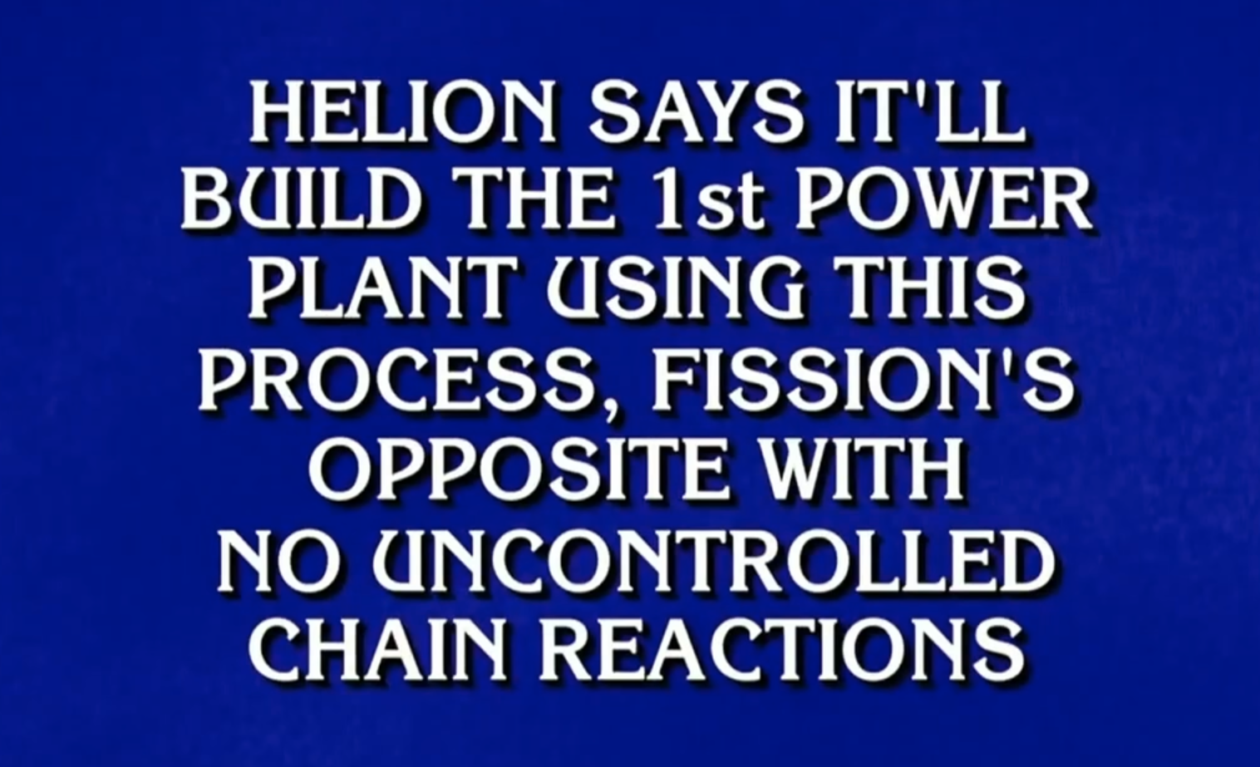
regional: ‘What is fusion?’ Helion Energy harnesses the power of
Helion Energy, the Everett-based fusion startup, gained mainstream attention this week after being featured as a clue on the popular game show "Jeopardy!". The $800 clue, part of a "Y Combinator" category, highlighted Helion's mission to build the first fusion power plant, bringing the concept of clean energy to a wider audience. CEO David Kirtley celebrated the "surreal" moment as a sign that reliable clean power is becoming more accessible.