
Android Auto Overheating Fixes: Your Guide to a Cooler Ride
Experiencing phone overheating with Android Auto? This guide offers 8 practical ways to tackle the issue, from optimizing connections to managing device settings and environmental factors. Get honest insights on why your phone gets hot and how to keep it cool on the road.

Quick Verdict
Running Android Auto can indeed push your smartphone to its thermal limits, leading to frustrating performance issues and even shutdowns. ZDNET's guide, "Does Android Auto make your phone overheat? Try these 8 ways to cool it down," offers a comprehensive and largely effective set of practical tips to mitigate this common problem. By addressing both hardware and software factors, these suggestions provide actionable steps for users struggling with a hot phone on the go.
Why Your Phone Heats Up with Android Auto
Android Auto is a remarkably convenient feature that extends your phone's capabilities to your car's infotainment system. However, this convenience comes at a computational cost. Your device is simultaneously managing multiple resource-intensive tasks: running navigation, streaming high-quality music, maintaining a continuous data connection, and often charging its battery – all at once. This heavy workload, especially when combined with factors like wireless connectivity (which leverages both Wi-Fi and Bluetooth), a bright screen, and a warm environment, creates a perfect storm for heat generation. The article rightly identifies this multifaceted strain as the core reason for overheating, a common issue for many users, myself included, who have experienced inconvenient thermal warnings and performance dips.
The 8 Ways to Keep Your Device Cool
ZDNET’s guide breaks down the solutions into eight actionable strategies, each targeting a specific aspect of phone usage or environment.
1. Go Wired Instead of Wireless
One of the most significant power drains on your phone is its wireless radios. Wireless Android Auto constantly utilizes both Wi-Fi and Bluetooth simultaneously to maintain its connection and transfer data. This dual-radio operation is inherently more taxing than a simple wired connection. By opting for a physical cable, your phone can offload some of this processing burden, allowing its internal components to work less strenuously and, consequently, generate less heat. It's a small trade-off in convenience for a notable improvement in thermal management.
2. Remove Your Phone Case
While cases are essential for protecting your device, many, especially thicker or rugged models, can inadvertently act as thermal insulators. When your phone's processor and battery are working hard and generating heat, a case can trap that heat close to the device, preventing proper dissipation. Removing your case, particularly for long drives or in warm conditions, allows for better airflow around the phone's chassis, helping it radiate heat more effectively into the surrounding environment. It's a simple, free solution that can make a tangible difference.
3. Turn Off Your Phone's Screen
The display is one of the most power-hungry components of any smartphone. Even when your phone's interface is mirrored onto your car's screen via Android Auto, keeping your phone's display active and at a high brightness level adds unnecessary strain and heat. By turning off your phone's screen or significantly reducing its brightness, you lessen the power consumption, which directly translates to reduced heat output. Since you're primarily interacting with the car's display, your phone's screen becomes largely redundant, making this an easy win for cooling.
4. Utilize Your Car's AC
Sometimes, the simplest solutions are the most effective. Just as a gaming PC uses fans to keep its components cool, directing a vent from your car's air conditioning system towards your phone can provide an immediate and significant cooling effect. The circulating cool air directly helps dissipate heat from the phone's surface. The guide even suggests specialized phone mounts that clip directly into vents, often doubling as wireless chargers, which can be an excellent way to combine hands-free convenience with effective thermal management, especially during hot weather.
5. Ensure Quality Cables
The often-overlooked hero of a stable Android Auto experience is a good quality cable. Cheap, damaged, or excessively long cables can lead to inefficient power delivery and unstable data transfer. When a cable struggles to maintain a consistent connection or charge, your phone works harder to compensate, drawing more power or repeatedly trying to re-establish the link, both of which generate extra heat. Investing in a high-quality, robust cable – ideally around 3 feet in length to minimize electrical resistance – ensures optimal data flow and charging efficiency, reducing unnecessary strain on your device.
6. Close Unnecessary Apps
Even when not actively in use, many applications run processes in the background, consuming CPU cycles, RAM, and network resources. When your phone is already taxed by Android Auto, these background activities contribute to the overall workload and, consequently, to heat generation. Prior to starting a drive with Android Auto, taking a moment to close unneeded social media, photo backup, messaging, or shopping apps can free up significant resources. For a complete refresh, restarting your phone can ensure a clean slate, dedicating maximum resources to Android Auto.
7. Download Maps Offline
Navigation apps are notorious data hogs, particularly when streaming real-time map data and traffic information. In areas with spotty cellular service, your phone will work even harder to maintain a connection, further increasing its power consumption and heat output. Downloading maps for your route offline significantly reduces the reliance on constant data streaming, thereby easing the strain on your phone. Crucially, this doesn't mean losing out on real-time features; if a connection is available, you'll still receive updates like traffic and accident reports while benefiting from reduced core data fetching.
8. Disable Fast Charging
Fast charging technologies, while incredibly convenient for quickly topping up your battery, inherently generate more heat due to the higher power levels involved. While modern phones are designed to manage this heat under normal circumstances, combining fast charging with the intensive demands of Android Auto and a potentially warm car interior can push your phone into an overheating state. Disabling fast charging allows your phone to charge at a slower, cooler pace. This not only helps prevent immediate overheating but also contributes to better long-term battery health, as sustained high temperatures during charging are detrimental to battery longevity.
The Verdict: Is This Advice Hot or Not?
ZDNET's compilation of tips for managing Android Auto overheating is genuinely helpful and well-rounded. The guide touches upon both obvious and less apparent causes of thermal distress, providing a comprehensive strategy for users. The advice is practical, easy to understand, and largely implementable without requiring specialized tools or deep technical knowledge. For anyone consistently encountering overheating issues with Android Auto, this guide offers a solid starting point for troubleshooting and improving their in-car phone experience.
Pros:
- Comprehensive Coverage: Addresses multiple facets contributing to overheating, from connectivity to app management and charging.
- Actionable & Practical: All tips are easy to understand and can be implemented by the average user.
- Cost-Effective Solutions: Many suggestions involve adjusting existing habits or settings, costing nothing.
- Focus on Battery Health: Highlights the long-term benefits of reducing heat and slow charging, promoting device longevity.
- Clear Explanations: Provides sufficient rationale for each tip, helping users understand why their phone is overheating.
Cons:
- Convenience Trade-offs: Some solutions, like switching from wireless to wired or removing a phone case, sacrifice convenience for cooling.
- Environmental Dependence: The effectiveness of using car AC is dependent on the vehicle's features and external temperatures.
- User Discipline Required: Remembering to close apps or adjust settings before each drive requires consistent effort.
Recommendation
I highly recommend ZDNET's guide to any Android Auto user who experiences their phone getting uncomfortably hot, showing thermal warnings, or experiencing performance degradation during use. The advice is particularly valuable for those on long commutes, road trips, or in warmer climates where overheating is more prevalent. Implementing even a few of these strategies can significantly improve your phone's stability and longevity while using Android Auto. While some tips require a slight adjustment to habits, the benefits of a cooler, more reliable device on the road are well worth it.
FAQ
Q: Is it really necessary to disable fast charging, even if my phone isn't actively overheating? A: While your phone might handle fast charging without immediate overheating warnings, disabling it, particularly when combined with Android Auto use in a car, is a good preventative measure. Fast charging inherently generates more heat, and prolonged exposure to high temperatures (especially when combined with a warm car interior and intensive app usage) can degrade your phone's battery life over time. Slower charging creates less heat, which is healthier for your battery in the long run.
Q: Will using offline maps for navigation mean I lose out on real-time traffic updates? A: No, not entirely. Downloading maps offline primarily reduces the constant data strain of fetching map tiles and base geographical data. If your phone still has an active cellular data connection, navigation apps are designed to continue providing real-time information such as live traffic conditions, accident reports, and rerouting suggestions. The benefit comes from reducing the overall data processing and network activity, which helps keep your phone cooler.
Q: My phone only overheats occasionally. Should I still follow all these steps? A: You don't necessarily need to implement all eight steps if overheating is infrequent. However, understanding the causes (like wireless connection, demanding apps, or poor cables) can help you identify the specific triggers. Start with the easiest and most impactful changes, such as ensuring a quality cable, removing your case, and turning off your phone's screen. If the problem persists, gradually add more suggestions from the guide until you find a comfortable balance for your device and usage habits.
Related articles
Android 17 QPR2 Beta 7.1: The Performance Relief You've Been Waiting
Android 17 QPR2 Beta 7.1: Finally Fixing the QPR1 Performance Woes Verdict: Android 17 QPR2 Beta 7.1 is a crucial and highly anticipated software update for Google Pixel users, specifically targeting and resolving the

DJI Solo Video Setups: Smart Choices for Lone Creators
This review delves into DJI's recommended solo video setups, highlighting the Osmo Pocket 3 Creator Combo as a top pick for its integrated camera, gimbal, and mic. It also covers stabilizers like the Osmo Mobile 8 and RS 4, and the DJI Mic Mini series for enhanced audio, providing honest pros, cons, and clear buying advice.

Ditch Merge & Center: The Better Way to Align Text in Excel
Learn to use Excel's "Center Across Selection" to align text across cells without merging, avoiding common data manipulation issues. This guide provides steps to utilize this newly accessible feature and add it to your Quick Access Toolbar.

Ars Technica's Rocket Report: Your Essential Space Industry Briefing
Quick Verdict Ars Technica's Rocket Report, presented by veteran space reporter Stephen Clark, offers an invaluable and meticulously organized weekly (or similar frequency, implied by "Edition 9.15") digest of the most
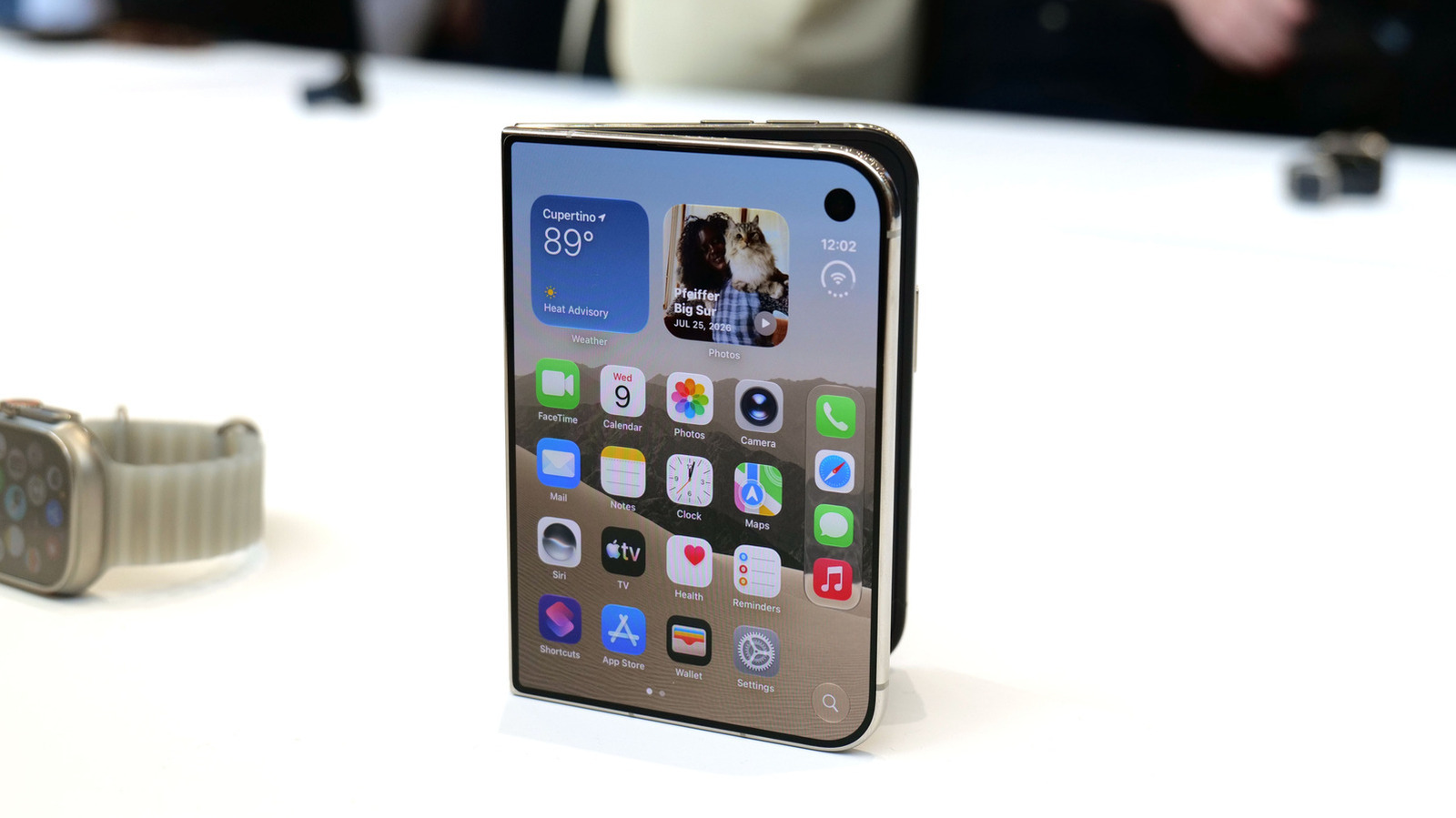
Apple iPhone Duo: A Daring Debut with Notable Compromises
Apple's highly anticipated iPhone Duo, priced at $2,000, has gone on pre-order. While hailed as "Apple's most exciting device in a decade" for its innovative foldable design and immersive display, it comes with significant drawbacks like the absence of FaceID and a premium camera.
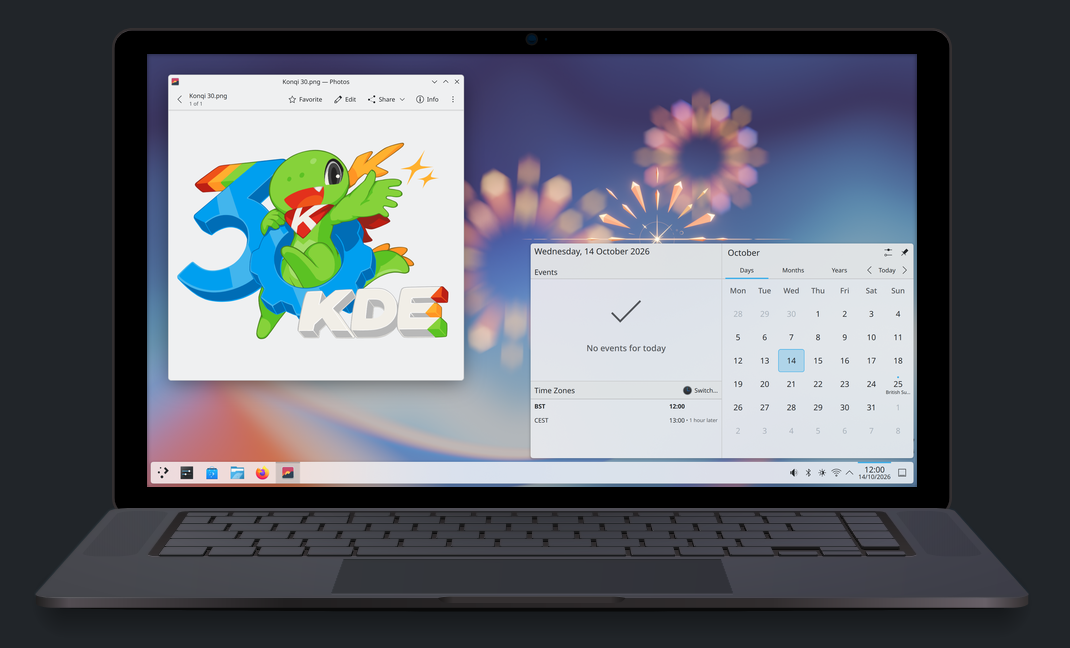
KDE Plasma 6.8: A Future-Focused 30th Anniversary Update
Quick Verdict KDE Plasma 6.8, arriving as the "30th Anniversary Edition," is a pivotal release that decisively pushes the desktop environment into the future. With a definitive farewell to native X11 sessions and a