
Android App Bubbles: A Handy Multitasking Evolution
Quick Verdict Android 17 introduces 'app bubbles,' a convenient new feature that allows users to keep frequently accessed applications floating as an icon on their screen, always on top. While currently a Google Pixel

Quick Verdict
Android 17 introduces 'app bubbles,' a convenient new feature that allows users to keep frequently accessed applications floating as an icon on their screen, always on top. While currently a Google Pixel exclusive, this feature is set to expand to other Android devices, offering a fresh take on multitasking and quick access. It’s an evolution of the existing chat bubble concept, and for those who juggle multiple apps, it's a thoughtful addition that streamlines workflow, albeit with some minor limitations concerning placement and group movement. For Pixel users, it's a welcome productivity boost; for others, it's a feature worth anticipating.
Bubbling Up Your Apps: A New Layer of Convenience
For years, Android users have enjoyed the practicality of 'bubbling' text conversations, allowing a chat to float conveniently on the home screen for easy access without fully opening the messaging app. This concept, known for its ability to keep communication fluid and responsive, has now been expanded beyond just conversations. With the rollout of Android 17, the operating system is empowering users to apply this 'bubble' functionality to a broader range of applications. This means you can now isolate a chosen app, transforming its icon into a persistent, floating presence that hovers above all other content on your screen, ready for instant interaction.
This isn't just about aesthetics; it's about making your most critical or frequently used apps effortlessly available. Imagine having your to-do list, a calculator, or a specific browser tab always just a tap away, irrespective of which app you're currently immersed in. The feature allows for up to five apps to be placed in this floating bubble state simultaneously, promising a more fluid and less disruptive multitasking experience. It’s a subtle yet significant shift in how we interact with our mobile devices, moving towards a more persistent and accessible digital workspace.
Key Details & How It Works: Pixel's Take on Bubbles
At present, the capability to bubble apps is a distinctive feature exclusive to Google Pixel devices. However, this exclusivity is temporary, as the functionality is slated for broader release to other Android manufacturers in due course. For Pixel owners eager to dive into this new mode of interaction, the process is straightforward and intuitive.
Activating an App Bubble on a Google Pixel:
- Locate Your App: Begin by navigating to your home screen or opening your app drawer to find the application you wish to bubble.
- Initiate the Long-Press: Once you've found your desired app, press and hold its icon. This action will trigger a contextual pop-up menu.
- Select 'Bubble': Within the menu that appears – which typically includes options like 'App info,' 'Add app to home screen,' or 'Pause app' – you will now find and select the 'Bubble' option.
Placement and Grouping:
Upon selecting 'Bubble,' your chosen app will immediately shrink into a compact, floating icon. This icon can then be repositioned along either the left or right side of your screen. It's important to note that while you have the freedom to move it vertically along these edges, its placement is restricted to these side margins; you cannot place it anywhere else on the screen. A notable characteristic of the app bubbling feature is its grouping behavior: if you choose to bubble multiple applications, their respective icons will cluster together and move as a single unit across your screen. This ensures that all your bubbled apps remain accessible as a cohesive unit, always staying visible above any other open applications or system interfaces.
User Experience: A Floating Convenience (and Potential Clutter)
The introduction of app bubbles marks an interesting evolution in Android's user interface, aiming to enhance accessibility and multitasking. From a user experience perspective, this feature offers a mixed bag of significant advantages and a few minor considerations.
Pros:
- Instant Access: The primary benefit is undeniable convenience. Frequently used apps are literally always at your fingertips, reducing the need to navigate back to the home screen or app drawer, or to use the recent apps switcher. This can be a substantial time-saver for power users or those who rely on specific tools throughout their day.
- Enhanced Multitasking: For tasks that involve referencing information across multiple applications, app bubbles can be incredibly efficient. Imagine quickly switching between a note-taking app, a calculator, and a browser without breaking your flow. The ability to keep a conversation or essential tool persistently visible simplifies complex workflows.
- Reduced Friction: The concept builds upon the familiar and well-received chat bubble mechanic. Users who appreciate how chat bubbles streamline communication will likely find this expanded functionality equally intuitive and valuable for other app types.
- Always On Top: The guarantee that bubbled apps will always remain visible, floating above all other open content, ensures that your critical tools are never buried under other windows, providing a consistent and reliable user interface.
Cons:
- Screen Real Estate & Clutter: While convenient, having floating icons can occupy precious screen space, especially on smaller devices. With up to five apps bubbled, the left or right edge of your screen could become visually busy, potentially obstructing content in the underlying app, even if only slightly.
- Limited Placement: The restriction to the left or right sides of the screen, with no freedom to place icons centrally or in other corners, might feel limiting to some users. This fixed vertical alignment for bubbled apps could sometimes interfere with existing UI elements within the app you're currently using.
- Group Movement: While designed for cohesion, the fact that all bubbled apps move together as a single block might not always be ideal. If you only need one specific bubbled app at a particular moment, having the entire cluster shift can feel somewhat unwieldy or less precise than individual control.
- Pixel Exclusivity (for now): The initial limitation to Pixel devices means a large segment of the Android user base cannot yet experience this feature, which can be frustrating for those on other brands who could benefit from it.
A Look at the Alternative: Samsung's Smart Pop-Up View
While Android's new app bubbles offer general quick access, it's worth noting that other Android manufacturers have explored similar concepts. Samsung, for instance, provides a feature known as 'Smart Pop-Up View' on its Galaxy devices. While both involve a floating app window or icon, their primary intended uses differ.
Samsung's Smart Pop-Up View is specifically designed to allow users to respond to notifications from selected applications without needing to fully exit their current app. This is particularly useful for maintaining focus on a task while still being able to address incoming messages or alerts in a concise pop-up window. To enable this feature on a Samsung Galaxy device, you might first need to ensure that the 'Multi window for all apps' setting is activated.
Enabling Smart Pop-Up View on a Samsung Galaxy:
- Access Settings: Open your device's 'Settings' app.
- Navigate to Notifications: Within Settings, find and select 'Notification Settings.'
- Choose Advanced Settings: Proceed to 'Advanced settings.'
- Select Floating Notifications: Locate and choose 'Floating Notifications,' then select 'Smart Pop-Up view.'
- Select Your Apps: Finally, you can choose which specific applications you want to prioritize for Smart Pop-Up View, enabling them to display notifications in this floating format.
Comparing the Approaches: Android Bubbles vs. Samsung Smart Pop-Up View
Though superficially similar due to their floating interface elements, Android's app bubbles and Samsung's Smart Pop-Up View serve distinct purposes. Android's bubbles are about providing general, persistent, quick access to any chosen app, making them always available regardless of current activity. The focus is on immediate app launch or switching. In contrast, Samsung's Smart Pop-Up View is primarily about efficient notification management, allowing users to interact with incoming alerts from specific apps without leaving their current primary application. While both enhance multitasking, the former is about constant app availability, and the latter is about seamless notification response.
The Verdict: Should You Bubble Up?
Android's new app bubbling feature is a thoughtful and genuinely useful addition to the operating system, particularly for users who value efficiency and seamless multitasking. It's not a revolutionary concept, building on the success of chat bubbles, but its expansion to general apps elevates its utility significantly. For Google Pixel users, this is an immediate upgrade to their daily workflow, offering a quick and intuitive way to keep essential tools at hand. While the limitations regarding placement and the collective movement of bubbled apps are minor drawbacks, they are unlikely to outweigh the overall convenience this feature provides.
For non-Pixel Android users, the app bubbling feature is definitely something to look forward to. Its eventual broader release promises to bring a consistent, productivity-enhancing tool to a wider audience. If you find yourself constantly switching between a handful of applications throughout your day, or if you appreciate the 'always on top' accessibility of chat bubbles, then adopting app bubbles for your most-used apps is a clear recommendation. It simplifies navigation, reduces interruptions, and helps maintain focus, making your Android experience just a little bit smarter.
FAQ
Q: Is Android's new app bubbling feature available on all Android phones?
A: Currently, the app bubbling feature is exclusive to Google Pixel devices as part of the Android 17 rollout. However, it is designed to be rolled out to other Android manufacturers over time, so non-Pixel users can expect to see it in the future.
Q: How many apps can I bubble at once?
A: You can place up to five apps in your bubble. These bubbled apps will appear as icons and will move together as a single group along the left or right side of your screen.
Q: What's the main difference between Android's app bubbles and Samsung's Smart Pop-Up View?
A: Android's app bubbles are designed for general, persistent, quick access to any chosen application, keeping its icon floating on top of everything else for immediate launch. Samsung's Smart Pop-Up View, on the other hand, primarily focuses on allowing users to respond to notifications from selected apps without having to fully leave their current application, offering a specific context for interaction rather than constant app availability.
Related articles

Xreal Unveils Aura Wired Smart Glasses Running Android XR
At the Android Dev Summit on Wednesday, Xreal, Google's smart glasses collaborator, officially introduced its new Xreal Aura wired smart glasses. The device, which had been teased earlier in the year at Google's I/O
Nothing CMF Clip Pro Review: Open-Ear Awareness at a Steal
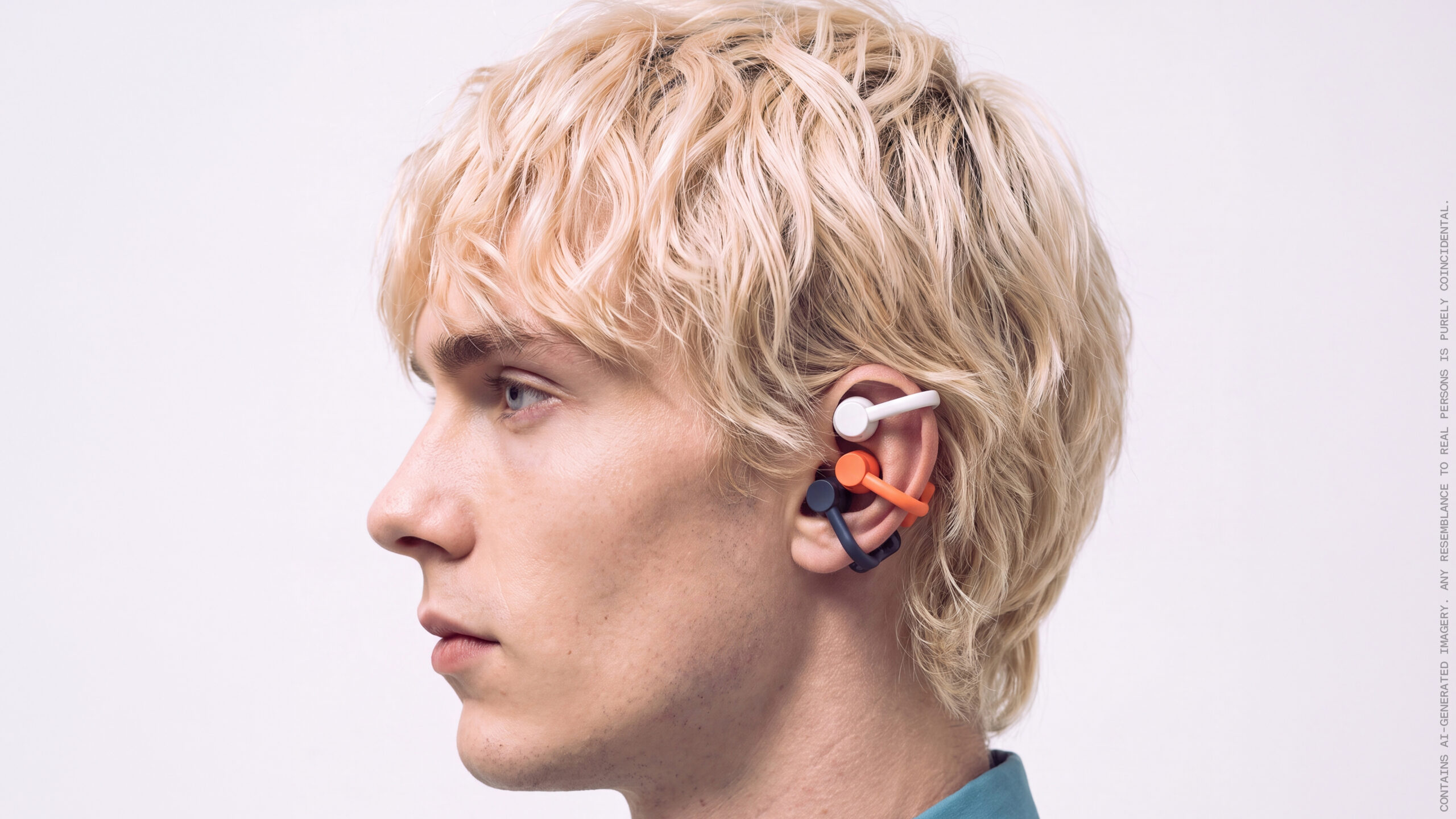
The Nothing CMF Clip Pro offers a unique open-ear listening experience, designed for situational awareness and comfort. Now $30 off at $69, it's an appealing option for those seeking spacious sound without sealing off the world.

Apple's Touchscreen MacBook Pro: A Long-Awaited Touch
The Verdict Apple's rumored touchscreen MacBook Pro represents a long-overdue evolution, promising to blend the convenience of direct screen interaction with the powerful macOS laptop experience. While not an essential

CMF Watch 3 Pro: Affordable Style Meets Solid Performance
CMF Watch 3 Pro: Affordable Style Meets Solid Performance In the crowded market of smartwatches, finding a device that balances features, design, and affordability can be a challenge. Enter the CMF Watch 3 Pro, a

Love Island Australia S8 Guide: Navigating the Stream, Mostly Free
Love Island Australia Season 8 Streaming Guide: Navigating the Digital Waters Verdict: TechRadar's guide to watching Love Island Australia Season 8 is a generally useful, if somewhat navigationally challenged, resource

Sculpture Re-creates Lycurgus Cup Effect: A Glimmering Triumph of Art
The University of Sheffield successfully re-creates the 1,600-year-old dichroic glass recipe of the Lycurgus Cup. A new sculpture by artist Elliott Walker displays the stunning green-to-red optical effect, blending ancient tech with modern art. A significant scientific and artistic achievement.