
Unlock True 4K: How to Enable Netflix Premium Quality
Learn how to activate the optimal playback settings on your Netflix Premium account to experience stunning 4K resolution in just a few simple steps. Ensure your setup is ready to deliver the ultimate visual quality.
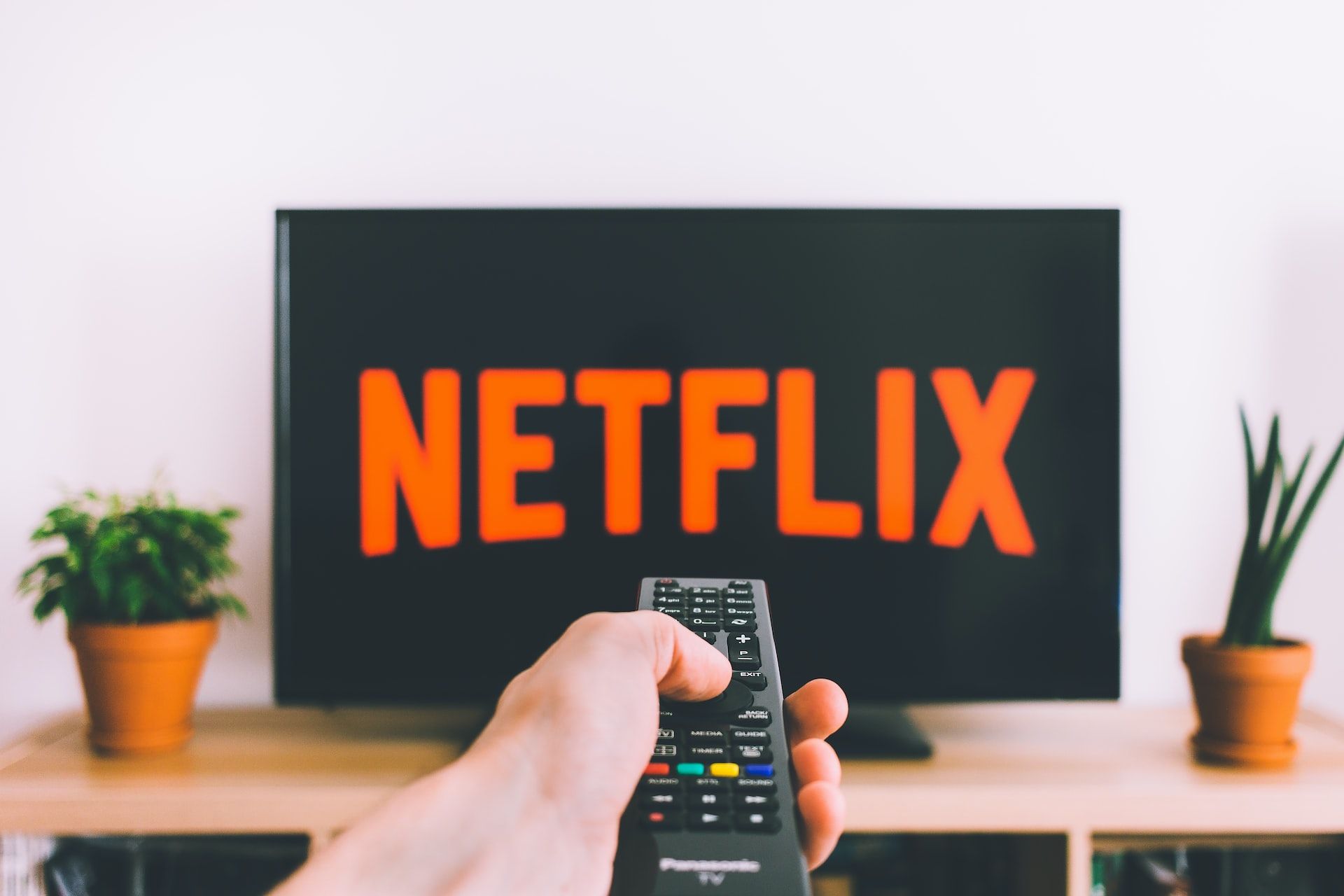
You've invested in a Netflix Premium subscription, paying a bit extra each month for the promise of stunning 4K content. But what if you're not actually seeing that crystal-clear picture? Many users, like myself, have paid for years without realizing a single, crucial setting needed to be adjusted. This guide will walk you through exactly how to ensure you're getting the most out of your Netflix Premium plan, unlocking the full 4K experience you're paying for.
Before You Begin: Essential Requirements for 4K Netflix
To truly enjoy Netflix in glorious 4K and High Dynamic Range (HDR), simply having the Premium plan isn't enough. You'll need to ensure your entire viewing setup is capable of supporting this high-quality streaming. Check off these important prerequisites before diving into the settings:
- Netflix Premium Plan: This is the foundational requirement. The Premium plan, currently costing $26.99 per month, is the only subscription tier that offers content in 4K and HDR, alongside allowing streaming on up to four devices simultaneously. Other plans, like Standard with Ads ($8.99/month) or Standard ($19.99/month), are limited to 1080p resolution or lower and may have ads or a limited content catalog.
- 4K-Capable Display: Whether you're watching on a television or a computer monitor, your display must be capable of rendering 4K resolution. Most modern smart TVs come with 4K support built-in, but if you're using an older model, it might be limited to 1080p, which means you won't see the full benefit of 4K content. For monitor users, ensure you have a dedicated 4K computer monitor.
- 4K-Capable Streaming Device (If Applicable): If you're using an external streaming device like a Roku Streaming Stick, Amazon Fire TV Stick, Apple TV, or a gaming console, it also needs to support 4K resolution. Many streaming devices now offer 4K versions, but older models might not. Always check the specifications of your device.
- Appropriate HDMI Cable: For optimal performance, especially when using an external streaming device with a TV or monitor, utilize an HDMI cable designed for high-speed data transfer. Look for Premium High Speed HDMI or Ultra High Speed HDMI cables, as these are built to handle the bandwidth required for 4K video signals reliably.
Meeting these hardware requirements is crucial. Without them, even with the correct Netflix settings, your content won't display in true 4K resolution.
Step-by-Step: Enabling 4K Playback on Netflix
Once you've confirmed your hardware is 4K-ready, it's time to adjust the all-important playback setting within your Netflix account. This is the 'one setting' that often gets overlooked. Remember, you can't typically access this specific setting from your TV's Netflix app; you'll need a computer or a web browser on your phone.
- Log In to Your Netflix Account: Open a web browser on your computer or phone and navigate to Netflix.com. Log in with your account credentials.
- Access Profile Management:
- Look for your profile icon in the top-right corner of the screen.
- Click or tap on the profile icon to open a dropdown menu.
- From the menu, select "Manage Profiles."
- Select Your Profile: Choose the specific profile you want to enable 4K playback for. If you have multiple profiles (e.g., for different family members), you might want to adjust this for each profile that uses the 4K-capable setup.
- Navigate to Playback Settings: After selecting a profile, you'll see various options related to that profile. Look for and click on "Playback settings." This section controls how content is streamed.
- Set Data Usage to "High":
- Within the Playback settings, you'll find options for "Data usage per screen" or similar.
- Select the "High" option. This setting tells Netflix to stream video at the highest possible quality, including 4K where available, consuming more data but delivering superior visuals.
- Make sure to save your changes if prompted.
Once you've made this change, Netflix will now attempt to stream content in 4K resolution whenever it's available and your equipment supports it. This is a blanket setting that applies to any device you use with that specific profile, so you only need to change it once.
Troubleshooting & Tips for Your 4K Experience
Even with everything set up correctly, you might encounter a few nuances with 4K streaming. Here are some tips and troubleshooting points to keep in mind:
- Not All Content Is 4K: It's important to understand that not every title on Netflix is available in 4K, even with a Premium subscription. Typically, Netflix Originals and newer films and TV programs are offered in 4K. Don't expect older series or certain licensed content to always appear in the highest resolution.
- Buffering Issues with "High" Setting: The "High" playback setting demands significantly more internet bandwidth. If your internet connection isn't robust or stable enough, you might experience buffering, stuttering, or even a drop in resolution as Netflix attempts to adapt. If this happens frequently, you might need to check your internet speed or consider upgrading your plan.
- Check for HDR Support: If your display and streaming device support HDR (High Dynamic Range), you'll also get enhanced colors and contrast alongside 4K resolution. Look for HDR badges on Netflix content descriptions.
- Confirm Resolution on Your Device: Many smart TVs and streaming devices have an information button or menu option that displays the current resolution of the content being played. Use this to confirm that Netflix is indeed streaming in 4K.
Enjoying Your Enhanced Viewing
With your Netflix Premium account now fully optimized for 4K, you're all set to dive into a world of incredible detail and vibrant colors. Sit back, relax, and explore the vast library of content that truly shines in its highest possible quality. Keep an eye out for new 4K releases, especially Netflix Originals, to fully appreciate your upgraded viewing experience.
FAQ
Q: Why isn't all the content I watch on Netflix in 4K, even with my Premium plan and settings enabled?
A: Not all titles in Netflix's catalog are produced or available in 4K. Typically, you'll find Netflix Originals and more recent films and TV series offered in 4K and HDR. Older content or some licensed shows may only be available in lower resolutions like 1080p. The setting ensures you get 4K when available.
Q: Can I change the playback settings directly from the Netflix app on my smart TV?
A: No, the specific profile playback settings, including the "High" data usage option for 4K, are typically managed through the Netflix website via a computer or a web browser on your mobile device. You cannot access these deep profile settings directly from the TV app.
Q: I've set my playback to "High," but now my shows are constantly buffering. What should I do?
A: The "High" quality setting requires a strong and stable internet connection due to the increased data usage of 4K content. Frequent buffering indicates your internet speed might not be sufficient. You can try testing your internet speed or temporarily lowering the playback quality to see if it resolves the issue. If your internet is consistently slow, consider contacting your internet service provider.
Related articles

Ditch Merge & Center: The Better Way to Align Text in Excel
Learn to use Excel's "Center Across Selection" to align text across cells without merging, avoiding common data manipulation issues. This guide provides steps to utilize this newly accessible feature and add it to your Quick Access Toolbar.
Apple iPhone Duo: A Daring Debut with Notable Compromises
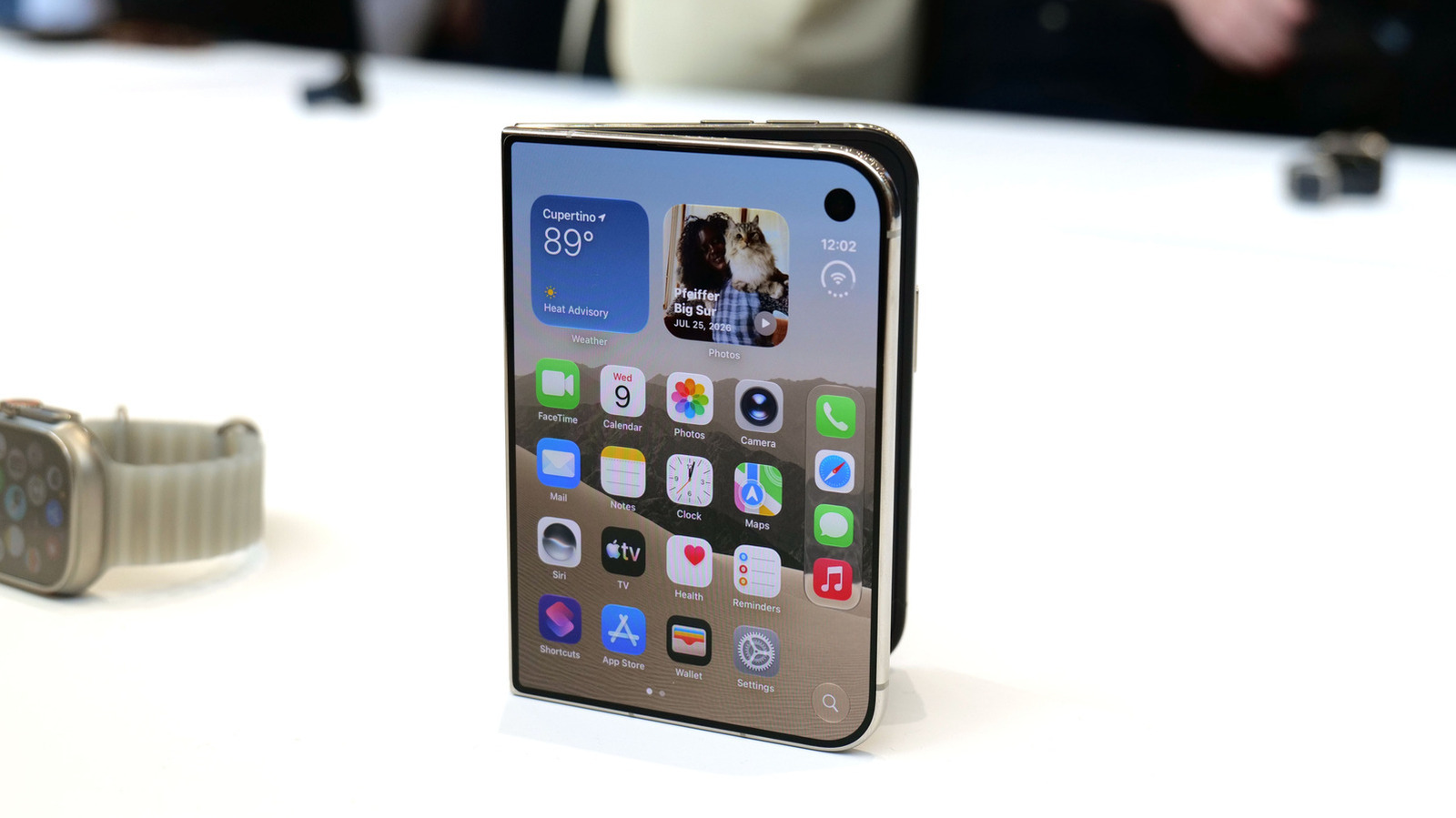
Apple's highly anticipated iPhone Duo, priced at $2,000, has gone on pre-order. While hailed as "Apple's most exciting device in a decade" for its innovative foldable design and immersive display, it comes with significant drawbacks like the absence of FaceID and a premium camera.

AI's Confidence vs. Formal Methods' Rigor: Design Flaws & Verification
While AI accelerates code generation, formal methods remain critical for ensuring system correctness. Languages like TLA+ and tools like Quint enable developers to model and verify system designs before coding, catching subtle flaws. Quint makes formal methods more accessible with developer-friendly syntax and executability. This approach is vital for verifying AI-generated code through trace validation and model-based testing, ensuring reliability against real-world data.

Stop Android Auto Battery Drain: Essential Features to Disable and
Android Auto offers unparalleled convenience, bringing your phone's most useful features directly to your car's display. From navigation and calls to messages and music, it keeps you connected without distracting you

Netflix is laying off around 1,000 employees: Layoffs — Key Details
Netflix is laying off approximately 1,000 employees, or six percent of its global workforce, in its largest-ever job cut. This move targets product, tech, HR, and legal teams to reduce costs and re-prioritize investments despite recent financial growth.

Turn Your Android Phone into a Powerful Desktop Replacement
Learn how to transform your Android phone into a full-fledged desktop computer using external displays and accessories, providing a cost-effective and integrated alternative to new Googlebooks.