
Unlock Desktop Chrome Extensions on Your Android Phone with Kiwi
For years, a common frustration for Android users has been the absence of Chrome extensions. Imagine having access to your favorite desktop browser tools, like ad blockers, grammar checkers, or dark mode enforcers,
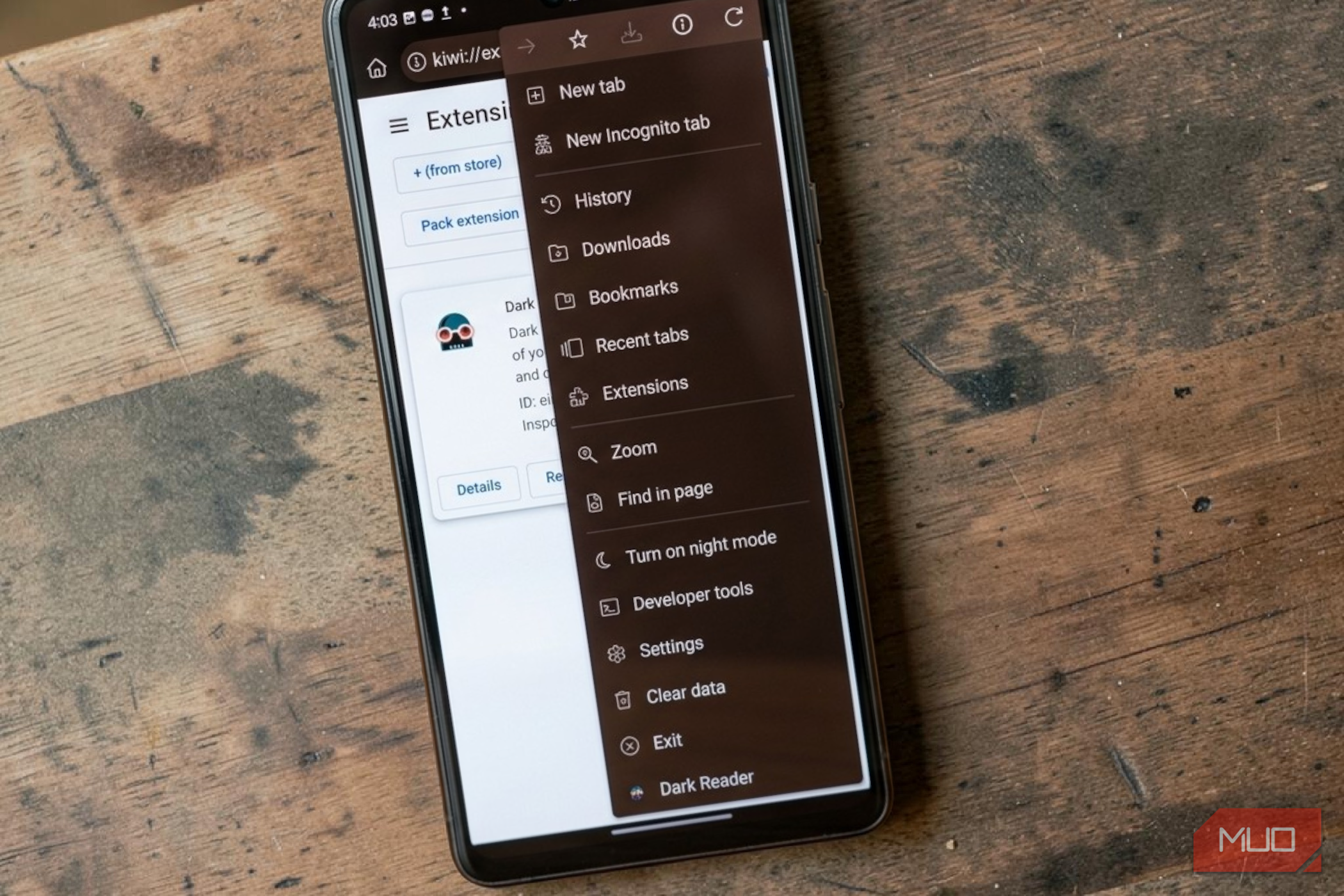
For years, a common frustration for Android users has been the absence of Chrome extensions. Imagine having access to your favorite desktop browser tools, like ad blockers, grammar checkers, or dark mode enforcers, directly on your phone. This guide shows you how to achieve exactly that using Kiwi Browser, a powerful, Chromium-based app that brings full Chrome extension support to Android.
What You'll Accomplish
By following this guide, you will learn how to download and set up Kiwi Browser, navigate its familiar interface, and install Chrome extensions directly from the Chrome Web Store onto your Android device. You’ll transform your mobile browsing experience, making it much more versatile and personalized, much like using a desktop browser.
Why Kiwi Browser?
Kiwi Browser is built on the same open-source Chromium foundation that powers Google Chrome, meaning its interface and underlying technology will feel remarkably familiar. It offers a fast browsing experience and comes packed with features that enhance your mobile browsing beyond what standard Chrome provides. Beyond its standout extension support, Kiwi includes a built-in ad blocker, a pop-up blocker that prevents intrusive content from loading, developer tools for advanced users, and a convenient "Exit" button to fully close the browser.
These combined features make Kiwi Browser feel less like a limited mobile app and more like a desktop browser perfectly adapted for your phone.
Requirements
All you need to get started is an Android smartphone or tablet.
Step-by-Step Guide: Installing Chrome Extensions in Kiwi Browser
Follow these steps to bring the power of Chrome extensions to your Android device.
Step 1: Download and Install Kiwi Browser
The first step is to get Kiwi Browser on your device. You can find it on the Google Play Store or through other trusted Android app repositories. Once downloaded, install it like any other application.
Step 2: Access the Extensions Menu
- Open Kiwi Browser: Launch the app on your Android device.
- Locate the Three-Dot Menu: In the top right corner of the browser window, you’ll find a three-dot menu icon, just like in Chrome. Tap this icon.
- Select "Extensions": Within the dropdown menu, you'll see an option labeled "Extensions." This is the crucial feature that sets Kiwi apart from standard Chrome for Android. Tap it to proceed to the extensions management page.
Step 3: Review the Important Recommendation
The first time you visit the kiwi://extensions page, you'll see an "Important recommendation" notice. This warning highlights the risks associated with cryptocurrency-related extensions and advises against storing crypto assets directly in any browser. It's a valuable piece of advice that emphasizes the importance of verifying the safety of any extension before installation. Read through it and tap "OK" to continue.
Step 4: Install Extensions from the Chrome Web Store
On the kiwi://extensions page, you have two options for adding extensions:
- + (from store): This is the easiest way to browse and install directly from the official Chrome Web Store.
- + (from .zip/.crx/.user.js): This option allows you to load extensions from files you've already downloaded.
For most users, installing from the store is the preferred method:
- Tap "+ (from store)": This action opens the full Chrome Web Store within Kiwi Browser, presented in a desktop-like view, mirroring how it would appear on a laptop.
- Browse or Search for Extensions: You can explore different categories, check editor picks, or use the search bar to find a specific extension. As an example, the popular "Dark Reader" extension, which forces dark mode across websites, is often highlighted in editor picks.
- Add the Extension: Once you've found an extension, its listing will display full details, including ratings, version information, and developer details. Tap the prominent "Add to Chrome" button. Kiwi Browser will then install the extension directly, just as Chrome would on a desktop computer.
Step 5: Manage Your Installed Extensions
After an extension is installed, you’ll notice a few helpful changes:
- Quick Access in the Main Menu: Your most recently installed extensions will appear as their own items at the bottom of the three-dot menu, typically right above the "Exit" option. Tapping this item provides immediate access to the extension's interface. For instance, tapping "Dark Reader" would open its control panel, allowing you to toggle it on/off, set automation, and adjust brightness, contrast, and color schemes.
- Extensions Management Page: Returning to
kiwi://extensionswill now show a card for each installed extension. From here, you can view details or completely remove an extension. - Developer Mode Toggle: The "Developer mode" toggle in the top right of the
kiwi://extensionspage is usually on by default. This enables a side panel that provides a convenient "Open Chrome Web Store" shortcut, making it easy to return and find more extensions on future visits.
Tips for a Smooth Extension Experience
- Test Your Extensions: While many popular productivity and utility extensions like uBlock Origin, Grammarly, Tampermonkey, and Dark Reader function reliably, some extensions that heavily depend on desktop-specific browser behaviors may only work partially. It's a good practice to test new extensions across a few browsing sessions to confirm they perform as expected on your mobile device.
- Prioritize Safety: Always exercise caution when installing extensions. The "Important recommendation" regarding cryptocurrency extensions applies broadly; always vet extensions and their developers to ensure they are trustworthy and do not pose security risks.
Why Kiwi Stands Out (and Why It's Not Yet Mainstream)
Kiwi Browser's brilliance lies in its seamless integration of powerful features, particularly full Chrome extension support, into a familiar and intuitive package. It allows you to nearly replicate your entire desktop browsing setup on your phone, offering a level of customization and functionality that no other Android browser currently matches.
So, why isn't it more widely known? Part of the reason is visibility. Google Chrome is the default browser on most Android devices, and many users never seek alternatives. Additionally, there's understandable skepticism; the idea of running full desktop extensions on a phone might sound clunky, unstable, or even risky, even though Kiwi handles it exceptionally well.
Despite years of opportunity, Google has not added extension support to Chrome for Android. Kiwi Browser, a much smaller project, recognized this need and successfully delivered the feature. Whether you want to block ads, enhance reading, check grammar, or manage tabs, the Chrome Web Store is now at your fingertips on your Android phone. All it takes is a few taps to browse and install.
FAQ
Q: Is Kiwi Browser safe to use?
A: Yes, Kiwi Browser is built on the open-source Chromium project, making it a generally secure foundation. However, the safety of your browsing experience also depends on the extensions you choose to install. Always follow the "Important recommendation" to vet extensions and avoid storing sensitive information, like cryptocurrency assets, directly in any browser.
Q: Do all Chrome extensions work perfectly in Kiwi Browser?
A: Most popular productivity and utility extensions, such as ad blockers, grammar checkers, and dark mode tools, work reliably. However, extensions that rely heavily on desktop-specific browser behaviors may only function partially. It's always a good idea to test each extension to confirm it meets your expectations.
Q: How do I remove an extension from Kiwi Browser?
A: To remove an extension, navigate to the kiwi://extensions page. Each installed extension will be listed with an option to "remove it entirely." Simply tap this option next to the extension you wish to uninstall.
Explore More
With Kiwi Browser, the world of Chrome extensions is now open to your Android device. Experiment with different extensions to find what enhances your mobile productivity and browsing experience the most. You might discover new ways to streamline your workflow or personalize your web interactions, just as you would on a desktop computer.
Related articles

Ditch Merge & Center: The Better Way to Align Text in Excel
Learn to use Excel's "Center Across Selection" to align text across cells without merging, avoiding common data manipulation issues. This guide provides steps to utilize this newly accessible feature and add it to your Quick Access Toolbar.

Ars Technica's Rocket Report: Your Essential Space Industry Briefing
Quick Verdict Ars Technica's Rocket Report, presented by veteran space reporter Stephen Clark, offers an invaluable and meticulously organized weekly (or similar frequency, implied by "Edition 9.15") digest of the most
KDE Plasma 6.8: A Future-Focused 30th Anniversary Update
Quick Verdict KDE Plasma 6.8, arriving as the "30th Anniversary Edition," is a pivotal release that decisively pushes the desktop environment into the future. With a definitive farewell to native X11 sessions and a

Stop Android Auto Battery Drain: Essential Features to Disable and
Android Auto offers unparalleled convenience, bringing your phone's most useful features directly to your car's display. From navigation and calls to messages and music, it keeps you connected without distracting you

Turn Your Android Phone into a Powerful Desktop Replacement
Learn how to transform your Android phone into a full-fledged desktop computer using external displays and accessories, providing a cost-effective and integrated alternative to new Googlebooks.
Android Auto 18 Beta: Glimpse into Google's Car Makeover
Verdict: A Sneak Peek at Tomorrow's Drive Android Auto 18.0 beta isn't the flashy, fully-realized redesign many might be hoping for, but it offers an invaluable look under the hood. What Google is signaling here,