
Turn Your Android into a Custom Macro Controller for Free
Are you tired of fumbling through keyboard shortcuts or wishing you had a dedicated Stream Deck, but not thrilled about the price tag or extra desk clutter? Good news! You can transform your Android phone into a
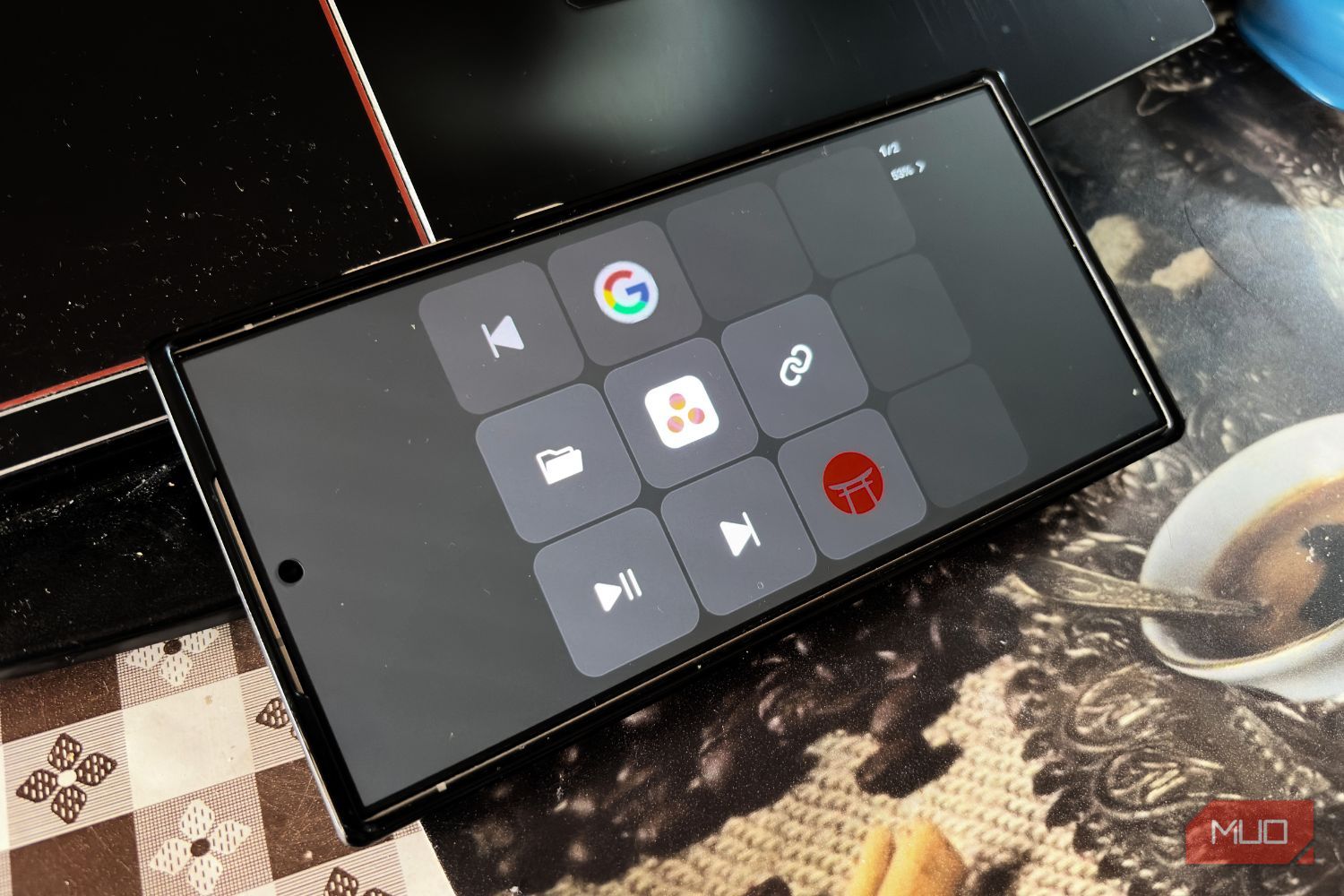
Are you tired of fumbling through keyboard shortcuts or wishing you had a dedicated Stream Deck, but not thrilled about the price tag or extra desk clutter? Good news! You can transform your Android phone into a powerful, custom macro controller using a free app called Keymate. This guide will walk you through the simple steps to set it up, letting you streamline your workflow, launch apps, control media, and much more, all from your smartphone.
Keymate offers a convenient and cost-effective solution for anyone looking to boost their productivity without investing in specialized hardware. Whether you're a content creator, a busy professional, or just someone who wants quicker access to their most-used functions, your Android device can become your personal command center.
What You'll Accomplish
By following this guide, you will:
- Convert your Android device into a customizable macro pad, mimicking the functionality of an expensive Stream Deck.
- Learn to connect your phone to your Windows or macOS computer seamlessly.
- Configure custom buttons to execute hotkeys, type text snippets, launch applications or URLs, manage media, and even control OBS, directly from your phone's screen.
- Enhance your daily workflow by centralizing repetitive tasks into single taps.
Prerequisites
Before you begin, make sure you have the following:
- An Android smartphone (or an iOS device, as Keymate also supports it).
- A Windows or macOS computer.
- Both your phone and computer connected to the same Wi-Fi network.
- Internet access to download the necessary applications.
Step-by-Step Setup Guide
Setting up Keymate is surprisingly quick and straightforward. You'll be ready to create your custom macros in just a few minutes.
Step 1: Install the Keymate Applications
The first step involves downloading and installing the Keymate app on both your mobile device and your computer.
- On your Android device: Open the Google Play Store (or App Store for iOS) and search for "Keymate." Download and install the application.
- On your computer: Open your web browser and navigate to the Keymate desktop client download page (usually found at
keymate.nemostudio.net/downloador linked from the app store page). Download and install the client for your operating system (Windows or macOS).
Step 2: Connect Your Devices
Once both applications are installed, connecting them is effortless, primarily handled by scanning a QR code.
- Launch the Keymate desktop client on your computer. Upon opening, you should see a QR code displayed on the screen.
- Open the Keymate app on your Android smartphone. Tap the "Get Started" button if prompted. The app will guide you through the initial setup, eventually prompting you to connect via Wi-Fi.
- Grant camera permissions to the Keymate app on your phone when requested, as this is necessary for QR code scanning.
- Scan the QR code displayed on your desktop client using your phone's camera through the Keymate app.
Your devices should connect almost instantly, provided they are both on the same Wi-Fi network. You'll see a default button layout on your phone, indicating a successful connection.
Step 3: Customize Your Macro Pad
The real power of Keymate lies in its customization. All configuration is done through the desktop client.
- Access the desktop client: With your phone connected, the Keymate desktop client will display options for customization.
- Adjust the grid layout: You can change the button grid to better suit your phone's screen size or your preference. Options typically include 2x3, 3x4, or 3x5 buttons.
- Configure button display: Choose whether to display the function text, an image, or both for each button. You can also set up multiple pages of shortcuts, allowing for a vast array of macros.
- Assign actions to buttons: To add a macro, click on an empty button slot within the desktop client's interface. A menu will appear with various action types you can assign:
- Hotkey: Trigger keyboard shortcuts (e.g., Ctrl+C, Alt+Tab).
- Text: Type out saved snippets of text (e.g., email templates, common phrases).
- App: Launch specific applications installed on your computer.
- File/Folder: Open frequently used files or folders.
- URL: Open a specific webpage in your default browser.
- Media/Brightness Control: Play/pause music, adjust volume, or change screen brightness.
- Automation: Set up more complex sequences.
- OBS Features: Control OBS Studio functions like switching scenes, starting/stopping streaming, or recording.
- Discord Shortcuts: Integrate with Discord for quick actions.
- Save your changes: Once you've assigned an action, it will appear on your phone's Keymate interface, ready to be triggered with a tap.
Experiment with different layouts and assign actions that align with your most frequent tasks. For example, you could set up buttons to open your work suite apps (like Slack or Google Docs) alongside media controls for background music.
Troubleshooting and Best Practices
While Keymate is generally user-friendly, you might encounter a few minor issues or want to optimize your setup:
- Ensure same Wi-Fi: The most common connection problem is that your phone and computer are not on the exact same Wi-Fi network. Double-check this if you're having trouble connecting.
- Desktop client is essential: Remember that all customization and button assignments must be done via the desktop client. The mobile app is primarily for triggering actions.
- Free tier limitations: The free version of Keymate provides a generous number of buttons, but if you require a significantly larger grid or more advanced plugin ecosystem, you may eventually consider the paid version or dedicated hardware like an Elgato Stream Deck.
- No physical feedback: Keep in mind that using your phone means you won't get the tactile satisfaction of physical buttons. However, the convenience often outweighs this for casual users.
- Focus on repetitive tasks: Maximize Keymate's value by assigning actions to the tasks you perform most often throughout your day. This could be switching tabs, pasting boilerplate text, or launching specific project folders.
Next Steps
Now that you've transformed your Android into a powerful macro controller, take some time to fine-tune your setup. Experiment with different button configurations and discover new ways to integrate Keymate into your workflow. If your needs grow beyond Keymate's free offerings, you might explore alternative apps like Touch Portal or consider a dedicated Stream Deck for a more professional-grade experience with an extensive plugin ecosystem.
FAQ
Q: Is Keymate completely free to use?
A: Keymate is free to download and offers core functionality, including a reasonable number of buttons. However, if you want a larger grid layout beyond the basic options, the app may prompt you for a payment to unlock those premium features.
Q: Can I use Keymate without an internet connection?
A: Keymate operates over your local Wi-Fi network, meaning an active internet connection (connection to the outside world) is not strictly required after initial setup and downloads. However, both your phone and computer must be connected to the same local Wi-Fi network for the connection to work.
Q: What types of actions can I assign to buttons?
A: You can assign a wide range of actions, including keyboard hotkeys, saved text snippets, launching applications, opening files, folders, or URLs, controlling media playback, adjusting screen brightness, triggering automation scripts, and specific OBS Studio functions (like scene switching or starting/stopping streams/recordings), as well as Discord shortcuts.
Related articles
Android 17 QPR2 Beta 7.1: The Performance Relief You've Been Waiting
Android 17 QPR2 Beta 7.1: Finally Fixing the QPR1 Performance Woes Verdict: Android 17 QPR2 Beta 7.1 is a crucial and highly anticipated software update for Google Pixel users, specifically targeting and resolving the

DJI Solo Video Setups: Smart Choices for Lone Creators
This review delves into DJI's recommended solo video setups, highlighting the Osmo Pocket 3 Creator Combo as a top pick for its integrated camera, gimbal, and mic. It also covers stabilizers like the Osmo Mobile 8 and RS 4, and the DJI Mic Mini series for enhanced audio, providing honest pros, cons, and clear buying advice.

in-depth: Chicago-Area Cops Helped HSI Spy on Minnesota Anti-ICE
Chicago-area law enforcement, including local police and HSI agents, conducted undercover surveillance on Minnesota anti-ICE activists at an April 2, 2022, talk in Chicago. This operation was part of a federal conspiracy probe into 15 Minnesota activists facing felony charges related to immigration enforcement resistance. Civil liberties advocates have condemned the surveillance as a troubling intrusion into protected political activity.

Ditch Merge & Center: The Better Way to Align Text in Excel
Learn to use Excel's "Center Across Selection" to align text across cells without merging, avoiding common data manipulation issues. This guide provides steps to utilize this newly accessible feature and add it to your Quick Access Toolbar.

Ars Technica's Rocket Report: Your Essential Space Industry Briefing
Quick Verdict Ars Technica's Rocket Report, presented by veteran space reporter Stephen Clark, offers an invaluable and meticulously organized weekly (or similar frequency, implied by "Edition 9.15") digest of the most
KDE Plasma 6.8: A Future-Focused 30th Anniversary Update
Quick Verdict KDE Plasma 6.8, arriving as the "30th Anniversary Edition," is a pivotal release that decisively pushes the desktop environment into the future. With a definitive farewell to native X11 sessions and a