
Transform Your Workflow: How to Use Edge Drop for an Edge-Mounted
Learn to install, use, and customize Edge Drop, a free Windows clipboard manager that lives on your screen's edge, offering intuitive drag-and-drop functionality for enhanced productivity.
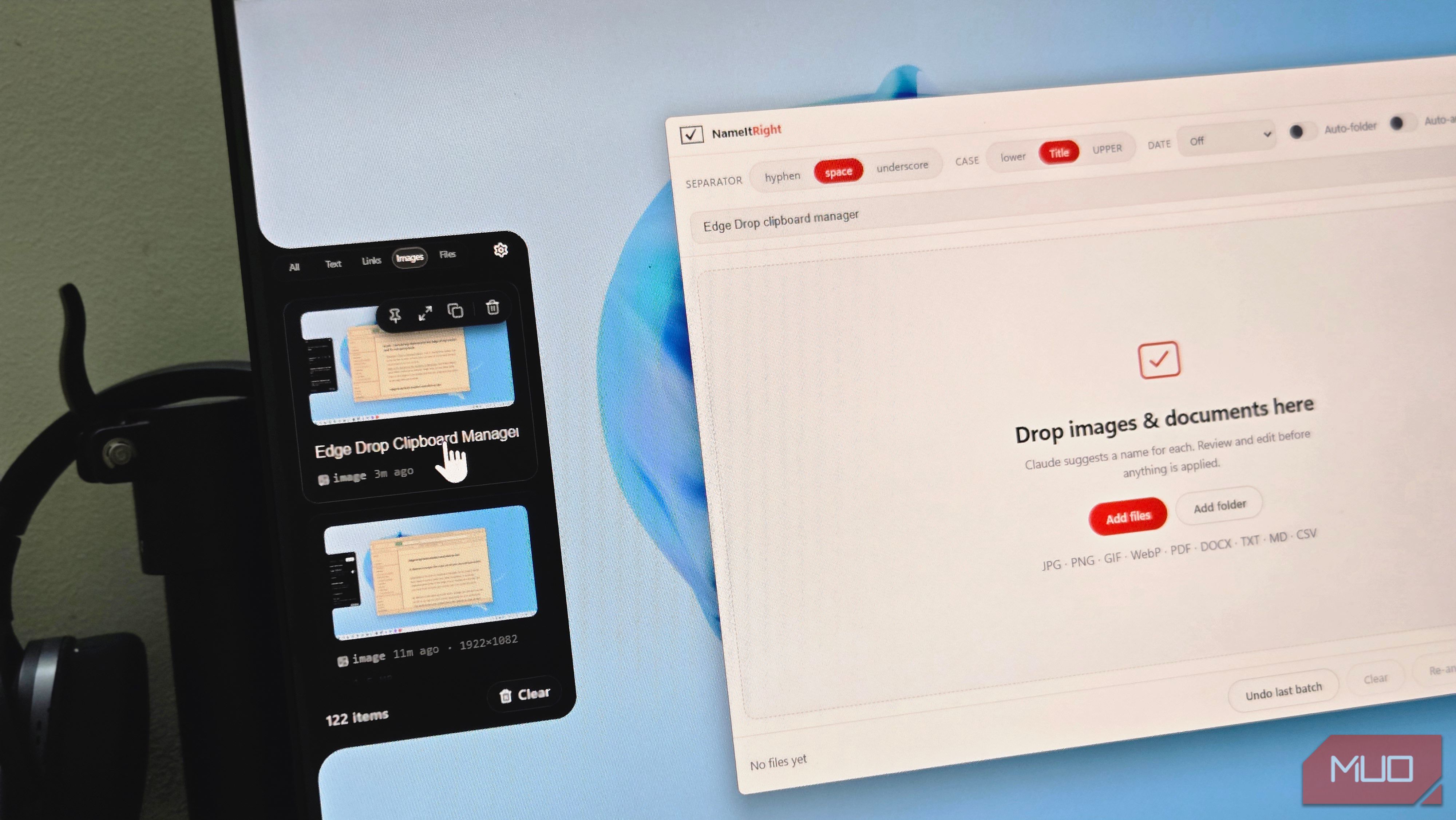
Are you tired of the limited functionality of your standard Windows clipboard? The built-in clipboard history in Windows 11 often falls short with its restricted item count and lack of persistence across restarts. Even powerful open-source alternatives like Ditto, while robust, can feel a bit dated and require specific shortcuts to access. What if your clipboard was always just a hover away, seamlessly integrated into your screen's edge, ready for intuitive drag-and-drop actions?
This guide introduces you to Edge Drop, a modern clipboard manager that redefines how you interact with copied content. It lives discreetly on the edge of your display, appearing only when you need it. By adopting Edge Drop, you'll streamline your daily tasks, from moving files and images to managing text snippets, all with a fluid, drag-and-drop workflow. Say goodbye to clutter and hotkey gymnastics, and discover a more intuitive way to manage your copied items.
By the end of this guide, you will have successfully installed Edge Drop, configured its essential settings, and learned how to leverage its unique features to boost your productivity. We'll also explore how it stacks up against other clipboard managers, helping you decide if it's the right tool for your workflow.
Prerequisites
Before you begin, ensure you have the following:
- A Windows PC (Edge Drop is designed for Windows).
- An active internet connection to download the application.
- Access to the Microsoft Store.
Step 1: Install Edge Drop from the Microsoft Store
Edge Drop is available for free, making it easy to integrate into your system. Follow these steps to get started:
- Open the Microsoft Store: Click on the Start button and type "Microsoft Store," then select the app from the search results.
- Search for Edge Drop: In the Microsoft Store, use the search bar at the top right (or top center) to type "Edge Drop" and press Enter.
- Locate and Install: Find "Edge Drop" in the search results. Click on its listing, then click the Get or Install button to download and install the application. The installation process is typically quick and straightforward.
Once installed, Edge Drop will likely start automatically and tuck itself away as a thin bar on one edge of your screen, ready for use.
Step 2: Understand the Edge Drop Interface and Core Features
Edge Drop's strength lies in its unobtrusive design and intuitive interaction model. Here's how to navigate and use its primary functions:
- Reveal the Clipboard Panel: To access your copied items, simply hover your mouse cursor over the thin bar located on the edge of your display where Edge Drop is active. The full clipboard panel will slide out, revealing your history.
- Browse Your History: The panel displays your copied items. By default, Edge Drop can save up to 500 entries, but you can configure this to store between 100 and 1,000 items based on your needs.
- Interact with Copied Items: For each item in your history, you'll see several options:
- Copy: Click this to copy the item back to your active clipboard.
- Pin: Pin important items so they are not automatically cleared from your history.
- Delete: Remove an item from your clipboard history.
- Preview: This is particularly useful for images or screenshots. Click the preview option to get a larger view, helping you identify the correct item without opening an external application.
- Sort Items by Type: A toolbar at the top of the panel allows you to filter your history. Click on the icons to sort items by:
- Links
- Text
- Images
- Files
- Drag-and-Drop for Seamless Workflow: This is Edge Drop's most compelling feature. Instead of pasting, you can directly drag items from the clipboard panel into other applications. This works for:
- Text: Drag text snippets into documents, email composers, or code editors.
- Images/Screenshots: Drag images directly into image editors, word processors, or upload dialogs.
- Files: Drag actual file objects into folders or application drop zones. This capability to pass real file objects through Windows' drag-and-drop pipeline is a significant advantage over many paste-based clipboard managers.
- Paste Multiple Items Sequentially: If you need to paste several items one after another into a specific area, first select the target area (e.g., place your cursor in a text field). Then, simply click through the desired items in the Edge Drop panel, and they will be pasted in sequence.
- Group and Drop Items: For tasks involving multiple similar assets, Edge Drop allows you to group them into a "stack." For instance, you can gather several screenshots and then drag and drop the entire stack at once into a folder or an application, saving considerable time and clicks.
Step 3: Customize Edge Drop Settings for Your Workflow
Edge Drop offers a dedicated settings panel to tailor the app to your preferences. To access it, you'll typically find an icon in the system tray or within the Edge Drop panel itself that allows you to open settings. The settings are organized into three tabs:
Behaviour Tab
This tab controls how Edge Drop operates:
- Incognito Mode: Toggle this on to temporarily stop Edge Drop from saving copied items. This is ideal for sensitive data like passwords or personal information that you don't want stored in your history.
- Fullscreen Protection: Enable this option to disable the hover trigger when you're using applications in fullscreen, such as playing games or watching videos. This prevents the panel from accidentally sliding out and interrupting your experience.
- Clipboard History Limit: Adjust the number of items Edge Drop stores. You can set it from 100 up to 1,000 entries.
- Auto-Clear Options: Configure when copied items should be automatically cleared from your history, if at all.
- Launch at Login: Ensure Edge Drop starts automatically in the background every time your PC boots up, making it instantly available without manual intervention.
Position Tab
This tab lets you dictate where Edge Drop appears on your screen:
- Edge Selection: Choose between the Left Edge or Right Edge of your display.
- Vertical Position: Use a slider to fine-tune the vertical placement of the bar along the chosen edge.
- Monitor Selection: If you have multiple monitors, you can specify which display Edge Drop should attach to.
- Hover Area Size: Adjust the size of the invisible trigger zone that, when hovered over, reveals the panel (options: small, medium, large).
- Edge Trigger Thickness: Control how thick the invisible trigger bar is (options: small, medium, large).
- Panel Height: Customize the overall height of the revealed clipboard panel (options: small, medium, large).
- Edge Location Hint: Enable this subtle feature to make the screen edge briefly light up when you hover over the wrong spot, helping you quickly find the correct trigger area if you've moved its position.
Appearance Tab
While the source content doesn't detail specific options, this tab generally allows you to customize the visual style of the clipboard panel to better match your system's theme or personal preference.
Edge Drop vs. Ditto: Choosing the Right Clipboard Manager
While Edge Drop offers a fresh and intuitive approach, it's helpful to understand its strengths and weaknesses compared to other established tools like Ditto. This comparison can also serve as a guide if you're experiencing specific workflow needs.
Where Ditto Excels:
- Search Functionality: Ditto allows you to search through your entire clipboard history, which is a powerful feature for retrieving older, specific items. Edge Drop currently lacks this capability.
- Memory Efficiency: As a native application, Ditto generally uses less RAM compared to Edge Drop, which is an Electron-based app. If system resources are a critical concern, Ditto might be more suitable.
- Advanced Features: Ditto offers keyboard shortcuts for quick pasting, supports a virtually unlimited number of saved items, provides backup and restore options for your history, and can even sync clipboard data across multiple networked PCs.
Where Edge Drop Excels:
- Interaction Model: Edge Drop's drag-and-drop workflow is significantly more natural and intuitive for many tasks. Being able to directly drag files, images, or text into another application window feels more seamless than Ditto's hotkey-and-paste method.
- Real File Object Handling: Edge Drop can pass actual file objects to an application's drop zone, which is crucial for workflows involving moving various asset types into different programs or folders. Standard paste-based clipboard managers often cannot replicate this functionality.
- Unobtrusive Design: The always-present, yet hidden, edge panel means your clipboard is instantly accessible without cluttering your taskbar or requiring a hotkey to summon, leading to a cleaner and more focused workspace.
Tips for Enhanced Productivity
- Protect Sensitive Data: Always use Incognito Mode when copying passwords, credit card numbers, or other sensitive information to prevent them from being stored in your persistent history.
- Optimize Placement: Experiment with the Position settings to find the ideal screen edge, vertical placement, and panel height that best suits your multi-monitor setup and primary applications.
- Balance History Size: Adjust the Clipboard History Limit to balance quick access with system memory usage. A higher limit provides more history but might use slightly more resources.
- Leverage Drag-and-Drop: Make it a habit to use the drag-and-drop feature for transferring content, especially images and files, as it's often faster and more direct than traditional copy-paste.
Conclusion
Edge Drop offers a modern, slick, and highly intuitive approach to clipboard management on Windows. Its unique edge-of-screen presence and powerful drag-and-drop capabilities make it an invaluable tool for anyone looking to streamline their digital workflow. While it may not have every advanced feature found in older, more established managers like Ditto, its interaction model provides a significant productivity boost for many users. Give Edge Drop a try, and you might find yourself, like many, wondering how you ever managed without your clipboard living conveniently at your screen's edge.
FAQ
Q: Is Edge Drop truly free to use? A: Yes, Edge Drop is available for free download from the Microsoft Store.
Q: Can Edge Drop be used on multiple monitors? A: Yes, the Position tab in the settings panel allows you to select which monitor Edge Drop attaches to in a multi-display setup.
Q: What if I copy a password and don't want it stored in Edge Drop's history? A: You can enable Incognito Mode in the Behaviour tab of Edge Drop's settings. This temporarily stops the app from saving any copied items, protecting your sensitive information.
Related articles

Ditch Merge & Center: The Better Way to Align Text in Excel
Learn to use Excel's "Center Across Selection" to align text across cells without merging, avoiding common data manipulation issues. This guide provides steps to utilize this newly accessible feature and add it to your Quick Access Toolbar.

Ars Technica's Rocket Report: Your Essential Space Industry Briefing
Quick Verdict Ars Technica's Rocket Report, presented by veteran space reporter Stephen Clark, offers an invaluable and meticulously organized weekly (or similar frequency, implied by "Edition 9.15") digest of the most

Stop Android Auto Battery Drain: Essential Features to Disable and
Android Auto offers unparalleled convenience, bringing your phone's most useful features directly to your car's display. From navigation and calls to messages and music, it keeps you connected without distracting you

Turn Your Android Phone into a Powerful Desktop Replacement
Learn how to transform your Android phone into a full-fledged desktop computer using external displays and accessories, providing a cost-effective and integrated alternative to new Googlebooks.

Terafab EUV Tool: Ambitious but Delayed Vision
Quick Verdict Elon Musk's Terafab, an ambitious venture into advanced semiconductor manufacturing, is reportedly set to receive its first cutting-edge Extreme Ultraviolet (EUV) lithography tool from ASML in mid-2027.

howto: Four Ways the Fitbit Edge Is Better Than the Charge 6, and Two
Learn the key differences between the Fitbit Edge and Charge 6, including four advantages of the Edge and two areas where it falls short, to help you choose the best fitness tracker for your needs.