
Stop Memorizing IPs & Ports: Set Up a Homelab Dashboard
One of the most persistent headaches in managing a homelab, especially as it grows, is keeping track of all your services. Initially, a few memorized IP addresses and port numbers might suffice for a small setup.
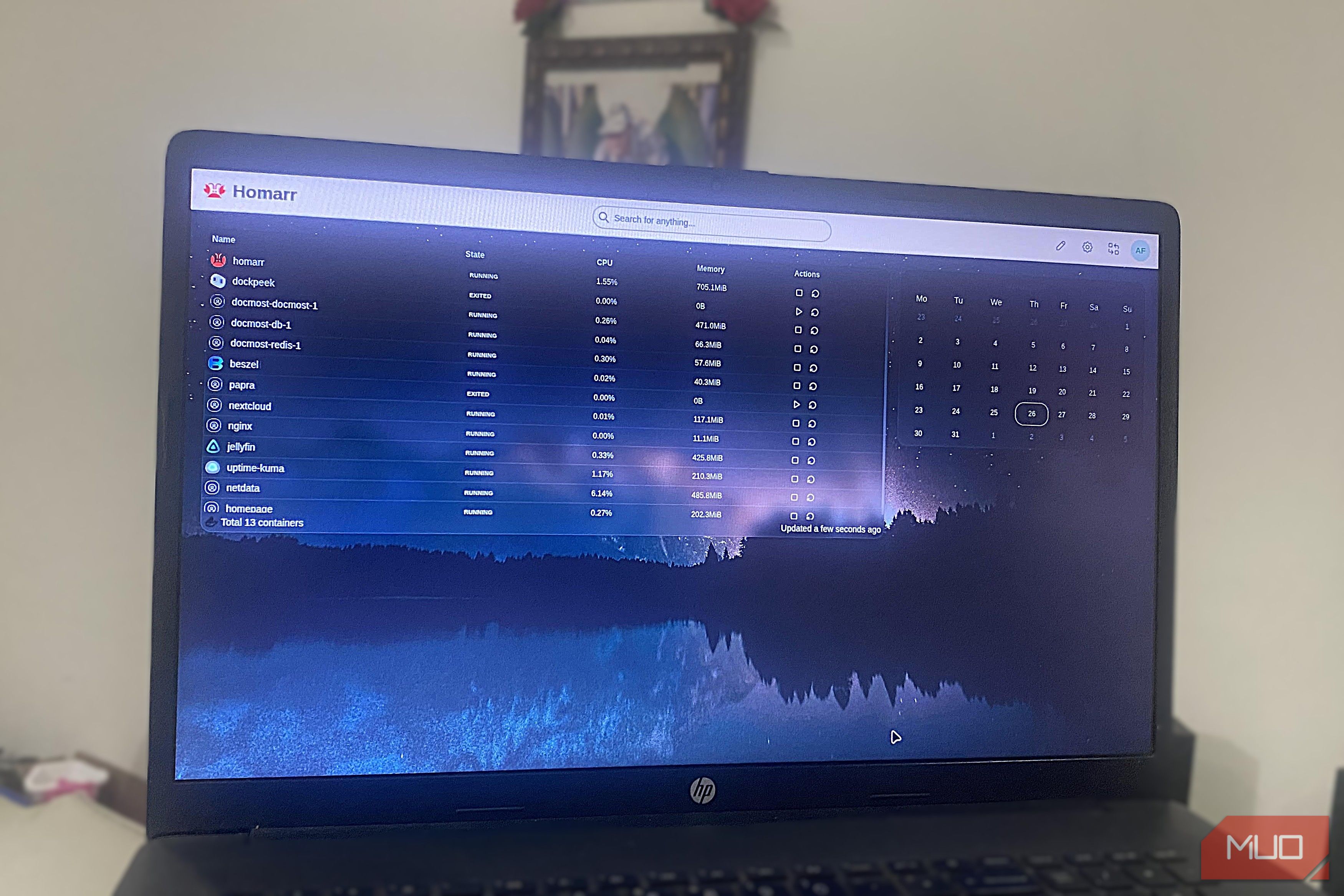
One of the most persistent headaches in managing a homelab, especially as it grows, is keeping track of all your services. Initially, a few memorized IP addresses and port numbers might suffice for a small setup. However, this approach quickly becomes unsustainable. If you've found yourself struggling with scattered bookmarks, outdated links, or simply too many numbers to remember, you're not alone. I faced the same challenge, and it led me to discover Homarr, a modern dashboard that completely transformed how I access my homelab.
This guide will walk you through setting up Homarr, enabling you to centralize access to all your apps, containers, and services through a single, intuitive interface. By the end, you'll have a beautiful, live dashboard that replaces endless memorization and scattered bookmarks with effortless clicks.
The Homelab Access Challenge
My homelab's growth was a double-edged sword. While exciting to add new services like Jellyfin, Sonarr, Radarr, and Prowlarr, each new addition piled on the mental load. I found myself memorizing specific ports: 8096 for Jellyfin, 8989 for Sonarr, 7878 for Radarr, 9696 for Prowlarr, and many more. This wasn't just about ports; it was also about remembering the IP addresses for each service, which were often inconsistent or changed.
My attempt to solve this with browser bookmarks only led to another set of problems. Bookmarks were fragmented across multiple devices, quickly became outdated, and often led me to the wrong service. This constant struggle to locate and access my services became an unnecessary source of stress, revealing that my true issue wasn't the number of services, but a lack of a proper, structured system to reach them.
Discovering Homarr: A Game Changer
After trying various solutions, including Homepage (which I liked but found too config-heavy), I explored Homarr. I approached it skeptically, but its straightforward setup and seamless functionality quickly won me over. Homarr is a beautiful, modern dashboard designed to provide effortless access to all your homelab's apps, containers, and services without the need to edit complex configuration files.
Homarr instantly replaced my chaotic system. Where I once had to recall specific IP addresses and ports or hunt through scattered bookmarks, I now simply click a tile on my Homarr dashboard. The process of adding services is highly intuitive, primarily drag-and-drop, and once set up, a single Homarr URL provides consistent access across all my devices—laptop, phone, or tablet.
Let's look at how Homarr streamlines common homelab tasks:
- Accessing Jellyfin: Instead of memorizing
:8096, you just click a tile on the dashboard. - Finding Sonarr: Forget checking an old bookmark; a click on a mobile-friendly tile is all it takes.
- Opening Radarr remotely: No more typing IP + port; your dashboard tile works on any device.
- Sharing access: Instead of sending an IP and port, you can send one Homarr URL (with optional authentication).
- Adding new services: Rather than creating a new bookmark, it's a simple drag-and-drop action to add a new tile in minutes.
Homarr didn't just replace my bookmarks; it eliminated the mental burden of remembering countless details, making homelab management significantly less stressful.
Prerequisites for Setting Up Homarr
Before you begin the installation, ensure you have the following:
- Docker: Homarr is most easily installed using Docker. If you don't have Docker running on your homelab server, it's recommended to install it first. This guide assumes you have basic Docker knowledge.
Step-by-Step: Installing Homarr with Docker Compose
The simplest and most recommended way to install Homarr is by using Docker Compose. This allows you to define your Homarr service in a single docker-compose.yml file.
-
Create a Directory: Start by creating a dedicated directory for your Homarr configuration on your server. For example: bash mkdir homarr cd homarr
-
Create the
docker-compose.ymlfile: Inside yourhomarrdirectory, create a file nameddocker-compose.yml(orcompose.yaml) and paste the following content:yaml homarr: container_name: homarr image: ghcr.io/homarr-labs/homarr:latest restart: unless-stopped volumes: - /var/run/docker.sock:/var/run/docker.sock # Optional: for container status widgets - ./homarr/appdata:/appdata environment: - SECRET_ENCRYPTION_KEY=YOUR_ENCRYPTION_KEY # IMPORTANT: Change this! ports: - '7575:7575'
Let's break down the important parts of this file:
container_name: homarr: Assigns a readable name to your Docker container.image: ghcr.io/homarr-labs/homarr:latest: Specifies the Homarr Docker image to pull.restart: unless-stopped: Ensures Homarr restarts automatically unless you manually stop it.volumes:/var/run/docker.sock:/var/run/docker.sock: This volume mount is optional but recommended. It allows Homarr to communicate with your Docker daemon to display live container status widgets. If you omit this, remove the line../homarr/appdata:/appdata: This maps a local directory (./homarr/appdatarelative to yourdocker-compose.ymlfile) to the container's/appdatadirectory. This is where Homarr stores its configuration, ensuring your settings persist even if the container is removed.
environment:SECRET_ENCRYPTION_KEY=YOUR_ENCRYPTION_KEY: This is crucial for security. You must replaceYOUR_ENCRYPTION_KEYwith a unique, strong encryption key.
ports: - '7575:7575': This maps port 7575 on your host machine to port 7575 inside the Homarr container. You can change the host port (7575on the left side) if another service is already using it.
-
Generating a Secure Encryption Key: It's essential to set a unique
SECRET_ENCRYPTION_KEYfor security, especially when you start using authentication and integrations within Homarr. You can generate a strong hexadecimal key using OpenSSL with the following command: bash openssl rand -hex 32Copy the output of this command and paste it as the value for
SECRET_ENCRYPTION_KEYin yourdocker-compose.ymlfile. -
Start Homarr: Once your
docker-compose.ymlfile is ready and your encryption key is set, navigate to the directory where you saved the file in your terminal and run: bash docker compose up -dThis command will pull the Homarr image, create the container, and start the service in detached mode (
-d), meaning it will run in the background. -
Access Homarr: Open your web browser and navigate to
http://your_server_ip:7575(replaceyour_server_ipwith the actual IP address of your homelab server). You should see the Homarr dashboard. -
Configuring Your Homarr Dashboard: Once Homarr is running, the rest of the setup is entirely GUI-driven. You'll be able to:
- Create New Boards: Organize your services into different sections or pages.
- Drag-and-Drop Tiles: Easily add services like Jellyfin, Sonarr, Radarr, or custom links by dragging tiles onto your board.
- Group Services: Create logical groupings, such as a cluster for media apps, a section for download clients, or a dedicated area for network tools like AdGuard. This allows for a clean and personalized layout.
- Enable Container Status Widgets (Optional): If you mounted the Docker socket, you can enable widgets that show the live status of your Docker containers, providing an additional layer of visibility into your services.
I completed my initial Homarr setup in less than twenty minutes, which was significantly faster and less frustrating than trying to untangle my existing bookmark folders.
Beyond Basic Bookmarks: Homarr's Live Integrations
Initially, I assumed dashboards were just pretty bookmark pages. Homarr proved me wrong with its powerful live data integrations. It goes far beyond static links by providing real-time information about your services directly on the dashboard.
For example:
- Media Servers (Jellyfin/Plex): Homarr displays the server status and even shows available media.
- Download Clients (Sonarr/Radarr/qBittorrent/SABnzbd): You can see active download queues and library updates at a glance.
- System Info: Integrate widgets for system statistics, time, and weather to make your dashboard a complete homelab front page.
These integrated service indicators are invaluable, allowing you to quickly see if a service is up or down without needing to open each individual application. It provides a comprehensive overview of your homelab's health and activity, all from one central location.
Homarr vs. Other Homelab Dashboards: Finding Your Fit
While Homarr is an excellent choice, several other dashboard options exist, such as Homepage and Heimdall. Understanding their differences can help you confirm Homarr is the right fit for your needs.
- Homarr: Best for users seeking a balance of simplicity and power. It's UI-first with Docker setup, very easy to use, offers extensive UI-configured live integrations, and provides flexible visual customization with low maintenance.
- Homepage: Ideal for power users who enjoy deep customization through YAML configuration files. It offers very high customization and live integrations but can be moderate to high in complexity and maintenance.
- Heimdall: A lightweight, UI-based option that is very easy to use. It offers basic customization and minimal live integrations, best suited for those who need a straightforward, simple dashboard.
It's important to remember that Homarr is primarily for access and monitoring, not full server administration or management tasks like SSH. While it provides visibility into your Docker containers, it doesn't replace tools like DockPeek for specific Docker container management.
Tips for a Great Homarr Experience
- Strong Encryption Key: Always use a unique and robust
SECRET_ENCRYPTION_KEYto protect your dashboard's configuration and any sensitive data from integrations. - Logical Grouping: Take advantage of Homarr's grouping features. Organizing services by category (e.g., "Media," "Network Tools," "Utilities") makes your dashboard much more intuitive and efficient.
- Leverage Live Integrations: Explore and set up the various live integrations for your services. The real-time data is one of Homarr's strongest features, providing significant value beyond simple links.
- Mount Docker Socket: If you're using Docker for your services, mounting the Docker socket in your
docker-compose.yml(as shown in the setup steps) enables container status widgets, giving you immediate insight into whether your services are running.
Troubleshooting Homarr Setup
Homarr's Docker-based setup is generally robust, but here are a few common points to check if you encounter issues:
SECRET_ENCRYPTION_KEYMissing/Invalid: Ensure you've replacedYOUR_ENCRYPTION_KEYwith a securely generated key. An invalid or missing key can prevent Homarr from starting or functioning correctly.- Port Conflicts: If Homarr isn't accessible, another service might be using port
7575on your host. Change the host port inports: - '7575:7575'to something else (e.g.,'8080:7575') and try again. - Docker Not Running: Verify that Docker is installed and running on your server (
sudo systemctl status docker). - Incorrect
docker-compose.ymlSyntax: YAML files are sensitive to indentation. Double-check yourdocker-compose.ymlfor any syntax errors. - Volume Permissions: Ensure the directory you're mounting for
./homarr/appdatahas the correct permissions for the Docker user to write to it.
Next Steps for Your Homelab Dashboard
With Homarr successfully set up, your homelab experience will be significantly smoother. Consider these next steps to further enhance your dashboard:
- Explore More Widgets: Dive into Homarr's extensive widget library, including custom RSS feeds, news, and weather, to make your dashboard even more personalized.
- Add Authentication: For added security, especially if your Homarr instance is accessible from outside your local network, explore Homarr's built-in authentication options.
- Connect All Your Services: Systematically add every homelab service you use to Homarr, even those you rarely access, to ensure truly centralized management.
- Set as Browser Homepage: Consider setting your Homarr dashboard as your browser's default homepage or new tab page for instant access every time you open your browser.
FAQ
Q: What is the primary benefit of using Homarr for my homelab?
A: The main benefit of Homarr is eliminating the need to memorize IP addresses and port numbers for your various homelab services. It centralizes all your services into a single, intuitive dashboard with clickable tiles, providing seamless access and often displaying live status information, thus reducing stress and improving efficiency.
Q: Can Homarr be used to manage my Docker containers or SSH into my servers?
A: No, Homarr is designed for accessing and monitoring your services, not for full server administration or Docker container management. While it can display the status of your Docker containers if configured, it does not replace command-line tools like SSH or dedicated Docker management interfaces for administrative tasks.
Q: How does Homarr compare to simply using browser bookmarks for my services?
A: Homarr offers significant advantages over browser bookmarks. Bookmarks can become scattered across devices, outdated, and lack any dynamic information. Homarr, on the other hand, provides a single, consistent URL for all your services, offers a visually organized and customizable interface, and features live integrations that display real-time data and server statuses, providing much richer functionality than static links.
Related articles

Ditch Merge & Center: The Better Way to Align Text in Excel
Learn to use Excel's "Center Across Selection" to align text across cells without merging, avoiding common data manipulation issues. This guide provides steps to utilize this newly accessible feature and add it to your Quick Access Toolbar.

Tesla Unveils Thruster-Equipped Roadster, 2028 Production Targeted
Tesla has unveiled its second-generation Roadster, featuring cold-gas thrusters co-developed with SpaceX, enabling it to jump and flip. The electric sports car demonstrated 0-60mph in an astonishing 0.81 seconds, with production targeted for 2028. This highly anticipated reveal also serves as a key recruitment tool for Tesla's ambitious AI and robotics initiatives.

Amazon Prime Video Launches AI-Powered Prime 360 for NBA Coverage
Amazon Prime Video is elevating its NBA coverage with the introduction of Prime 360, an AI-powered replay system offering immersive, 'fly through' views of the action. Kicking off its second season, Prime Video also adds Yahoo fantasy integration and gains exclusive Eastern Conference Finals rights, expanding its tech-driven sports broadcast. The new features aim to deliver a unique and interactive viewing experience for basketball fans.

Stop Android Auto Battery Drain: Essential Features to Disable and
Android Auto offers unparalleled convenience, bringing your phone's most useful features directly to your car's display. From navigation and calls to messages and music, it keeps you connected without distracting you

Turn Your Android Phone into a Powerful Desktop Replacement
Learn how to transform your Android phone into a full-fledged desktop computer using external displays and accessories, providing a cost-effective and integrated alternative to new Googlebooks.

howto: Four Ways the Fitbit Edge Is Better Than the Charge 6, and Two
Learn the key differences between the Fitbit Edge and Charge 6, including four advantages of the Edge and two areas where it falls short, to help you choose the best fitness tracker for your needs.