
Snipping Tool Transformed: 5 New Features You Need to Try Now
Discover 5 powerful new Snipping Tool features, including Quick Markup, OCR, and GIF recording, to enhance your productivity in just a few steps.
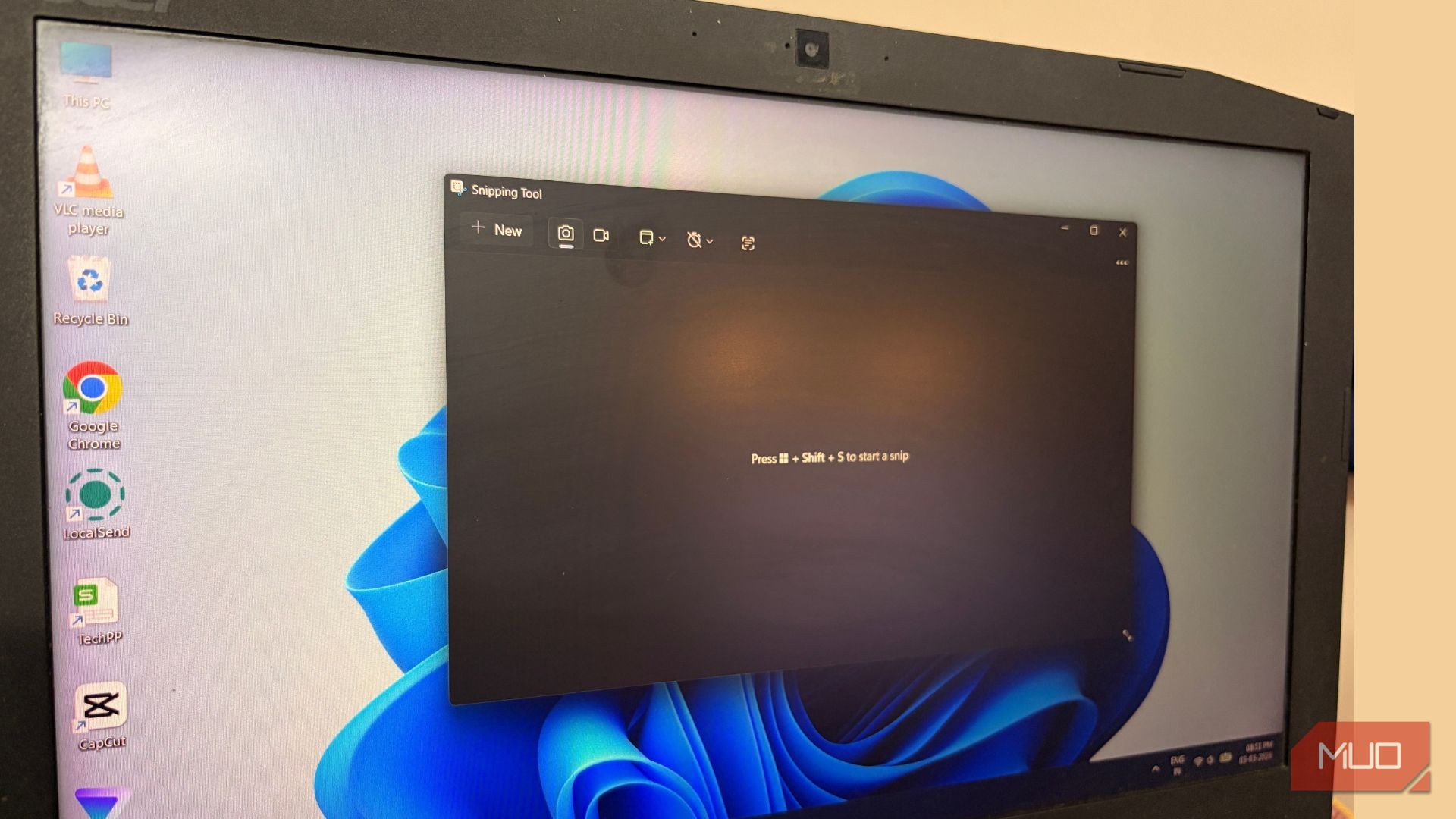
Are you still relying on basic screenshot methods or, worse, a clunky third-party app? If your answer is yes, then it's time to reintroduce yourself to the Windows Snipping Tool. Once a simple screen-grabber, this humble utility has undergone a remarkable transformation, evolving into a productivity powerhouse packed with features that can streamline your workflow and save you precious time.
In this guide, we'll dive into five fantastic new features that make the Snipping Tool way more useful than it used to be. You'll learn how to annotate, extract text, grab colors, record GIFs, and even use AI for perfect screenshots, all without ever leaving the app. Get ready to discover your new default screenshot companion!
Before You Start: Prerequisites and Requirements
To make the most of these exciting new features, ensure you have:
- Windows Operating System: The Snipping Tool is built into Windows.
- Updated Snipping Tool: Many of these features were rolled out in recent updates. Make sure your app is updated to the latest version. For example, the built-in color picker was added in version 11.2504.38.0 (May 2025 update).
- Copilot+ PC (Optional but Recommended): For the advanced "Perfect Screenshot" feature, you'll need a Copilot+ PC equipped with supported processors like Snapdragon X Elite/Plus, Intel Core Ultra 200V series, or AMD Ryzen AI 300 series.
Ready? Let's explore how to supercharge your snipping game!
1. Quick Markup for Instant Edits
Gone are the days of taking a screenshot, saving it, opening it in a separate editor, marking it up, and then saving it again. The new Quick Markup feature allows you to annotate and edit your snips directly within the Snipping Tool's editor, drastically cutting down your workflow.
How to Use Quick Markup:
- Launch the Snipping Tool: Press Win + Shift + S on your keyboard to activate the snipping interface.
- Select Your Area: Use your mouse to drag and select the rectangular area of your screen you wish to capture. Ensure the "Rectangle" option is selected in the Snipping area options (usually the default).
- Access Editing Options: Once you release the mouse, your captured snip will automatically open in the Snipping Tool editor. Here, you'll see an icon resembling a picture with a pencil, which represents the Quick Markup options. You can also press Ctrl + E to bring up these tools.
- Annotate and Edit: You'll find a range of tools at your disposal, including:
- Eraser: To correct any mistakes.
- Shapes: Add arrows, circles, or other shapes to highlight elements.
- Highlighter: Emphasize important text or areas.
- Pen: Draw freehand or write notes.
- Visual Search with Bing: For context-based searching.
- Share: Easily send your annotated snip.
- Finalize Your Snip: After you've finished editing, you have three convenient options:
- Capture (Ctrl + Enter): To finalize and use the edited snip.
- Save (Ctrl + S): To save your edited screenshot to your preferred location.
- Copy only (Ctrl + C): To copy the edited image directly to your clipboard, ready to paste.
This feature is a game-changer for anyone who regularly needs to point out details or add context to their screenshots.
2. Built-in Color Picker
For graphic designers, content creators, or anyone who needs to match specific colors on their screen, the Snipping Tool now includes a built-in color picker. This eliminates the need for third-party tools, allowing you to quickly grab exact HEX, RGB, or HSL codes from any pixel on your display.
How to Use the Color Picker:
- Open the Snipping Tool: You can either press Win + Shift + S to launch the snipping interface or click the Snipping Tool icon from your Start Menu.
- Select the Dropper Icon: In the Snipping Tool window, look for a small dropper icon. Click it to activate the color picker.
- Hover and Click: Move your mouse cursor over the specific color you wish to sample anywhere on your screen. As you hover, you'll see a preview of the color. Click once you've found the perfect shade.
- Copied to Clipboard: The exact color code (e.g., HEX, RGB) will instantly be copied to your clipboard. You can now paste it directly into a CSS file, design software, or any other application.
This feature is incredibly useful for ensuring consistency in branding, tweaking layouts, or simply getting the perfect shade for your projects.
3. Optical Character Recognition (OCR) with Text Actions & Quick Redact
Extracting text from images or protecting sensitive information has never been easier. The Snipping Tool's OCR capabilities allow you to copy text from any image or locked PDF, and its Quick Redact function can automatically black-box personal details.
How to Extract Text (Text Actions):
- Take Your Snip: Capture a screenshot of any image or document (like a locked PDF) that contains text using Win + Shift + S.
- Open the Editor: Your snip will appear in the Snipping Tool editor.
- Click Text Actions: Look for the "Text Actions" button in the editor toolbar and click it.
- Copy Text: The tool will analyze the image for text. You can then click to copy all detected text to your clipboard. The best part? It maintains the original structure, so if you snip a table, it copies as a table ready for pasting into Word or Excel.
How to Redact Sensitive Information (Quick Redact):
- Snip Your Content: Take a screenshot of an interface, document, or page that displays personal or sensitive information.
- Open the Editor: The snip opens in the Snipping Tool editor.
- Activate Redact: Click the "Text Actions" button (often referred to as the OCR button in this context) and then select the Quick Redact option.
- Automatic Black-boxing: The Snipping Tool's intelligent AI will automatically detect and black-box common personal details, such as email addresses, phone numbers, and names, saving you the hassle of manual blurring.
These features are invaluable for researchers, writers, or anyone who needs to quickly pull information or protect privacy in their shared screenshots.
4. Export Recording as Animated GIFs
The Snipping Tool isn't just for static images anymore. It has evolved into an efficient screen recorder, capable of turning short video clips into animated GIFs. This is perfect for creating dynamic, concise tutorials or demonstrating quick actions within software.
How to Record and Export a GIF:
- Open the Snipping Tool: Launch the application from your Start Menu or by searching for it.
- Switch to Recording Mode: In the Snipping Tool window, click the video camera icon to switch from screenshot mode to screen recording mode.
- Select Your Area: Drag your mouse to define the area of your screen you want to record.
- Start Recording: Click the Start button (often a red circle icon).
- Perform Your Action: Execute the steps or action you want to capture. The Snipping Tool allows you to record up to the first 30 seconds of video for GIF export.
- Stop Recording: Once you're done, click the Stop button (a red square icon).
- Save as GIF: In the playback window that appears, look for a "GIF icon" or a button that says Save as GIF. Click this option.
- Choose Quality and Save: You'll typically be prompted to select the output quality, which helps manage the file size. Choose your preferred quality and then save your animated GIF to your computer.
Animated GIFs are fantastic for explaining complex processes that static images can't fully convey, making your guides and tutorials much more engaging.
5. Perfect Screenshot (AI-powered Cropping)
For users with a Copilot+ PC, the Snipping Tool introduces a revolutionary feature called Perfect Screenshot. This AI-powered capability eliminates sloppy cropping by automatically adjusting the capture area to tightly and professionally frame your content.
How Perfect Screenshot Works:
- Initiate Snip: On your Copilot+ PC, press Win + Shift + S to launch the Snipping Tool.
- Select an Area: Drag your mouse to select an initial area of your screen, as you normally would.
- AI Auto-Adjusts: The built-in AI immediately analyzes the content within your selection (whether it's an application window, a dialog box, or a block of text) and automatically refines the borders to perfectly frame the subject.
- Polished Look: The result is a professional-looking screenshot every time, without the need for manual adjustments or trial-and-error cropping.
This feature ensures your screenshots are always neat and perfectly composed, enhancing the visual appeal of your work. Remember, this advanced functionality requires specific Copilot+ PC processors (Snapdragon X Elite/Plus, Intel Core Ultra 200V series, and AMD Ryzen AI 300 series).
Troubleshooting Tips
- Feature Not Showing? Ensure your Snipping Tool is updated. You can check for updates via the Microsoft Store.
- Hotkey Issues? If Win + Shift + S doesn't work, ensure you haven't assigned this shortcut to another application. Restarting your computer can sometimes resolve minor glitches.
- Perfect Screenshot Not Available? Confirm you are using a Copilot+ PC with one of the supported processors mentioned above. This is a hardware-specific feature.
Wrapping Up and Next Steps
The Microsoft Snipping Tool has truly grown up! With these powerful new features, it's no longer just a basic screen-grabber but a versatile productivity tool capable of replacing many third-party screenshot applications. Its evolution makes it an indispensable asset for anyone working on a Windows PC.
Take some time to explore these new capabilities. Incorporating them into your daily workflow can significantly speed up your tasks and make your digital creations more professional and impactful. You might be surprised at how much more efficient you become!
FAQ
Q: How can I check if my Snipping Tool is updated to the latest version?
A: You can check for and install updates for the Snipping Tool via the Microsoft Store. Open the Microsoft Store, click on "Library" in the sidebar, and then click "Get updates" or manually search for the Snipping Tool to see its version and update status.
Q: Is the "Perfect Screenshot" feature available on all Windows PCs?
A: No, the "Perfect Screenshot" feature is exclusive to Copilot+ PCs. These are specific Windows computers equipped with AI-accelerated processors like Snapdragon X Elite/Plus, Intel Core Ultra 200V series, and AMD Ryzen AI 300 series, which provide the necessary AI capabilities for this function.
Q: What is the maximum duration for a screen recording that can be exported as a GIF?
A: The Snipping Tool allows you to export the first 30 seconds of a screen recording as an animated GIF. If your recording is longer, only the initial 30 seconds will be converted. This limit helps keep GIF file sizes manageable and focused on short, clear demonstrations.
Related articles

Apple Unveils iPhone Duo: Pricey Foldable Sees Soaring Demand
Apple has officially entered the foldable smartphone arena with the long-anticipated launch of the iPhone Duo. Priced starting at a hefty $1,999, the device features a 5.4-inch outer display and a larger 7.6-inch inner
TCG Pocket Responds: A Much-Needed Pace Shift for Pokémon Fans
Pokémon TCG Pocket is rolling out a major update for its second anniversary, primarily addressing player concerns about overwhelming content releases by shifting to a six-week set schedule. This aims to curb player decline and improve overall engagement by giving trainers more time to collect and strategize. The update also adds new collection methods, improved deck-building features, and enhanced trading functionality.

Ditch Merge & Center: The Better Way to Align Text in Excel
Learn to use Excel's "Center Across Selection" to align text across cells without merging, avoiding common data manipulation issues. This guide provides steps to utilize this newly accessible feature and add it to your Quick Access Toolbar.

Tesla Unveils Thruster-Equipped Roadster, 2028 Production Targeted
Tesla has unveiled its second-generation Roadster, featuring cold-gas thrusters co-developed with SpaceX, enabling it to jump and flip. The electric sports car demonstrated 0-60mph in an astonishing 0.81 seconds, with production targeted for 2028. This highly anticipated reveal also serves as a key recruitment tool for Tesla's ambitious AI and robotics initiatives.

AI's Confidence vs. Formal Methods' Rigor: Design Flaws & Verification
While AI accelerates code generation, formal methods remain critical for ensuring system correctness. Languages like TLA+ and tools like Quint enable developers to model and verify system designs before coding, catching subtle flaws. Quint makes formal methods more accessible with developer-friendly syntax and executability. This approach is vital for verifying AI-generated code through trace validation and model-based testing, ensuring reliability against real-world data.
Amazon Prime Video Launches AI-Powered Prime 360 for NBA Coverage
Amazon Prime Video is elevating its NBA coverage with the introduction of Prime 360, an AI-powered replay system offering immersive, 'fly through' views of the action. Kicking off its second season, Prime Video also adds Yahoo fantasy integration and gains exclusive Eastern Conference Finals rights, expanding its tech-driven sports broadcast. The new features aim to deliver a unique and interactive viewing experience for basketball fans.