
Six Things to Know When Switching From Windows to macOS - Your Smooth
Switching from Windows to macOS? This guide explains six key differences, from the Menu Bar and Apple Menu to app management, Finder, System Settings, and keyboard shortcuts, ensuring a smooth transition.

So, you've made the leap and are now the proud owner of a new Mac! Welcome to the Apple ecosystem. Many users are switching to macOS for the first time, and it's perfectly normal to feel a bit disoriented when moving from an operating system like Windows that you've known for years. While macOS has its unique quirks, it's designed to be intuitive, and with this guide, you'll quickly familiarize yourself with the key differences and get comfortable navigating your new desktop.
This guide will walk you through six essential things to know about macOS, helping you understand how it differs from Windows and where to find familiar functionalities. By the end, you'll feel more confident using your Mac for everyday tasks.
Prerequisites
Before you dive in, ensure you have:
- Your new macOS device (MacBook, iMac, Mac mini, etc.) powered on and set up.
- Basic familiarity with using a computer operating system, such as Windows.
Let's explore the crucial adjustments you'll make when switching to macOS.
1. Understanding the macOS Menu Bar
One of the most significant visual changes you'll notice is the Menu Bar at the very top of your screen. Unlike Windows, where app menus are attached to individual program windows and the taskbar handles system shortcuts at the bottom, macOS combines these elements.
- Centralized Control: The Menu Bar consolidates app shortcuts, the time and date display, and notification pop-ups (which usually appear in the bottom-right corner in Windows) into the top-right corner of your screen.
- App Menus: Crucially, the menus for whatever application you're currently using (like Google Chrome, Adobe Photoshop, or Spotify) are not attached to the app's window. Instead, they reside in this universal Menu Bar at the top of the screen. For example, if you're in Safari, you'll see "Safari" followed by its specific menus (File, Edit, View, History, Bookmarks, Window, Help) right at the top.
- Identifying the Active App: To help you keep track, the name of the currently active program is always shown in the top-left corner of the Menu Bar.
2. Navigating the Apple Menu (Your New "Start" Button)
If you're looking for a direct equivalent to the Windows Start button or Start menu, you won't find one on macOS. Instead, these functionalities are distributed across different areas. The most important place for core system options is the Apple Menu.
- Location: The Apple Menu is represented by the iconic Apple logo, which consistently sits in the very top-left corner of your screen, to the left of the active app's name.
- Key Options Within the Apple Menu:
- About This Mac: Provides detailed information about your computer.
- Sleep, Restart, and Shut Down: Essential power management options.
- Lock Screen / Log Out: Controls for securing your Mac or switching users.
- Force Quit: A lifesaver for closing misbehaving or unresponsive applications.
- App Store: Access to the official macOS App Store and pending app updates.
- Recent Items: Similar to a part of the Windows Start menu, offering quick access to recently launched apps and opened files.
3. Mastering App Management: Spotlight, Dock, and Finder
Launching and managing applications on macOS offers a few different paths compared to Windows, which might seem a little varied at first.
- Installing Apps: Just like Windows, you can install apps through the official App Store or by downloading them directly via your web browser.
- Spotlight Search: This is often the quickest way to find and launch apps. To open Spotlight, press Cmd+Space (Command key + Spacebar) or click the magnifying glass icon in the Menu Bar (top-right). Then, simply start typing the name of the program you want, and it will appear.
- The Dock: Located at the bottom of your screen (by default), the Dock functions much like the Windows Taskbar. From here, you can:
- Switch Between Apps: Click on an app's icon to bring it to the foreground.
- Launch Recent Apps: Recently used apps might appear here.
- Pin App Shortcuts: To keep an app permanently in your Dock, right-click its icon and choose Options > Keep in Dock.
- Customize: Adjust the Dock's position and behavior by going to the Apple Menu > System Settings > Desktop & Dock.
- Finding All Installed Apps:
- You can use Spotlight and then click the App Store icon to the right of the search box.
- Alternatively, open the Finder app (your file explorer equivalent, discussed next), and in its menus, choose Go > Applications. You might also see an "Applications" link in the left-hand navigation pane of Finder.
4. Getting Familiar with Finder (macOS's File Explorer)
Finder is macOS's built-in file management system, serving the same purpose as Windows File Explorer. While it might look and feel different initially, it's easy to get accustomed to.
- Launching Finder: You can launch Finder from Spotlight or its icon in the Dock (it's the blue face icon).
- Navigation Pane: By default, Finder features a navigation pane on the left side, allowing you to quickly jump to key areas like your Desktop, Downloads folder, and Applications folder.
- Window-Specific Menus: While the main app menus are in the Menu Bar, you'll find drop-down menus specifically for controlling the layout and view options of the current Finder window across its top.
- Basic Operations: Many file operations work similarly to File Explorer. For example, dragging a file from one Finder window to another will move it between folders.
- Quick Look: A handy feature not found in Windows, Quick Look allows you to quickly preview a selected file (image, document, video, etc.) without opening the full application. Simply select a file and press the Spacebar.
5. Customizing Your Mac with System Settings
Personalizing and configuring your Mac is done through System Settings, which is the macOS equivalent of Windows Settings.
- Accessing System Settings: Open the Apple Menu (top-left corner) and choose System Settings.
- Comprehensive Controls: Here, you can manage nearly every aspect of your Mac, including:
- Software Updates: Keep your macOS up to date.
- Siri Access: Enable and configure Apple's voice assistant.
- Wi-Fi Connections: Manage your network settings.
- Battery Life: (For MacBooks) Monitor and adjust power options.
- Wallpaper: Set your desktop background, including dynamic options that change over time.
- Notifications: Control how often app alerts appear and distract you.
- Menu Bar: Customize the elements and shortcuts that appear in the top Menu Bar.
- App-Specific Settings: For settings specific to individual programs (like Chrome or Spotify), you typically click on the app's name in the Menu Bar and then select Settings (or Preferences) from the drop-down menu that appears.
6. Adapting to Keyboard Shortcuts and the Apple Ecosystem
Keyboard shortcuts are crucial for efficiency, but you'll need to retrain your muscle memory when moving from Windows to macOS.
- The Command (Cmd) Key: In many cases, the Cmd key on macOS replaces the Ctrl key on Windows.
- Copy: Cmd+C (instead of Ctrl+C)
- Paste: Cmd+V (instead of Ctrl+V)
- Close Tab/Window: Cmd+W (instead of Ctrl+W for tabs)
- Switching Apps: To cycle through your open applications, use Cmd+Tab on macOS (instead of Alt+Tab on Windows). While the behavior is similar, it's a new key combination to learn. You can find third-party utilities if you prefer to replicate the Windows Alt+Tab experience more closely.
- Seamless Apple Ecosystem Integration: If you already own an iPhone or iPad, your new Mac will integrate seamlessly with them, provided they share the same Apple Account and are on the same Wi-Fi network.
- Universal Clipboard: Copy text or an image on your Mac and paste it directly onto your iPhone or iPad, and vice-versa.
- Continuity Features: Mirror your iPhone screen on your Mac, control an iPad with your Mac's keyboard and mouse, use your iPhone as a webcam, or even extend your Mac's display by using an iPad as a second screen.
- Android Devices: While Android phones won't integrate as tightly, cross-platform tools like Dropbox, Google's suite of applications, and various web apps can help bridge the gap if you use both Android and macOS.
Next Steps
Now that you're familiar with these foundational aspects of macOS, take some time to explore. Experiment with different settings, try out Quick Look in Finder, and practice those new keyboard shortcuts. The more you use your Mac, the more natural these differences will become.
FAQ
Q: My app is frozen and won't respond. How do I close it on macOS? A: You can use the Force Quit option. Click the Apple logo in the top-left corner of your screen, then select "Force Quit." Choose the unresponsive application from the list and click "Force Quit" again.
Q: Where can I find all the applications installed on my Mac? A: There are a few ways. You can open the Finder app (the blue face icon in your Dock), then go to "Go" in the Menu Bar and select "Applications." Alternatively, open Spotlight (Cmd+Space) and click the App Store icon to the right of the search box to view a list of your installed apps.
Q: Can I use my iPhone or iPad with my new Mac? A: Absolutely! macOS integrates beautifully with other Apple devices. As long as your iPhone/iPad and Mac are signed in with the same Apple ID and on the same Wi-Fi network, you can enjoy features like a universal clipboard, using your iPad as a second display, or even using your iPhone as a webcam.
Related articles

Ditch Merge & Center: The Better Way to Align Text in Excel
Learn to use Excel's "Center Across Selection" to align text across cells without merging, avoiding common data manipulation issues. This guide provides steps to utilize this newly accessible feature and add it to your Quick Access Toolbar.

Stop Android Auto Battery Drain: Essential Features to Disable and
Android Auto offers unparalleled convenience, bringing your phone's most useful features directly to your car's display. From navigation and calls to messages and music, it keeps you connected without distracting you

Windows October Update: A Must-Have Security Overhaul
Microsoft's October 2026 Windows update delivers a critical security overhaul, patching over 1,400 vulnerabilities including two zero-days, one already exploited. It's essential for all users, especially with several Windows 11 versions reaching end of support.

Turn Your Android Phone into a Powerful Desktop Replacement
Learn how to transform your Android phone into a full-fledged desktop computer using external displays and accessories, providing a cost-effective and integrated alternative to new Googlebooks.

howto: Four Ways the Fitbit Edge Is Better Than the Charge 6, and Two
Learn the key differences between the Fitbit Edge and Charge 6, including four advantages of the Edge and two areas where it falls short, to help you choose the best fitness tracker for your needs.
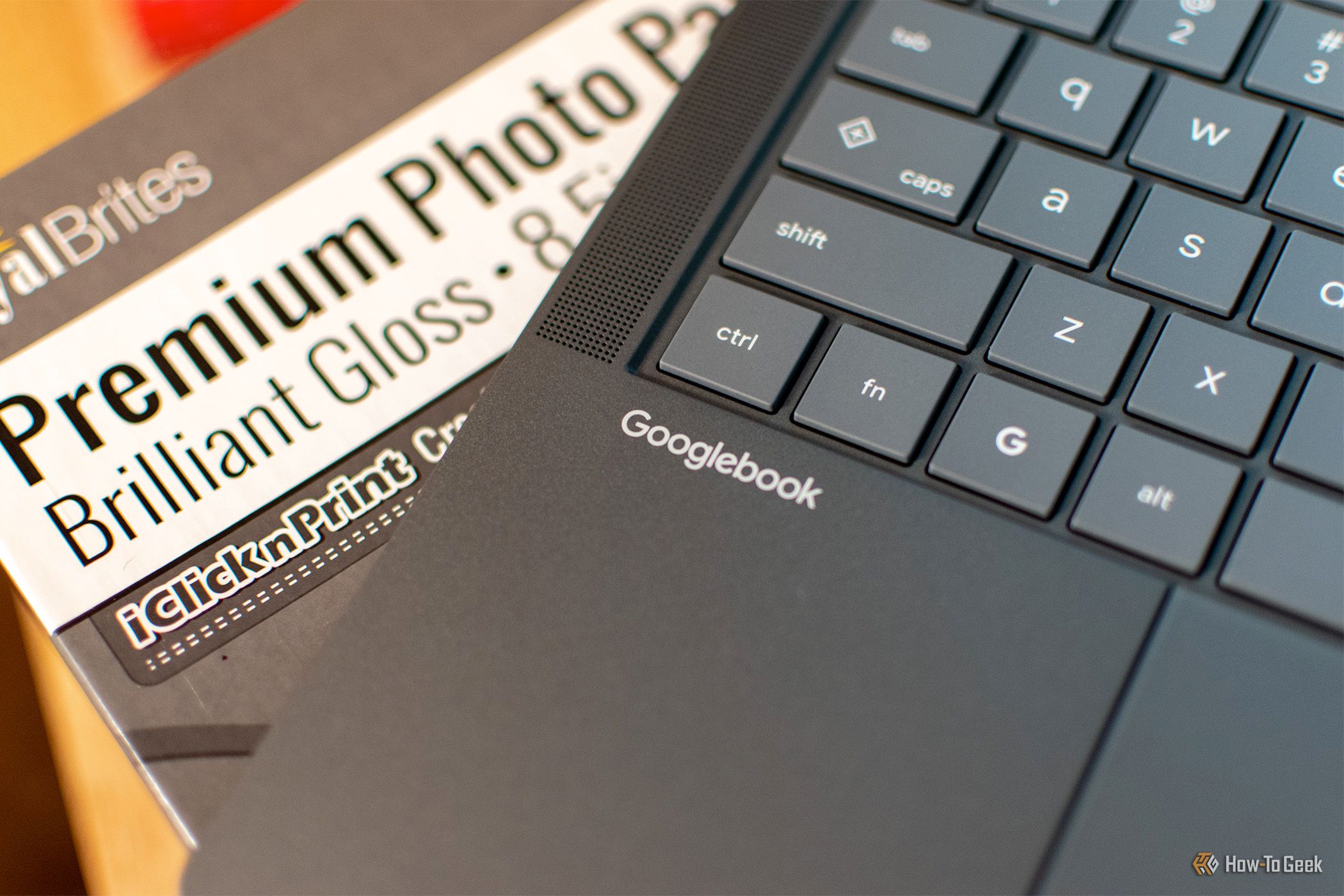
How to Connect Your Googlebook to a Printer - Print Documents with
Learn to quickly connect your Googlebook to a printer via Wi-Fi, USB, or Bluetooth and print documents in minutes. This guide covers direct printing, app-specific connections, troubleshooting, and even printing screenshots as a workaround.