
Reclaim Your Cloud Storage: Stop Overpaying for Automatic Backups
Are you constantly running out of cloud storage, only to be prompted to pay for more? Many of us find ourselves trapped in a cycle of ever-increasing subscription fees for services like Google Drive, iCloud, or
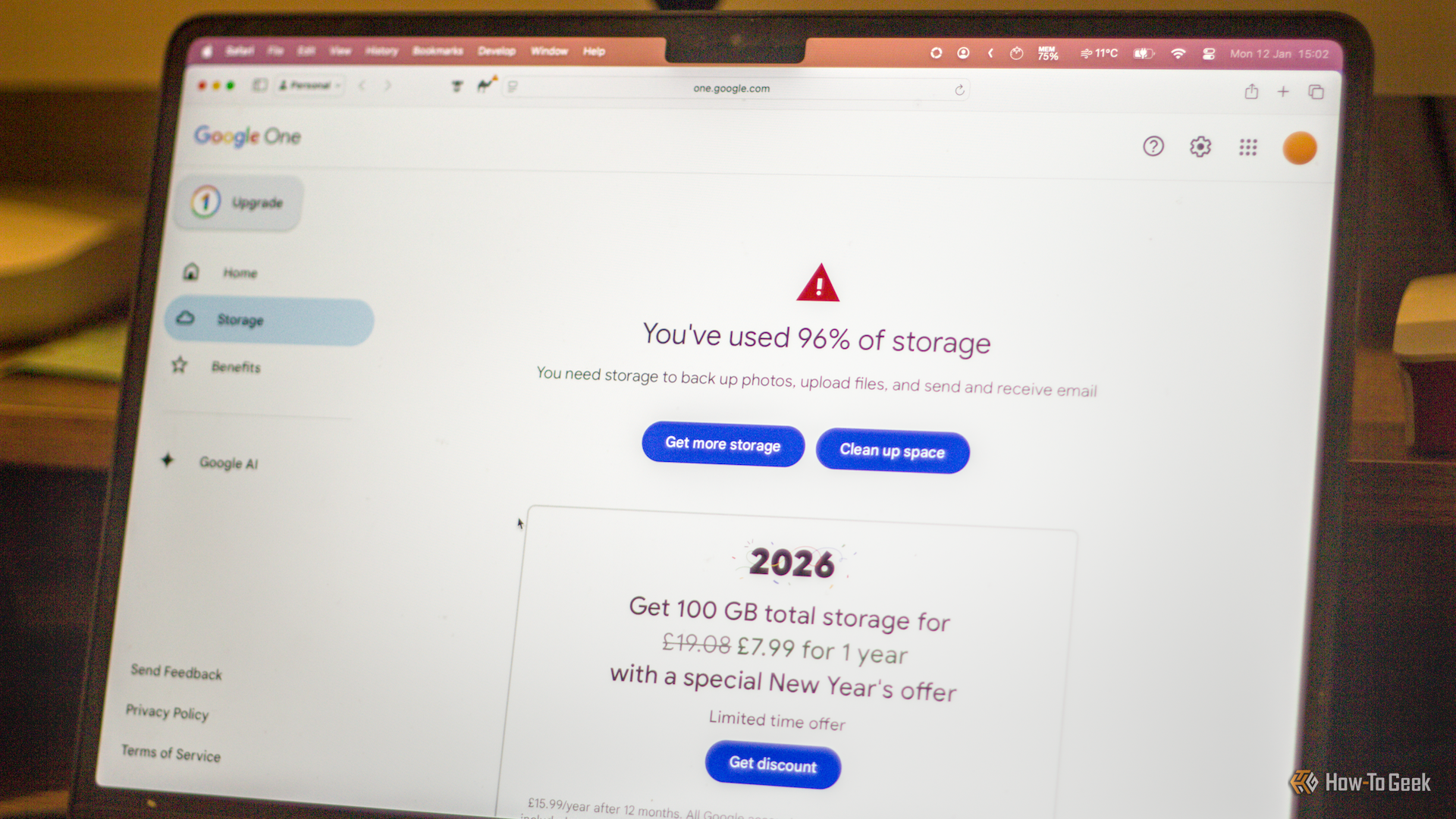
Are you constantly running out of cloud storage, only to be prompted to pay for more? Many of us find ourselves trapped in a cycle of ever-increasing subscription fees for services like Google Drive, iCloud, or OneDrive. While convenient, these automatic backups often store far more than we need, silently draining our wallets over time.
This guide will walk you through a practical strategy to take back control of your digital files, reduce your reliance on expensive cloud storage subscriptions, and save money. By understanding how automatic backups operate and making intentional choices about your data, you can transform your storage habits from costly convenience to smart, efficient management.
The Hidden Cost of Cloud Convenience
Cloud storage has become an indispensable part of our digital lives, seamlessly integrating across devices to ensure our photos, documents, and other files are always accessible. However, this convenience often comes at a hidden cost. Your phone, computer, and other devices are likely set up to automatically sync and back up files without much input from you. Over time, every photo, redundant document, and miscellaneous download accumulates, quickly pushing you past your free storage limits.
Once that limit is reached, the path of least resistance is usually to pay for an upgrade. Deleting files feels risky, and sorting through years of accumulated data can seem incredibly tedious. This is how many of us fall into the trap: cloud storage transforms from a useful backup tool into an expensive default dumping ground for every file you own, regardless of its importance.
Sync vs. Backup: Know the Critical Difference
One of the biggest misunderstandings driving this storage mess is the conflation of "sync" and "backup." While often used interchangeably by cloud services, they serve distinct purposes:
- Sync: Synchronization keeps the same set of files identical across multiple devices. If you edit a document on your PC, the synced version on your laptop updates. This is fantastic for collaborative work or accessing current files from anywhere. However, if you accidentally delete a file from one synced device, it will be deleted from all synced locations, including the cloud. This means your cloud storage, in this scenario, isn't a safety net from accidental deletion.
- Backup: A true backup creates a separate copy of your files that you can restore from if the originals are lost, corrupted, or deleted. It's an independent snapshot, not a live mirror. A proper backup should ideally be stored in a different location (local or offsite) and remain untouched unless needed for recovery.
When cloud services primarily offer sync functionality, relying on them as your sole backup solution can lead to disaster if you're not careful. Recognizing this distinction is the first step toward regaining control.
Prerequisites: What You'll Need
Before you begin, gather these essentials:
- Access to all your cloud storage accounts: Know your login details for Google Drive, iCloud, OneDrive, Dropbox, etc.
- A local storage device: This could be an external hard drive, a portable SSD, or even an internal drive with sufficient free space on your computer. The goal is to have a physical place to store your files.
- Time and patience: Sorting through years of digital clutter won't happen overnight, but the effort will pay off.
Step 1: Secure Your Files Locally (Before You Delete Anything)
This is the most crucial step. Before you even think about deleting anything from your cloud storage, ensure you have a complete, independent copy of all your important files stored locally. The author of the source article recommends repurposing smaller drives or using a dedicated "abuse drive" for organization, highlighting the importance of having these local copies readily available.
Actionable Steps:
- Export all photos: Download every photo and video from services like Google Photos or iCloud Photos to your local storage device. Create organized folders by year or event to make them manageable.
- Download all documents: Access your Google Drive, OneDrive, or Dropbox accounts and download all critical documents, spreadsheets, presentations, and other files to your local drive.
- Save desktop and device folders: If your PC or phone automatically syncs desktop folders or specific device folders to the cloud, ensure you have local copies of these as well. Drag and drop them to your external drive.
This process ensures that you have a tangible, accessible copy of everything you care about. If something goes wrong during your cloud cleanup, you'll have your original files safe and sound.
Step 2: Rethink Your Cloud Strategy: Give It a Smaller Job
With your local backups secured, it’s time to change your perspective on cloud storage. Stop treating it as your primary hard drive where everything lives by default. Instead, view it as a selective tool for specific purposes.
Actionable Steps:
- Categorize your files: Go through your local files and categorize them. Think about what truly needs to be accessible across multiple devices, what needs sharing, and what can live solely on your local storage. Common categories might include:
- Work files: Documents you actively collaborate on or need frequent access to from different devices.
- Personal photos/videos: A curated selection for sharing or immediate access, not every single shot.
- Project folders: Active projects that benefit from cloud sync.
- Archived files: Old documents, installers, or downloads that can live offline.
- Random nonsense: Files you no longer need.
- Be intentional about cloud uploads: For any new files, consciously decide if they truly belong in the cloud. Does this document need to be synced, or can it just live on your computer and be backed up locally? This shift from automatic to intentional is key.
By giving the cloud a smaller, more deliberate role, you can significantly reduce the amount of data stored there, often eliminating the need for paid subscriptions altogether. The goal is to transform your cloud storage from a giant, messy junk drawer into a streamlined, functional space.
Tips for Intentional Storage & Avoiding Future Costs
- Invest in physical storage: Consider purchasing a portable SSD or a larger external hard drive. While an upfront cost, it's a one-time purchase, unlike recurring cloud subscriptions. This gives you physical ownership and control over your data.
- Regularly review: Make it a habit to periodically review your cloud storage. Delete old, unnecessary files or move them to local archives.
- Understand device settings: Familiarize yourself with the backup and sync settings on your phone, computer, and other devices. Turn off automatic uploads for categories of files you don't want in the cloud (e.g., WhatsApp media, screenshots).
Conclusion: Taking Back Control
By following these steps, you can break free from the cycle of ever-increasing cloud storage costs. You'll gain a clearer understanding of your digital assets, ensure your most important files are securely backed up, and only pay for the cloud services you genuinely need. It's about empowering yourself to make smart choices about your data, rather than letting automated systems make expensive decisions for you.
FAQ
Q: Why are cloud sync and cloud backup often confused?
A: Cloud services often market their syncing capabilities as a form of backup due to the convenience of having files accessible everywhere. However, the critical difference lies in file deletion: with sync, deleting a file from one device removes it from all synced locations, including the cloud. A true backup maintains a separate, independent copy that can be restored even if original files are lost or deleted.
Q: How much local storage do I actually need?
A: The amount of local storage you need depends entirely on your digital footprint. Start by assessing the total size of your current cloud storage (e.g., 15GB, 100GB, 1TB). Your local drive should be at least as large, if not larger, to accommodate all your current files and provide room for future growth. Portable SSDs are a good choice for speed and durability, while traditional hard drives offer larger capacities at a lower cost per gigabyte.
Q: Is physical storage inherently better than cloud storage?
A: Neither is inherently "better"; they serve different purposes. Physical storage offers direct control, no recurring fees, and often faster local access. However, it's vulnerable to physical damage, loss, or theft, and doesn't offer the same global accessibility as cloud storage. Cloud storage is excellent for accessibility, sharing, and offsite redundancy, but comes with recurring costs and less direct control. The best approach often involves a hybrid strategy, using local storage for primary backups and large archives, and cloud storage for active, collaborative, or highly essential files that benefit from remote access.
Next Steps
Once you've implemented these changes, make it a habit to conduct regular file reviews. Consider a "3-2-1 backup strategy" for truly critical data: 3 copies of your data, on 2 different types of media, with 1 copy offsite (which can include selective cloud use). This ensures maximum data safety and peace of mind.
Related articles

Ditch Merge & Center: The Better Way to Align Text in Excel
Learn to use Excel's "Center Across Selection" to align text across cells without merging, avoiding common data manipulation issues. This guide provides steps to utilize this newly accessible feature and add it to your Quick Access Toolbar.

Ars Technica's Rocket Report: Your Essential Space Industry Briefing
Quick Verdict Ars Technica's Rocket Report, presented by veteran space reporter Stephen Clark, offers an invaluable and meticulously organized weekly (or similar frequency, implied by "Edition 9.15") digest of the most

Stop Android Auto Battery Drain: Essential Features to Disable and
Android Auto offers unparalleled convenience, bringing your phone's most useful features directly to your car's display. From navigation and calls to messages and music, it keeps you connected without distracting you

Turn Your Android Phone into a Powerful Desktop Replacement
Learn how to transform your Android phone into a full-fledged desktop computer using external displays and accessories, providing a cost-effective and integrated alternative to new Googlebooks.

howto: Four Ways the Fitbit Edge Is Better Than the Charge 6, and Two
Learn the key differences between the Fitbit Edge and Charge 6, including four advantages of the Edge and two areas where it falls short, to help you choose the best fitness tracker for your needs.
How to Connect Your Googlebook to a Printer - Print Documents with
Learn to quickly connect your Googlebook to a printer via Wi-Fi, USB, or Bluetooth and print documents in minutes. This guide covers direct printing, app-specific connections, troubleshooting, and even printing screenshots as a workaround.