
Organize Android Screenshots with Shots Studio: Your AI-Powered Guide
Are you tired of endlessly scrolling through your Android phone's gallery, searching for that one crucial screenshot? From discount codes to recipe ideas, screenshots are invaluable, but they quickly become a digital
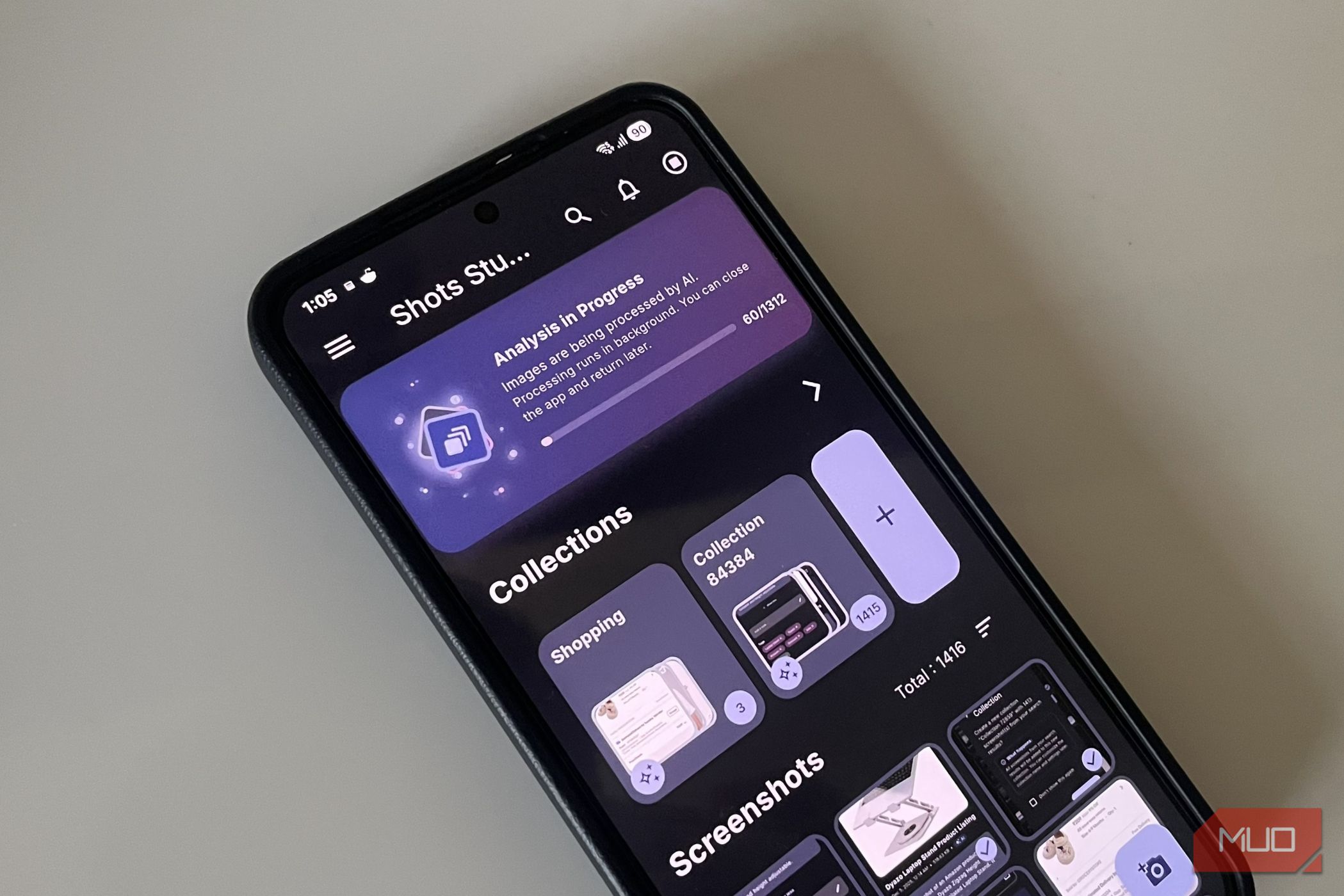
Are you tired of endlessly scrolling through your Android phone's gallery, searching for that one crucial screenshot? From discount codes to recipe ideas, screenshots are invaluable, but they quickly become a digital mess. This guide will show you how to transform your screenshot chaos into an organized, searchable library using Shots Studio, a free and open-source Android app.
With Shots Studio, you’ll harness the power of AI to automatically categorize, search, and manage your screenshots with ease. No more forgotten coupons or lost inspiration! Let's dive in and take control of your digital captures.
Prerequisites
Before you begin, ensure you have the following:
- An Android smartphone (The app is designed for Android)
- Internet access for downloading the app and, optionally, for cloud-based AI setup.
- Approximately 3GB of free storage on your device if you opt for on-device AI processing.
- A Google account if you choose the Gemini (cloud-based) AI model, as it requires creating an API key through Google AI Studio.
Step-by-Step Guide to Organizing Your Screenshots
1. Install Shots Studio
First, you need to get the Shots Studio app on your Android device. It's available for free.
- Open the Google Play Store on your Android phone.
- Search for "Shots Studio".
- Tap "Install" to download and install the app.
2. Choose Your AI Processing Method
Upon launching Shots Studio for the first time, you'll be prompted to set up its AI. You have two main options, each with its own benefits:
- Gemini (Cloud-based AI): This option processes your screenshots faster by sending them to Google's servers for analysis. It requires a Google AI Studio account and an API key.
- On-device AI (Local Processing): This method processes all screenshots directly on your phone, ensuring your data never leaves your device. However, it requires downloading a roughly 3GB AI model and can be slower, depending on your device's power.
To set up Gemini AI:
- Select the Gemini option when prompted.
- The app will guide you to create an account on Google AI Studio (if you don't have one).
- Generate an API key from your Google AI Studio account.
- Paste the API key into the Shots Studio app as instructed.
To set up On-device AI:
- Select the On-device AI option when prompted.
- Allow the app to download the 3GB AI model. Ensure you have a stable internet connection and sufficient storage.
Tip: You can switch between these AI models anytime via the app's "AI Settings" menu. If speed is your priority and you're comfortable with cloud processing, Gemini is excellent. If privacy is paramount, the on-device model is the way to go.
3. Let Shots Studio Analyze Your Screenshots
Once your preferred AI model is set up, Shots Studio will begin analyzing your existing screenshots. This process might take some time, especially if you have many screenshots or are using the on-device AI model. The app examines the contents, including text, images, and recognizable objects, to make them searchable and tag them appropriately.
4. Master AI-Powered Search
The real power of Shots Studio lies in its intelligent search capabilities. After the initial analysis, you can find any screenshot almost instantly.
- Tap the search icon (usually at the top of the app).
- Start typing what you remember about the screenshot. This could be a specific word from the image, a general description, or even a tag the AI might have assigned.
- Observe the results: Shots Studio displays matching screenshots as you type. For example, if you search for "Amazon order," "YouTube comment," or "boarding pass," the app will quickly pull up relevant images.
How it works: During analysis, the app automatically assigns descriptive tags (e.g., "Laptop Stand," "Dyazo," "Amazon," "Discount," "Sale" for a product screenshot) and generates a brief description for each image. You can view these tags and descriptions by opening any screenshot within the app.
5. Organize Screenshots with Collections
Beyond search, Shots Studio allows you to group related screenshots into "Collections," similar to folders.
- Navigate to the "Collections" section in the app.
- Create a new Collection for a specific theme (e.g., "Travel Plans," "Shopping Wishlist," "Home Renovation").
- Add screenshots manually to your new collection, or use the AI's auto-add feature to include matching screenshots.
6. Add Context with Notes
Enhance your screenshots by adding personal notes. This makes them even more searchable and provides crucial context you might otherwise forget.
- Open a screenshot in Shots Studio.
- Tap the "Add Note" option.
- Type your note, explaining why you saved it, what you plan to do with it, or any relevant details (e.g., recipe tweaks, price comparisons).
Your notes are also searchable, making it even easier to find specific images based on your own annotations.
7. Set Reminders for Actionable Screenshots
Never forget about an important screenshot again by setting reminders.
- Open a screenshot that requires future action (e.g., a discount coupon, a pending payment reminder).
- Tap the "Set Reminder" option.
- Configure the reminder with a short message and a specific date/time, similar to your phone's built-in reminders.
Troubleshooting Tips
- Slow AI Processing: If you've chosen on-device AI and processing is slow, especially with many screenshots, ensure your device has enough free RAM and is not running too many background apps. Consider switching to the Gemini model for faster results if privacy isn't a major concern.
- Gemini API Key Issues: If the Gemini setup fails, double-check that your API key from Google AI Studio is correctly generated and pasted into the app without extra spaces or characters. Ensure your internet connection is stable during setup.
- Missing Screenshots: If Shots Studio isn't finding all your screenshots, ensure it has been granted all necessary storage permissions in your Android settings. Also, give it time to complete its initial analysis.
Next Steps
Now that your screenshots are organized, continue exploring Shots Studio's features. Regularly add new screenshots and use the collections, notes, and reminders to keep your digital life clutter-free. You might also want to explore ways to efficiently delete old or unnecessary screenshots from your device to free up storage.
FAQ
Q: Is Shots Studio truly free and open-source?
A: Yes, Shots Studio is a free and open-source Android application, meaning its source code is publicly available, and you don't incur any costs to use its features.
Q: Can I change my AI processing choice after initial setup?
A: Absolutely. You can switch between the Gemini (cloud-based) and on-device AI models at any time by navigating to the "AI Settings" menu within the Shots Studio app.
Q: What kind of information does the AI analyze in my screenshots?
A: The AI analyzes various elements within your screenshots, including text (like in a message or a product description), recognizable images, and objects. This analysis allows it to generate descriptive tags and summaries for easier searching.
Related articles
Android 17 QPR2 Beta 7.1: The Performance Relief You've Been Waiting
Android 17 QPR2 Beta 7.1: Finally Fixing the QPR1 Performance Woes Verdict: Android 17 QPR2 Beta 7.1 is a crucial and highly anticipated software update for Google Pixel users, specifically targeting and resolving the

Ditch Merge & Center: The Better Way to Align Text in Excel
Learn to use Excel's "Center Across Selection" to align text across cells without merging, avoiding common data manipulation issues. This guide provides steps to utilize this newly accessible feature and add it to your Quick Access Toolbar.

Ars Technica's Rocket Report: Your Essential Space Industry Briefing
Quick Verdict Ars Technica's Rocket Report, presented by veteran space reporter Stephen Clark, offers an invaluable and meticulously organized weekly (or similar frequency, implied by "Edition 9.15") digest of the most

Ubisoft Proposes German Studio Workforce Reduction Amidst
Ubisoft is planning a voluntary departure program for about 100 employees across its Düsseldorf, Berlin, and Mainz studios in Germany. This move is part of a larger, ongoing cost-reduction and restructuring effort by the publisher, aiming to better position its studios for future projects.

Stop Android Auto Battery Drain: Essential Features to Disable and
Android Auto offers unparalleled convenience, bringing your phone's most useful features directly to your car's display. From navigation and calls to messages and music, it keeps you connected without distracting you
Beyond the Bugs: Conquering Studio Headaches in Indie Dev
This guide, part three in a series on running an indie studio, tackles the crucial but often overlooked aspect of dealing with non-development related issues. It introduces creating a shared 'studio backlog' for collective problems and using the IDS (Identify, Discuss, Solve) framework to address them constructively. The core message is to build powerful habits that keep studios from getting quietly derailed by lingering challenges.