
Mastering Google's AI Image Detector: What It Can and Can't Do
Learn to use Google's SynthID Detector to identify AI-generated images, videos, and audio by checking for invisible watermarks. This guide covers how it works, step-by-step usage, its robust detection capabilities, and known limitations to help you accurately assess digital media.

Artificial intelligence has made generating images, videos, and even audio easier than ever before. While this innovation is exciting, it also makes it increasingly difficult to tell what's real and what's AI-generated. To help combat this, major AI developers, including Google, are embedding invisible watermarks into their creations. Google's answer is SynthID, and now, they've launched a user-friendly online tool to detect these watermarks: the SynthID Detector.
This guide will walk you through using Google's SynthID Detector, explaining how it works, what kind of content it can identify, and its current limitations. You'll learn how to upload your files, interpret the results, and understand the tool's effectiveness in a world rapidly filling with AI-generated media.
What You'll Accomplish
By the end of this guide, you will be able to:
- Understand the purpose and functionality of Google's SynthID Detector.
- Navigate the online tool to upload and scan images, videos, and audio files.
- Identify content created by AI models that utilize the SynthID watermark, such as Google's Gemini and ChatGPT.
- Recognize the detector's strengths and weaknesses, including scenarios where it might be tricked or fail to detect AI content.
Prerequisites
Before you start, make sure you have the following:
- Internet Access: The SynthID Detector is a web-based tool.
- Google Account: You'll need to sign in with a Google account to use the detector.
- Files for Testing: Have the image, video, or audio files you wish to analyze ready on your device.
- Supported File Formats: The detector supports a wide range of formats:
- Images: JPG, JPEG, PNG, BMP, WEBP, AVIF, HEIC, HEIF, TIFF, TIF, GIF
- Videos: MP4, MOV, WEBM
- Audio: WAV, MP3, OGG, FLAC, AAC, M4A
Understanding How SynthID Works
SynthID is an invisible watermark that compatible AI models embed directly into the content they generate. Unlike visible watermarks, you can't see or hear SynthID without a dedicated detector. Google states that this watermark is "woven into the content itself," meaning it's integrated into the pixels of images and videos, and the frequency components of audio. This makes it quite robust against common alterations.
This ingenious method allows AI-generated content to remain visually (or audibly) pristine while still carrying a digital signature of its origin. The detector specifically looks for this embedded signature, rather than relying on general tell-tale signs of AI generation that might be less consistent or easier to obscure.
Step-by-Step: Using the SynthID Detector
Using the online SynthID Detector is straightforward. Follow these steps to check your files:
- Access the Detector: Open your web browser and navigate to the official SynthID Detector website: synthid.com.
- Sign In: If prompted, sign in using your Google account credentials. This is a mandatory step to access the tool.
- Upload Your File: Once on the detector's page, you will see an option to upload your media. Click the upload button and select the image, video, or audio file you want to analyze from your computer or device.
- Initiate Scan: The tool will automatically begin processing your file. This usually takes only a few seconds.
- Review Results: The detector will display one of a few possible results:
- "AI-generated" (and potentially the AI tool used, e.g., Gemini, ChatGPT): This indicates a SynthID watermark was found, confirming the content was created by a compatible AI.
- "Unlikely to be AI-generated" / "No SynthID watermark detected": This means the detector did not find a SynthID watermark. It doesn't definitively prove human creation, but rather the absence of this specific AI signature.
What Makes Detection Difficult (and How to Improve Your Chances)
While robust, the SynthID Detector isn't foolproof. Here's what the testing revealed about its limitations and how you can maximize your detection success:
Challenges to Detection
- Heavy Modifications: Google admits that "heavy modifications" or applying multiple "transformations" to the same image can degrade the SynthID watermark, potentially making it undetectable. Extensive editing, like severe cropping, resizing, or numerous filters, might weaken the signal.
- Extreme Pixelation: In testing, an AI image that was heavily pixelated managed to trick the detector. If the image quality is significantly compromised, the watermark may be lost.
- Minimal AI Content in Composites: The detector can falter if AI-generated content makes up a very small percentage of a larger, mostly real, composite image (e.g., 25% AI, 75% real). With less AI data, the watermark's signal can be too weak for reliable detection.
- Partially AI Images: While it often works, images where only a small part is AI-generated (like adding one person to a group photo) can sometimes pose a challenge, likely due to the reduced amount of watermarked data.
Tips for Best Practices
- Upload High-Quality Files: The more data the detector has, the more reliable its analysis. Always use the highest resolution and quality version of a file you can get.
- Understand "Unlikely to be AI": Remember that the detector is looking specifically for SynthID watermarks. If it says a file is "unlikely to be AI-generated," it means it didn't find that specific watermark, not that it's definitively human-made or free of any AI involvement from other, unwatermarked models.
- Check Different Forms: If you're suspicious of an image, try testing the original file, a screenshot, or even a slightly modified version. The watermark's robustness means it often survives these minor changes.
Important Consideration: Daily Quota
Be aware that the SynthID Detector has a usage limit. You can typically analyze around 10 files per day for each media type (images, videos, and audio files). Once you hit your limit, you'll need to wait 24 hours before you can use the tool again.
Conclusion
Google's SynthID Detector is a valuable tool in the evolving landscape of AI-generated content. It provides a quick and free way to check if an image, video, or audio file carries the invisible SynthID watermark used by models like Gemini and ChatGPT. While it demonstrates impressive resilience against common edits, it's not invincible, particularly when dealing with heavily degraded or minimally AI-infused content. Use it as a powerful first line of defense, understanding its capabilities and its current limitations as AI detection technology continues to advance.
FAQ
Q: What types of AI content does SynthID primarily detect?
A: SynthID is designed to detect content generated by AI models that specifically embed the SynthID watermark. This currently includes Google's Gemini and AI-generated images from ChatGPT, among other SynthID-supporting platforms like Nvidia and OpenAI (though OpenAI also has its own verification tool).
Q: Can the SynthID Detector be fooled or tricked?
A: Yes, it can be. The detector might struggle with content that has undergone heavy pixelation, multiple severe transformations, or composite images where AI-generated elements make up a very small percentage of the overall file. In these cases, the watermark's signal may become too weak to detect.
Q: Is there a limit to how many files I can check with the SynthID Detector?
A: Yes, there is a daily quota. You can generally check approximately 10 files per day for each distinct media type (images, videos, and audio). After reaching this limit, you'll need to wait 24 hours before you can submit more files for analysis.
Related articles

Ditch Merge & Center: The Better Way to Align Text in Excel
Learn to use Excel's "Center Across Selection" to align text across cells without merging, avoiding common data manipulation issues. This guide provides steps to utilize this newly accessible feature and add it to your Quick Access Toolbar.

Enterprise AI Beyond Chatbots: A Vision for Actionable Intelligence
Quick Verdict: Redefining Enterprise AI's Potential TechRadar Pro's opinion piece, "What it takes to move enterprise AI beyond the chatbot," delivers a refreshingly honest and vital perspective on the current state and
regional: ‘What is fusion?’ Helion Energy harnesses the power of
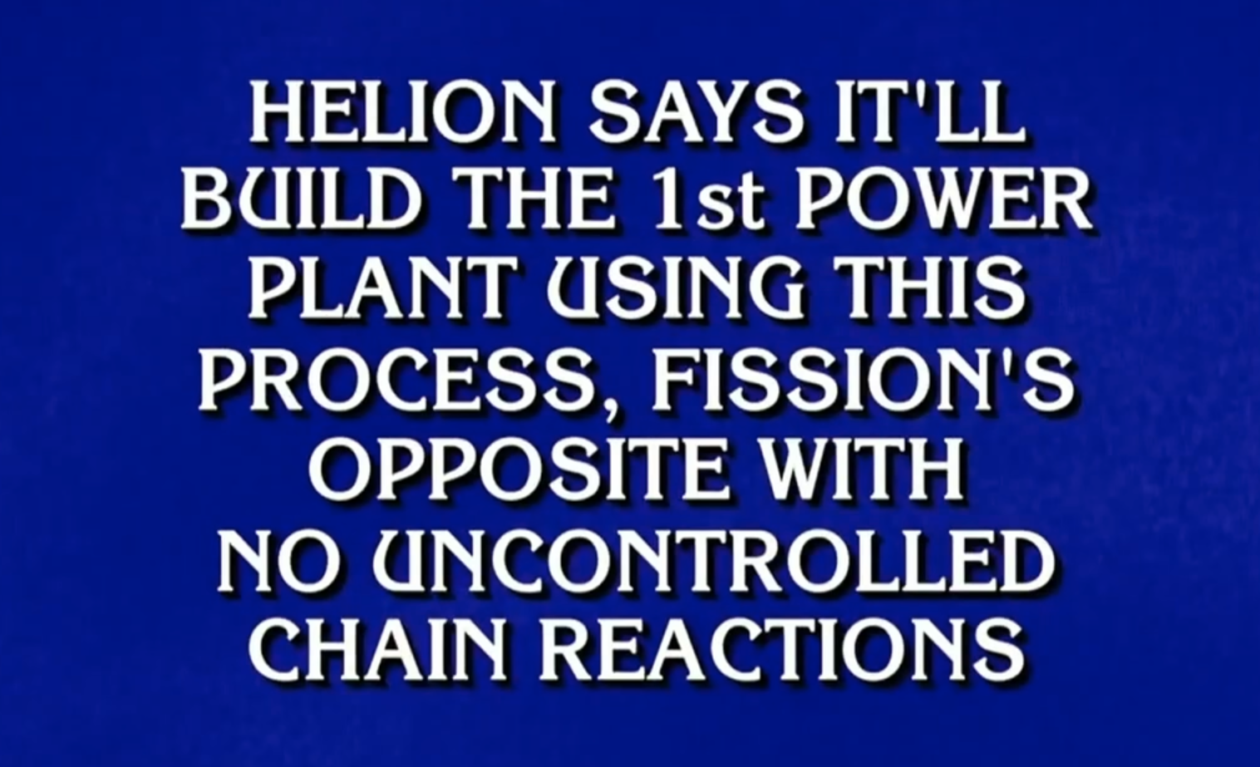
Helion Energy, the Everett-based fusion startup, gained mainstream attention this week after being featured as a clue on the popular game show "Jeopardy!". The $800 clue, part of a "Y Combinator" category, highlighted Helion's mission to build the first fusion power plant, bringing the concept of clean energy to a wider audience. CEO David Kirtley celebrated the "surreal" moment as a sign that reliable clean power is becoming more accessible.

Stop Android Auto Battery Drain: Essential Features to Disable and
Android Auto offers unparalleled convenience, bringing your phone's most useful features directly to your car's display. From navigation and calls to messages and music, it keeps you connected without distracting you
Google Gemini Task Update: Automation Just Got Smarter
Google Gemini Task Update: Automation Just Got Smarter Verdict: Google's latest update to Gemini, focused on its task automation capabilities, is a significant step forward in user experience. By rebranding 'Spark' as

Turn Your Android Phone into a Powerful Desktop Replacement
Learn how to transform your Android phone into a full-fledged desktop computer using external displays and accessories, providing a cost-effective and integrated alternative to new Googlebooks.