
Master Your Android Home Screen: Create Custom Shortcuts with AsWidget
Learn to create custom home screen shortcuts and powerful widgets using the AsWidget Android app, giving you instant access to your favorite in-app features in just a few taps.
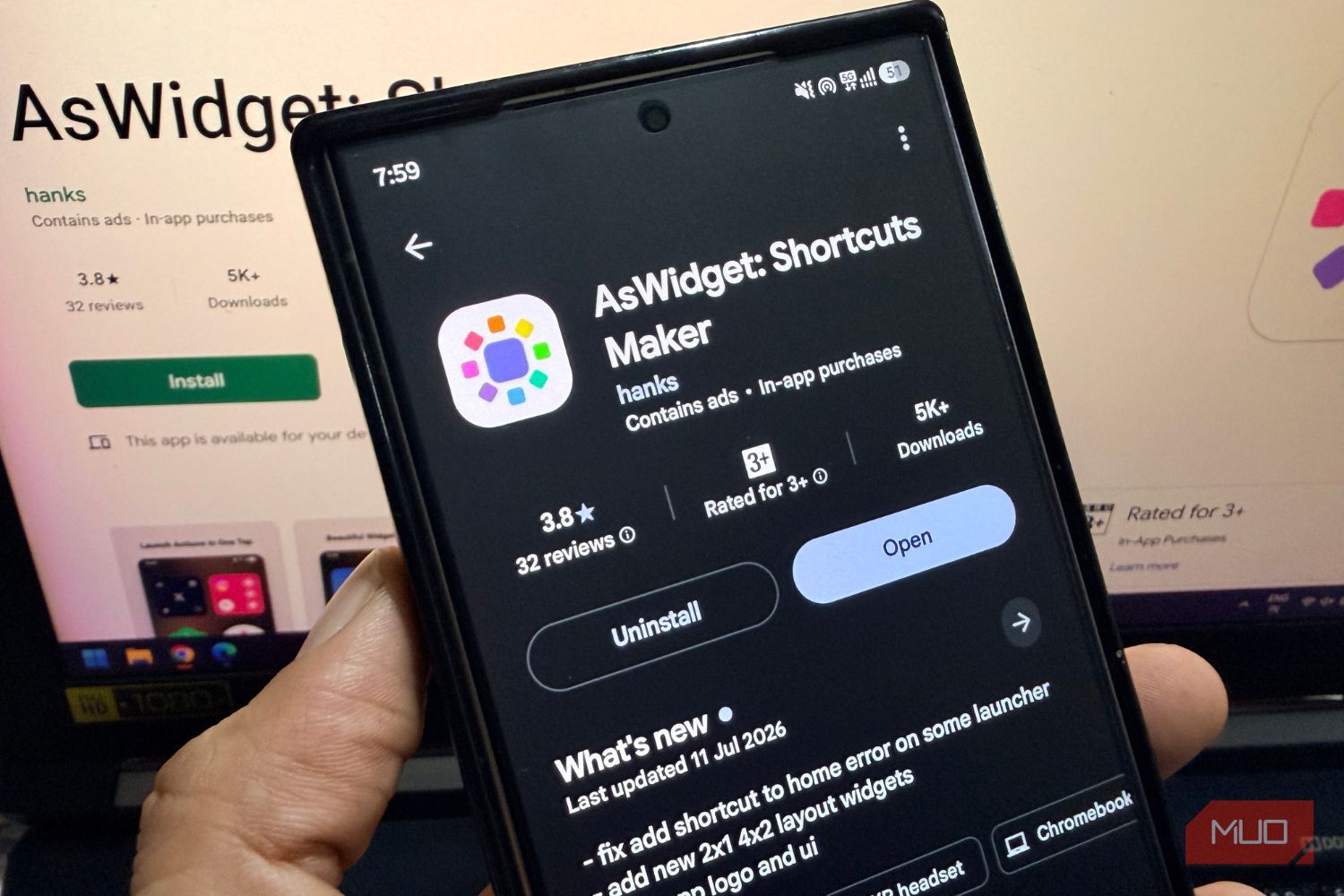
Navigating through multiple menus to reach a specific feature within an Android app can be a tedious process. Imagine wanting to jump straight to your Instagram DMs or a particular YouTube channel with a single tap, instead of opening the app and then digging through several screens. This is where AsWidget, an innovative Android application, comes into play, transforming your home screen into a hub of instant access.
AsWidget acts as your personal shortcut factory, allowing you to create deep links, direct shortcuts, and compact widgets that bypass the usual navigation steps. It's a free, readily available app on the Google Play Store, making it incredibly easy to install and start using without the complexities of sideloading.
What You'll Accomplish
By the end of this guide, you will be able to:
- Install and set up the AsWidget application on your Android device.
- Create customizable home screen shortcuts that launch specific in-app features or Android system settings instantly.
- Design powerful widgets that group multiple shortcuts, reducing clutter and enhancing productivity on your home screen.
- Understand the app's capabilities and limitations to optimize your shortcut creation.
Before You Start
To begin optimizing your Android home screen with AsWidget, you'll need:
- An Android smartphone or tablet.
- Internet access to download the app.
Getting Started: Installing AsWidget
The first step to unlocking a more efficient Android experience is to get AsWidget on your device. The process is straightforward:
- Download AsWidget: Head to the Google Play Store and search for "AsWidget" or use the provided link to download and install the app.
- Open the App: Once the installation is complete, open AsWidget from your app drawer.
Creating Your Personalized Shortcuts
AsWidget simplifies the creation of home screen shortcuts, making it an intuitive process that takes less than a minute:
- Explore Options: Upon opening the app, AsWidget will present you with a list of pre-defined widgets you can add. Navigate to the Shortcuts tab to view available deep links for each app installed on your phone. This tab conveniently shows you the number of shortcuts ready for each application.
- Select a Shortcut: Tap on the specific shortcut you wish to create. For example, you might select a shortcut that takes you directly to your YouTube subscriptions or a specific WhatsApp chat.
- Customize Your Shortcut: The app will take you to an "Edit Shortcut" screen. Here, you have robust customization options:
- Name: Change the shortcut name to something descriptive and easy to recognize.
- Icon: Modify the shortcut icon. You can choose from various built-in options or even use any image from your device's gallery, giving your home screen a truly personal touch.
- Icon Color: Adjust the color of the shortcut icon to match your theme or preferences.
- Parameters: Add specific parameters if the shortcut requires them, allowing for even more precise targeting within an app.
- Add to Home Screen: Once you're satisfied with your customizations, tap the Add to Home screen button, typically located in the top-right corner. You will then be prompted to confirm where you want to add the shortcut: to your home screen, your app page, or both.
And just like that, with a single tap on your newly created shortcut, you'll be exactly where you want to be within an app, without any extra navigation steps.
Transforming Your Home Screen with Widgets
While individual shortcuts are incredibly useful, AsWidget takes productivity a step further by allowing you to create small home screen widgets. These widgets come in various layouts, such as 2x1 and 4x2, and can group a handful of related shortcuts into one compact space.
For instance, you could create a YouTube widget that offers quick access to the YouTube homepage, your subscriptions, YouTube Shorts, the search function, YouTube Gaming, and even your own channel. This consolidation means you don't need to scatter multiple icons across your screen; instead, a single widget provides comprehensive access to several frequently used functions within an app.
This feature is particularly beneficial for those who enjoy customizing their home screen with widgets, offering a cleaner and more organized interface while retaining high functionality.
Elevate Your Android Experience with These Tips
- AsWidget's Unique Advantage: Unlike other shortcut creators that require you to sift through obscure activity names, AsWidget actively suggests useful deep links. This intelligent surfacing of options makes it significantly easier to find and implement shortcuts for common actions, eliminating guesswork.
- Unleash Customization: Don't shy away from personalizing your shortcuts. Custom icons and names not only make your home screen more aesthetically pleasing but also improve discoverability, helping you quickly identify and use your custom links.
- Explore and Experiment: The power of AsWidget lies in its ability to access not only in-app features but also buried Android system settings. Take some time to explore the "Shortcuts" tab for various apps; you might discover shortcuts you didn't even know were possible, simplifying routine tasks.
Addressing Potential Hiccups
While AsWidget is a powerful tool, it's important to be aware of a few limitations:
- Varying Compatibility: Not every shortcut will work perfectly. The functionality of deep links largely depends on how well an individual app supports them. You might find that media controls widgets for certain music apps or shortcuts for lesser-known applications may not launch as intended.
- In-App Purchases: AsWidget is free to download and use, but it does offer in-app purchases. These subscriptions (monthly, annual, or lifetime) unlock additional benefits such as removing ads (though the author noted not encountering ads in the free version during testing), full access to all customization options, the ability to create unlimited app widgets and shortcuts, and the option to request new features directly from the developer.
Your New Streamlined Workflow
AsWidget might not completely reinvent your Android experience, but it quietly removes many small, annoying steps you previously had to take to reach specific locations within apps. If your home screen is cluttered or you constantly find yourself tapping through multiple menus, AsWidget offers a simple yet effective solution. Give it a try; at best, you'll discover several indispensable shortcuts you'll use daily, and at worst, you can simply remove it.
FAQ
Q: Is AsWidget a free app?
A: Yes, AsWidget is available for free download and use on the Google Play Store. It also offers optional in-app purchases for additional features like ad removal, unlimited customization, and feature requests.
Q: What kind of customization options are available for shortcuts?
A: You can customize the shortcut's name, choose its icon (from built-in options or any image from your device), and even adjust the icon's color to match your preferences.
Q: Why might some shortcuts or widgets not function correctly?
A: The functionality of deep links and shortcuts depends on how well the target app supports them. Some app-specific features (like media controls for music apps) or shortcuts for less common applications might not work perfectly due to these underlying dependencies.
Related articles
Android 17 QPR2 Beta 7.1: The Performance Relief You've Been Waiting
Android 17 QPR2 Beta 7.1: Finally Fixing the QPR1 Performance Woes Verdict: Android 17 QPR2 Beta 7.1 is a crucial and highly anticipated software update for Google Pixel users, specifically targeting and resolving the

Ditch Merge & Center: The Better Way to Align Text in Excel
Learn to use Excel's "Center Across Selection" to align text across cells without merging, avoiding common data manipulation issues. This guide provides steps to utilize this newly accessible feature and add it to your Quick Access Toolbar.

Ars Technica's Rocket Report: Your Essential Space Industry Briefing
Quick Verdict Ars Technica's Rocket Report, presented by veteran space reporter Stephen Clark, offers an invaluable and meticulously organized weekly (or similar frequency, implied by "Edition 9.15") digest of the most

Stop Android Auto Battery Drain: Essential Features to Disable and
Android Auto offers unparalleled convenience, bringing your phone's most useful features directly to your car's display. From navigation and calls to messages and music, it keeps you connected without distracting you

Apple’s new HomeView smart display is $10 cheaper at Amazon: latest
In a rare move for a new Apple product, the highly anticipated HomeView smart display is already available at a discount on Amazon, weeks before its official launch. Consumers can now pre-order Apple's first dedicated

Turn Your Android Phone into a Powerful Desktop Replacement
Learn how to transform your Android phone into a full-fledged desktop computer using external displays and accessories, providing a cost-effective and integrated alternative to new Googlebooks.