
iPhone Shortcuts: Unlock Hidden Productivity Power
iPhone Shortcuts: Unlock Hidden Productivity Power Verdict: iPhone Shortcuts are a game-changer for daily productivity. While they can initially seem daunting, the ability to automate mundane tasks, streamline complex

iPhone Shortcuts: Unlock Hidden Productivity Power
Verdict: iPhone Shortcuts are a game-changer for daily productivity. While they can initially seem daunting, the ability to automate mundane tasks, streamline complex workflows, and eliminate the need for third-party apps makes them an indispensable tool for any iPhone user. Dive in, and you'll wonder how you ever managed without them.
Apple's Shortcuts app often gets compared to powerful, open-ended tools like Minecraft — easy enough to start with, yet capable of nearly limitless customization. This comparison perfectly captures the essence of Shortcuts: it’s a platform for creating 'little automated helpers' that can transform how you interact with your iPhone. For many, the sheer depth of possibility can be intimidating, but the truth is, you don't need to be a coding wizard to harness its power. You can either build your own custom automations or simply download and adapt those created by others, tailoring them to your specific needs.
After years of using the Shortcuts app, I've curated a list of seven indispensable automations that have fundamentally altered my daily iPhone usage. These aren't necessarily the most complex or flashy shortcuts out there, but they are incredibly practical, saving time and friction in everyday scenarios. If you're looking to boost your efficiency, these are definitely worth integrating into your digital life.
Effortless App Settings Access
One of the most persistent frustrations for any iPhone user is navigating the deep, often convoluted rabbit hole of the Settings app to find specific permissions or options for an individual application. It typically involves opening Settings, endless scrolling, tapping into 'Apps,' more scrolling, and finally, reaching your target. It's a chore.
This shortcut eradicates that problem entirely. By intelligently using the 'Get Current App' and 'Open URLs' actions, it detects the app you're currently using and teleports you directly to its settings page. Once configured and added to your Control Center, accessing an app's settings is as simple as launching the app, swiping down for Control Center, and tapping the shortcut. It’s an immediate, intuitive fix to a common annoyance and genuinely one of the most practical shortcuts available. It’s a testament to how a small automation can deliver massive convenience.
Professional Screenshots with Apple Frames 4
For anyone who regularly shares screenshots — be it for social media, blog posts, or professional presentations — Apple Frames 4 is an absolute must-have. This free shortcut, developed by Federico Viticci of MacStories, takes your raw screenshots and seamlessly wraps them in a polished, device-specific frame.
The latest iteration boasts significant improvements, offering faster processing, support for all recent Apple devices, and even options to customize frame colors and ensure proportional image scaling. A standout feature is its ability to process multiple screenshots simultaneously, combining them into a single, cohesive image. The article itself demonstrates its utility, as all included images were generated using this very shortcut. If your workflow involves frequent screenshot sharing, this tool will elevate your visual output significantly.
Instant Document Scanning
Forget the need for third-party scanning applications; your iPhone already has a powerful document scanner built into its core apps like Notes and Files. This shortcut simply makes accessing it lightning-fast. Instead of delving into those apps, the 'Scan Document' shortcut provides instant access to the scanner function.
By placing this shortcut on your Home Screen, you can instantly scan receipts, letters, or any paper document with a single tap. It's one of those utilities that, while sounding simple, becomes invaluable through sheer time-saving. The cumulative effect of bypassing multiple steps for a frequent task makes this a highly recommended addition to your shortcut repertoire.
Seamless Image Resizing and Conversion
How often have you tried to share a photo, only to encounter issues with file size or an incompatible format? The iPhone's native Photos app, surprisingly, lacks basic image resizing and format conversion capabilities. This is where the 'Resize & Convert' shortcut steps in to fill a critical gap.
This straightforward shortcut allows you to select an image, specify a new size, and even change its format with ease. For tasks requiring specific image dimensions for articles or social media posts, it eliminates the need to transfer files to a Mac or download yet another dedicated third-party app. It’s a powerful testament to how shortcuts can replace more cumbersome workflows.
Extracting Specific PDF Pages Made Easy
Working with PDFs often means sifting through lengthy documents to find and share only a few crucial pages. The 'Extract PDF Pages' shortcut addresses this common challenge head-on. It allows you to select a PDF and then precisely choose which pages you want to extract, creating a new, more manageable file.
This might seem like a minor feature, but anyone who's had to share a two-page excerpt from a 40-page report will appreciate its immense utility. The best part? It's all done on your iPhone, quickly and efficiently, without the need for subscriptions, additional apps, or even a computer. It streamlines a previously clunky process into seconds.
Clipboard History: Never Lose a Copy Again
Perhaps one of the most underrated features missing from iOS is a persistent clipboard history. Unlike macOS (which finally added it with the macOS Tahoe update), copying a new item on your iPhone instantly overwrites the previous one. This shortcut cleverly circumvents this limitation.
This custom-built shortcut saves every copied item into a designated note, effectively creating a running history of everything you've clipped. While it does require manual activation, this minor inconvenience is easily mitigated by assigning it to the iPhone’s 'Back Tap' gesture (found under Settings → Accessibility → Touch). A quick double or triple tap on the back of your phone can trigger the shortcut, ensuring no important text or link is lost. Remember to edit the shortcut after downloading to select your preferred note for history storage.
Automated Mobile Data Management
Balancing out the manually activated Clipboard History, this next shortcut offers pure, set-it-and-forget-it automation. It leverages the Shortcuts app's automation feature to intelligently manage your mobile data connection.
Once set up, your iPhone will automatically disable mobile data when it connects to a known Wi-Fi network and, conversely, reactivate it when you disconnect from Wi-Fi. This simple automation offers tangible benefits: it conserves battery life and prevents your phone from needlessly consuming mobile data when a Wi-Fi connection is available. While there's no direct download link for automations, the setup process is intuitive and well worth the minimal effort for the ongoing benefits.
Recommendation
Don't let the perceived complexity of the iPhone Shortcuts app deter you. While the 'endless possibilities' can feel overwhelming, the shortcuts discussed here require minimal setup and offer immediate, tangible benefits. Start by implementing just one that addresses a current pain point in your daily routine. You'll quickly discover the profound impact these 'little automated helpers' can have on your productivity and overall iPhone experience. If you own an iPhone and aren't utilizing Shortcuts, you're missing out on one of Apple's most powerful and transformative tools. Give them a try; your daily digital life will be remarkably smoother.
FAQ
Q: Is the Shortcuts app difficult to use for beginners?
A: While the full potential of the Shortcuts app can seem intimidating, it's quite easy to get started by downloading and using pre-made shortcuts, like the ones highlighted. Many require very little setup, and the benefits are immediately apparent, making it accessible even for beginners.
Q: Do I need to pay for these shortcuts or download third-party apps?
A: Most of the powerful shortcuts mentioned, like Apple Frames 4, are available for free. The core benefit of using Shortcuts is often to avoid downloading and paying for third-party apps by leveraging built-in iPhone functionalities more efficiently.
Q: Can shortcuts help save battery life or mobile data?
A: Yes, absolutely. For example, the automation that turns off mobile data when connecting to Wi-Fi can significantly save both battery life and prevent unnecessary data consumption by ensuring your phone uses the most efficient connection available.
Related articles

Apple Unveils iPhone Duo: Pricey Foldable Sees Soaring Demand
Apple has officially entered the foldable smartphone arena with the long-anticipated launch of the iPhone Duo. Priced starting at a hefty $1,999, the device features a 5.4-inch outer display and a larger 7.6-inch inner
Android 17 QPR2 Beta 7.1: The Performance Relief You've Been Waiting
Android 17 QPR2 Beta 7.1: Finally Fixing the QPR1 Performance Woes Verdict: Android 17 QPR2 Beta 7.1 is a crucial and highly anticipated software update for Google Pixel users, specifically targeting and resolving the

DJI Solo Video Setups: Smart Choices for Lone Creators
This review delves into DJI's recommended solo video setups, highlighting the Osmo Pocket 3 Creator Combo as a top pick for its integrated camera, gimbal, and mic. It also covers stabilizers like the Osmo Mobile 8 and RS 4, and the DJI Mic Mini series for enhanced audio, providing honest pros, cons, and clear buying advice.

Ars Technica's Rocket Report: Your Essential Space Industry Briefing
Quick Verdict Ars Technica's Rocket Report, presented by veteran space reporter Stephen Clark, offers an invaluable and meticulously organized weekly (or similar frequency, implied by "Edition 9.15") digest of the most
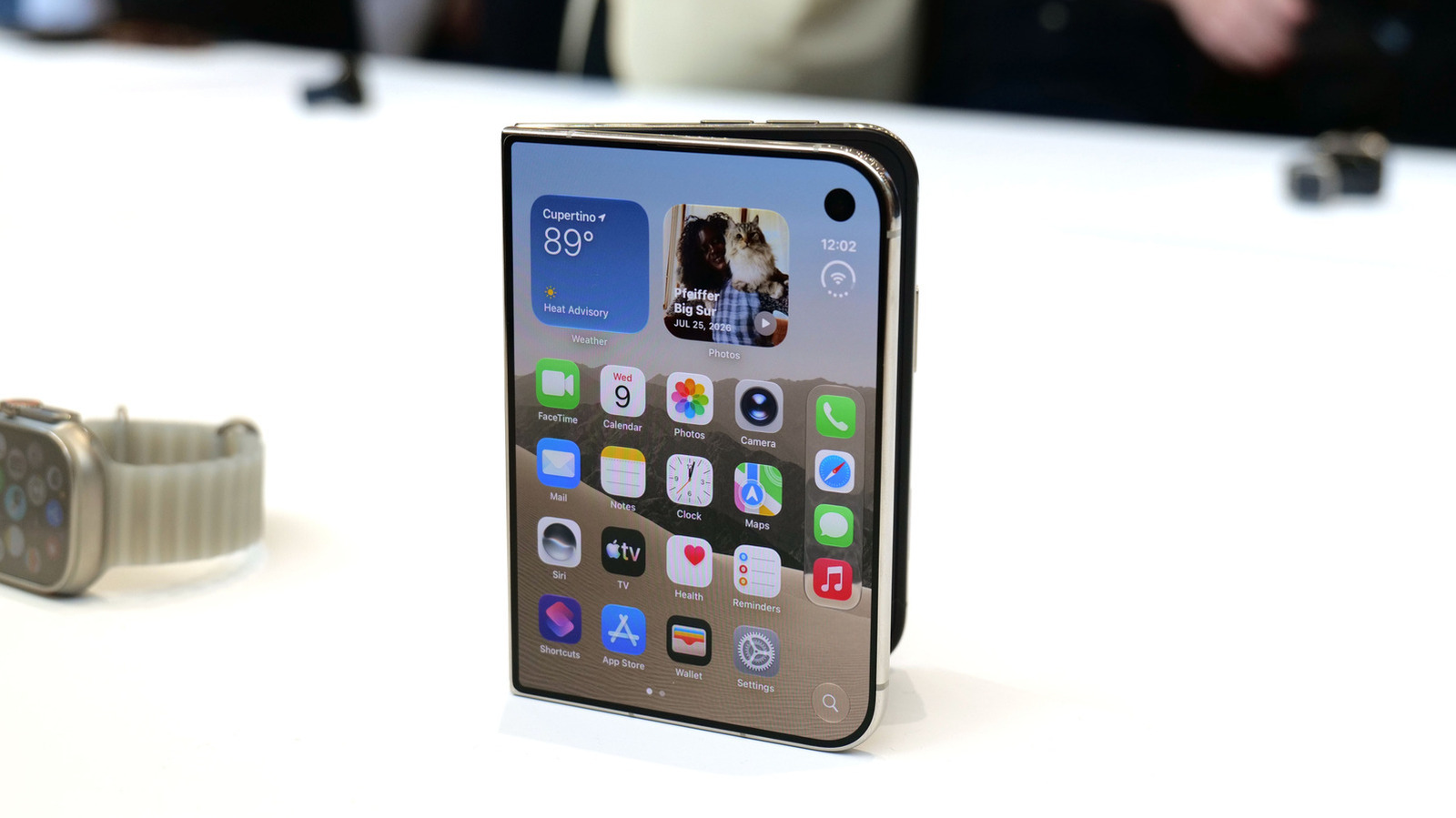
Apple iPhone Duo: A Daring Debut with Notable Compromises
Apple's highly anticipated iPhone Duo, priced at $2,000, has gone on pre-order. While hailed as "Apple's most exciting device in a decade" for its innovative foldable design and immersive display, it comes with significant drawbacks like the absence of FaceID and a premium camera.

Amazon Prime Video Launches AI-Powered Prime 360 for NBA Coverage
Amazon Prime Video is elevating its NBA coverage with the introduction of Prime 360, an AI-powered replay system offering immersive, 'fly through' views of the action. Kicking off its second season, Prime Video also adds Yahoo fantasy integration and gains exclusive Eastern Conference Finals rights, expanding its tech-driven sports broadcast. The new features aim to deliver a unique and interactive viewing experience for basketball fans.