
How to Unleash Your LAN's Hidden Power: 6 Offline Uses
Discover six ingenious ways to use your local network without the internet. Learn to power devices, wake PCs remotely, stream media, host game parties, transfer files at top speed, and even boot systems from your LAN, transforming your home tech experience.
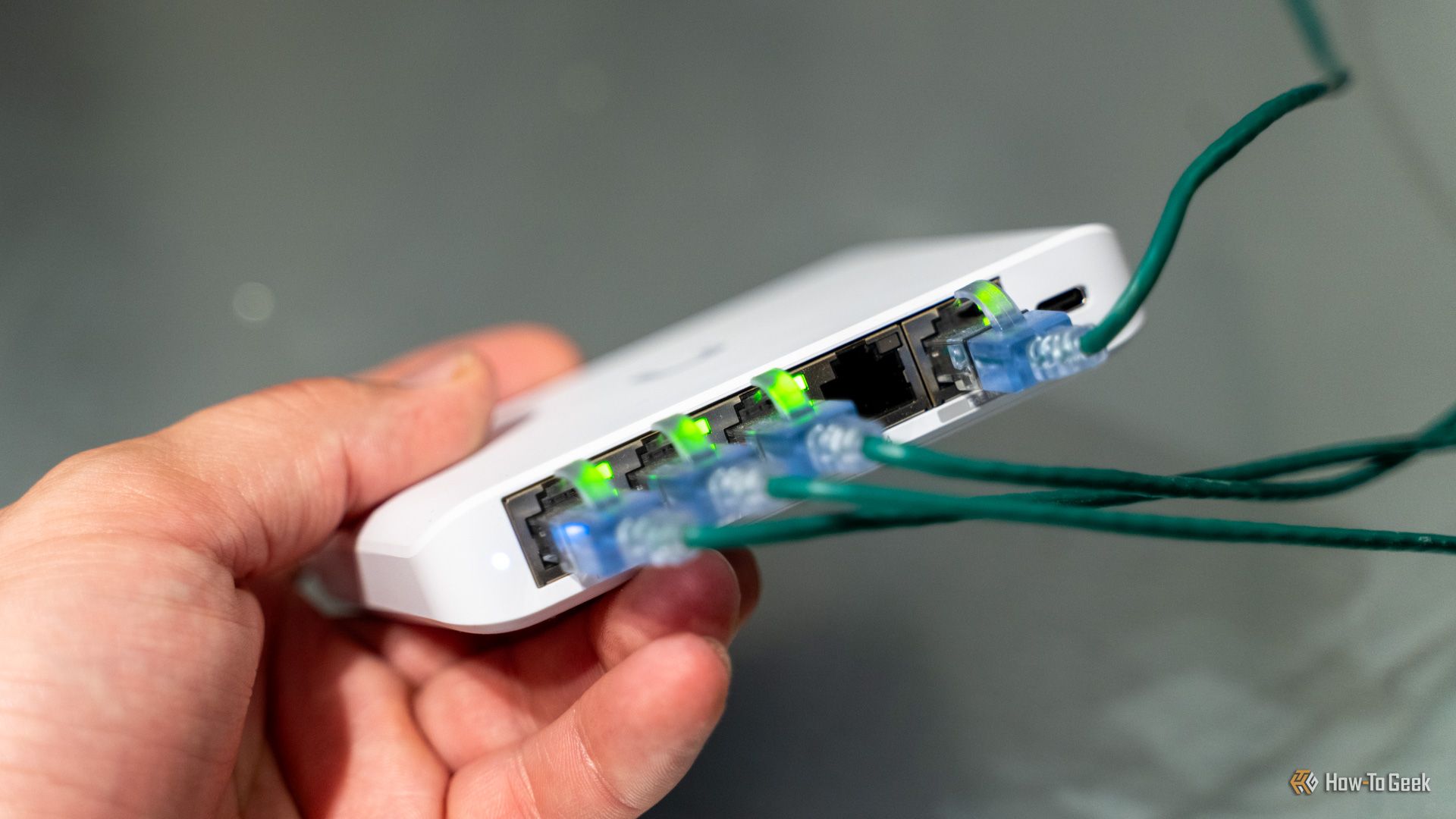
When you hear "LAN" (Local Area Network), your first thought might be connecting to the internet. But your LAN is far more versatile! It's a powerful, self-contained network linking all your home devices, completely independent of the internet. This opens up a world of possibilities for boosting your home tech without going online. Discover six ingenious ways to leverage your LAN, transforming how your devices interact, even offline.
1. Power Devices and Data with Power over Ethernet (PoE)
What you'll accomplish: Simplify wiring and centralize power by running data and power through one Ethernet cable.
Prerequisites:
- A PoE-compatible network switch.
- Devices designed to receive power via PoE (e.g., smart home gadgets, security cameras, or Raspberry Pi boards with a splitter).
- Ethernet cables.
Steps:
- Install a PoE Switch: Connect your PoE switch to your home network.
- Connect PoE-Compatible Devices: Use standard Ethernet cables to connect your PoE-enabled devices directly to the PoE switch. The switch will automatically deliver both data connectivity and power.
Tips & Best Practices:
- Reduce Cable Clutter: PoE is ideal for devices like security cameras or wireless access points, eliminating separate power adapters.
- Centralized Power: One backup power supply can keep all PoE-powered cameras running during an outage.
- Raspberry Pi Integration: Raspberry Pi users can find splitter accessories to power their boards directly from the network.
2. Wake Computers Remotely with Wake-on-LAN (WoL)
What you'll accomplish: Power on a computer on your local network remotely, without physical interaction.
Prerequisites:
- A computer with Wake-on-LAN (WoL) enabled in its operating system (e.g., Windows) or BIOS/UEFI settings.
- Another device on the same network with an app or utility capable of sending a WoL "magic packet."
Steps:
- Enable WoL: Access your computer's OS settings (or BIOS/UEFI) and enable the Wake-on-LAN feature.
- Send the Magic Packet: From another device on your network, use a compatible app or tool to send a specific "magic packet" to the target computer. This will signal the computer to power on.
Tips & Best Practices:
- Convenience: Conveniently access a home server or desktop from another device.
- Resource Saving: Save power by keeping a computer off, then activating it only when needed.
3. Transfer Massive Files Locally at Blazing Speeds
What you'll accomplish: Move large files between devices much faster than via the internet, saving bandwidth and time.
Prerequisites:
- A fast local network (e.g., Gigabit Ethernet or modern, fast Wi-Fi standards).
- Multiple computers or devices on your network.
- A Network Attached Storage (NAS) device, or network file sharing enabled on your PCs.
Steps:
- Ensure Fast LAN: Confirm your network hardware supports high speeds, such as Gigabit Ethernet or fast Wi-Fi.
- Set Up Network File Shares or NAS: Configure shared folders on your PCs or install a dedicated NAS device.
- Initiate Transfers: Drag and drop files between devices, directly accessing them over your high-speed LAN.
Tips & Best Practices:
- Save Internet Bandwidth: Gaming platforms like Steam can install games from other LAN computers, reducing internet downloads.
- Media Editing: Local transfers to/from a NAS significantly speed up workflows for large video/photo files.
- Backup Solutions: Use your fast LAN for quick, regular backups of important data.
4. Create Your Own Private Media Streaming Service (LANflix!)
What you'll accomplish: Host your personal media collection on your local network for private streaming across all devices, internet-free.
Prerequisites:
- A computer (PC, laptop, or compatible NAS) as your media server.
- Your own collection of digital media files.
- Media server software like Plex or Jellyfin.
- Other devices on your LAN (smart TVs, tablets, smartphones) with compatible client apps.
Steps:
- Set Up Your Media Server: Choose a computer or NAS to host your media library.
- Install Media Server Software: Download and install Plex or Jellyfin onto your server device.
- Add Your Media: Point the software to your media folders. It will organize content, fetch metadata, and prepare it for streaming.
- Access from Devices: Install the client app on your other devices and connect to your local media server.
Tips & Best Practices:
- Full Control: Enjoy media without internet reliance, subscriptions, or fluctuating online libraries.
- Enhanced Experience: Media server software handles user accounts, tracks viewing progress, and presents your library with rich metadata.
- Offline Entertainment: Perfect for entertainment during internet outages or for superior local network speeds.
5. Host Epic Multiplayer Game Sessions (LAN Parties!)
What you'll accomplish: Play multiplayer games directly on your local network with friends, no internet required.
Prerequisites:
- Multiple computers on the same local network.
- Classic multiplayer games that support local area network play.
- Friends who also enjoy gaming!
Steps:
- Choose Your Games: Select games known for robust LAN multiplayer support.
- Connect to the LAN: Ensure all participating computers are connected to the same local network (Ethernet or Wi-Fi).
- Set Up a Local Game: Within the game's multiplayer menu, choose "Local Network" or "LAN Play" to host or join a game.
Tips & Best Practices:
- Internet-Free Fun: Fantastic for gaming with friends when the internet is unavailable or for a private gaming experience.
- Nostalgia Trip: Revisit classic games that defined the LAN party era.
- Private Community: Ideal for creating a close-knit gaming environment with friends and family.
6. Boot Computers from the Network with PXE (Diskless Boot)
What you'll accomplish: Start computers without local storage by booting them directly from an operating system image on your local network.
Prerequisites:
- A server on your LAN configured to provide Preboot Execution Environment (PXE) services.
- Client computers with network cards that support PXE booting (most modern computers and single-board computers like Raspberry Pi).
- A boot image (e.g., a lightweight operating system) stored on your PXE server.
Steps:
- Set Up a PXE Server: Configure a computer/server on your LAN to host boot images and provide PXE services (DHCP and TFTP).
- Prepare Boot Images: Create or acquire OS images and place them on your PXE server.
- Configure Client Devices: Access the BIOS/UEFI settings of your client computer (e.g., Raspberry Pi) and set it to boot from the network (PXE).
- Boot from Network: The client device will connect to the PXE server, download the boot image, and start the OS directly from your LAN.
Tips & Best Practices:
- Centralized Management: Powerful for managing multiple devices; changes to the boot image on the server instantly apply to all client devices.
- Thin Clients: A "neat trick" for home lab enthusiasts, allowing diskless operation for low-power devices like Raspberry Pis.
As you can see, your home's Local Area Network is far more powerful than just an internet gateway. From streamlining power to hosting entertainment and booting computers remotely, these six methods are just the beginning. Exploring concepts like a 'homelab' can unlock even more potential from your existing router and devices, without extra subscriptions or external server reliance. Start transforming your home network today!
FAQ
Q: Do I need special hardware for all these LAN uses?
A: Many common devices support these features. However, some, like Power over Ethernet (PoE), require specific hardware like a PoE-compatible switch. For others, such as Wake-on-LAN or local media streaming, you primarily need software configuration and existing network devices.
Q: Will utilizing these LAN features slow down my internet connection?
A: No, these activities occur entirely on your local network and do not use your internet connection at all. In fact, by keeping tasks like large file transfers local, you free up your internet bandwidth for other uses.
Q: Is it safe to enable features like Wake-on-LAN?
A: Yes, generally. Wake-on-LAN typically only functions when your computer is on your local network. For most home users, the security risk is minimal, but it's always good practice to ensure your home network itself is secure with a strong password and updated firmware for your router.
Related articles

The Party's Back! Tales from '85 Unleashes Season 2 on Netflix
Stranger Things: Tales from '85, the animated spin-off, returns to Netflix on September 17th with 10 new episodes. Set between seasons 2 and 3 of the original live-action series, Season 2 sees The Party facing ghostly apparitions and strange creatures around Valentine's Day. While it received mixed reactions initially, it retains the 80s vibe and core characters.

Understanding the Anti-Woke Right's Challenge with Grand Theft Auto VI
Welcome to this guide on understanding the current cultural conversation surrounding the highly anticipated game, Grand Theft Auto VI. This resource is designed to help you navigate the specific challenges and

Chuwi UniBox AI495 Pro Review: A Mini AI Powerhouse
Chuwi's UniBox AI495 Pro review: A powerful mini workstation with 192GB RAM and an AMD Ryzen AI chip for local LLM processing, packed into a compact, Mac Pro-esque design.

Unions Level Up: How Collective Power is Reshaping Game Dev
The gaming industry is seeing a massive shift as unionization rises globally, securing vital worker protections, better pay, and AI safeguards. This collective movement is empowering developers and fundamentally changing workplace dynamics. It's a win for workers, and ultimately, for the games we play.

How to Quote Movies Accurately - Avoid Common Misquotes
Learn to identify and correct 10 frequently misquoted movie lines to impress your friends and become a true cinematic aficionado.
Unofficial Sony Headphone PC Apps: Ditch Your Phone, Take Control
Tired of Sony's mobile app? These unofficial, open-source PC tools like Sony Device Center and SonyBridge offer desktop control over your Sony headphones' ANC, EQ, and more. A convenient, albeit unofficial, solution for Windows, Linux, and Mac users looking to ditch their phone for audio adjustments.