
How to Transform Sources into Diverse Content with IvyCraft
Learn to efficiently transform PDFs, videos, and audio into infographics, videos, podcasts, and slides using IvyCraft's integrated AI workspace, streamlining your content creation process.

Tired of juggling multiple AI tools and design applications just to turn one piece of source material into various communication assets? IvyCraft offers an integrated AI workspace designed to streamline your content creation process. This guide will walk you through leveraging IvyCraft to efficiently transform raw information—like PDFs, videos, or audio files—into polished outputs such as infographics, videos, podcasts, and slides.
What You'll Accomplish
By following this guide, you will learn to:
- Upload and manage diverse source materials within IvyCraft's Source Library.
- Generate a variety of content formats, including infographics, short videos, comic strips, professional slides, and podcast scripts.
- Utilize IvyCraft's unique source traceability feature to verify facts and build trust in your AI-generated content.
- Streamline your workflow, reducing the need to switch between different applications for research, summarization, design, and repurposing.
Prerequisites
Before you begin, ensure you have the following:
- An IvyCraft Account: IvyCraft offers different pricing tiers (Basic, Pro, Max) based on your token usage and features needed. You can try IvyCraft for free to get started.
- Source Material: Prepare the documents, links, or files you wish to transform. This can include PDF reports, YouTube video URLs, audio memos, website links, or plain text documents.
- Content Goals: Have a general idea of what you want to create (e.g., "I need a slide deck from this research paper" or "I want an infographic summarizing this article").
IvyCraft's Core Workflow: Source-to-Screen Creation
IvyCraft moves beyond simple chat interfaces by providing a dedicated workspace that connects your source material directly to content generation. Here’s a step-by-step approach to using it:
Step 1: Set Up Your Project with the Source Library
Unlike traditional chatbots where you start with an empty prompt, IvyCraft begins with its Source Library. This acts as your central research folder.
-
Access the Source Library: Navigate to the Source Library section within your IvyCraft workspace.
-
Upload Your Materials: Upload or add your source materials. IvyCraft supports a wide range of inputs:
- Documents: PDFs, text files.
- Web Content: Paste URLs to articles or websites.
- Videos: Add YouTube video links.
- Audio: Upload audio files (e.g., recorded memos, lectures).
Why this matters: IvyCraft processes these materials first, retaining the context for all subsequent generations. This means you won't constantly have to remind the AI about your project's core information, making the workflow feel more grounded and efficient.
Step 2: Process Your Sources for AI Comprehension
Once your materials are uploaded, IvyCraft automatically reads and processes them. This behind-the-scenes step is crucial for the quality of your outputs.
-
Automatic Analysis: IvyCraft's AI analyzes your uploaded content, making sense of dense research papers, spoken lectures, or informal internal communications.
Benefit: This comprehensive understanding allows IvyCraft to generate more coherent and relevant content across various formats, as demonstrated by its ability to handle complex academic PDFs or lengthy investor lectures during testing.
Step 3: Generate Diverse Content Assets
This is where IvyCraft truly shines, transforming your processed sources into a variety of communication formats. You can generate multiple assets from the same source material.
3.1 Create Engaging AI Infographics
Infographics are a powerful way to visualize complex data and ideas. IvyCraft excels at turning textual information into visual flows.
- Select Content: Within your source material, highlight or select the specific section you wish to visualize.
- Generate Infographic: Choose the "Generate Infographic" option.
- Review and Refine: IvyCraft will generate an initial infographic, often grouping related ideas, separating causes from outcomes, or creating a timeline-style flow. While the logic is usually sound, you may need to make minor adjustments to spacing and wording for a polished look. Shorter, cleaner source sections often yield the best first drafts.
3.2 Produce Dynamic AI Videos and Comics
Repurpose your content for different audiences or platforms with short videos and educational comics.
-
Choose Output Type: Select a source section, then opt to "Generate Video" or "Generate Comic."
-
Video Generation: For videos, IvyCraft creates short explainer videos or "key takeaways" clips. The pacing and script are acceptable for internal, learning, or social media content. The voiceover quality is generally usable.
-
Comic Generation: Comics are particularly effective for educational content, converting abstract concepts into easily digestible visual sequences.
Tip: IvyCraft's video feature is best suited for short loops, explainers, and social clips rather than long, narrative productions. For highly polished brand campaigns, consider using IvyCraft for the initial draft and then applying professional editing.
3.3 Build Professional AI-Powered Slides
Create presentation decks that are grounded in your actual documents.
-
Initiate Slide Generation: Select your source material and choose the "Generate Slides" option.
-
Structured Content: IvyCraft automatically identifies the argument structure of your document, generating slides that logically progress from problem to solution, market forces, or investment implications.
Advantage: Unlike tools that generate generic slides from a simple prompt, IvyCraft ensures your deck is firmly rooted in your uploaded source, making it a safer choice for presentations based on specific research or reports.
-
Post-Generation Editing: While IvyCraft provides a solid first draft, most decks benefit from light manual editing to fine-tune wording, spacing, and visual emphasis before presentation.
3.4 Draft AI Podcast Scripts
Convert lengthy written or spoken content into an engaging audio format.
-
Select Source: Choose a comprehensive source like a long PDF report or an audio memo.
-
Request Script: Prompt IvyCraft to "Generate Podcast Script" from the selected material.
Benefit: This feature is excellent for transforming dense reports or research into more accessible, easier-to-listen podcast-style content.
Step 4: Verify and Refine with Source Traceability
One of IvyCraft's most critical features is its ability to trace claims back to their origin, significantly reducing the risk of AI hallucination.
-
Click to Trace: When reviewing any generated output (infographic, slide, podcast script, etc.), you can click on specific claims or pieces of information.
-
Instant Verification: IvyCraft will instantly jump back to the exact section in your original source material where that information came from.
Benefit: This feature eliminates the anxiety often associated with AI-generated content, making fact-checking much faster and more reliable. For professional users, this builds significant trust in the platform's outputs.
Troubleshooting Tips
- Crowded Visuals in Infographics/Slides: If your initial infographic or slide deck appears too dense, try generating it from a smaller, more focused section of your source material. You can also manually adjust layout, spacing, and text after generation.
- Video Length Limitations: Remember that IvyCraft's video generation is best for short clips (under a few minutes) and explainers. For longer, highly produced narrative videos, use IvyCraft for initial script and visual concepts, then use dedicated video editing software for final production.
- Adjusting to the Workspace Model: If you're accustomed to starting with an empty chat prompt, it might take a moment to adjust to IvyCraft's "source-first" approach. Always begin by uploading your core documents into the Source Library to maximize the tool's effectiveness.
Tips and Best Practices
- Curate Your Sources: While IvyCraft handles diverse inputs, providing clearer, well-structured source materials (e.g., edited audio, well-formatted PDFs) can lead to higher quality initial generations.
- Iterate and Refine: View IvyCraft's outputs as powerful first drafts. Use the platform's editing tools and source traceability to fine-tune and polish your content to meet your exact specifications.
- Strategic Repurposing: Maximize your efforts by planning how one core piece of content can be transformed into multiple formats. For example, a single webinar can become a summary infographic, a short social video, a key takeaway slide deck, and a podcast script—all within IvyCraft.
Next Steps and Related Topics
Once you're proficient in generating various content types, explore IvyCraft's potential for advanced content strategies. Consider how you can integrate these AI-generated assets into your marketing funnels, educational curricula, or internal communication channels. Experiment with combining different sources to create comprehensive cross-format content, pushing the boundaries of what you can accomplish with a single AI workspace.
FAQ
Q: Is IvyCraft suitable for academic research?
A: Yes, IvyCraft is particularly useful for academic research because its source traceability feature allows you to verify claims in generated summaries, infographics, and slides by linking them directly back to your original academic papers or reports. This helps maintain accuracy and trust in your work.
Q: Can I generate a video that is several minutes long with IvyCraft?
A: IvyCraft's AI video feature is currently optimized for shorter content like explainer videos, key takeaway summaries, and social media clips. While it can generate scripts and visuals, long, complex narrative videos might still require additional manual editing or specialized video production tools for the best results.
Q: How does IvyCraft help prevent AI "hallucinations"?
A: IvyCraft addresses hallucination risk by grounding all its outputs in your uploaded source materials. Its unique source traceability feature allows you to click on any generated claim and immediately see its origin in your original document, making fact-checking much more efficient and reliable.
Related articles

DJI Solo Video Setups: Smart Choices for Lone Creators
This review delves into DJI's recommended solo video setups, highlighting the Osmo Pocket 3 Creator Combo as a top pick for its integrated camera, gimbal, and mic. It also covers stabilizers like the Osmo Mobile 8 and RS 4, and the DJI Mic Mini series for enhanced audio, providing honest pros, cons, and clear buying advice.

in-depth: Chicago-Area Cops Helped HSI Spy on Minnesota Anti-ICE
Chicago-area law enforcement, including local police and HSI agents, conducted undercover surveillance on Minnesota anti-ICE activists at an April 2, 2022, talk in Chicago. This operation was part of a federal conspiracy probe into 15 Minnesota activists facing felony charges related to immigration enforcement resistance. Civil liberties advocates have condemned the surveillance as a troubling intrusion into protected political activity.

TCG Pocket Responds: A Much-Needed Pace Shift for Pokémon Fans
Pokémon TCG Pocket is rolling out a major update for its second anniversary, primarily addressing player concerns about overwhelming content releases by shifting to a six-week set schedule. This aims to curb player decline and improve overall engagement by giving trainers more time to collect and strategize. The update also adds new collection methods, improved deck-building features, and enhanced trading functionality.

Ditch Merge & Center: The Better Way to Align Text in Excel
Learn to use Excel's "Center Across Selection" to align text across cells without merging, avoiding common data manipulation issues. This guide provides steps to utilize this newly accessible feature and add it to your Quick Access Toolbar.
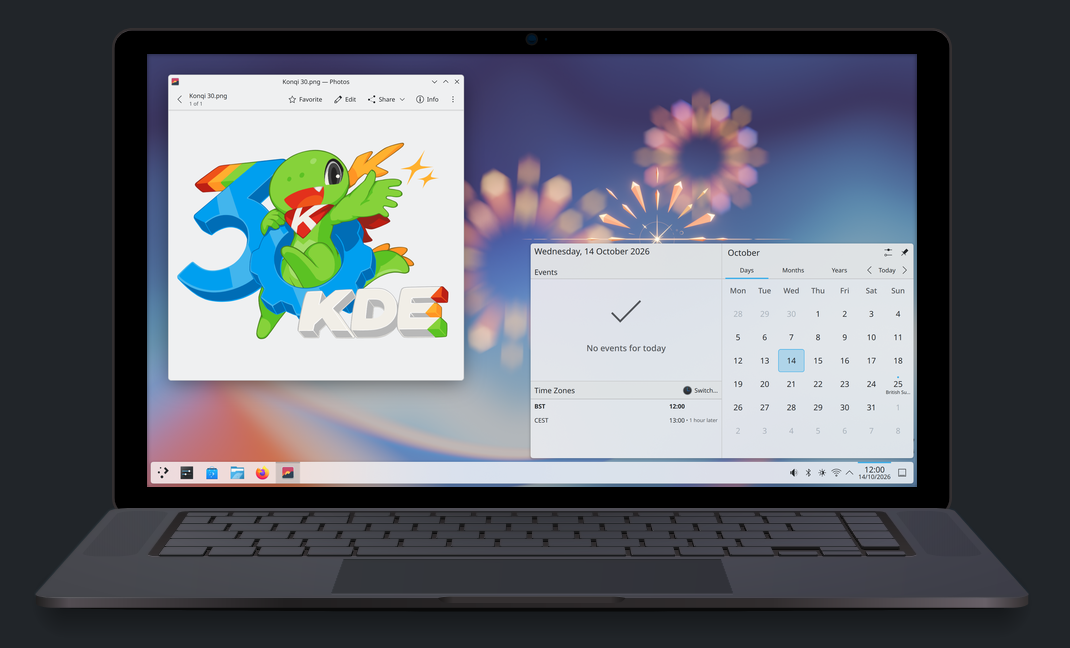
KDE Plasma 6.8: A Future-Focused 30th Anniversary Update
Quick Verdict KDE Plasma 6.8, arriving as the "30th Anniversary Edition," is a pivotal release that decisively pushes the desktop environment into the future. With a definitive farewell to native X11 sessions and a

Stop Android Auto Battery Drain: Essential Features to Disable and
Android Auto offers unparalleled convenience, bringing your phone's most useful features directly to your car's display. From navigation and calls to messages and music, it keeps you connected without distracting you