
How to Speed Up Your Mesh Wi-Fi with Wired Backhaul
Is your mesh Wi-Fi network extending coverage but falling short on speed? Many users find that while mesh systems blanket their homes with a signal, the actual download and upload speeds can be surprisingly slow,
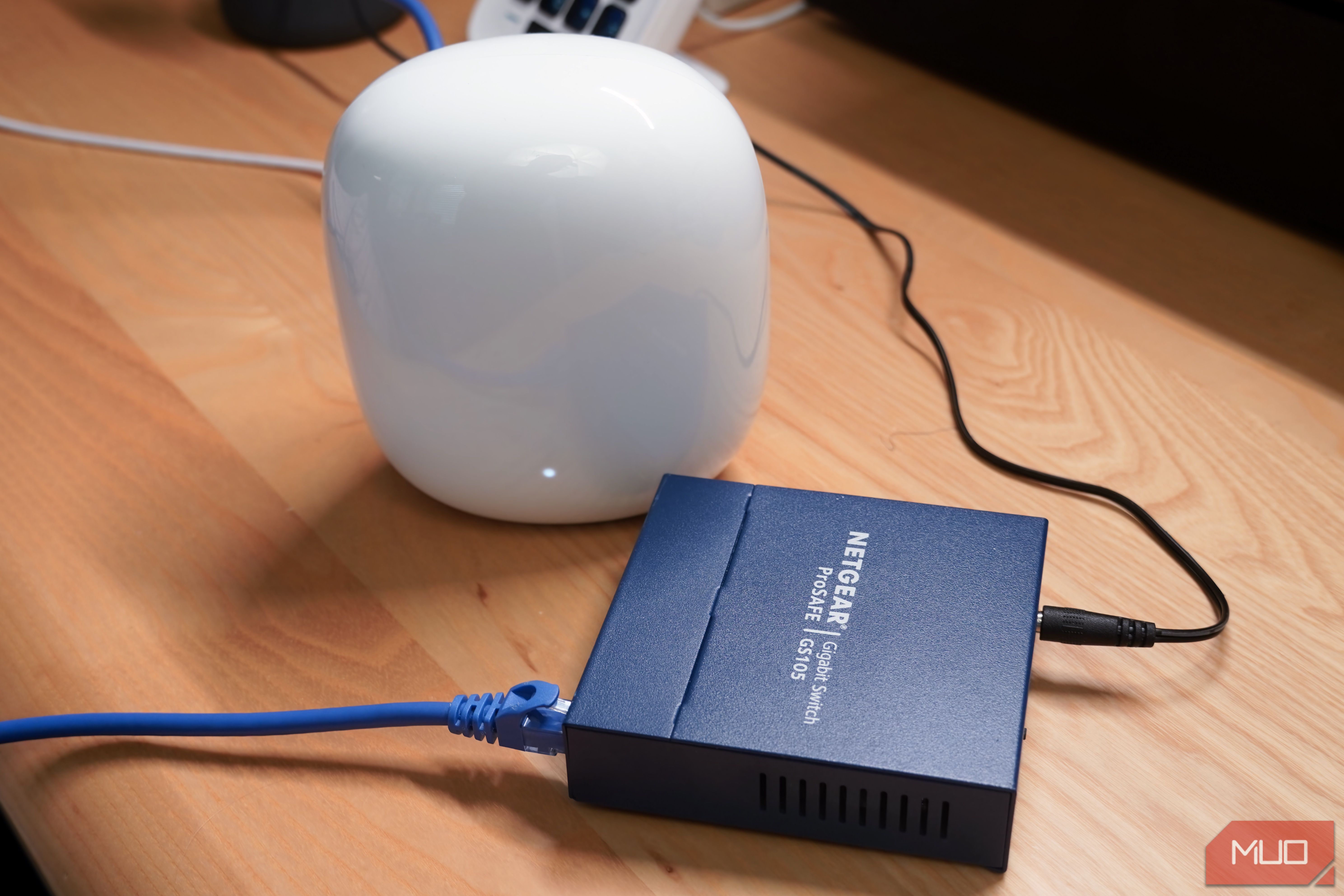
Is your mesh Wi-Fi network extending coverage but falling short on speed? Many users find that while mesh systems blanket their homes with a signal, the actual download and upload speeds can be surprisingly slow, especially on devices connected to satellite nodes. This guide will show you how to significantly boost your mesh Wi-Fi performance by transitioning from a fully wireless setup to a more robust, wired backhaul configuration. You'll learn how to connect your mesh nodes using Ethernet cables, effectively eliminating common wireless bottlenecks and enjoying faster, more reliable internet throughout your home.
Why Your Mesh Wi-Fi Might Be Slow
Mesh Wi-Fi systems are designed to extend your network's reach, linking a main router to satellite nodes wirelessly. This wireless connection between nodes is called "wireless backhaul." While convenient, it comes with inherent limitations:
- Speed Reduction: Every time data hops wirelessly between your main router and a satellite node, you can experience a significant speed reduction, often 50% or more. These speed hits compound with each additional node in the chain.
- Half-Duplex Operation: Most consumer mesh Wi-Fi systems operate in half-duplex mode, meaning a node can either send or receive data, but not both simultaneously. This alternating communication further contributes to the halved speeds you might experience.
- Interference: Wireless signals are susceptible to interference from other devices and physical obstructions, which can degrade performance.
By switching to "wired backhaul" – connecting your mesh nodes with Ethernet cables – you create a direct, dedicated data link that bypasses these wireless drawbacks, leading to much faster and more stable speeds.
What You'll Need
Before you begin, gather the following items:
- Existing Mesh Wi-Fi System: Ensure your system supports wired backhaul. Most modern consumer mesh systems do, but it's always best to check your manufacturer's documentation or user manual.
- Ethernet Cables: You'll need enough cables to connect each satellite node directly to your main router or an unmanaged switch. Choose cables of appropriate length and ensure they are Cat5e or Cat6 for optimal Gigabit speeds.
- Unmanaged Gigabit Ethernet Switch (Optional but Recommended): If your main mesh router has only one or two Ethernet ports, an unmanaged switch is essential. This allows you to connect multiple satellite nodes (and potentially other wired devices) to a single port on your main router while keeping network management centralized.
- Your Modem: The device that connects your home to your internet service provider.
Step-by-Step Guide to Wired Backhaul
Follow these steps to transform your mesh Wi-Fi performance:
Step 1: Verify Wired Backhaul Compatibility
Before purchasing cables, confirm that your specific mesh Wi-Fi system supports Ethernet for backhaul. Refer to your system's user manual, the manufacturer's website, or support documents. Search for terms like "wired backhaul," "Ethernet backhaul," or "how to use Ethernet with [Your Mesh System Name] nodes."
Step 2: Plan Your Cable Runs
Consider the physical layout of your home. You'll need to run an Ethernet cable from your main mesh router (or the unmanaged switch connected to it) to each satellite node. Think about the most practical and discreet routes for these cables. This might involve running them along baseboards, through conduits, or under rugs. While it's the most challenging part, careful planning prevents a mess.
Step 3: Connect Your Modem to the Main Mesh Router
Ensure your primary mesh router is powered on and connected to your modem via an Ethernet cable. This is the internet input for your entire network.
Step 4: Integrate the Unmanaged Switch (If Using)
If you're using an unmanaged switch (highly recommended for systems like Google Nest Wi-Fi Pro which have limited ports):
- Connect one Ethernet cable from an available LAN port on your main mesh router to any port on your unmanaged switch.
- Power on the unmanaged switch.
Using an unmanaged switch allows your main mesh router to continue handling all network management functions, ensuring that your settings and preferences seamlessly extend to every connected node.
Step 5: Connect Satellite Mesh Nodes
Now, connect each of your satellite mesh nodes using Ethernet cables:
- For each satellite node, plug one end of an Ethernet cable into its available Ethernet port.
- Plug the other end of that cable into an available port on your unmanaged switch (if you're using one) or directly into a free LAN port on your main mesh router.
- Power on each satellite node.
Your mesh system should automatically detect the wired connection and switch to wired backhaul mode. There's usually no need for manual configuration in the app.
Step 6: Verify Connections and Test Speeds
Once all nodes are connected and powered on:
- Check your mesh system's app or web interface to confirm that the nodes are online and recognized as being connected via Ethernet (some apps will indicate this status).
- Perform speed tests on various devices, especially those connected to satellite nodes furthest from the main router. You should observe significantly higher wireless download speeds, potentially nearing your internet service provider's maximum, even from these previously slower areas.
For example, one user saw speeds jump from half their network's Gigabit speed (around 500Mbps) to over 900Mbps on devices connected to satellite nodes after making this change.
Troubleshooting Tips
- No Speed Improvement: Double-check all Ethernet cable connections. Ensure cables are securely seated and that you're using Gigabit-compatible cables and an unmanaged Gigabit switch. Sometimes a simple restart of the entire mesh system (main router, switch, then nodes) can help.
- Nodes Not Connecting: If a node isn't coming online or seems stuck, try connecting it to a different port on the switch or main router, or using a different Ethernet cable. Consult your mesh system's troubleshooting guide for specific connection issues.
- Cable Management Challenges: If running cables is proving too difficult or unsightly, consider prioritizing which nodes absolutely need a wired connection. You don't have to wire every single node if that's not feasible. You might also explore flat Ethernet cables that are easier to hide.
Best Practices and Next Steps
- Prioritize Critical Areas: If wiring your entire home is daunting, start by wiring the satellite nodes in areas where you need the most speed and reliability (e.g., home offices, gaming rooms, media centers).
- Consider Future Expansion: If you're running cables, think about future needs. Perhaps run extra cables or plan for a larger switch if you anticipate adding more wired devices or nodes.
- Wire Other Devices: Now that you have a wired network foundation, consider directly connecting high-bandwidth devices like PCs, smart TVs, and gaming consoles to the unmanaged switch or any available Ethernet ports on your mesh nodes for the best possible performance.
By making this shift to wired backhaul, you're embracing a robust solution that eliminates the speed penalties of wireless connections, ensuring your mesh Wi-Fi delivers the fast, reliable internet experience it was always meant to.
FAQ
Q: What is "backhaul" in a mesh Wi-Fi system?
A: Backhaul refers to the connection link between your main mesh router and its satellite nodes. It can be either wireless (using Wi-Fi) or wired (using Ethernet cables).
Q: Do all mesh Wi-Fi systems support wired backhaul?
A: Most modern consumer mesh systems offer wired backhaul as an option. However, it's crucial to check your specific model's user manual or the manufacturer's website to confirm compatibility before you start making changes.
Q: Will using wired backhaul completely eliminate all Wi-Fi issues?
A: Wired backhaul significantly improves the speed and stability of the connection between your mesh nodes and your main router. This, in turn, boosts the wireless performance for devices connecting to those nodes. However, proper placement of your satellite nodes and minimizing interference for your end devices (phones, laptops) are still important for optimal overall Wi-Fi performance.
Related articles

Ditch Merge & Center: The Better Way to Align Text in Excel
Learn to use Excel's "Center Across Selection" to align text across cells without merging, avoiding common data manipulation issues. This guide provides steps to utilize this newly accessible feature and add it to your Quick Access Toolbar.

Ars Technica's Rocket Report: Your Essential Space Industry Briefing
Quick Verdict Ars Technica's Rocket Report, presented by veteran space reporter Stephen Clark, offers an invaluable and meticulously organized weekly (or similar frequency, implied by "Edition 9.15") digest of the most
%20102026%20top%20art%20SOURCE%20Govee.jpg)
in-depth: The Best Permanent Outdoor Lights (2026): Govee, Eufy
WIRED, a leading voice in technology journalism, has just released its updated guide for 2026 on the best permanent outdoor lights, spotlighting top contenders Govee, Eufy, and Cync. These innovative eave lights are

Stop Android Auto Battery Drain: Essential Features to Disable and
Android Auto offers unparalleled convenience, bringing your phone's most useful features directly to your car's display. From navigation and calls to messages and music, it keeps you connected without distracting you

SpaceX Starlink: Military Drone Service Hit by Unannounced Limits
Quick Verdict SpaceX's Starlink service, particularly the military-grade Starshield terminals, has experienced a significant and unannounced performance reduction for Ukraine's high-speed military drones. While

Turn Your Android Phone into a Powerful Desktop Replacement
Learn how to transform your Android phone into a full-fledged desktop computer using external displays and accessories, providing a cost-effective and integrated alternative to new Googlebooks.